The new Portal provides a range of search and filtering tools to help you quickly locate sites, buildings, assessments, and actions.
These tools can significantly reduce the time spent navigating large portfolios and help you focus on the information most relevant to your role.
Searching for Buildings
The Risk Map allows you to locate specific buildings using the search field.
To search for a building:
- Open the Risk Map.
- Enter part of the building name into the search field.
- Matching buildings will be displayed as you type.
- Select the required building to view its details and associated assessments.
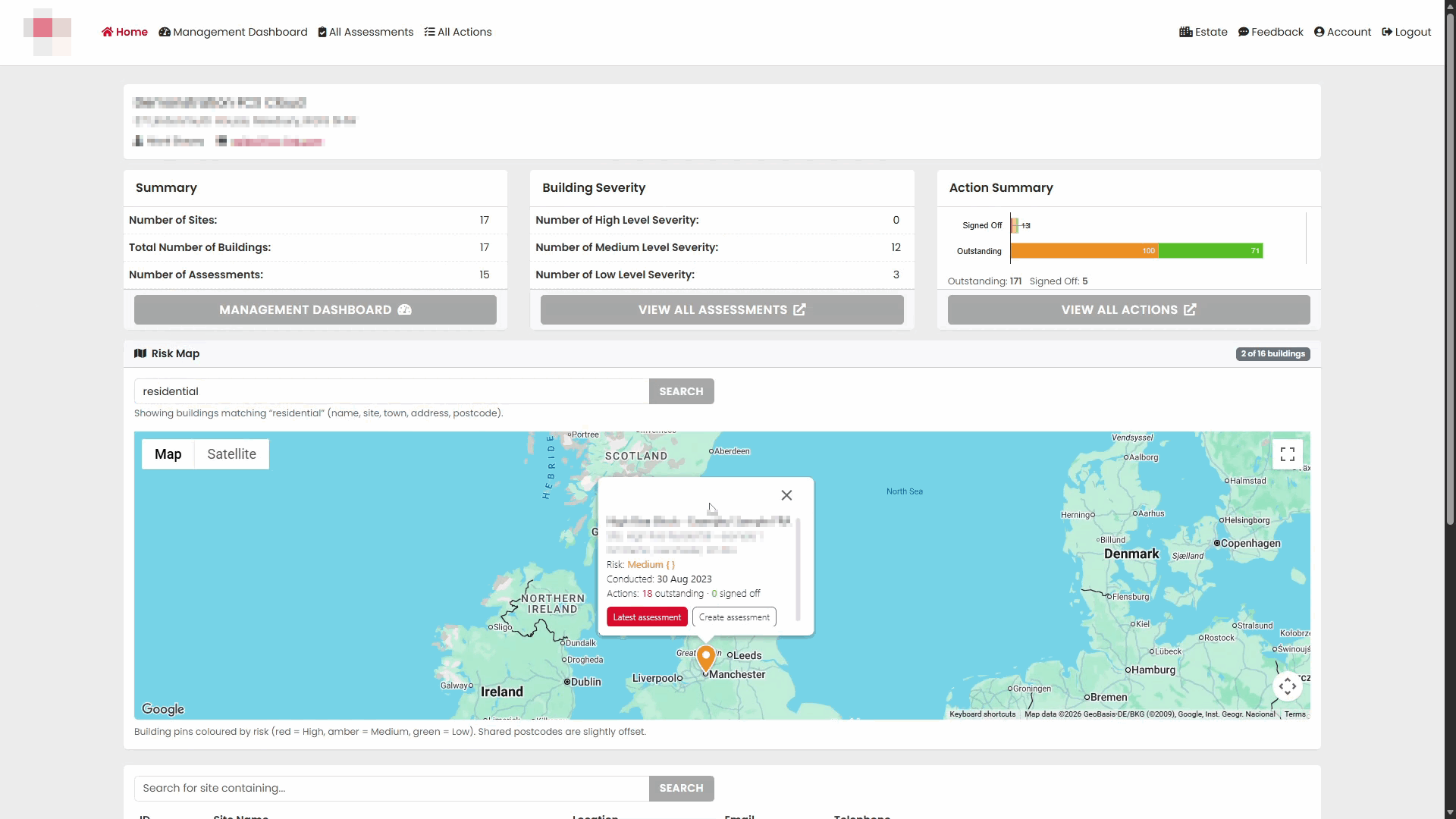
Filtered building results
The search feature narrows the displayed results to buildings matching the entered keyword.
Opening a building record
Select a building from the results to access the building's information and related assessments.
Searching for Sites
If you need to locate a specific site, you can use the site search function.
To search for a site:
- Navigate to the site listing section.
- Enter a site name or keyword in the search field.
- The results list will automatically update.
Viewing matching sites
Only sites that match the search criteria will be displayed.
Opening a site
Select a site from the results list to view its buildings and associated assessments.
Searching for Assessments
The assessment search tool helps you find assessments using keywords such as assessment numbers, site names, building names, or other relevant information.
To search for an assessment:
- Open All Assessments.
2. Enter a keyword in the search field.
3. Matching assessments will be displayed automatically.
Clearing a search
Remove the search term to return to the full assessment list.
Filtering Assessments by Site
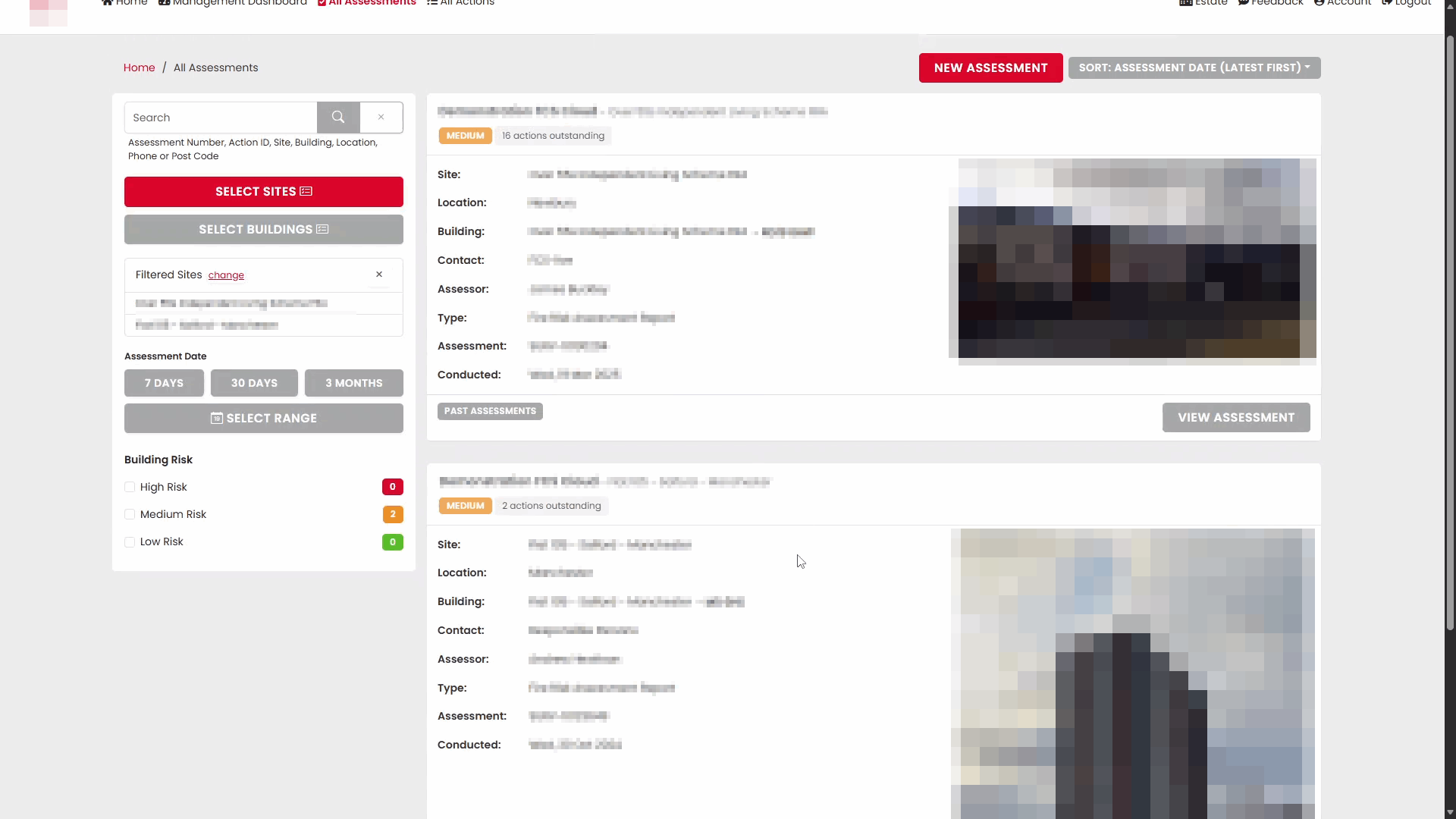
When working with large numbers of assessments, filtering by site can help narrow the results.
To filter by site:
- Open All Assessments.
- Select Select Sites.
- Choose one or more sites.
- Apply the selection.
Selecting sites
Choose the required site or sites from the available list.
Filtered assessment results
Only assessments associated with the selected sites will be displayed.
Filtering Assessments by Building
Assessments can also be filtered to show only a specific building.
To filter by building:
Select Select Buildings.
Building selection
Select the building you wish to review.
Filtered results
The assessment list updates to display only assessments from the selected building.
Filtering Assessments by Date
Date filters are useful when reviewing recent assessments.
Available date filters
- Last 7 Days
- Last 30 Days
- Last 3 Months
- Custom Date Range
Last 30 Days
Displays assessments completed within the previous 30 days.
Last 3 Months
Displays assessments completed within the previous three months.
Custom date range
Choose specific start and end dates to create a custom filter.
Filtering Assessments by Building Risk
You can refine results based on the building's calculated risk level.
Available risk filters
- High Risk
- Medium Risk
- Low Risk
Filtered results
The assessment list updates automatically based on the selected risk level.
Searching for Actions
The action search function helps locate recommendations, observations, or actions raised during fire risk assessments.
To search for an action:
- Open All Actions.
- Enter a keyword in the search field.
- Matching actions are displayed automatically.
Entering keywords
Searches can be performed using:
- Assessment numbers
- Site names
- Building names
- Questions
- Observations
- Recommendations
Reviewing search results
The results list updates as matching actions are found.
Clearing the search
Remove the search term to restore the full action list.
Filtering Actions by Site or Building
Location filters allow you to focus on actions for a particular estate, site, or building.
Filtering by site
- Select Select Sites.
- Choose one or more sites.
- Apply the filter.
Filtering by building
- Select Select Buildings.
- Choose the required building.
- Apply the filter.
Filtering Actions by Due Date
Actions can be filtered according to their due date.
Available options
- 7 Days
- 30 Days
- 3 Months
- Custom Range
Custom date selection
Choose specific dates to identify actions due within a defined period.
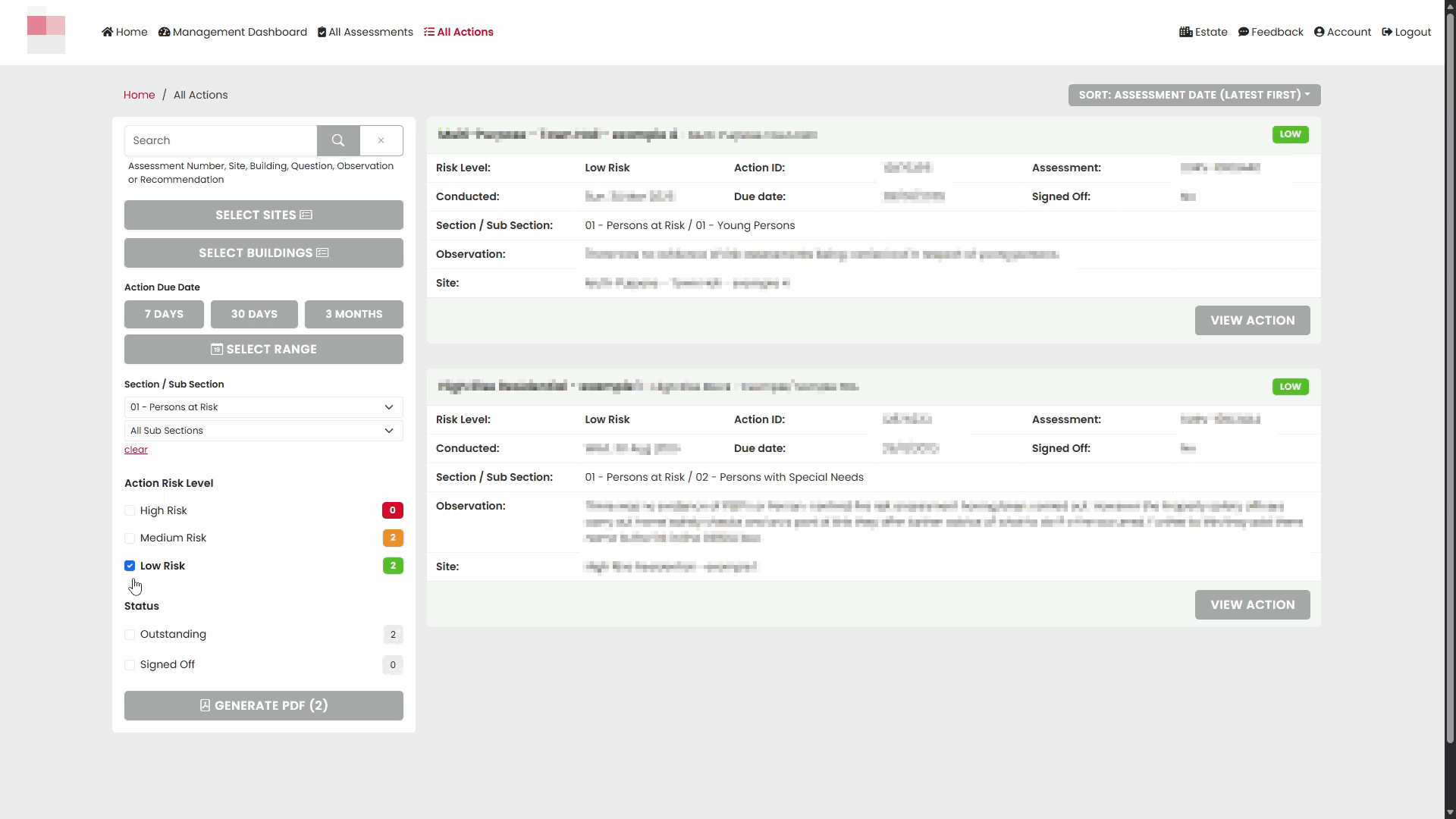
Filtering Actions by Section
Actions can be filtered to show only recommendations from a particular assessment section.
To filter by section:
- Select a section from the Section / Sub Section list.
- Optionally select a related sub-section.
- Review the filtered results.
Section filtering results
The action list updates based on the selected assessment section.
Filtering Actions by Risk Level
Actions can be filtered according to their assigned risk level.
Available risk levels
- High Risk
- Medium Risk
- Low Risk
Risk-based results
Selecting a risk level displays only actions matching that category.
Filtering Actions by Status
Status filters help identify outstanding work or completed actions.
Available status options
- Outstanding
- Signed Off
Using Multiple Filters
Filters can be combined to find highly specific information.
For example, you can filter actions by:
- Site
- Building
- Due Date
- Risk Level
- Status
Combining filters allows you to quickly identify the actions most relevant to your current review or validation activity.
Tip
Use filtering before exporting reports or reviewing actions. Applying filters first makes it easier to focus on the information you need and reduces the amount of data displayed on screen.
Was this article helpful?
That’s Great!
Thank you for your feedback
Sorry! We couldn't be helpful
Thank you for your feedback
Feedback sent
We appreciate your effort and will try to fix the article