Overview
The All Assessments area allows you to search for assessments across the system and apply filters to help locate specific records.
Use this area when:
- An assessment is not visible in your Workload.
- You need to locate a specific assessment.
- You want to find assessments in a particular status.
- You need to review historic assessments.
Opening All Assessments
- Select All Assessments from the navigation menu.
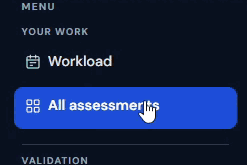
The All Assessments screen displays a searchable list of assessments.
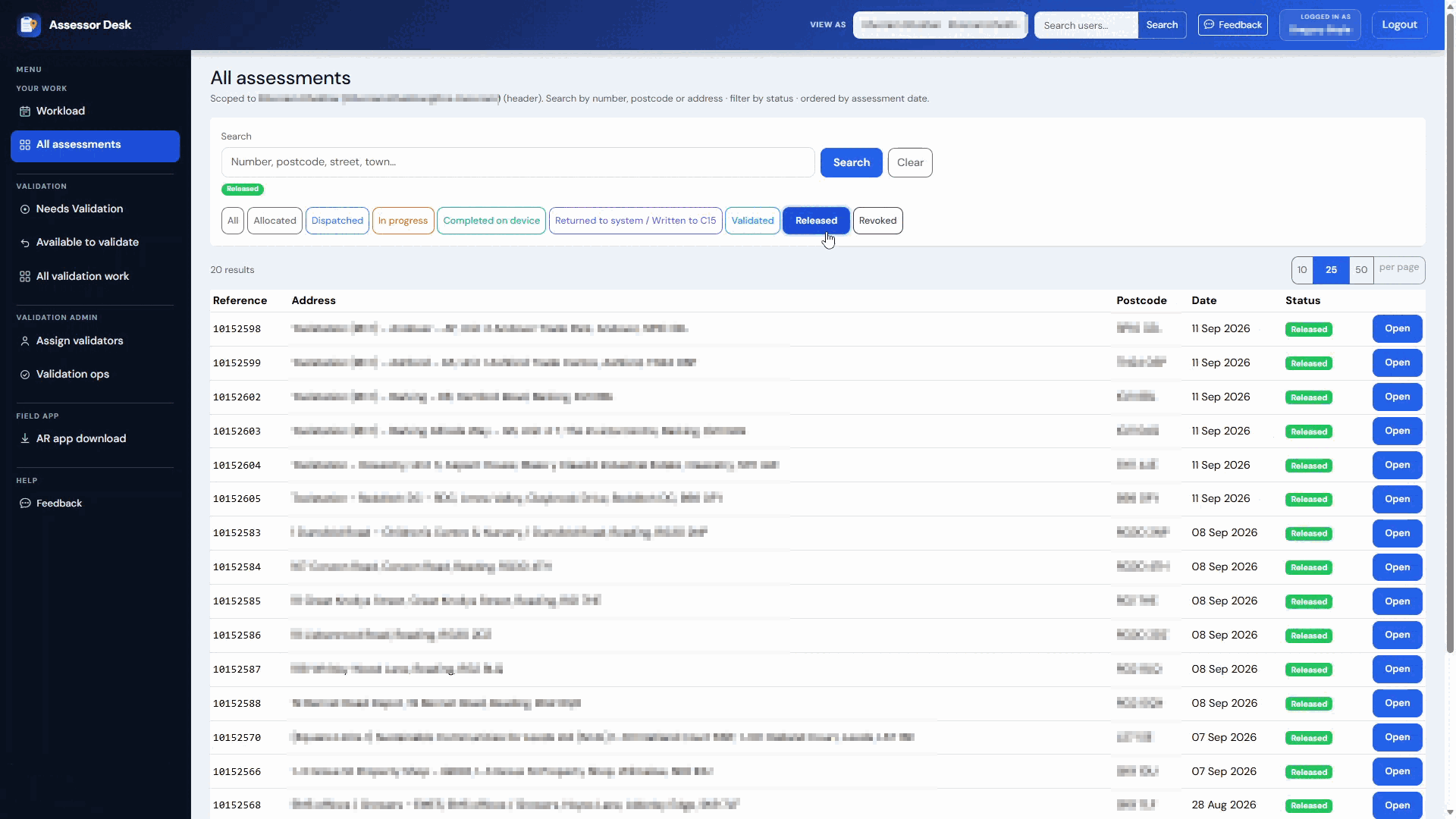
Understanding the Search Screen
The All Assessments page provides search and filtering tools to help you locate assessments.
Information displayed may include:
- Assessment reference number
- Building name
- Customer name
- Assessment status
- Assessor
- Visit date
- Workflow stage
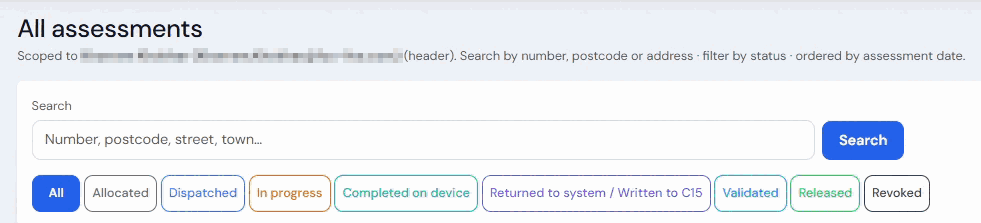
Searching for an Assessment
Use the search box to locate a specific assessment.
You can search using information such as:
- Assessment reference number
- Postcode
- Street name
- Town
- Enter your search criteria.
- Select Search.
- Matching assessments are displayed.
Filtering by Status
The status filter allows you to view assessments in specific stages of the workflow.
Available statuses may include:
- Allocated
- Dispatched
- In Progress
- Completed on Device
- Returned to System
- Written to C15
- Validated
- Released
- Revoked
- Select the required status filter.
- The results update to show matching assessments.
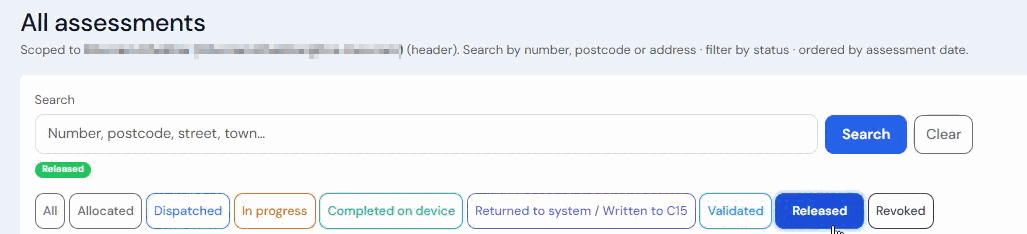
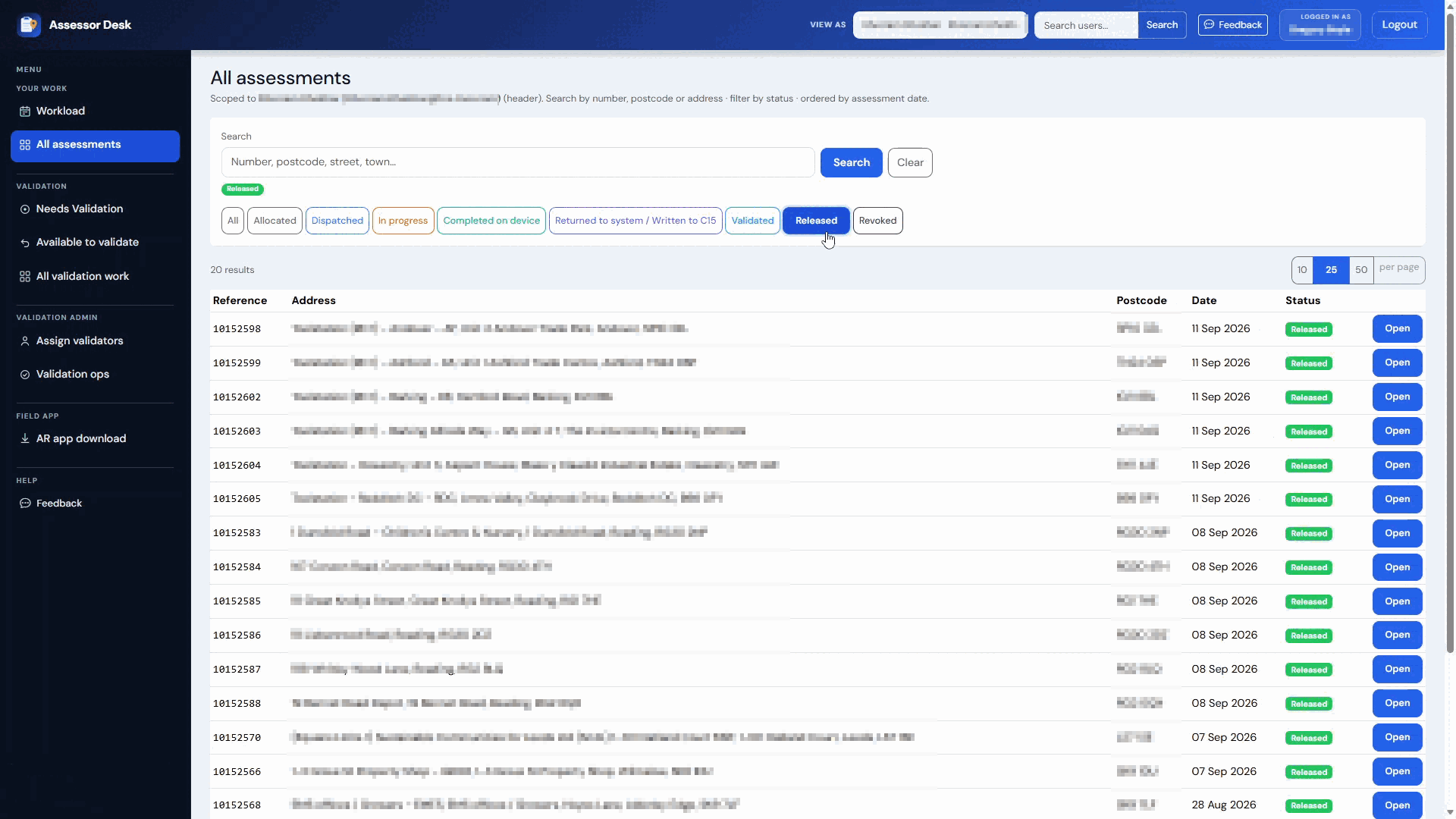
If you are unsure what a status means, refer to the Understanding Assessment Statuses guide.
Clearing Filters
To return to a full assessment list:
- Clear the search criteria.
- Reset any applied filters.
- Run the search again if required.
Understanding Search Results
Each row in the results list represents an assessment.
The list provides a quick overview of key information including:
- Assessment reference
- Building
- Customer
- Status
- Assessor
- Workflow information
This allows you to quickly identify the correct assessment.
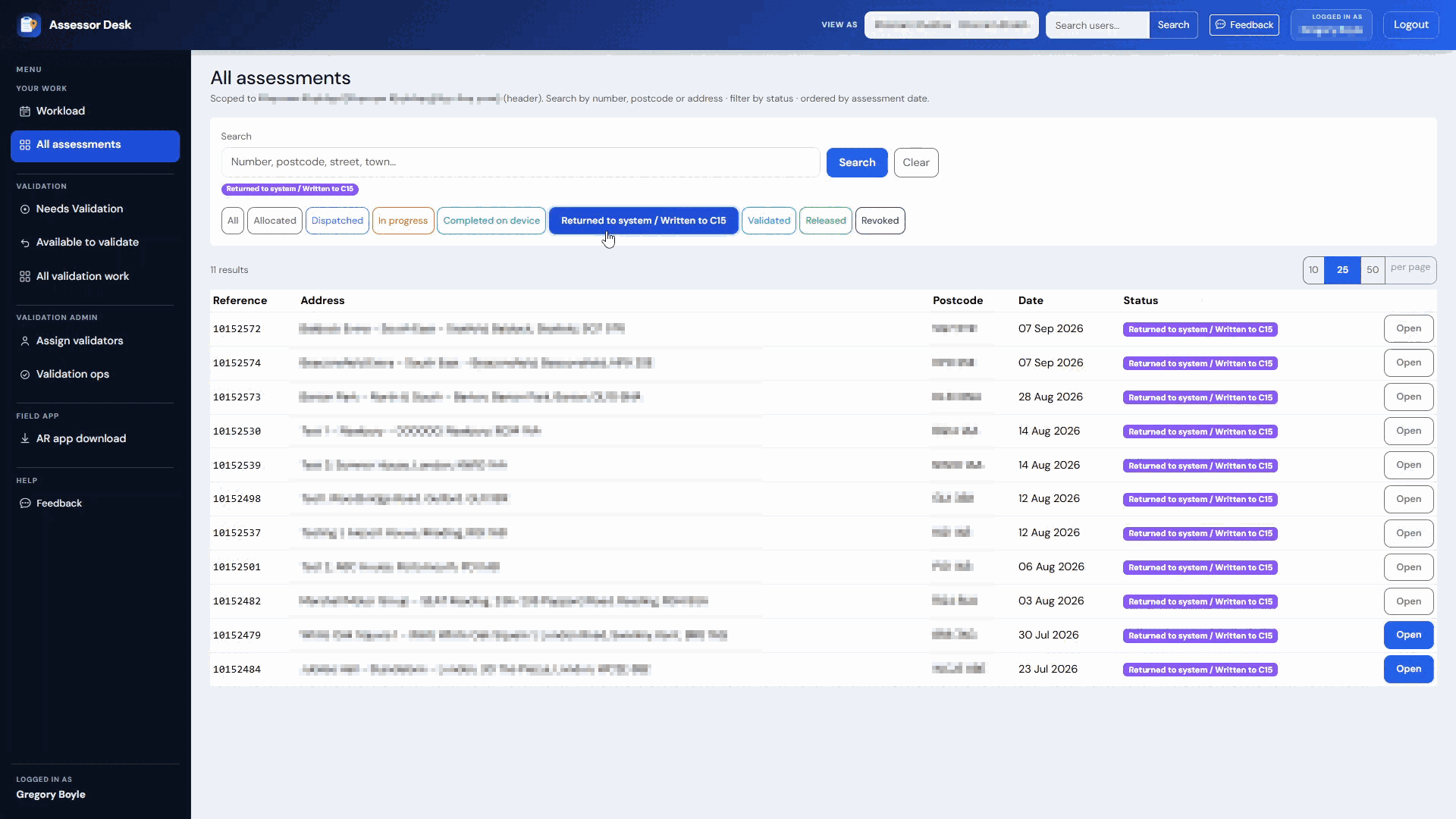
Opening an Assessment
Once you have located the required assessment:
- Select the assessment from the results list.
- The Assessment Detail page opens.
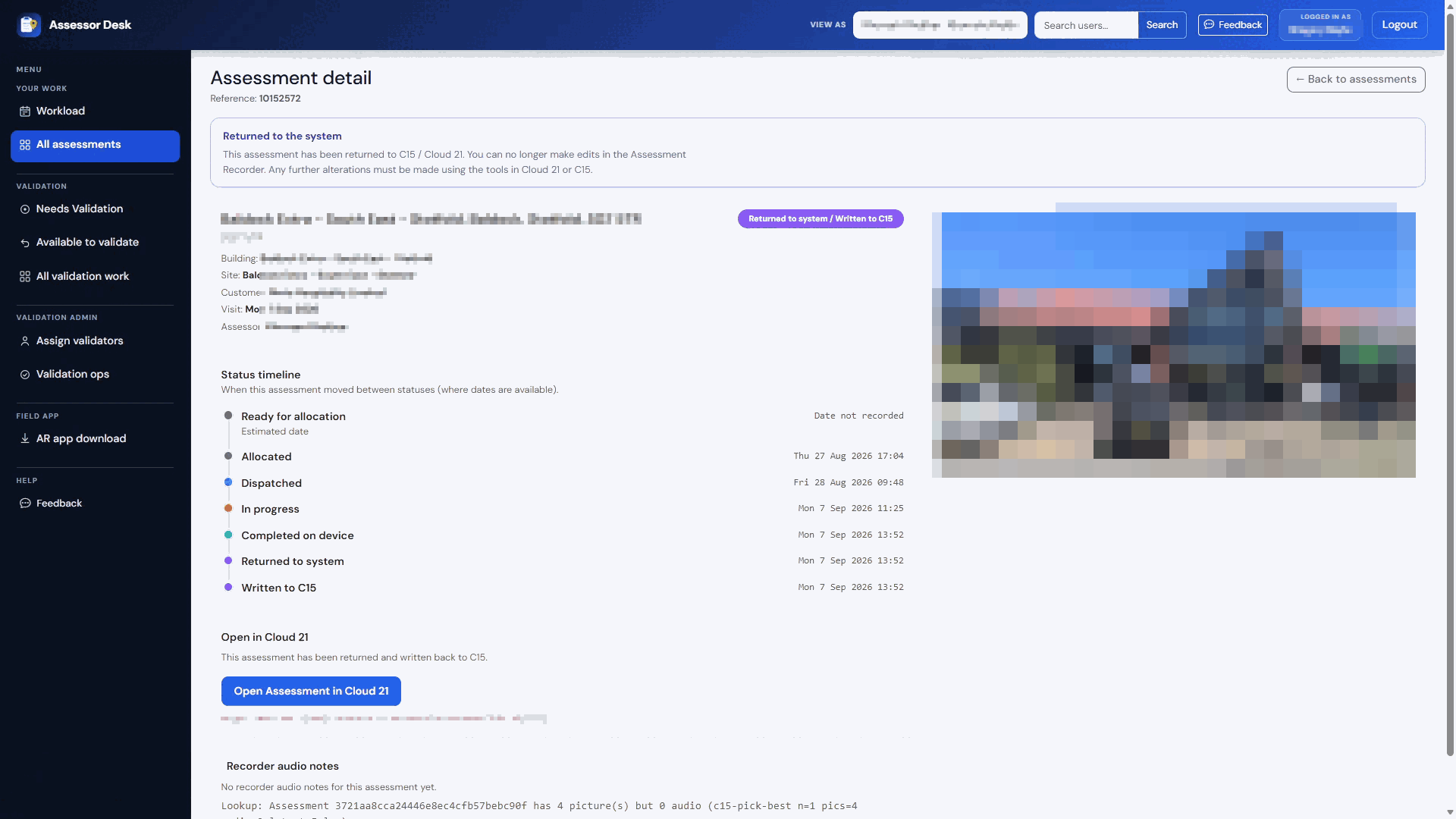
From the Assessment Detail page you can:
- Review assessment information.
- View the assessment timeline.
- Review validation details.
- Open the assessment in the Portal.
Navigating Large Result Sets
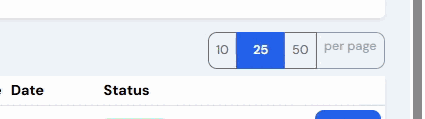
If many assessments are returned, additional controls may be available to help manage the results.
These include:
- Page navigation controls
- Result counts
- Page size options
Use these controls to move through the available assessment records.
Tips
- Search by assessment reference number when available for the fastest results.
- Use status filters to locate assessments at a specific stage of the workflow.
- Use All Assessments when a record is not visible in your Workload.
- Open the assessment record to view more detailed information.
Next Steps
Continue with:
Was this article helpful?
That’s Great!
Thank you for your feedback
Sorry! We couldn't be helpful
Thank you for your feedback
Feedback sent
We appreciate your effort and will try to fix the article