Overview
The Feedback feature allows users to submit comments and suggestions relating to Assessor Desk.
Feedback can be used to:
- Suggest improvements.
- Report usability issues.
- Highlight areas that could be improved.
- Provide general comments on the application.
Submitting feedback helps support the continued development and improvement of Assessor Desk.
Opening the Feedback Area
Feedback can be accessed from several locations within Assessor Desk.
Using the Navigation Menu
- Select Feedback from the navigation menu.

Using the Header Bar
- Select Feedback from the application header.

Reviewing the Feedback Page
The Feedback area provides a location where users can submit comments about their experience using Assessor Desk.
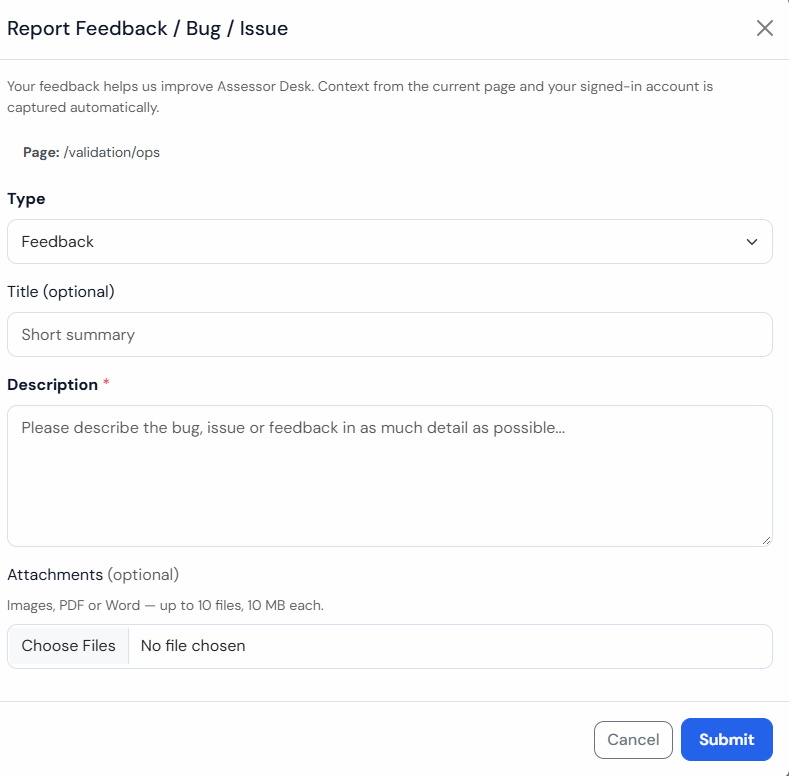
Use this area whenever you have suggestions, observations, or comments about the application.
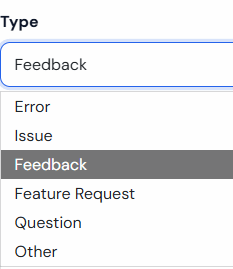
When to Submit Feedback
Consider submitting feedback when:
- A feature could be improved.
- A process feels unnecessarily complicated.
- Information is difficult to locate.
- You have an idea that would improve efficiency.
- You encounter unexpected behaviour and want the product team to be aware of it.
Providing Useful Feedback
When providing feedback, try to include:
- What you were trying to do.
- Which area of Assessor Desk you were using.
- What happened.
- What you expected to happen.
- Any relevant assessment reference numbers if applicable.
Providing clear information can help the relevant teams better understand the feedback being submitted.
Examples of Useful Feedback
Example 1: Feature Request
It would be helpful if assessment searches could automatically remember my previous filters.
Example 2: Error
When attempting to assign assessment FRA-10254 for validation, an error message is displayed and the assessment is not assigned.
Error shown: "An unexpected error occurred while assigning the assessment for validation."
Steps taken:
- Opened the assessment record
- Selected Assign for Validation
- Chose the validator
- Clicked Assign
- Error message appeared
Expected result: Assessment is assigned to the selected validator and appears in their validation queue.
Actual result: Assessment remains assigned to the assessor and no validation assignment is created.
Example 3: Feedback
The assessment timeline provides a clear view of assessment progress and is useful when tracking workflow activity.
Before Submitting Feedback
Before raising feedback, consider whether the issue may already be explained in one of the Knowledge Base articles.
Helpful areas include:
- Getting Started with Assessor Desk
- Using the Workload Area
- Finding an Assessment
- Understanding Assessment Statuses
- Validation Guides
These articles may answer common questions about system functionality.
Tips
- Be as specific as possible.
- Include the area of Assessor Desk you were using.
- Explain the impact on your work where relevant.
- Focus on facts and observations.
- Include assessment references when discussing a specific assessment.
Related Articles
You have now completed the Assessor Desk guide series.
For additional help, refer to:
Assessor Desk Essentials
- Getting Started with Assessor Desk
- Understanding Assessment Statuses
- Using the Workload Area
- Finding an Assessment
Viewing and Processing Assessments
- Viewing Assessment Details
- Tracking an Assessment Through the Status Timeline
- Opening an Assessment in the Portal
- Viewing Lifecycle and Validation Information
Assessment Validation
- Understanding the Validation Areas
- Finding Assessments That Need Validation
- Claiming an Assessment to Validate
- Viewing Validation Work
Administration and Downloads
Was this article helpful?
That’s Great!
Thank you for your feedback
Sorry! We couldn't be helpful
Thank you for your feedback
Feedback sent
We appreciate your effort and will try to fix the article