Important: The Validator Assignment area is intended for authorised users only. Standard Assessors and Validators may not have access to these functions.
Overview
The Assign Validators area allows authorised users to manage validator assignments for assessments.
From this area you can:
- View the currently assigned validator.
- Assign a validator to an assessment.
- Remove a validator assignment.
- Review assignment history.
- Monitor validation ownership.
This functionality helps ensure assessments are allocated to the appropriate validator and provides visibility of validation activity.
Opening Assign Validators
- Select Assign Validators from the navigation menu.
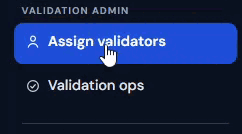
The Assign Validators page opens.
Understanding the Assignment List
The assignment list displays assessments that can be managed by authorised users.
Information displayed may include:
- White label
- Customer
- Assessment Reference
- Building
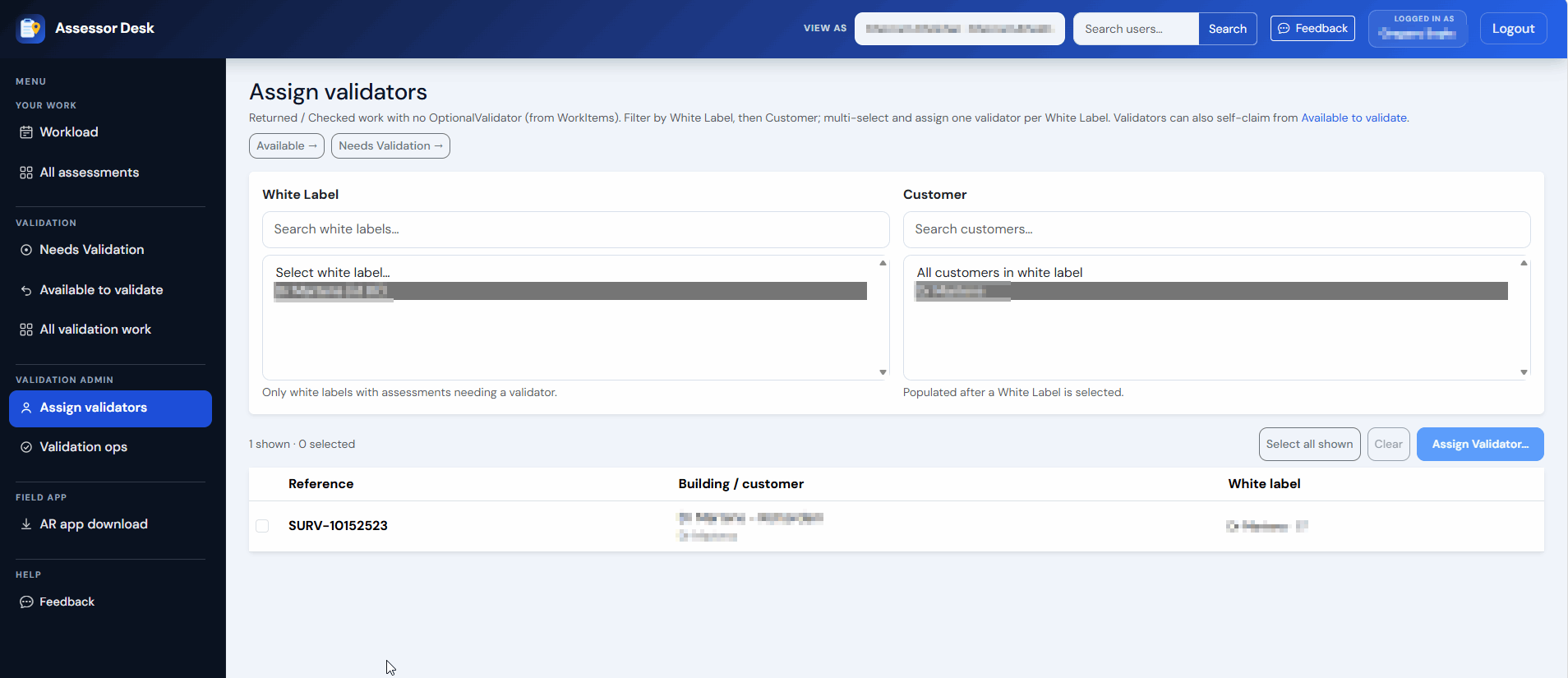
This information allows administrators to identify assessments requiring validator allocation or reassignment by White Label and Customer.
Assigning a Validator
To assign a validator:
- Locate the required assessment.
- Select the validator assignment option (Assign Validator...).
- Choose the appropriate validator.
- Save the assignment.
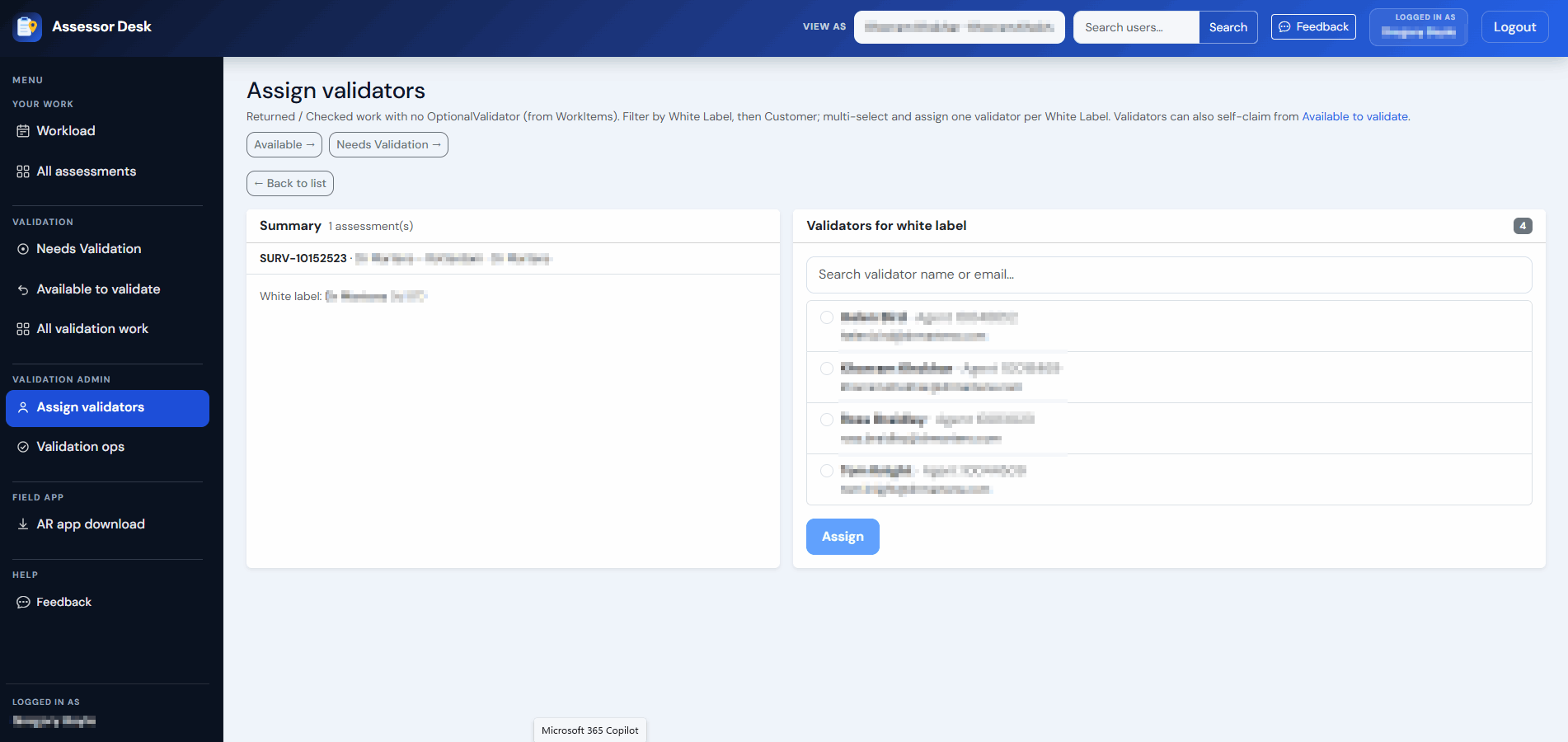
Once assigned, the selected validator becomes responsible for validating the assessment.
Next Steps
Continue with:
Was this article helpful?
That’s Great!
Thank you for your feedback
Sorry! We couldn't be helpful
Thank you for your feedback
Feedback sent
We appreciate your effort and will try to fix the article