Overview
The AR App Download area provides access to the latest version of the Assessment Recorder (AR) application, along with previous releases.
Use this area when:
- Setting up a device for assessment work.
- Installing an updated version of the AR application.
- Downloading a previous release.
- Reviewing release notes before upgrading.
Opening AR App Download
- Select AR App Download from the navigation menu.
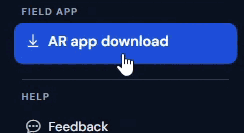
The AR App Download page displays available application releases.
Understanding the Download Page
The AR App Download page contains information about the latest available release of the Assessment Recorder application.
Information shown may include:
- Version number
- Release date
- Release notes
- Download option
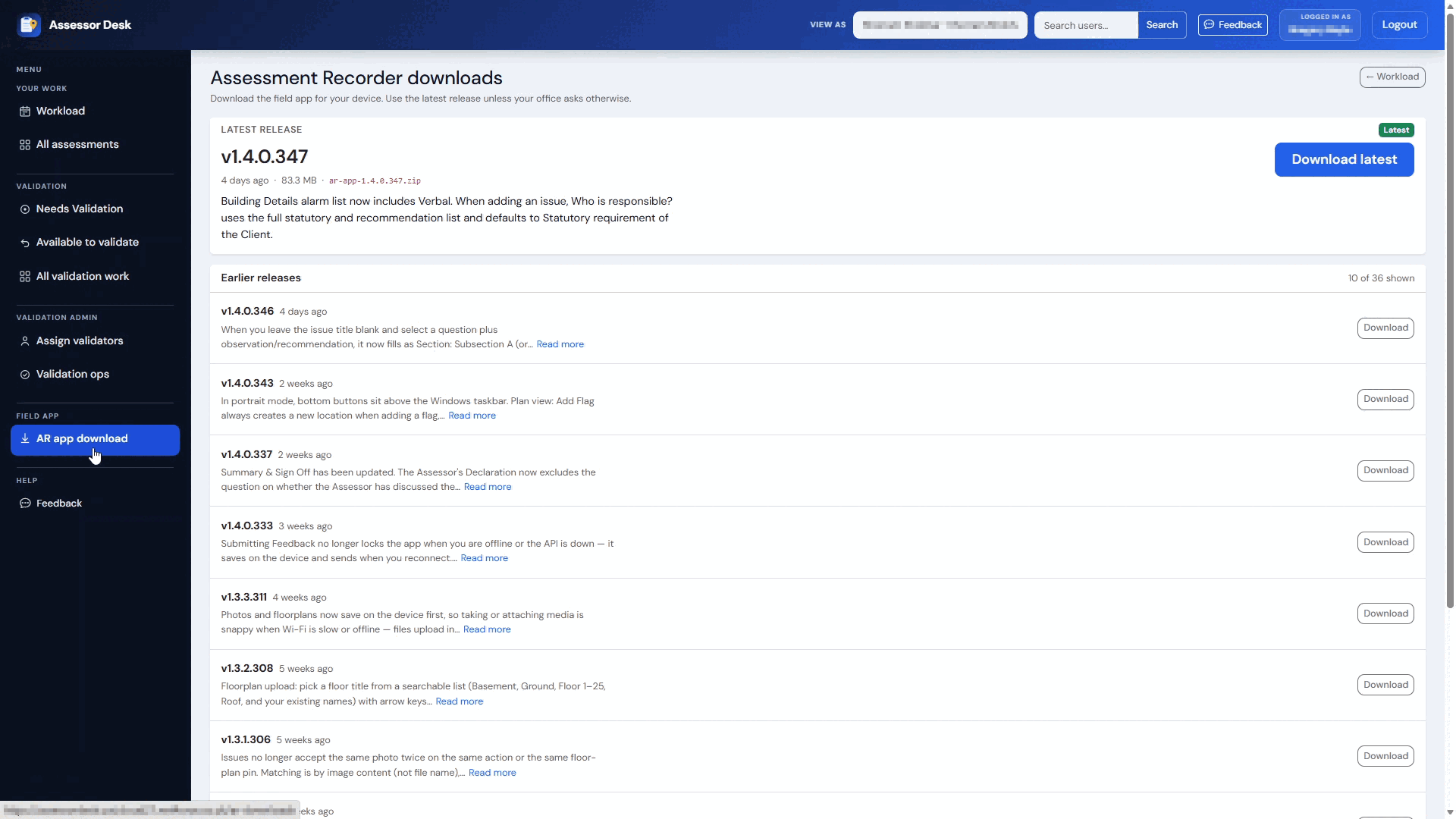
Review this information before downloading a new version.
Downloading the Latest Version
The latest version is displayed at the top of the page.
- Locate the latest release.
- Review the release information.
- Select Download Latest.
The installation file will begin downloading to your device.
Reviewing Release Notes
Release notes provide information about updates included within a version of the application.
The notes may include:
- New features
- Improvements
- Bug fixes
- Other application changes
Reviewing the release notes can help you understand what has changed between versions.
Downloading a Previous Version
In addition to the latest release, previous versions may also be available.
- Scroll to the list of historical releases.
- Locate the version you require.
- Select Download next to that version.
The selected version will download to your device.
Viewing Release History
The release history section provides a record of previous Assessment Recorder releases.
Information available may include:
- Version number
- Release date
- Release notes
- Download option
This allows users to review the evolution of the application over time.
When Should I Use an Older Version?
In most situations, you should download and install the latest available version.
An earlier version should only be used if:
- You have been instructed to do so by your organisation.
- A specific release is required for troubleshooting purposes.
Troubleshooting Download Issues
If you are unable to download the application:
- Refresh the page and try again.
- Confirm you have access to the AR App Download section.
- Check your internet connection.
- Contact your system administrator if the problem continues.
Tips
- Download the latest version unless instructed otherwise.
- Review release notes before upgrading.
- Remove outdated installation files from your device after installation if they are no longer required.
- Use previous versions only where specifically required.
Next Steps
Continue with:
Was this article helpful?
That’s Great!
Thank you for your feedback
Sorry! We couldn't be helpful
Thank you for your feedback
Feedback sent
We appreciate your effort and will try to fix the article