Important: The Validation Ops area is intended for authorised users only. Standard Assessors and Validators may not have access to these functions.
Overview
The Validation Ops area provides additional tools for monitoring and managing validation work across assessments. It allows authorised users to review validation activity, locate assessments, manage assignments, and monitor workflow progress from a central location.
Use this area to:
- Monitor assessments awaiting validation.
- Review validation workloads.
- Search for specific assessments.
- Filter validation work.
- Assign or unassign validators.
- Open assessments for detailed review.
Opening Validation Ops
- Select Validation Ops from the navigation menu.
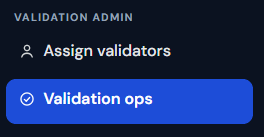
The Validation Ops page opens and displays validation work currently being managed within the system.
Understanding the Validation Ops List
The Validation Ops area provides a searchable list of assessments involved in the validation process.
Information displayed may include:
- Assessment reference number
- Building name
- Customer
- Assessor
- White label
- Work stage
- Assigned validator
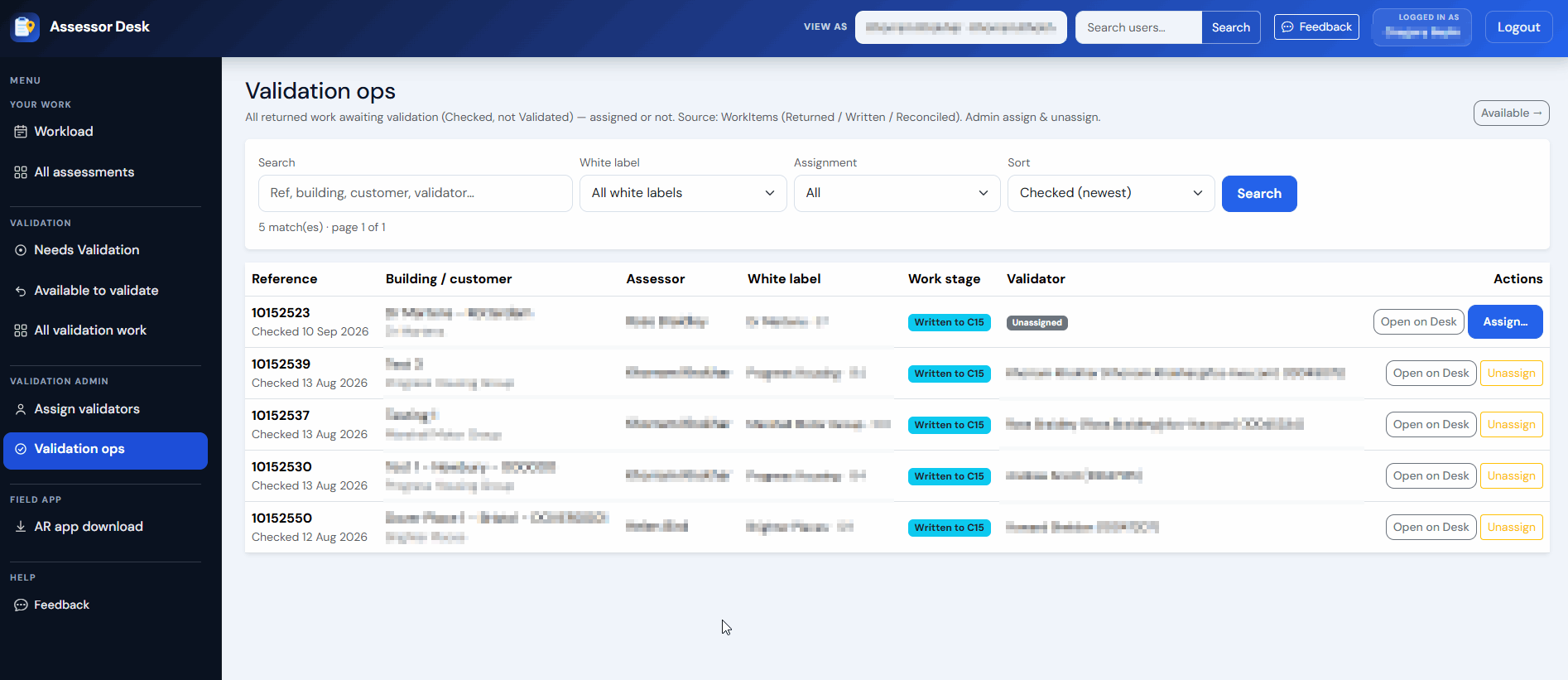
This allows administrators to quickly identify assessments requiring attention.
Searching for Assessments
Use the search functionality to locate a specific assessment.
- Enter your search criteria.
- Review the matching results.

Searching can help locate assessments more quickly when dealing with large volumes of validation work.
Filtering Validation Work
Validation Ops provides filtering options to help narrow the results displayed.
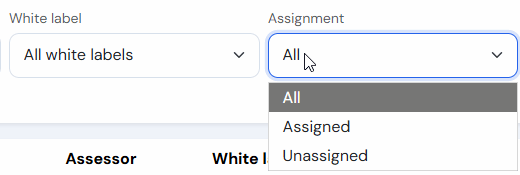
Available filters may include:
- Assignment status
- White label
Using filters can make it easier to focus on specific groups of assessments.
Sorting Results
Sorting options can be used to change how validation work is displayed.
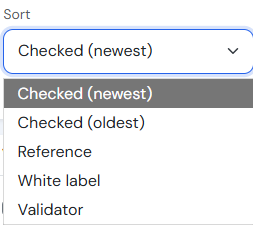
Sorting helps administrators review work in a way that is most relevant to their current task.
Viewing Assigned Validators
The Validation Ops list displays validator information for each assessment.
This allows administrators to quickly identify:
- Which assessments have been assigned.
- Which validator is responsible.
- Which assessments may require assignment.
Opening an Assessment
To review an assessment in more detail:
- Locate the assessment.
- Select the assessment from the list.
Insert screenshot: Opening an assessment from Validation Ops
The Assessment Detail page opens and provides access to:
- Assessment details
- Status timeline
- Validation history
- Assignment history
- Portal access
Assigning a Validator
Where authorised, Validation Ops can be used to allocate validation work.
- Locate the assessment.
- Select the assignment option (Assign...).
- Select the required validator.
- Save the assignment.
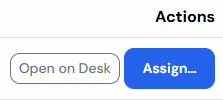
The selected validator becomes responsible for the validation work.
Unassigning a Validator
Where authorised, existing assignments can be removed.
- Open the required assessment assignment.
- Remove the current assignment.
- Confirm the change.
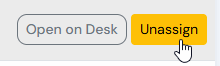
This allows the assessment to be reassigned if required.
Reviewing Validation Progress
Validation Ops provides visibility of where assessments currently sit within the validation workflow.
Review:
- Work stage
- Assigned validator
- Assessment history (via Open On Desk)
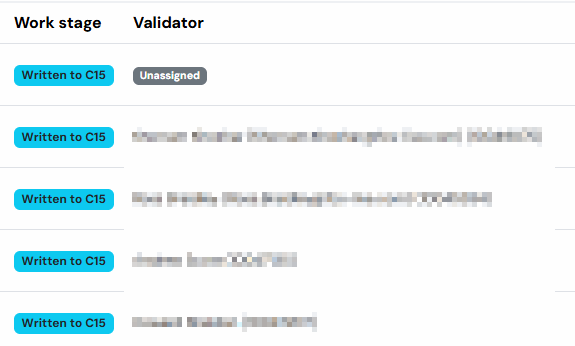
This information helps administrators monitor workloads and identify assessments requiring further action.
Monitoring Returned or Reassigned Work
Some assessments may be returned to the validation pool following assignment changes or other validation actions.
Validation Ops helps authorised users identify assessments that require reassignment or further attention.
Tips
- Use Validation Ops when monitoring validation activity across multiple assessments.
- Apply filters to focus on specific groups of work.
- Review assignment information before making changes.
- Open the assessment record if additional context is required.
- Use assignment history to understand previous validation activity.
Next Steps
Continue with:
Was this article helpful?
That’s Great!
Thank you for your feedback
Sorry! We couldn't be helpful
Thank you for your feedback
Feedback sent
We appreciate your effort and will try to fix the article