Overview
The Available to Validate area displays assessments that are available for validators to claim.
This area allows validators to review available work and take ownership of assessments that require validation.
Use this area when:
- Looking for new validation work.
- Reviewing assessments available for validation.
- Claiming an assessment for review.
- Opening assessment records before validation begins.
Opening Available to Validate
- Select Available to Validate from the navigation menu.
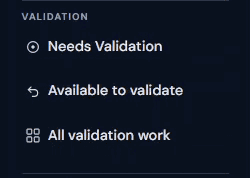
The Available to Validate page opens and displays assessments that can be claimed by a validator.
Understanding the Available to Validate List
The list displays assessments that are available for validation.
Information shown may include:
- Assessment reference number
- Building name
- Customer
- Assessment status
- Assessor
- Workflow stage
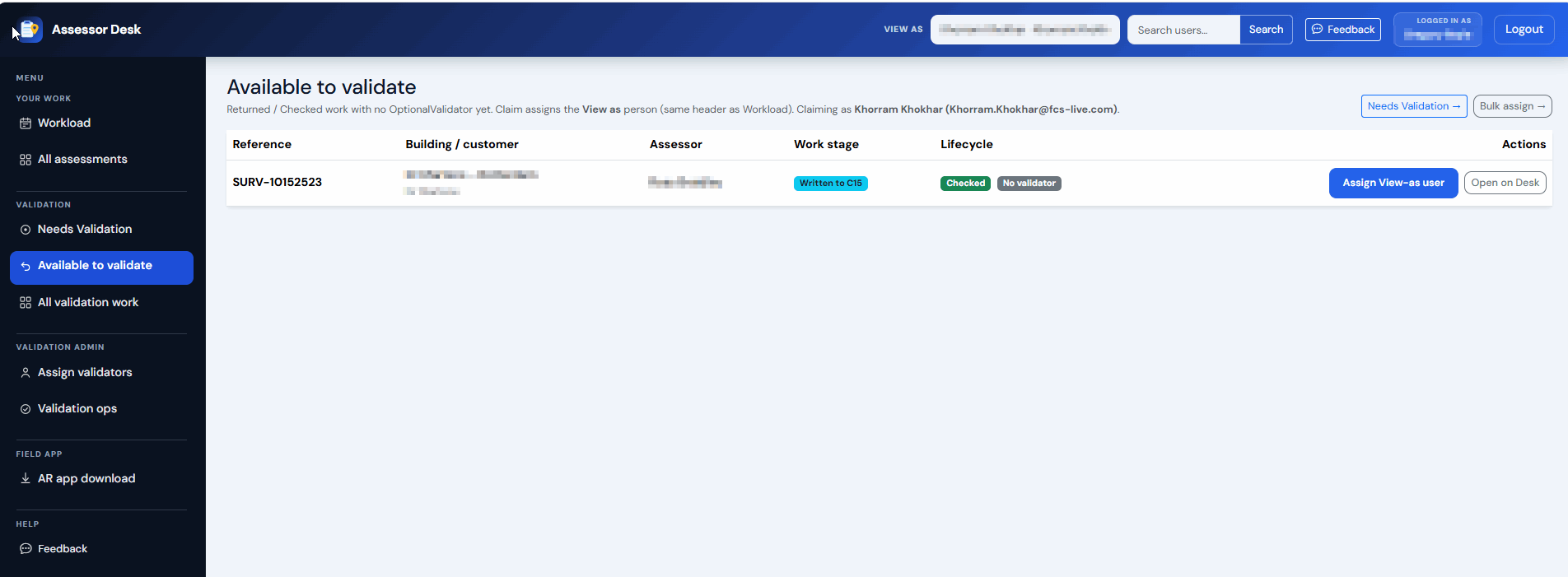
This information helps you identify which assessments are suitable for review.
Claiming an Assessment
- Locate the assessment you wish to validate.
- Use the available claim option.
- The assessment is assigned to you for validation.
Once claimed, the assessment will move from the available validation pool and become associated with your validation workload.
Opening a Claimed Assessment
After claiming an assessment:
- Open the assessment from the validation area. Open On Desk button.
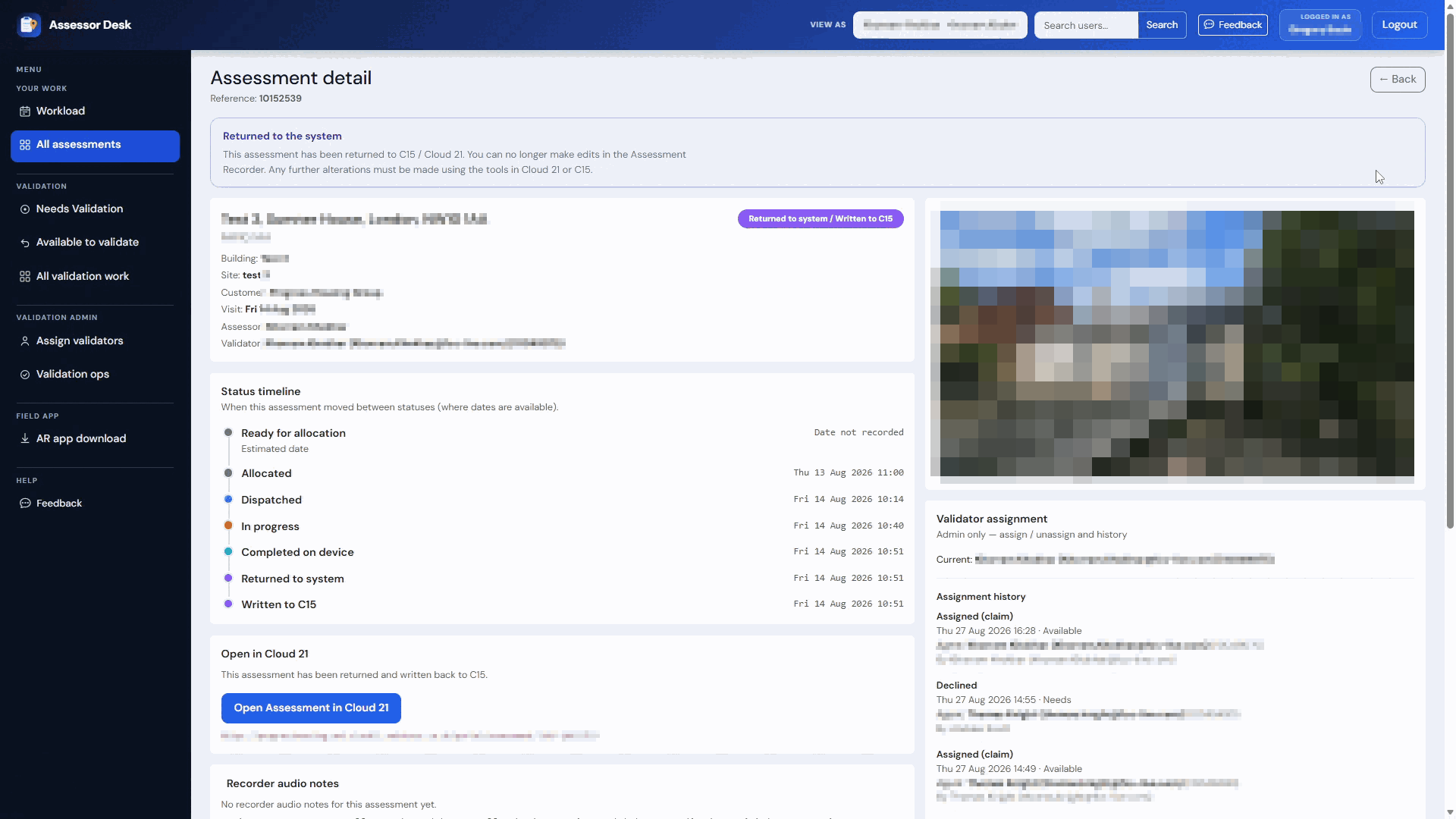
The Assessment Detail page opens.
From here you can review:
- Assessment details
- Current status
- Status timeline
- Validator information
- Assignment history
Reviewing the Assessment in the Portal
For more detailed assessment information:
- Open the assessment.
- Select Open Assessment in Portal.
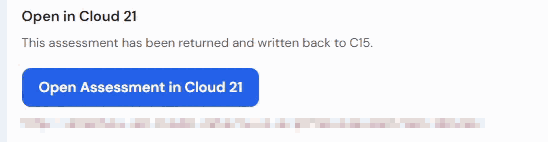
The Portal provides access to:
- Assessment findings
- Action plans
- Risk information
- Assessment reports
- Lifecycle and validation information
Understanding Assignment History
After an assessment has been claimed, assignment information becomes available within the assessment record.
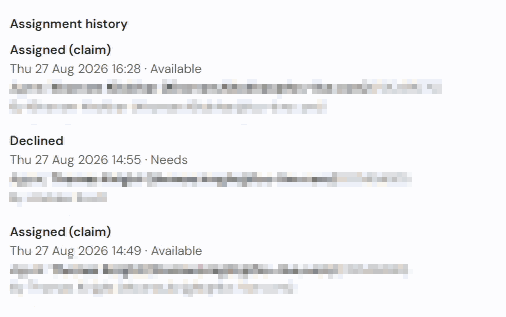
Assignment history can provide visibility of:
- Validator assignments
- Claimed assessments
- Declined assessments
- Assignment changes
This information helps provide an audit trail of validation activity.
If an Assessment Cannot Be Claimed
If an assessment is no longer available to claim, it may have:
- Already been claimed by another validator.
- Been assigned directly to a specific validator.
- Progressed to another stage of the workflow.
In these situations, review the assessment details or validation work areas for further information.
Tips
- Review available information before claiming an assessment.
- Open the assessment record before beginning validation activities.
- Use the Portal when detailed assessment information is required.
- Check assignment history if you need to understand previous validation activity.
- Regularly review the Available to Validate area to identify new validation work.
Next Steps
Continue with:
- Viewing Validation Work
- Assigning Validators (Authorised Users Only)
- Managing Work in Validation Ops (Authorised Users Only)
Was this article helpful?
That’s Great!
Thank you for your feedback
Sorry! We couldn't be helpful
Thank you for your feedback
Feedback sent
We appreciate your effort and will try to fix the article