Overview
The Assignment History section provides an audit trail of validator activity associated with an assessment.
It allows users to see how responsibility for validation has changed over time and helps explain the current validation status of an assessment.
Use Assignment History when you need to:
- Identify who has been assigned to validate an assessment.
- Review previous validator assignments.
- Understand when validation work was claimed.
- Determine when validation work was declined.
- Investigate validation workflow activity.
Opening Assignment History
Open the required assessment from:
- Needs Validation
- Available to Validate
- All Validation Work
- Validation Ops
Open the Assessment Detail page.
Locate the Assignment History section.
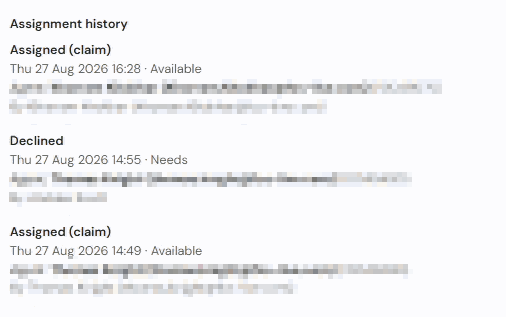
The Assignment History section displays a chronological record of validator-related activity.
Understanding Assignment History
Each entry represents an action taken during the validation process.
Information displayed may include:
- Date and time of the activity
- Validator involved
- Type of assignment event
- Validation workflow action
This information provides visibility of how responsibility for validation has changed throughout the assessment lifecycle.
Viewing Validator Assignments
Assignment History records when a validator is assigned to an assessment.
Review these entries to determine:
- Which validator was assigned
- When the assignment occurred
- The order of assignment changes
This can be useful when investigating validation activity or workload allocation.
Viewing Validator Unassignments
Assignment History records when a validator is removed from an assessment.
This allows users to understand:
- When an assignment was removed
- Changes in ownership of validation work
- Why another validator may later appear on the assessment
Viewing Claimed Assessments
When a validator claims an assessment from the Available to Validate area, the action is recorded within Assignment History.
This allows users to identify:
- Who accepted responsibility for the assessment
- When the claim occurred
- How the assessment entered a validator's workload
Viewing Declined Assessments
If a validator declines validation work, the event is recorded within Assignment History.
Reviewing these entries can help explain:
- Why an assessment is no longer assigned to a validator
- Why an assessment has returned to an available validation pool
- Changes in validation ownership
Understanding Multiple Assignment Changes
Some assessments may contain several Assignment History entries.
For example:
- A validator is assigned.
- The validator declines the work.
- The assessment becomes available again.
- Another validator claims the assessment.
- Validation work continues.
The Assignment History provides visibility of each step in this process.
Using Assignment History During Investigations
Assignment History is particularly useful when answering questions such as:
- Who is currently responsible for validating this assessment?
- Has this assessment already been assigned?
- Has a validator declined this work?
- Why has the assigned validator changed?
- When was the assessment claimed for validation?
Reviewing the history often provides the quickest way to understand changes in validation ownership.
Best Practice
When reviewing validation activity:
- Open the Assessment Detail page.
- Review the current validator information.
- Check the assessment status.
- Review Assignment History to understand previous activity.
- Review the Status Timeline if additional workflow context is required.
This provides a complete picture of the assessment's validation journey.
Tips
- Review Assignment History before reassigning an assessment.
- Use Assignment History when investigating unexpected assignment changes.
- Check for declined entries when an assessment appears to have returned to the validation pool.
- Use Assignment History alongside the Status Timeline for a full understanding of assessment progress.
- Review the most recent entry first to understand the current state of validation ownership.
Related Articles
Was this article helpful?
That’s Great!
Thank you for your feedback
Sorry! We couldn't be helpful
Thank you for your feedback
Feedback sent
We appreciate your effort and will try to fix the article