Overview
The Assessment Detail page provides detailed information about an individual assessment. From this page, you can review assessment information, monitor progression through the workflow, view validation details, and open the assessment in the Portal.
Use this page whenever you need to review the status or history of an assessment.
Opening an Assessment
You can open an assessment from:
- Workload
- All Assessments
- Validation areas
- Locate the required assessment.
- Select the assessment.
- The Assessment Detail page opens.
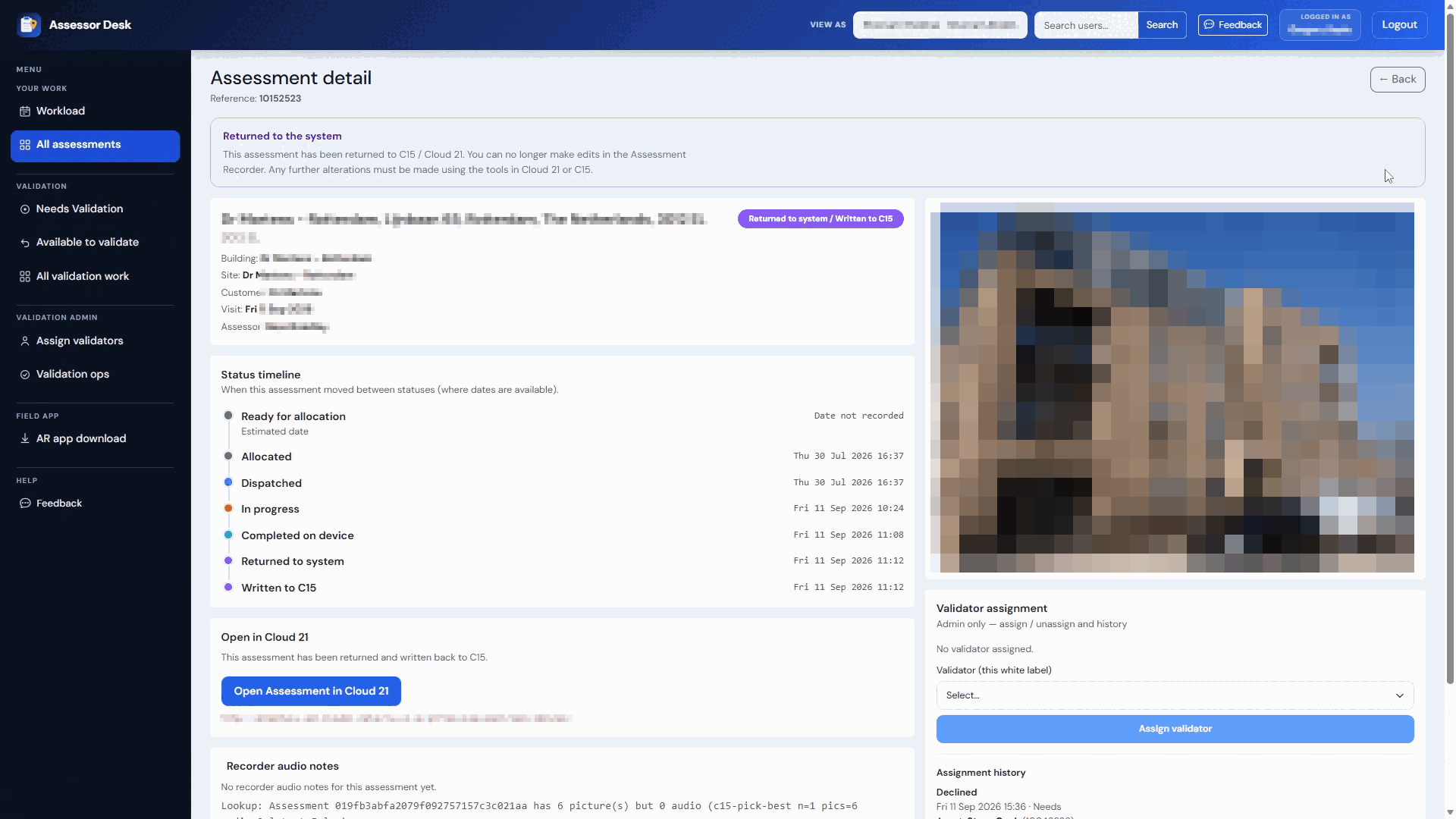
Understanding the Assessment Detail Page
The Assessment Detail page displays key information about the selected assessment.
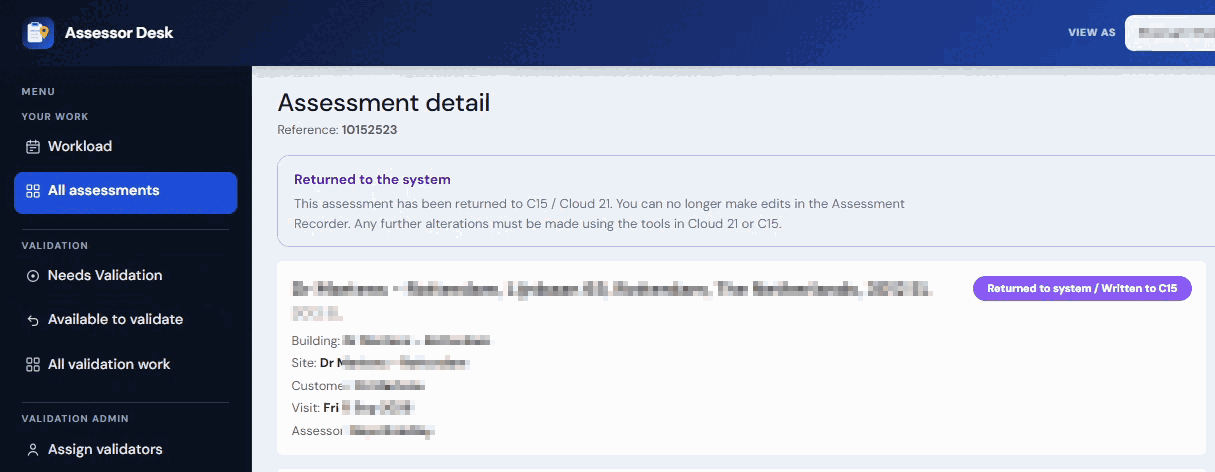
Information available includes:
- Assessment reference
- Building
- Site
- Customer
- Visit date
- Assessor
- Validator
- Current assessment status
This provides a quick summary of the assessment and its current position in the workflow.
Viewing the Current Status
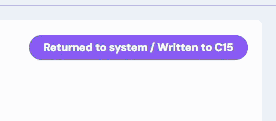
The current status of the assessment is displayed prominently on the page.
Examples include:
- Returned to System
- Validated
- Released
Status messages may also provide additional information about the assessment's progress.
For a full explanation of assessment statuses, see Understanding Assessment Statuses.
Viewing the Building Image
Where available, a photograph of the building is displayed on the Assessment Detail page.
This can help users confirm they are reviewing the correct assessment.
Opening the Assessment in the Portal
If further review or processing is required, the assessment can be opened directly in the Portal.
- Select Open Assessment in Portal.
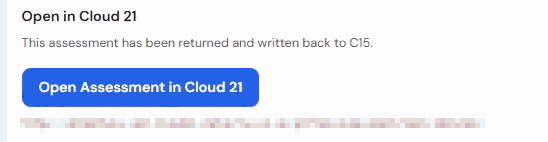
The assessment opens in the Portal for further processing.
Viewing Validator Information
The Assessment Detail page displays information about the validator assigned to the assessment.

This may include:
- Assigned validator
- Validation status
- Assignment history
Authorised users may also have access to additional validator management functions.
Reviewing Assignment History
The assignment history section shows changes made to validation assignments.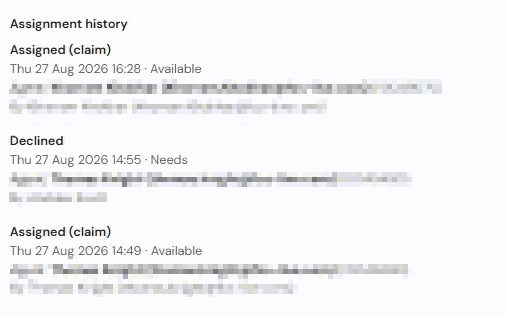
The history may include entries showing:
- Assignment of a validator
- Removal of a validator
- Claimed validation work
- Declined validation work
This provides an audit trail of validation activity associated with the assessment.
Accessing Additional Assessment Information
Depending on the assessment's status and your permissions, additional information may be available from the Assessment Detail page, including:
- Status timeline
- Validation information
- Recorder audio notes
- Validation documents
- Portal access
These areas are covered in more detail within separate guides.
Tips
- Always verify the assessment reference and address before reviewing assessment information.
- Use the status to quickly identify where the assessment sits in the workflow.
- Review validator information when investigating validation activity.
- Open the assessment in the Portal when detailed assessment information is required.
Next Steps
Continue with:
Was this article helpful?
That’s Great!
Thank you for your feedback
Sorry! We couldn't be helpful
Thank you for your feedback
Feedback sent
We appreciate your effort and will try to fix the article