This section explains how to view the latest completed assessment for a building, access previous assessment reports, and identify assessments that are still awaiting completion.
Who can use this Feature?
View assessments, sites and buildings that have been assigned to them via the Estate Management tool:
- View Only
- Standard
- Standard + Estate Manager
- Assessor
- Assessor + Validator
- Admin
- Tech Admin
See all buildings in the current customer (not only grants):
- Standard + Estate Manager
- Admin
- Tech Admin
Viewing the Current Assessment
From the All Assessments page, each assessment card displays summary information including the site, building, assessor, assessment type, assessment reference number, and assessment date.
To open the most recent completed assessment:
- Locate the required assessment.
- Review the assessment summary details.
- Select View Assessment.
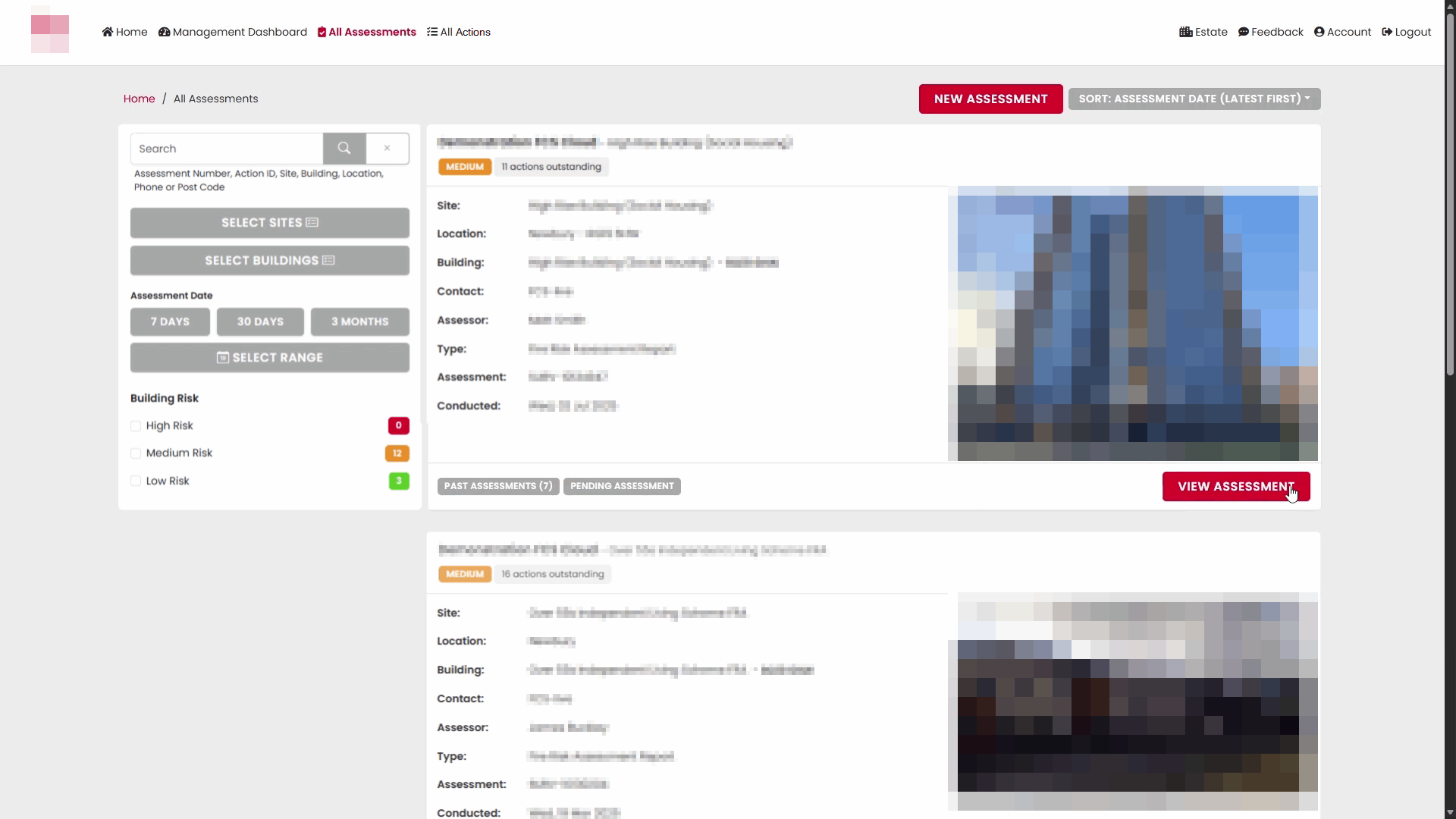
The assessment report will open, allowing you to review all recorded findings, recommendations, and associated information.
Accessing the Most Recent Assessment
Assessment cards are displayed with the latest assessment information visible by default.
The assessment summary shows:
- Site name
- Building name
- Assessor
- Assessment type
- Assessment reference number
- Date conducted
- Current risk rating
- Outstanding action count
This provides quick access to the latest available information for a building without needing to open the full report.
Viewing Historical Assessments
If previous assessments exist for the building, a Past Assessments button is displayed showing the number of historical assessments available.
To view historical assessments:
- Select Past Assessments.
- Expand the historical assessment list.
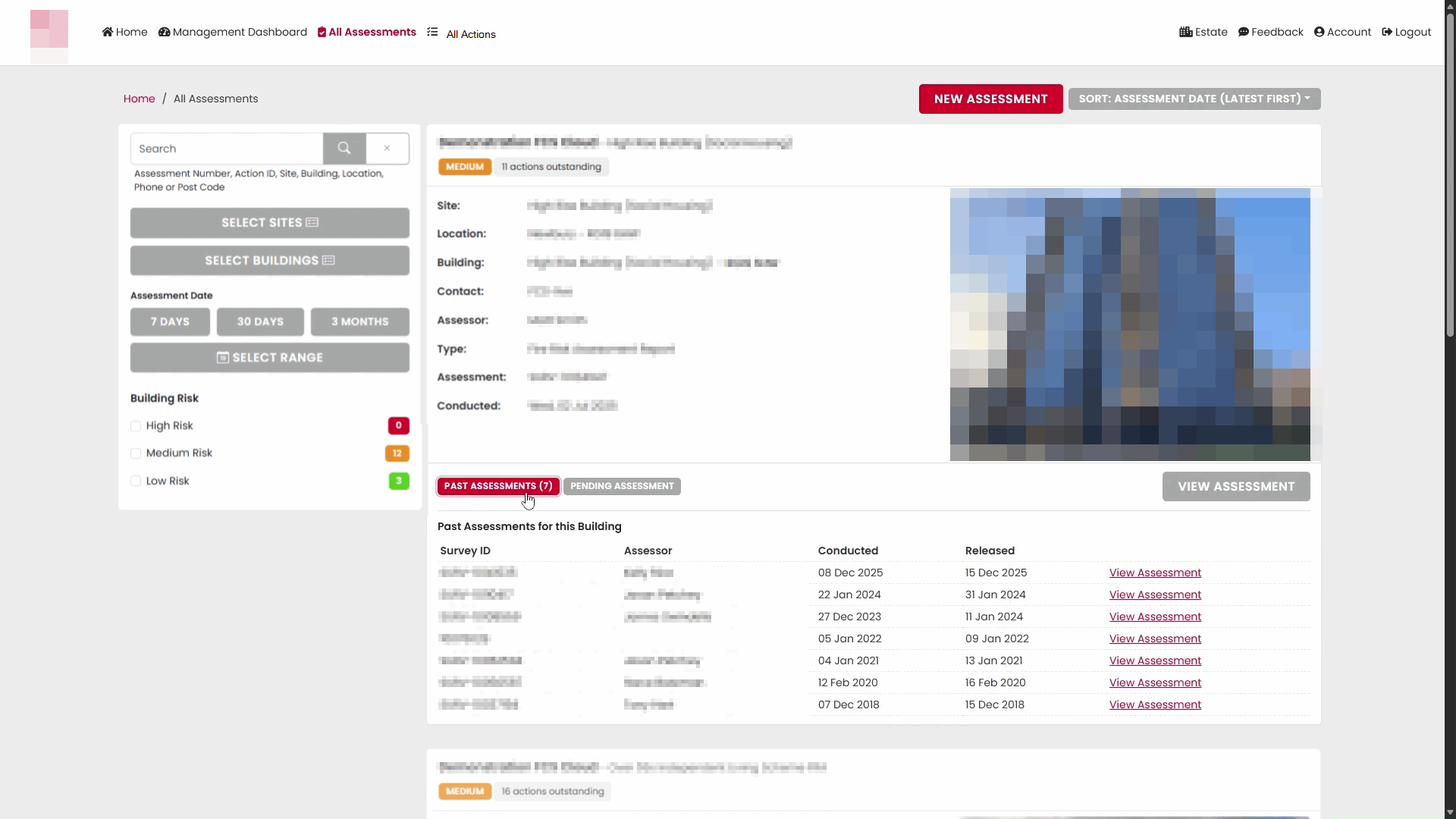
The historical assessment panel displays:
- Survey ID
- Assessor
- Date conducted
- Date released
- Link to the assessment report
This allows you to review assessment history and track changes over time.
Opening a Historical Assessment
From the historical assessment list:
- Locate the assessment you wish to review.
- Select View Assessment against the relevant record.
The selected historical assessment report will open for viewing.
Viewing Incomplete or Pending Assessments
Where an assessment has been started but not yet completed, a Pending Assessment option is available.
Selecting Pending Assessment displays assessments that are currently in progress and have not yet been released.
This enables assessors and validators to review work that is awaiting completion or publication.
Additional Assessment Tracking Information
Assessment Tracking Spreadsheet
A consolidated assessment tracking spreadsheet is available to support assessment management, quoting activities, and follow-up planning.
It is available on All Assessments > Download CSV.
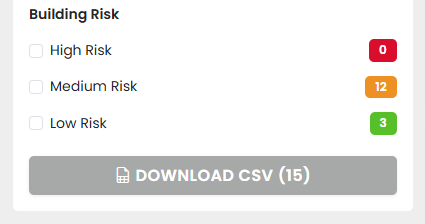
The spreadsheet provides a single view of key assessment dates and includes:
- Building name
- Date of the most recent assessment
- Date of the previous assessment
- Next Fire Risk Assessment (FRA) due date
This allows users to quickly identify when assessments were last completed, review historical assessment intervals, and determine when the next assessment is due.
The spreadsheet can be used to support assessment scheduling, customer quotations, and ongoing compliance planning.
Key Information
- View Assessment opens the latest completed assessment report.
- Past Assessments provides access to previous reports for the same building.
- Historical records include the assessor, survey reference, conducted date and release date.
- Pending Assessment identifies assessments that are currently incomplete or awaiting release.
- Assessment history can be used to compare changes and review the building's assessment timeline.
- A consolidated assessment tracking spreadsheet provides visibility of the most recent assessment date, previous assessment date, and next FRA due date for each building.
Was this article helpful?
That’s Great!
Thank you for your feedback
Sorry! We couldn't be helpful
Thank you for your feedback
Feedback sent
We appreciate your effort and will try to fix the article