This section explains how to create a new Fire Risk Assessment in the new Portal. Once created, the assessment will be available for completion, review, validation, and reporting.
Who can use this Feature?
- Admin
- Tech Admin
Before You Begin
Before creating an assessment, ensure that:
- The site and building already exist in the Portal.
- You have permission to create assessments.
- You know which assessor will be responsible for conducting the assessment.
Navigate to Assessments
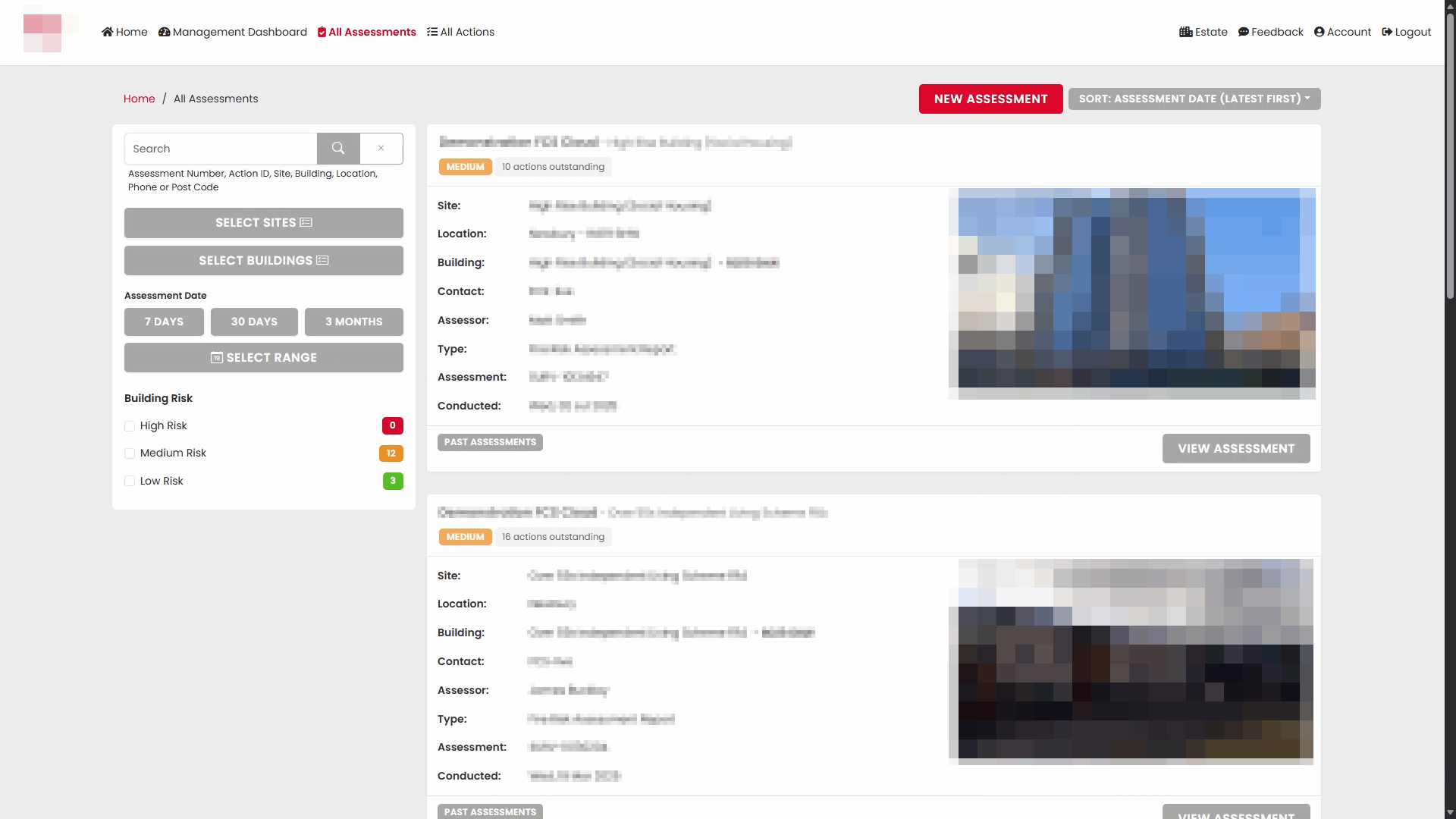
- From the main menu, select All Assessments.
- The Assessments page displays all assessments you have access to.
- Select New Assessment to begin creating a new record.
Complete the Assessment Details
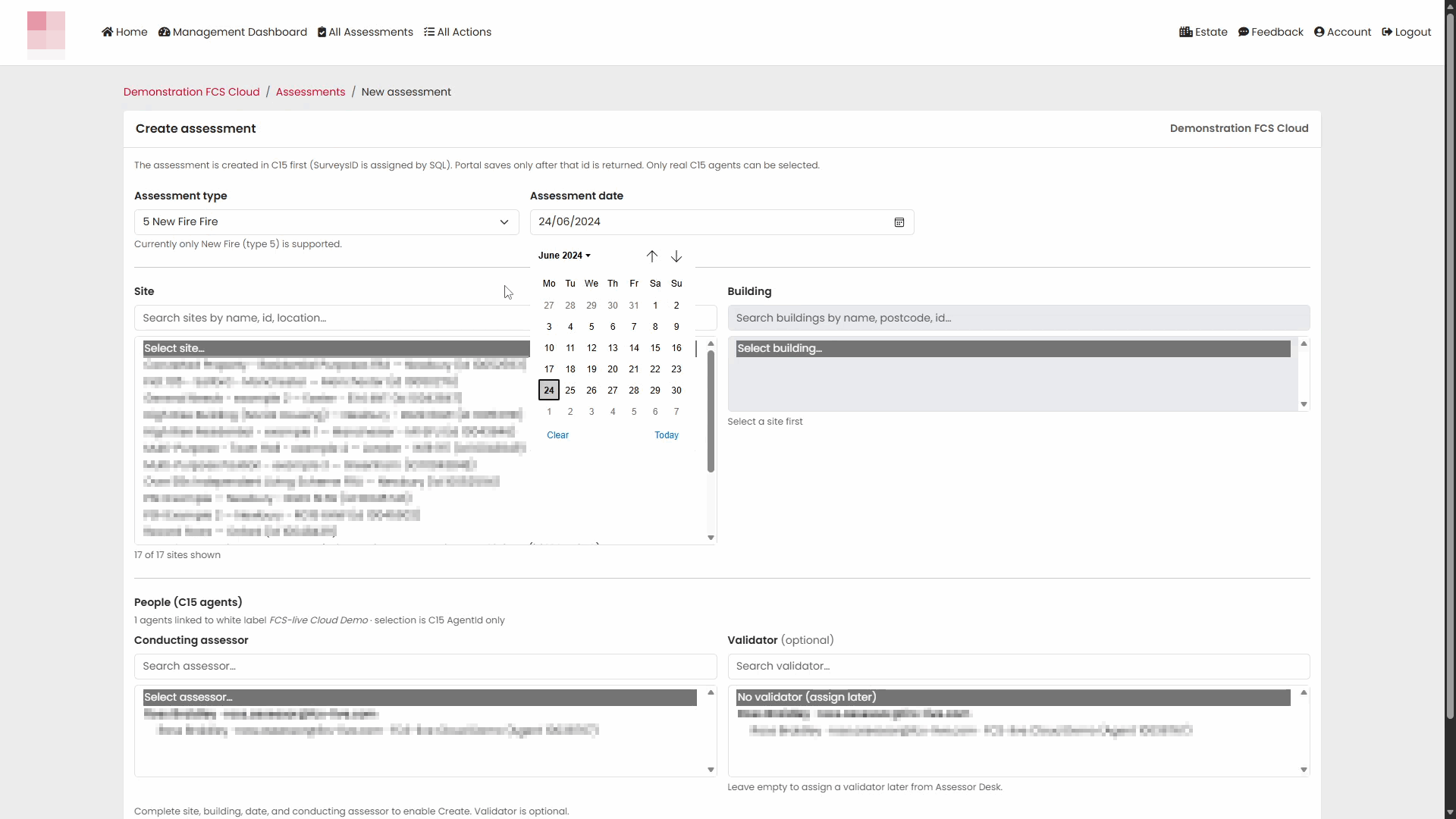
The Create Assessment screen allows you to define the basic details of the assessment.
Complete the following fields:
| Field | Description |
|---|---|
| Assessment Date | The date the assessment will be carried out. |
| Site | The site where the assessment is being completed. |
| Building | The building being assessed. |
| Conducting Assessor | The assessor responsible for completing the assessment. |
| Validator (optional) | The person who will review and validate the assessment. |
Select the Assessment Date
- Select the Assessment Date field.
- Choose the required date from the calendar.
Select a Site
- Open the Site dropdown list.
- Choose the site that the assessment relates to.
The available buildings will update based on the selected site.
Select a Building
- Open the Building dropdown list.
- Select the required building.
Only buildings associated with the selected site will be available.
Select the Conducting Assessor
- Open the Conducting Assessor dropdown list.
- Select the assessor who will perform the Fire Risk Assessment.
Select a Validator (Optional)
If the assessment will be reviewed before release:
- Open the Validator dropdown list.
- Select the individual responsible for validation.
Validator selection is optional and may vary depending on your organisation's process.
Create the Assessment
After completing all required fields:
- Review the entered information.
- Select Create Assessment.
A new assessment record will be created.
Assessment Created Successfully
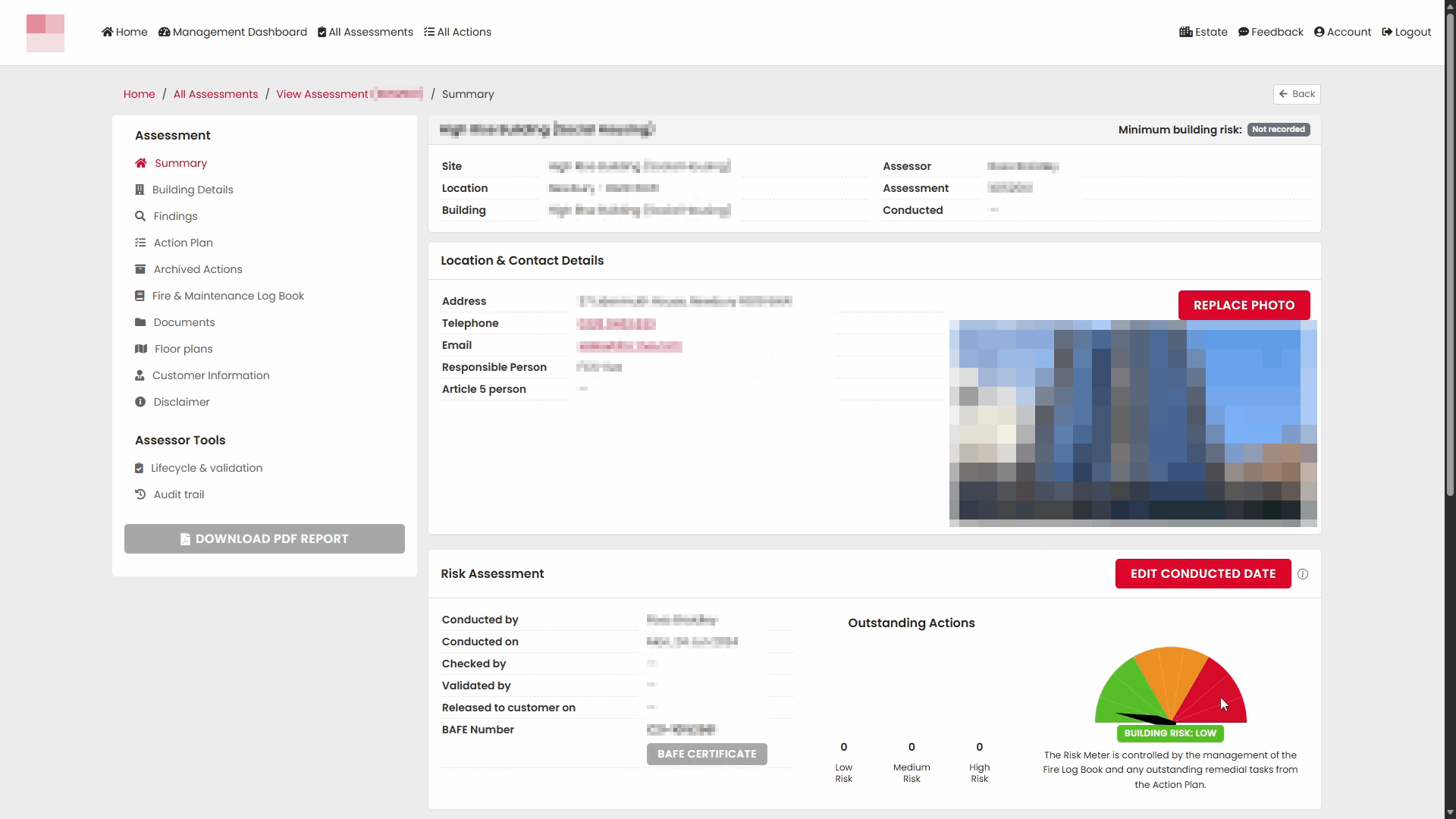
When the assessment has been created, the Portal opens the new assessment automatically and displays the Summary page.
The Summary page provides an overview of:
- Site and building details
- Assessor information
- Assessment status
- Contact information
- Building image
- Risk information
- Action plan summary
Review the Assessment Summary
The top section of the Summary page displays key information about the assessment, including:
- Site
- Location
- Building
- Assessor
- Assessment number
- Conducted date
This information helps confirm that the correct assessment has been created.
Location and Contact Details
The Location & Contact Details section contains building-specific information, including:
- Address
- Telephone number
- Email address
- Responsible person
- Article 5 person (where recorded)
A building photograph may also be displayed.
Risk Assessment Information
The Risk Assessment section records:
- Conducted by
- Conducted on
- Checked by
- Validated by
- Release status
- BAFE reference number
These values will update as the assessment progresses through review and validation stages.
Building Risk Meter
The Summary page includes a Building Risk Meter that provides a high-level view of the current building risk level based on assessment findings and outstanding actions.
Action Plan Overview
The Action Plan section provides a summary of action categories available within the assessment.
As findings and actions are recorded, this area can be used to review outstanding actions across different assessment sections.
Additional Assessment Information
Further down the Summary page you will find sections for:
- Parts of the premises to which the assessment applies
- Risk Assessor's Summary
These sections can be completed as part of the assessment process.
Next Steps
After creating the assessment, the next stage is for the assessor to get the job on the Assessment Recorder app.
Was this article helpful?
That’s Great!
Thank you for your feedback
Sorry! We couldn't be helpful
Thank you for your feedback
Feedback sent
We appreciate your effort and will try to fix the article