When reviewing findings within an assessment, you may need to create an additional action that relates to an existing finding.
The new Portal allows you to add another action without creating a new finding, helping you track multiple remedial actions against the same issue.
Who can use this Feature
- Assessor (if they undertook the assessment)
- Assessor + Validator (if assigned)
- Admin
- Tech Admin
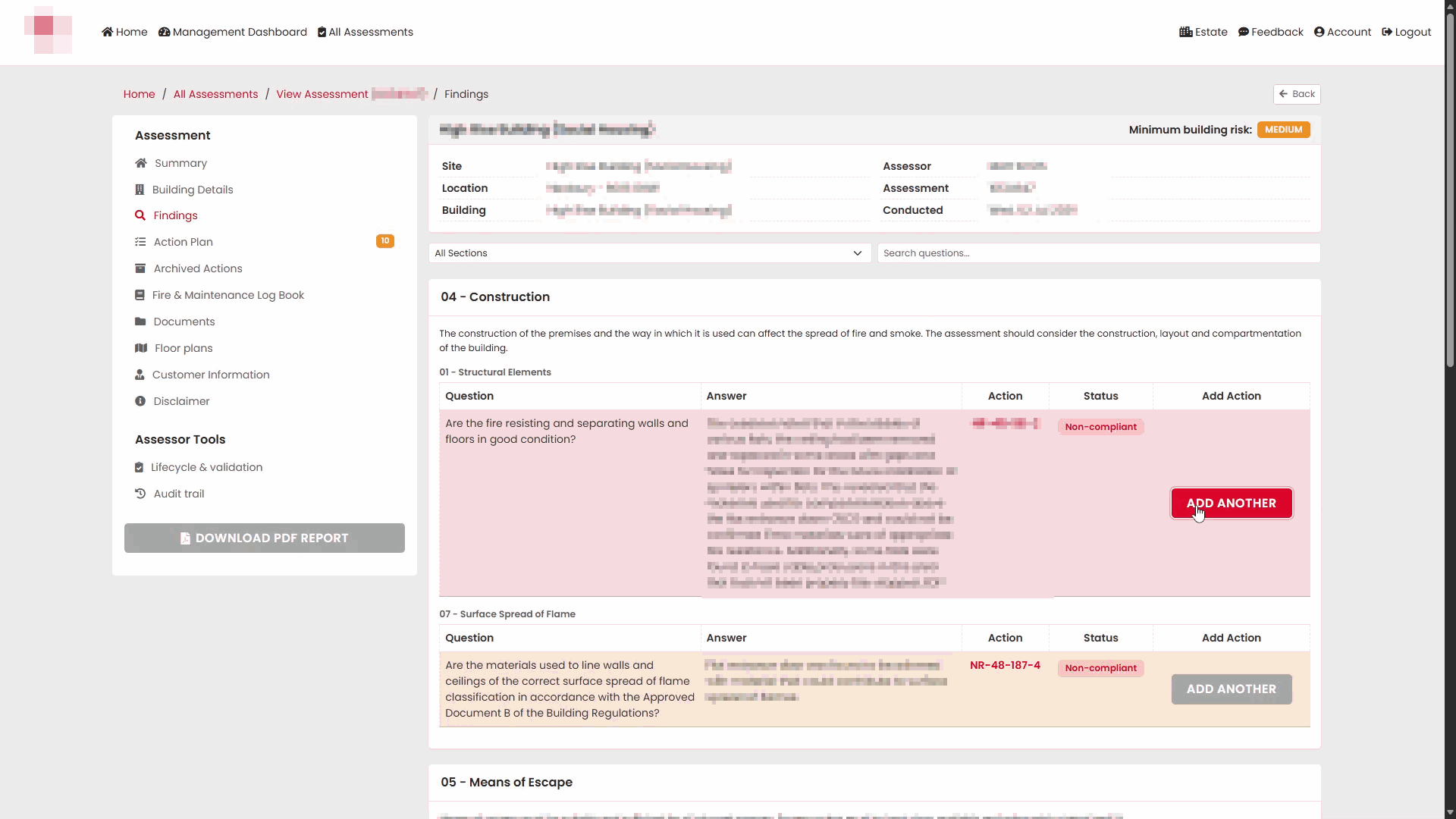
Open the Assessment Findings
Navigate to the required assessment and select Findings from the left-hand menu.
The Findings page displays all findings within the assessment, along with any associated actions and their compliance status.
Locate the Existing Action
Find the action you want to use as the basis for a new action. In the Add Action column, select ADD ANOTHER.
This opens the action creation screen and automatically links the new action to the selected finding.
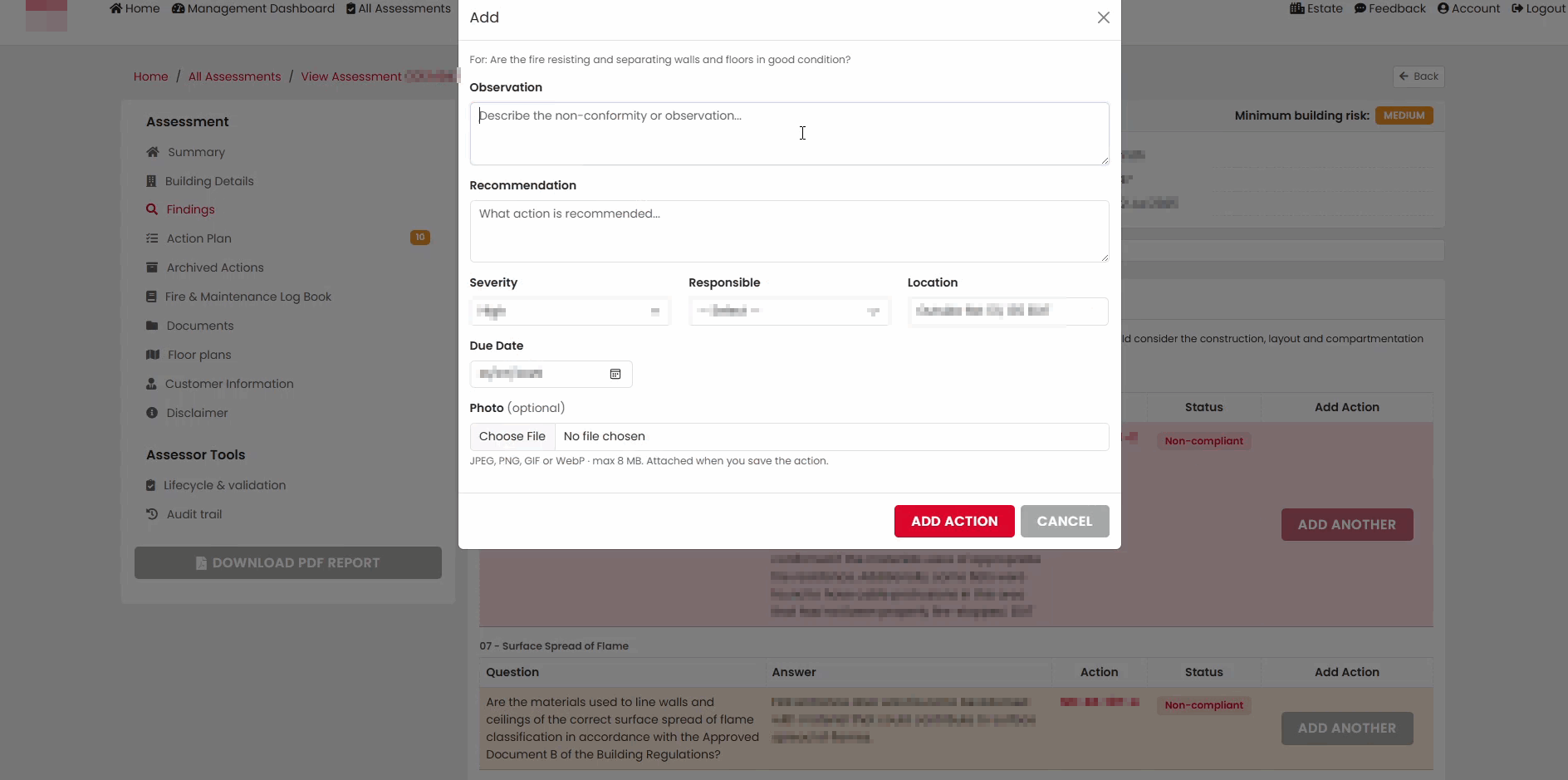
Review the Existing Action Information
The action creation page displays details from the existing action, including the related finding, recommendation, risk level, and other supporting information.
Review the information to ensure you are creating the new action against the correct finding.
Enter the New Action Details
Complete the required fields for the new action.
This may include:
- Action title or description
- Recommended remedial work
- Priority or risk level
- Responsible person or organisation
- Target completion date
- Any additional notes or comments
Ensure all mandatory fields are completed before proceeding.
Configure Action Ownership and Due Dates
Assign the action to the appropriate person or organisation and set any required completion dates.
Providing accurate ownership and timescales helps ensure actions can be monitored and reported correctly.
Add Supporting Information
If required, enter any further comments, recommendations, or contextual information to support the action.
The additional information should clearly explain what work is required and any relevant considerations.
Save the New Action
Once all details have been entered, select Save to create the new action.
The new Portal creates a new action while retaining the original action against the same finding.
Confirm the New Action Has Been Created
After saving, you are returned to the Findings page.
The finding now displays multiple actions, including the newly created action.
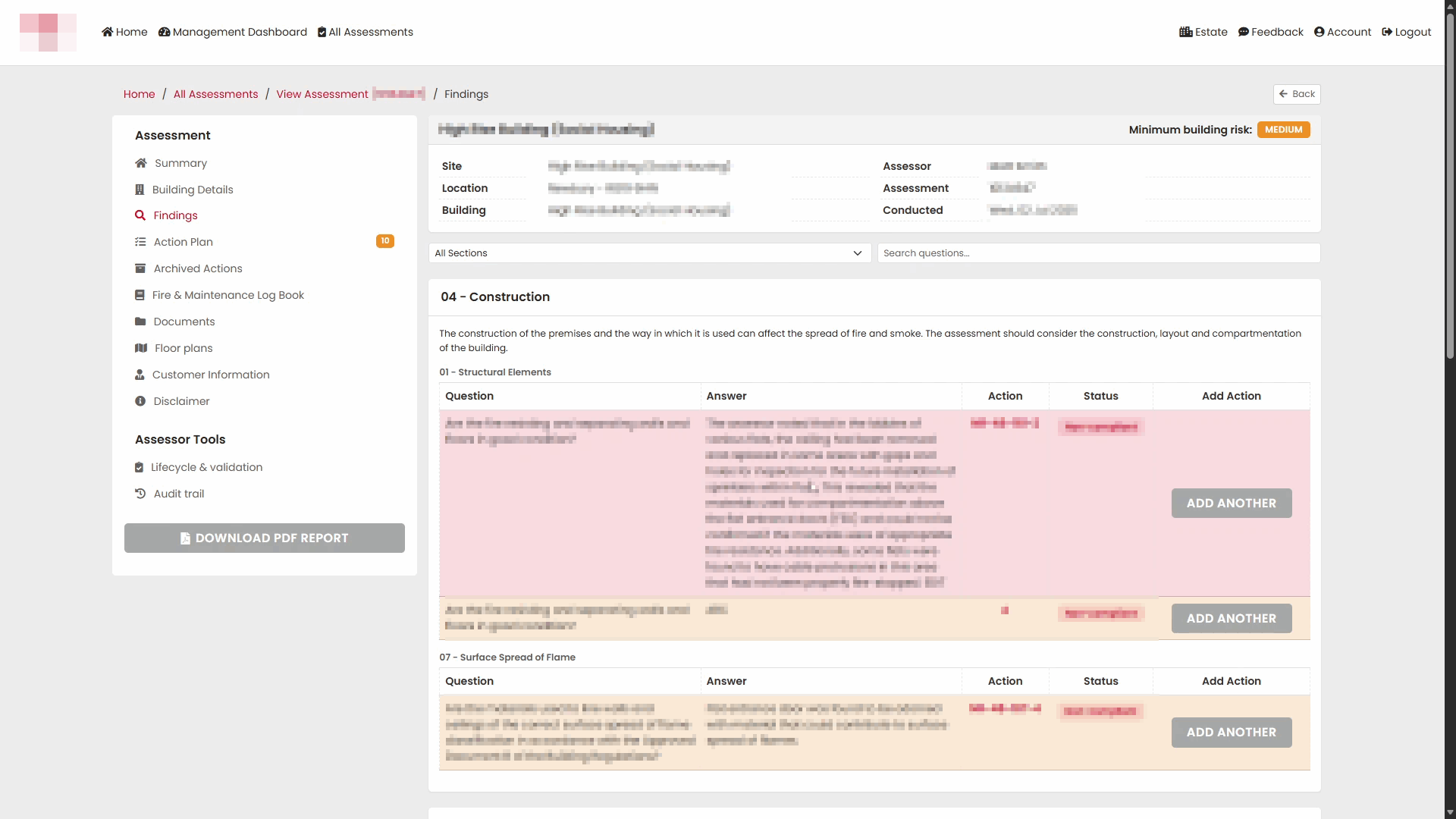
You can use the ADD ANOTHER option again in the future if further actions are required for the same finding.
Outcome
You have successfully created a new action based on an existing action. This allows multiple remedial actions to be tracked against a single finding while maintaining a clear audit trail within the assessment.
Was this article helpful?
That’s Great!
Thank you for your feedback
Sorry! We couldn't be helpful
Thank you for your feedback
Feedback sent
We appreciate your effort and will try to fix the article