Actions are recommendations and remedial tasks raised during a Fire Risk Assessment. The Actions area allows you to view all outstanding, completed, and overdue actions associated with a site or building.
This section explains how to locate a specific site or building and view its actions.
Open the Actions Screen
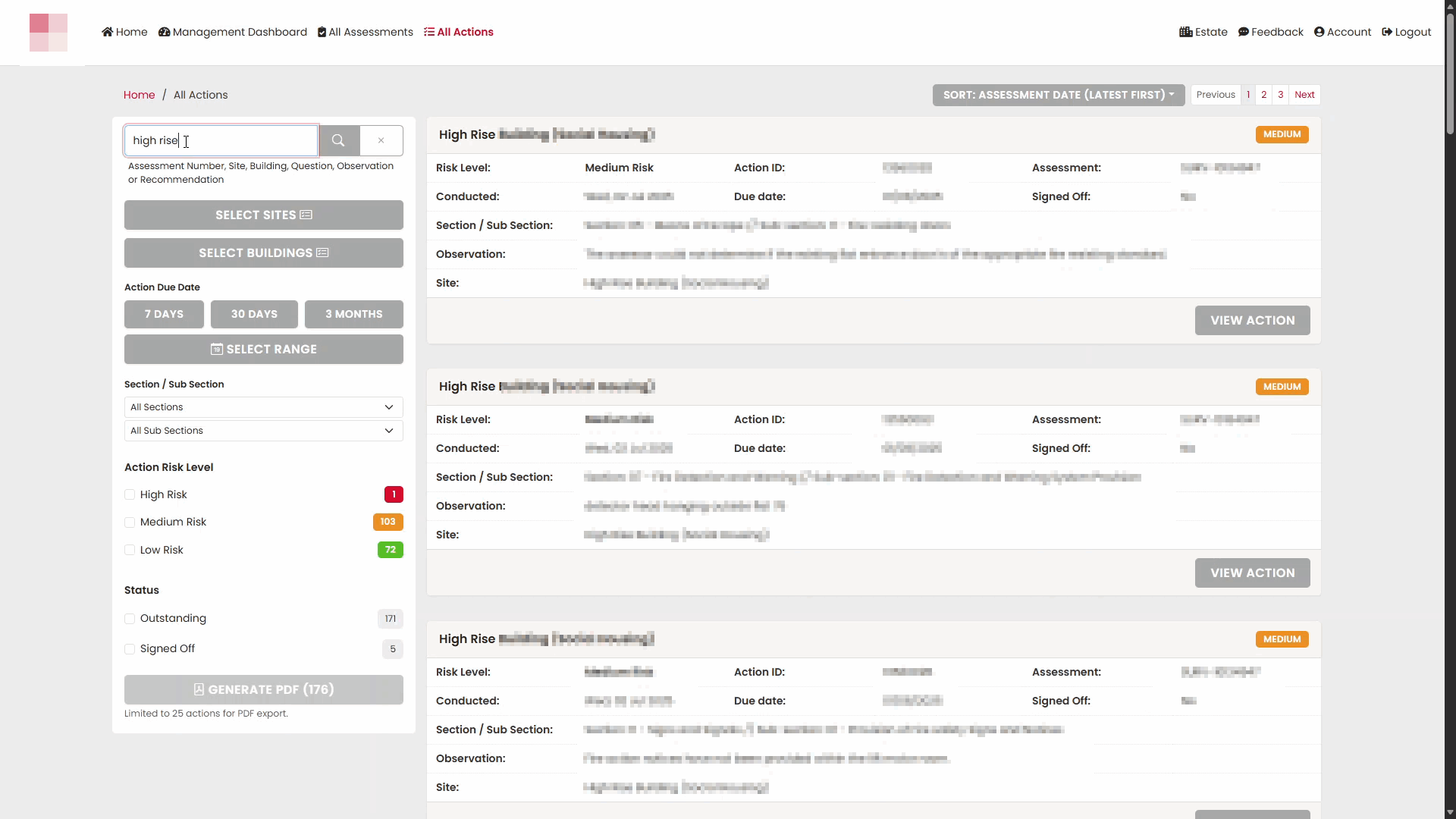
Select All Actions from the navigation menu.The Actions page displays a list of actions across all sites that you have access to.
Find a Site or Building
To view actions for a specific location:
- Use the search fields at the top of the page.
- Enter details such as the customer, site, building, assessor, action owner, or action status.
- Select Search.
The results list updates to show matching records.
Review Search Results
The results table displays key information for each action, including:
- Action ID
- Customer
- Site
- Building
- Assessment reference
- Assessor
- Priority
- Due date
- Status
Apply Additional Filters
If a large number of actions are returned, you can further refine the results using the available filter options.
Filters may include:
- Action status
- Priority
- Responsible person
- Assessment date
- Due date
Select Search again to apply the updated criteria.
Open an Action
Once you have located the required action:
- Find the action in the results list.
- Select View Action.
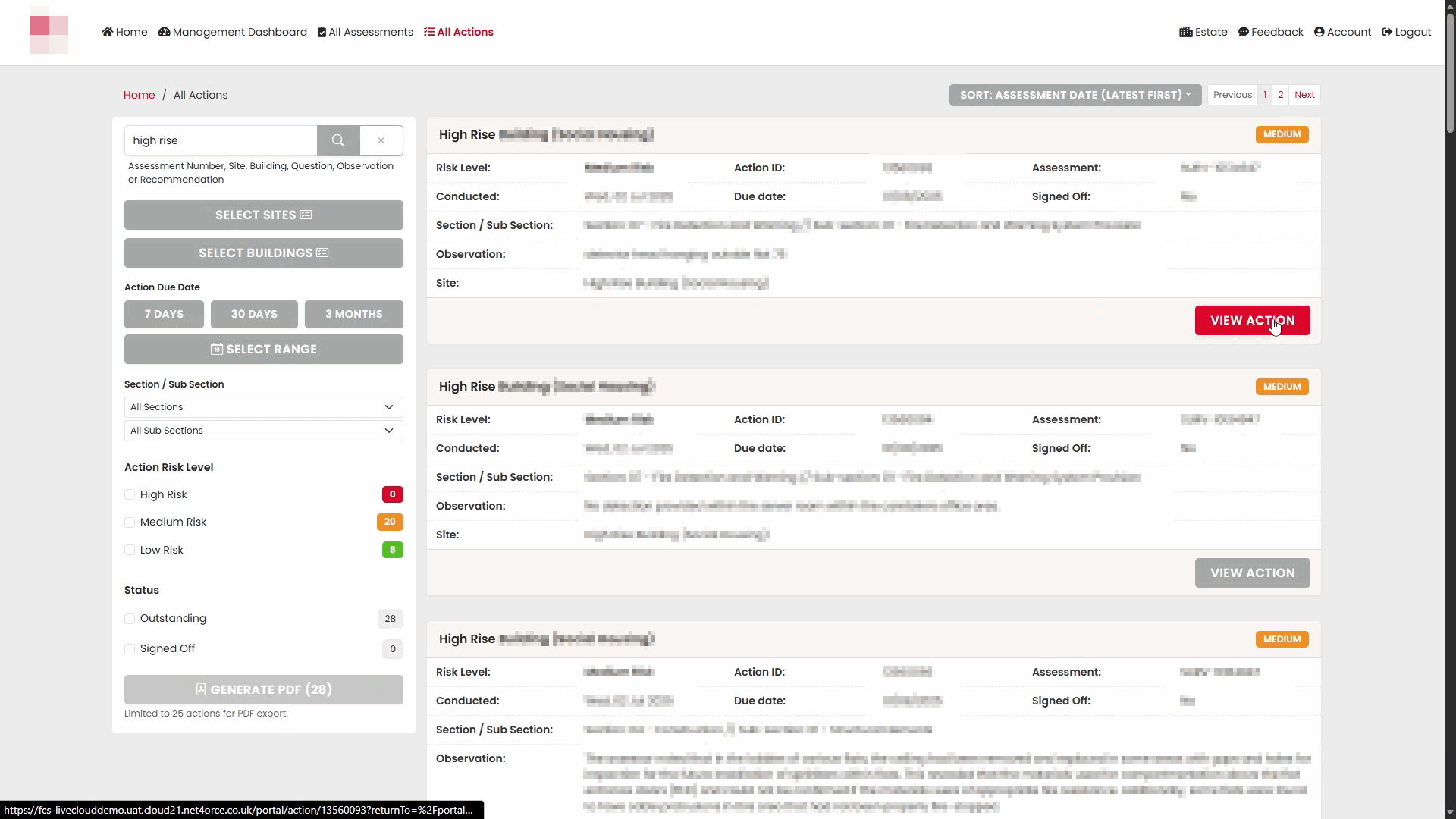
The action details page opens.
View Action Details
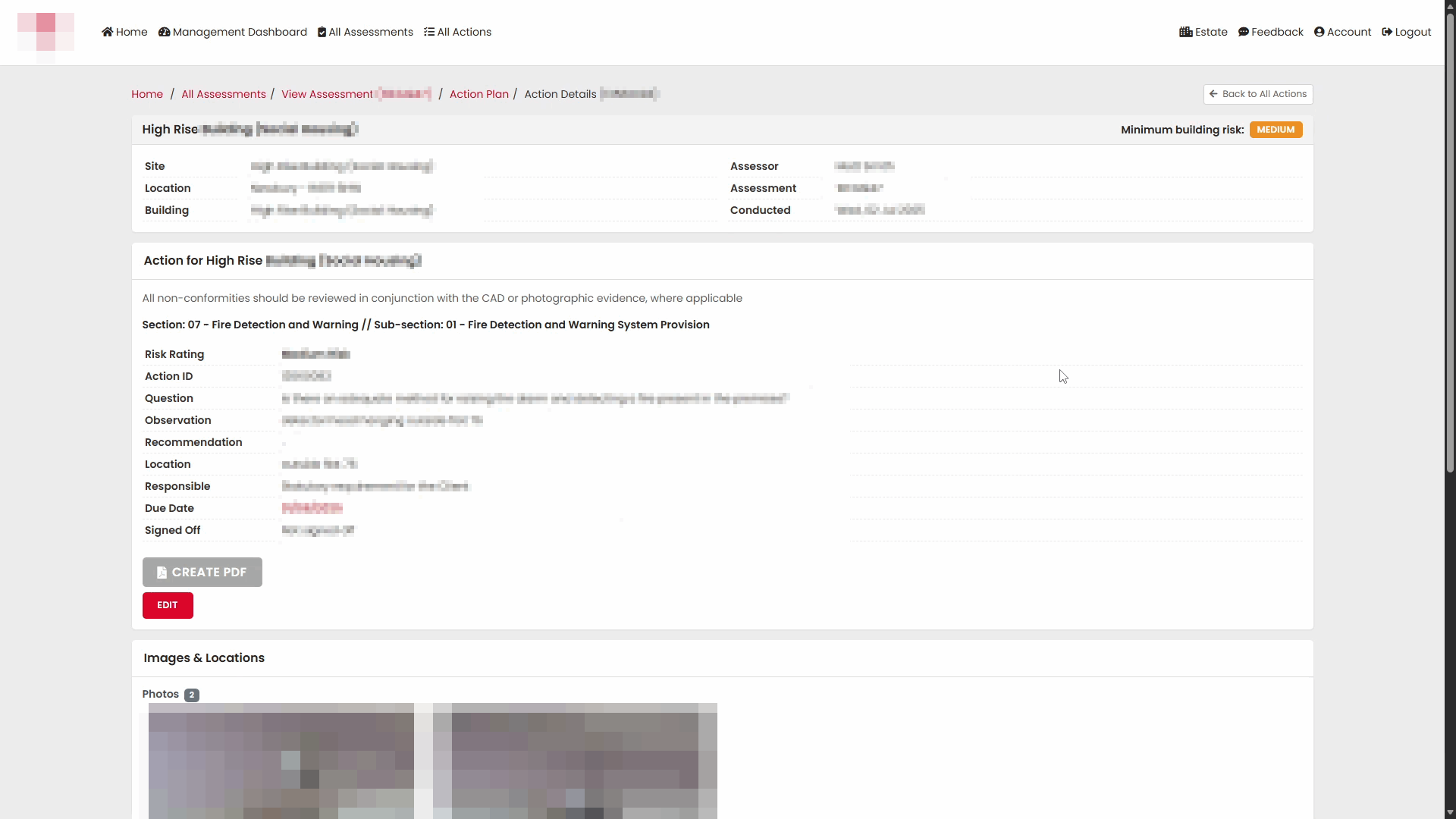
The action details page contains all information associated with the action, including:
- Action description
- Risk category
- Severity
- Recommendation
- Responsible person
- Due date
- Current status
- Assessment reference details
This screen provides the full history and current state of the action.
View Action Photographs
Where photographs were attached during the assessment, they are displayed within the action record.
Photographs provide visual evidence of the identified issue and can assist with validation and corrective actions.
Review Notes
The Notes section contains comments and updates relating to the action.
These may include:
- Progress updates
- Additional observations
- Communication between users
- Closure information
View Uploaded Pictures
The action record may contain additional images uploaded after the assessment was completed.
These images can be reviewed from the Upload Pictures section.
Review Action Sign-Off Information
Completed actions may contain sign-off information showing how and when the action was closed.
This section can include:
- Completion notes
- Supporting evidence
- Sign-off details
Navigate Between Actions
After reviewing an action, return to the Actions list to continue reviewing other actions associated with the same site or building.
The list remains filtered based on the search criteria you entered, allowing you to move efficiently between actions.
Action Status Overview
Actions can exist in different states depending on their progress.
Examples include:
- Open
- In Progress
- Completed
- Overdue
These statuses help users monitor outstanding work and prioritise remediation activities.
Summary
To view actions for a specific site or building:
- Open the Actions screen.
- Search for the required site or building.
- Review the filtered results.
- Select View Action to open the action record.
- Review the action details, photographs, notes, uploaded evidence, and sign-off information.
This process provides a complete view of actions raised during Fire Risk Assessments and their current progress toward completion.
Was this article helpful?
That’s Great!
Thank you for your feedback
Sorry! We couldn't be helpful
Thank you for your feedback
Feedback sent
We appreciate your effort and will try to fix the article