The Home page provides an overview of the customer’s estate, assessments, actions and building risk levels. The information displayed may vary depending on the account and available data.
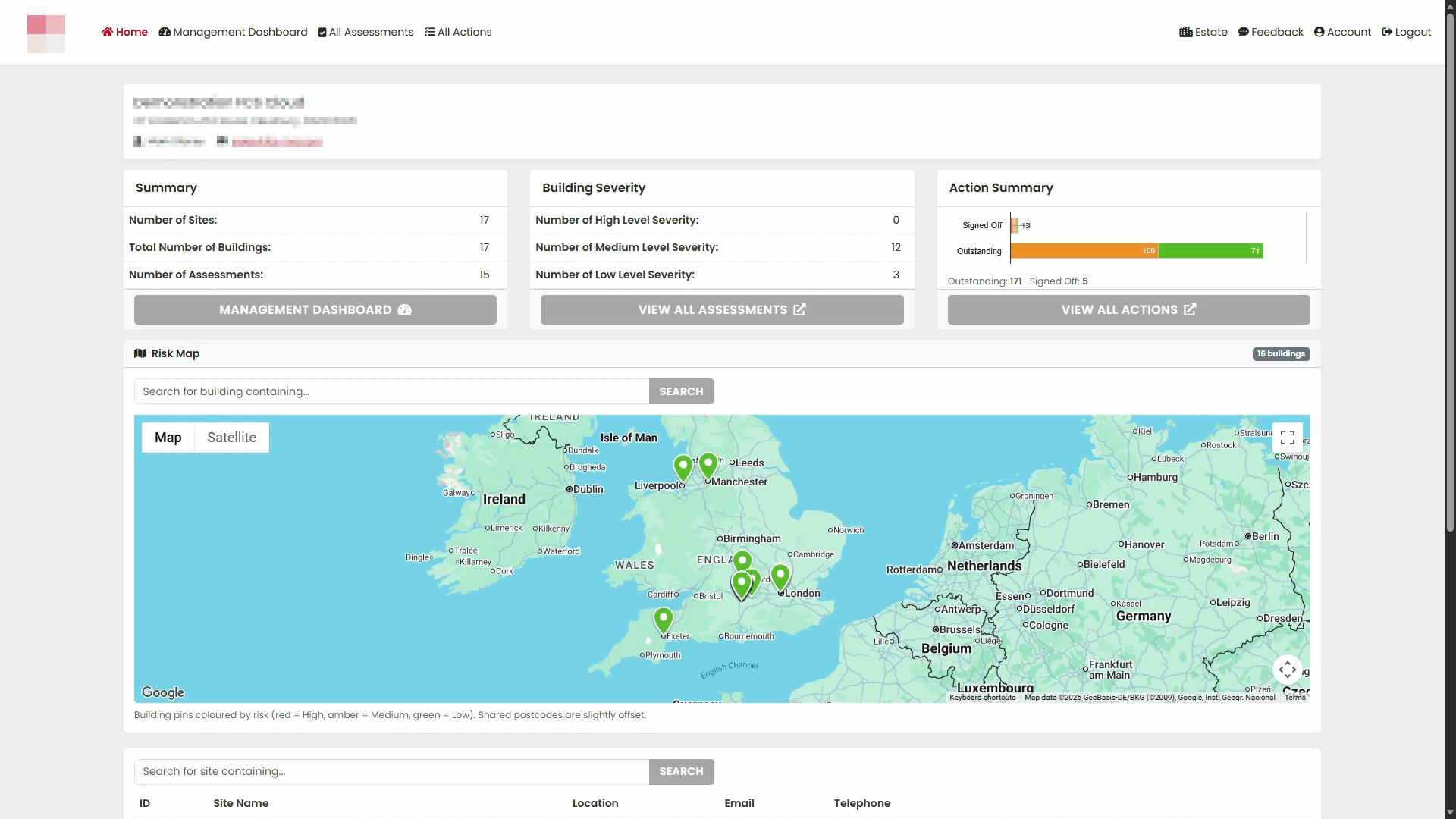
Customer details
The top of the page displays the customer’s:
- Name
- Address
- Main contact
- Email address
The navigation bar also provides access to other areas of the Portal, including:
- Management Dashboard
- All Assessments
- All Actions
- Estate
- Feedback
- Account
- Logout
Summary
The Summary panel displays:
- Number of sites
- Total number of buildings
- Number of assessments
Select Management Dashboard to open the Management Dashboard.
Building Severity
The Building Severity panel shows the number of buildings assigned each severity level:
- High
- Medium
- Low
Select View All Assessments to open the assessments area.
Action Summary
The Action Summary provides a visual overview of actions, including those that are:
- Outstanding
- Signed off
Select View All Actions to open the actions area.
Risk Map
The Risk Map displays building locations using coloured map pins.
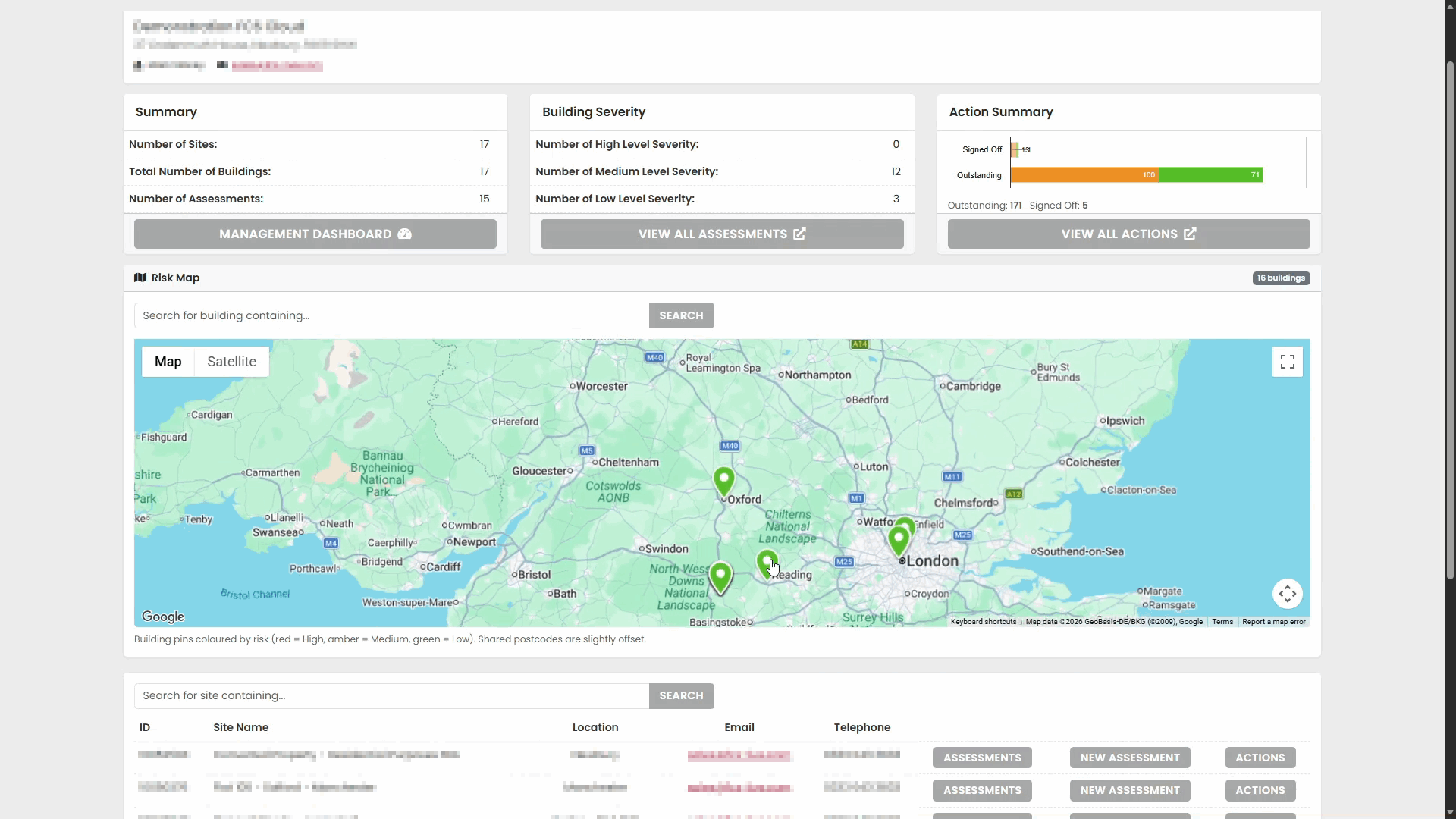
The key beneath the map explains the risk colours:
- Red: High
- Amber: Medium
- Green: Low
Building pins with the same postcode are slightly offset so that each pin remains visible.
You can:
- Enter part of a building name in the Search for building containing... field.
- Select Search.
- Switch between Map and Satellite views.
- Use the map controls to move around, zoom or display the map in full-screen mode.
Site List
The Site List appears below the Risk Map and displays the available sites.
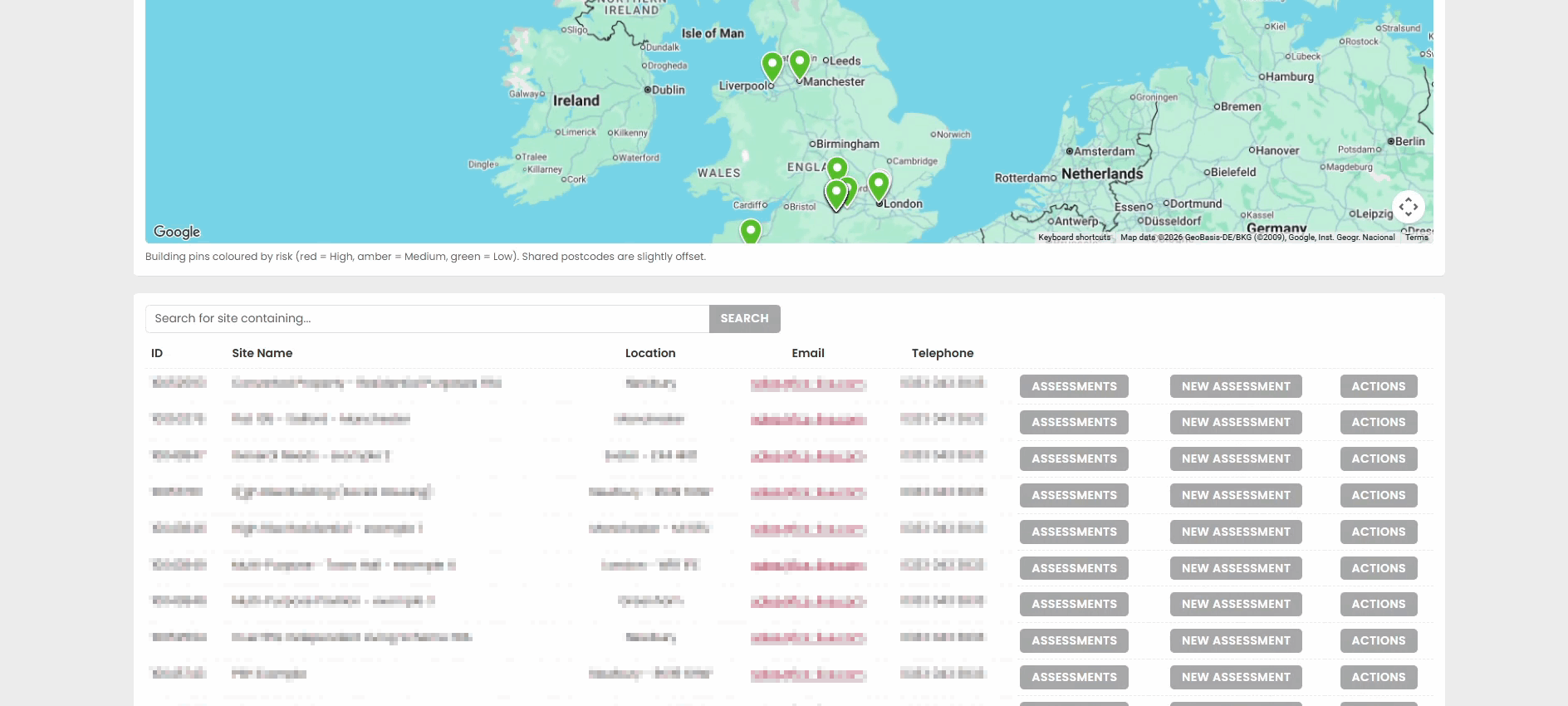
For each site, the list can include:
- ID
- Site name
- Location
- Email address
- Telephone number
The available buttons are:
- Assessments
- New Assessment
- Actions
Searching for a site
To find a site:
- Enter part of the site name in the Search for site containing... field.
- Select Search.
Moving between pages
When the Site List contains more entries than can be shown on one page, use the controls at the bottom-right of the list:
- Select a page number to open that page.
- Select Next to move forward.
- Select Previous to move back.
Using the site buttons
Each site may have the following options:
- Select Assessments to view the site’s assessments.
- Select New Assessment to begin a new assessment for the site.
- Select Actions to view the site’s actions.
Reports
- Building
- Logbook item
- Renewal date
- Days overdue
- Building name
- Site name
- Severity level
- Last assessment date
Was this article helpful?
That’s Great!
Thank you for your feedback
Sorry! We couldn't be helpful
Thank you for your feedback
Feedback sent
We appreciate your effort and will try to fix the article