Overview
Before beginning fieldwork, you must download any assessments that have been assigned to you.
Assigned work is downloaded directly from the Assessment Recorder home screen. Once downloaded, the assessment becomes available for completion on the device.
Download New Assessments
- Open Assessment Recorder.
- Locate the Get New Assessments button.
- Select Get New Assessments.
- The system checks for assessments assigned to your account.
- Newly assigned assessments are added to your assessment list.
Understanding the Home Screen
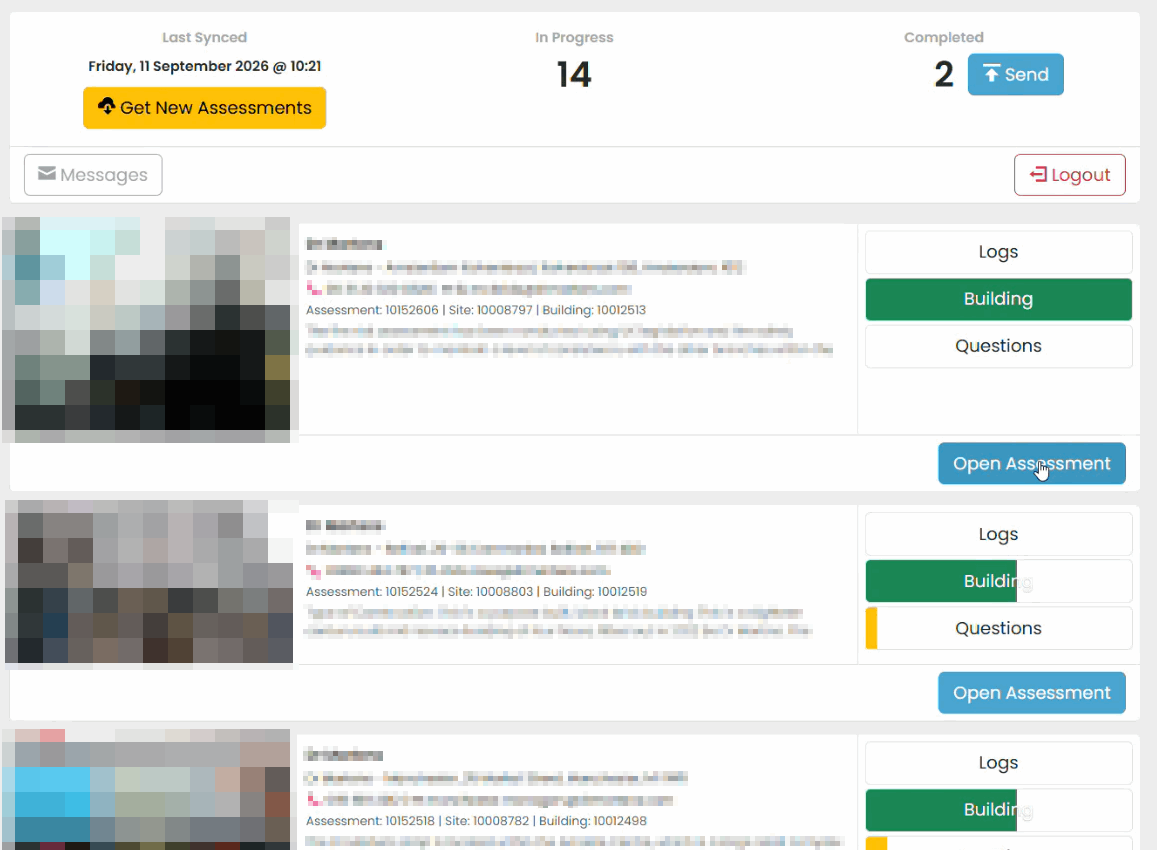
The home screen contains:
Status Bar
The status bar provides information such as:
- Last synchronisation time.
- Number of assessments in progress.
- Number of completed assessments.
- Synchronisation status.
Assessment List
The assessment list displays:
- Assessments available on the device.
- Current completion progress.
- Assessment status.
- Open Assessment controls.
Progress Bars
Each assessment displays progress indicators showing completion levels for various sections.
These indicators help identify incomplete work before submission.
Previously Completed Assessments
Completed assessments may appear as read-only items within the assessment list. These can be viewed but cannot be edited unless the sign-off is removed.
Next Steps
Once an assessment has been downloaded, open it to begin recording information.
Continue with: Opening and Navigating an Assessment
Was this article helpful?
That’s Great!
Thank you for your feedback
Sorry! We couldn't be helpful
Thank you for your feedback
Feedback sent
We appreciate your effort and will try to fix the article