Before You Begin
Before accessing the Portal, ensure you have:
- An active Portal account.
- Your login credentials, or
- Access to your organisation's Microsoft account if Single Sign-On is enabled.
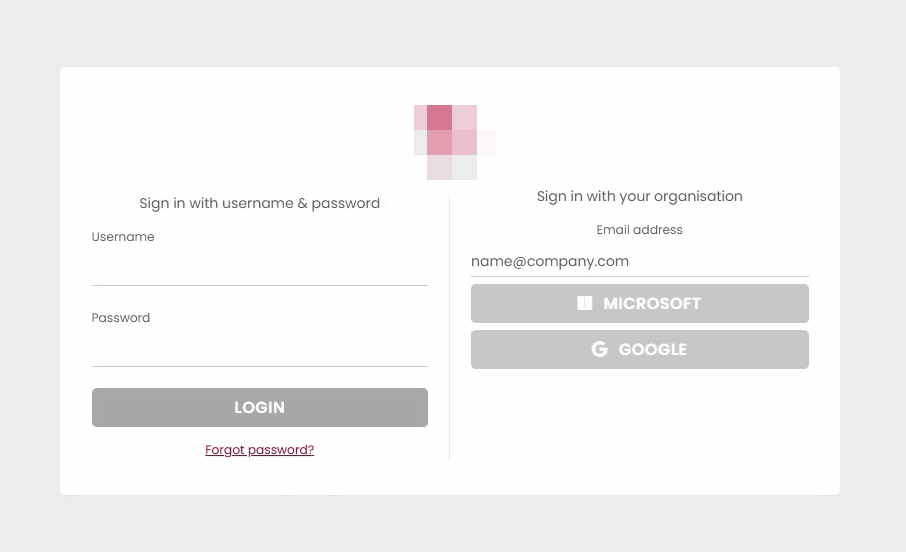
Sign In Using a Username and Password
Open the Portal login page.
In the Username field, enter your username.
In the Password field, enter your password.
Select LOGIN.
If your account has access to multiple customers, you will be taken to the Select Customer page. Choose the required customer and select SELECT & CONTINUE.
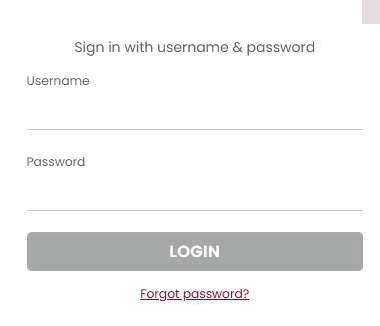
Forgotten Password
If you cannot remember your password:
Select Forgot password? on the login page.
Follow the on-screen instructions to reset your password.
If you continue to experience problems signing in, contact your system administrator or the organisation that provided your Portal access.
Sign In Using Single Sign-On (SSO)
Single Sign-On allows you to sign in using your organisation's Microsoft account without entering a separate Portal password.
Open the Portal login page.
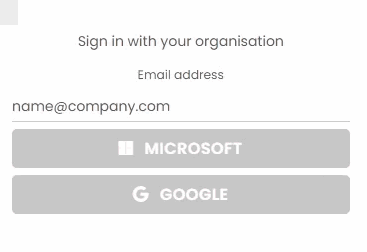
Under Sign in with your organisation, enter your organisation email address.
Select MICROSOFT.
The portal will authenticate your Microsoft account.
Once authentication is complete, you will be taken to the Select Customer page. Select the customer you wish to access and choose SELECT & CONTINUE.
Logging Out
To sign out of the Portal:
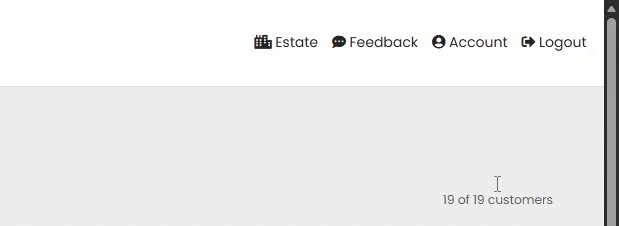
Select Logout from the top-right corner of the portal.
You will be returned to the portal login screen.
Troubleshooting Login Issues
Login button does not work
- Confirm that both username and password have been entered.
- Check that your internet connection is active.
- Refresh the page and try again.
Incorrect username or password
- Check that your username has been entered correctly.
- Ensure that Caps Lock is not enabled.
- Use the Forgot password? option if required.
Unable to sign in with Microsoft
- Verify that you are using the correct organisational email address.
- Ensure you are signed into the correct Microsoft account.
- Contact your organisation's administrator if access has not been configured.
Unable to see the correct customer
- Ensure you have been granted access to the required customer.
- Contact your administrator if a customer is missing from the Select Customer page.
Was this article helpful?
That’s Great!
Thank you for your feedback
Sorry! We couldn't be helpful
Thank you for your feedback
Feedback sent
We appreciate your effort and will try to fix the article