What is SSO?
Single Sign-On is a technology that allows you to use a single email and password across multiple platforms and websites, typically characterized by a "Sign in with Microsoft" or "Sign in with Google" button on login pages. In this instance, we will guide you through the setup process for SSO with Microsoft, allowing you to use your organization's Microsoft login within the Assessment Recorder and Portal.
Requirements:
- Admin access to your organization's Microsoft Entra (formerly known as Azure Active Directory)
How To:
Step 1:
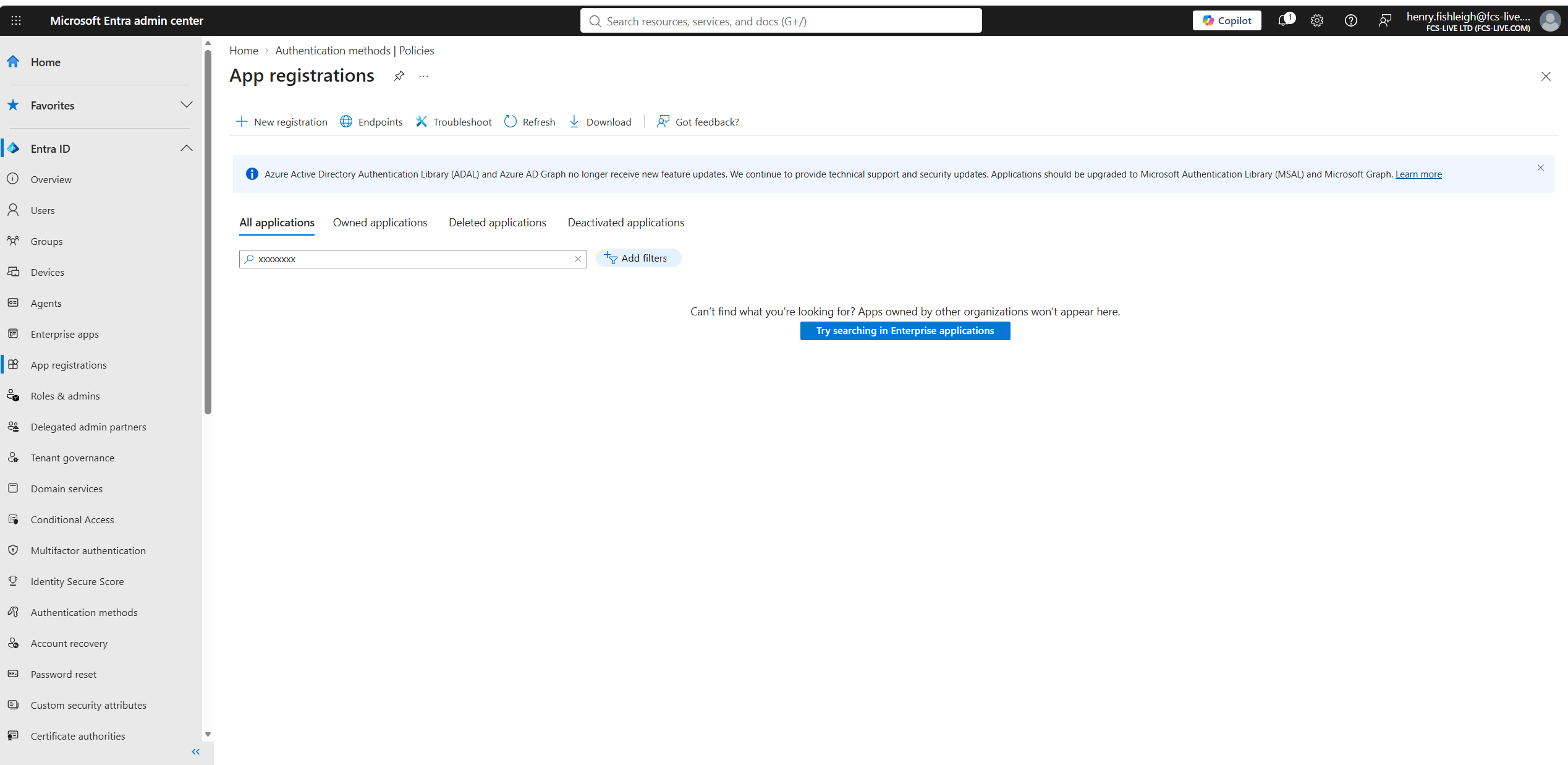
Log into Microsoft Entra as an Admin and navigate to the "App Registrations" tab:
Step 2:
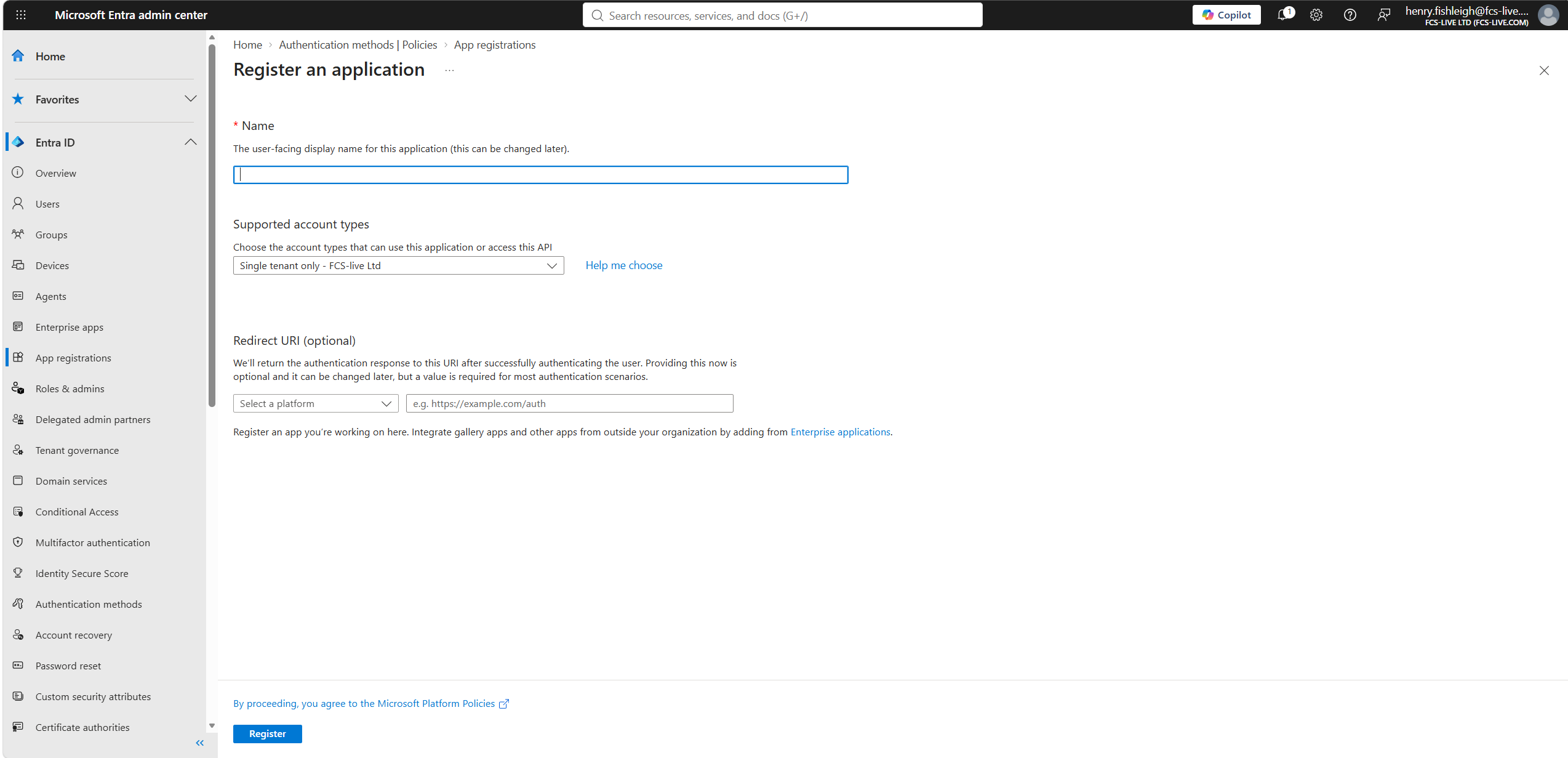
Select the "+ New registration" button:
Step 3:
Once on the page to add a new registration, enter a Name for the application. This can be anything, but we advise you choose something like "FRA Tool SSO" to make it easy to identify.

Next, select "Single tenant only" for Supported Account Types.

For the redirect URI, select "Web" as the platform and set https://auth.compliance-audit.com/account/external-callback as the URI.

Step 4:
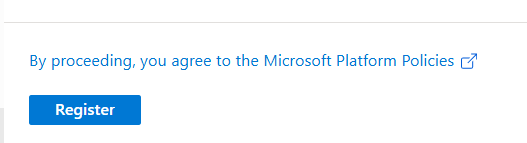
Click the "Register" button:
Step 5:
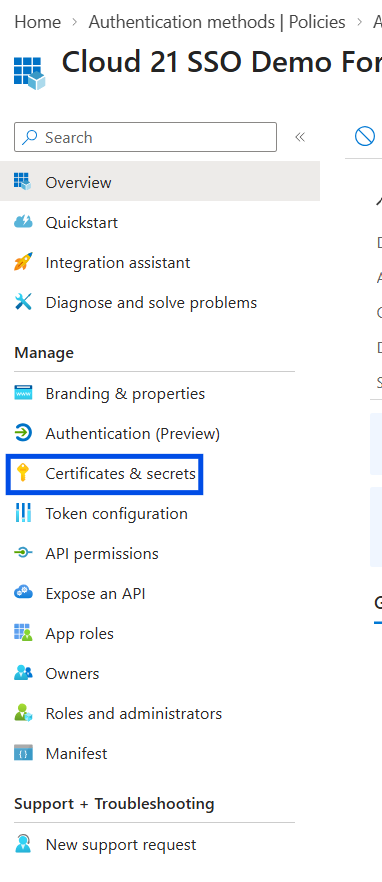
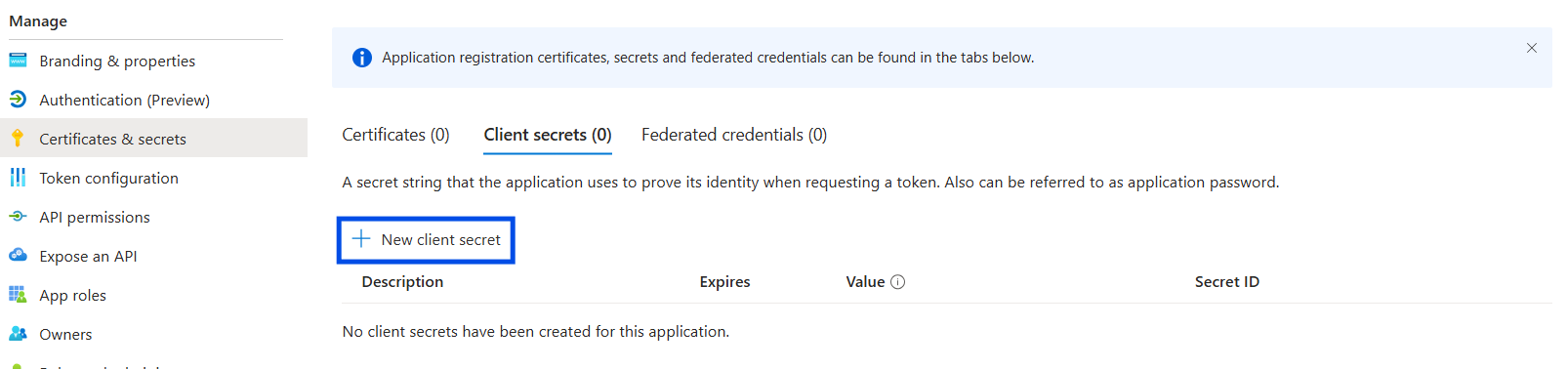
Once created navigate to "Certificates & Secrets":
Click on "+ New Client Secret":
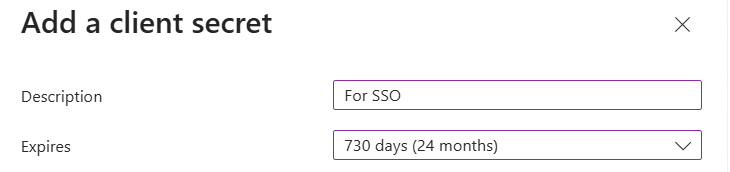
Give the client secret any description that will help you identify it, and set the expiry to 24 months - then click "Add"

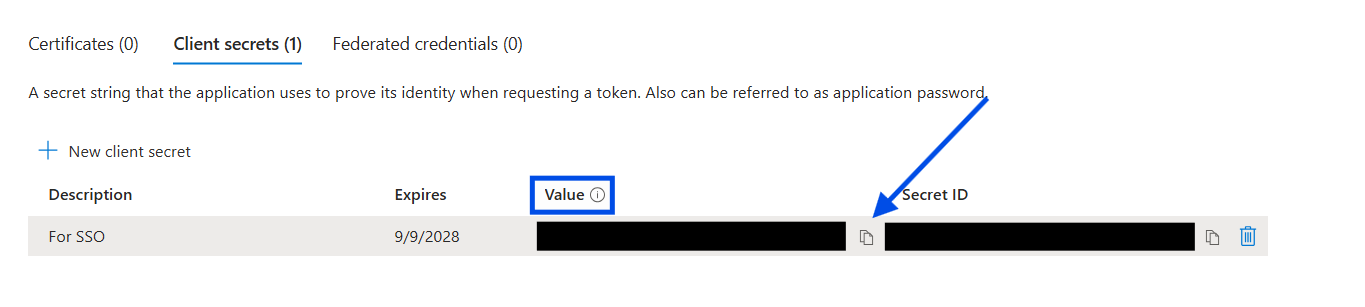
Step 6:
Once made, copy the generated "Value"
Step 7:
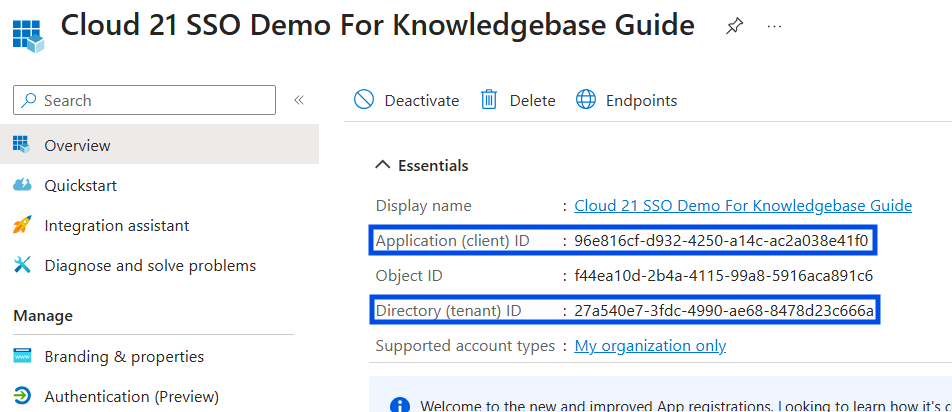
Finally, navigate to "Overview"
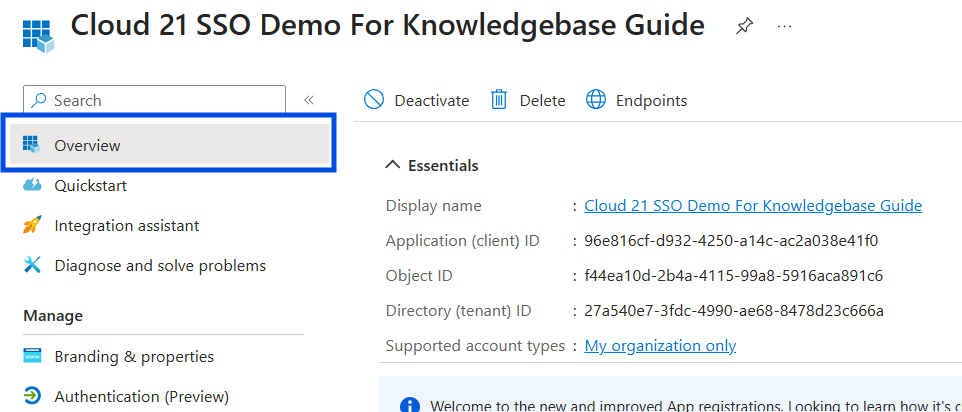
From here copy the following:
- Application (client) ID
- Directory (tenant) ID
Final Step:
Once you have those, please send the following to henry.fishleigh@fcs-live.com:
- Application (client) ID
- Directory (tenant) ID
- Client Secret Value
- The email domain this applies to (e.g. @company.com)
Additional Step:
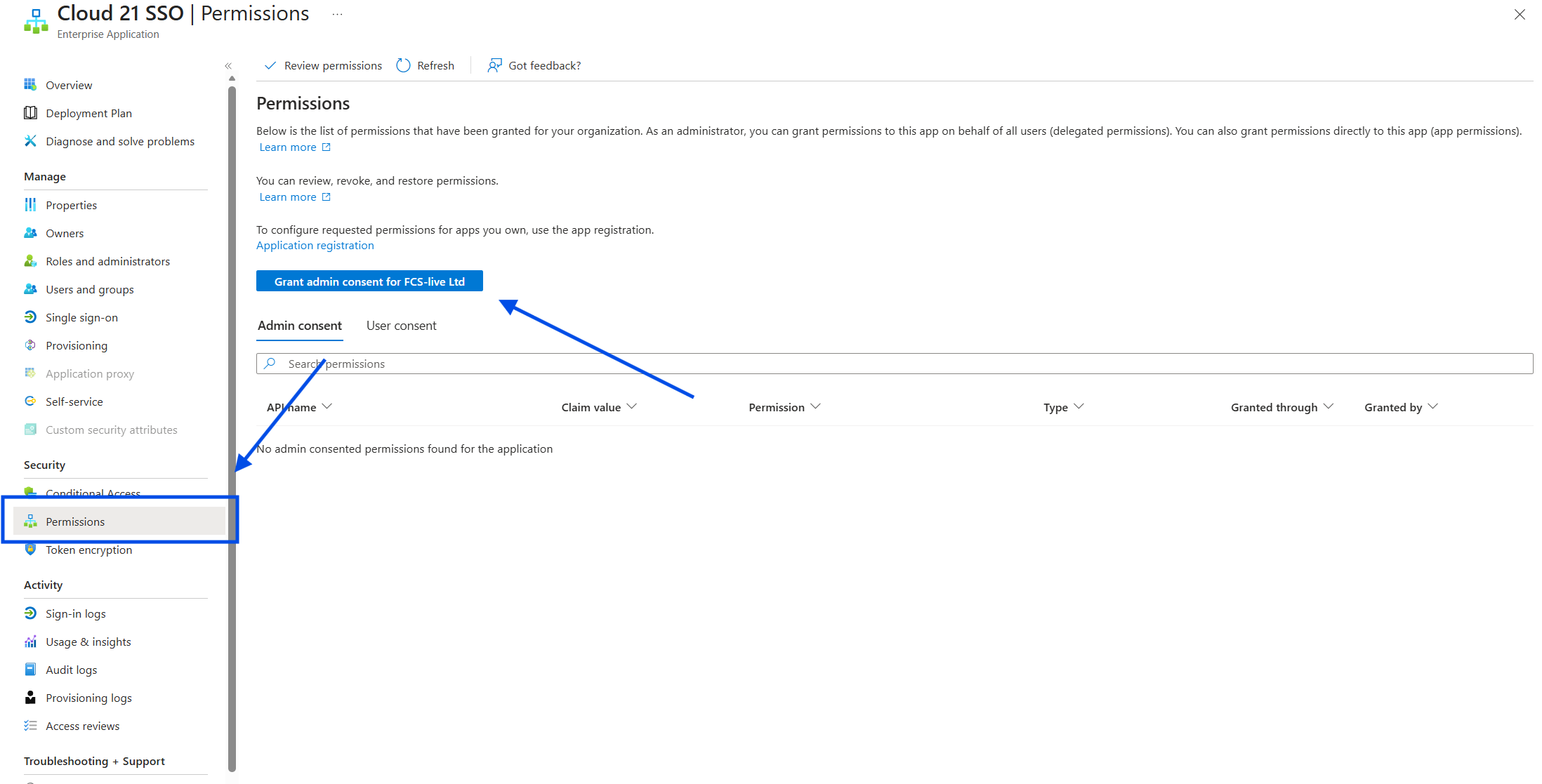
You will also likely need to grant permissions for the Application.
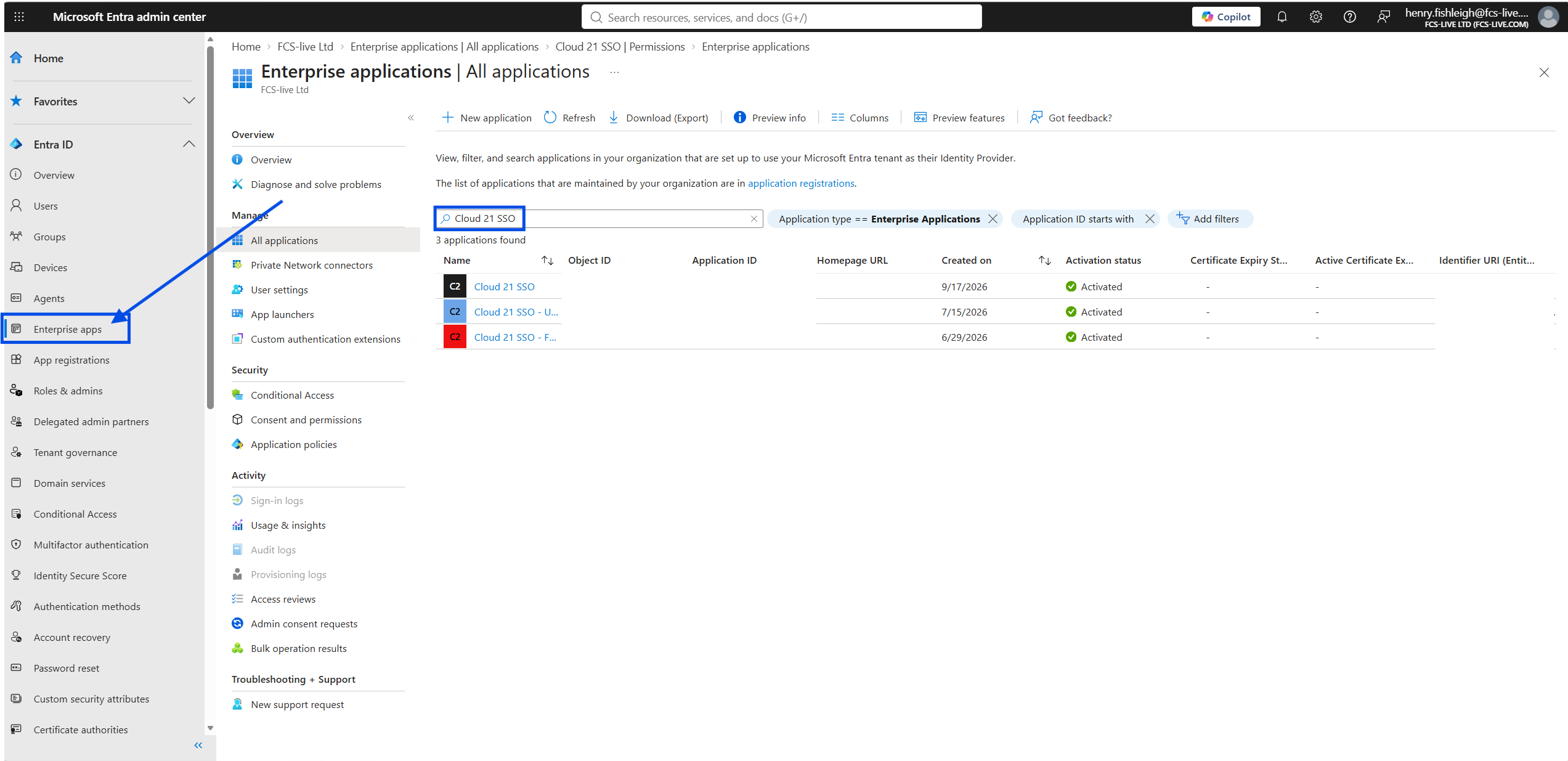
To do this, log into Entra and navigate to "Enterprise applications" and locate the previously created SSO application.
Now click on the application and navigate to "Permissions" and select "Grant admin consent"
Was this article helpful?
That’s Great!
Thank you for your feedback
Sorry! We couldn't be helpful
Thank you for your feedback
Feedback sent
We appreciate your effort and will try to fix the article