Looking to setup SSO for your organization? Click here: How To Setup SSO For The New Portal
Overview
Single Sign-On (SSO) allows users to access the new Portal using their organisation's existing identity provider, such as Microsoft Entra ID or Google Workspace. This means users do not need to maintain a separate Portal password and can sign in using the same credentials they use for their organisation's other systems.
SSO simplifies account management, improves security, and allows authentication controls such as multi-factor authentication (MFA) to be managed centrally by your organisation.
Benefits of SSO
Using Single Sign-On provides several advantages:
- Access the Portal using your existing organisational account.
- No separate Portal password is required.
- Password policies are controlled by your organisation.
- Multi-factor authentication (MFA) is managed through your identity provider.
- Reduced password-related support requests.
- Improved security and user experience.
Signing In Using SSO
Step 1: Open the Portal Login Page
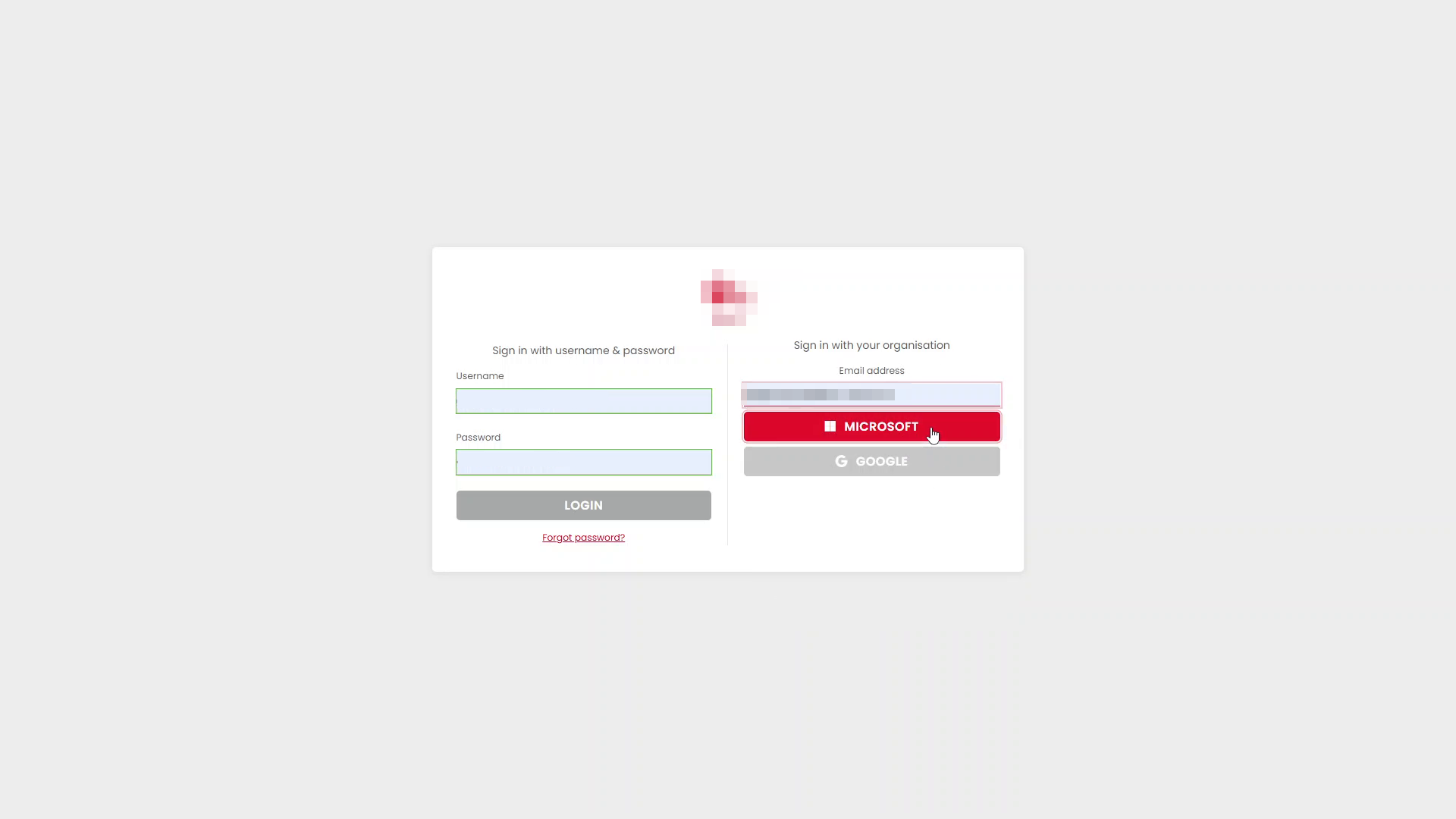
Navigate to the Portal and enter your email address under 'Sign In With Your Organisation' (right hand side).
Step 2: Choose Your Sign-In Method
Select Continue with Microsoft (or the appropriate provider displayed).
Step 3: Authenticate with Your Organisation
You will be redirected to your organisation's sign-in page.
Enter your organisational credentials and complete any required authentication steps, such as multi-factor authentication (MFA).
Step 4: Complete Sign-In
Once authentication is successful, the Portal automatically signs you in and loads the Portal.
Viewing Your Sign-In Method
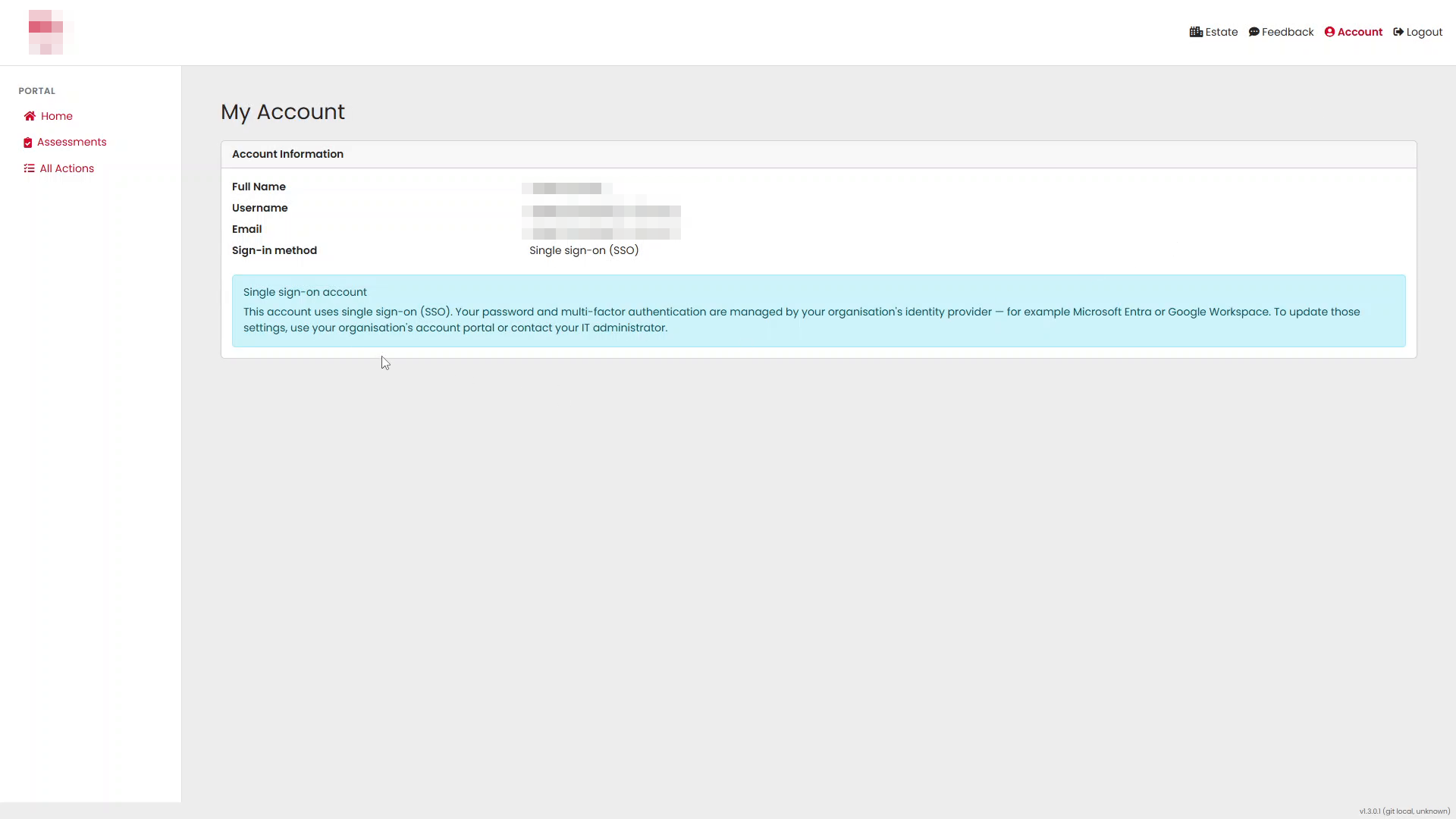
You can view how your account authenticates from the My Account page.
- Select Account from the navigation bar.
- Review the Sign-in method field.
When Single Sign-On is enabled, the sign-in method is displayed as:
Single sign-on (SSO)
Understanding Account Management with SSO
When your account uses Single Sign-On, authentication settings are controlled by your organisation's identity provider rather than the Portal.
This means:
- Password changes must be completed through your organisation's systems.
- Multi-factor authentication settings are managed by your organisation.
- Portal administrators cannot reset or manage your SSO password.
- Access is governed by your organisation's account policies.
The My Account page displays a notification explaining this arrangement.
Troubleshooting SSO Sign-In Issues
I Cannot Sign In
Check the following:
- You are using the correct organisational email address.
- Your organisational account is active.
- You have internet connectivity.
- Any required MFA approval has been completed.
I Don't Have SSO Setup
Please follow the guide outlined in this article to get SSO setup for your organization: How To Setup SSO For The New Portal
I Forgot My Password
If your account uses SSO, password resets must be completed through your organisation's identity provider.
Contact your internal IT team if you are unable to reset your password.
My MFA Is Not Working
The Portal does not manage MFA for SSO accounts.
If you experience issues with authentication codes, authenticator applications, or approval prompts, contact your organisation's IT department.
I Receive an Access Error
If authentication succeeds but access to the Portal is denied:
- Confirm that your user account has been granted access to the required estate.
- Contact a Portal administrator or your organisation's administrator for assistance.
Summary
Single Sign-On enables secure access to the Portal using your organisation's existing identity provider. Users authenticate using their normal organisational credentials, while password policies and multi-factor authentication remain under the control of their organisation. The sign-in method can be viewed from the My Account page, where the Portal also confirms that authentication settings are managed externally.
Was this article helpful?
That’s Great!
Thank you for your feedback
Sorry! We couldn't be helpful
Thank you for your feedback
Feedback sent
We appreciate your effort and will try to fix the article