Overview
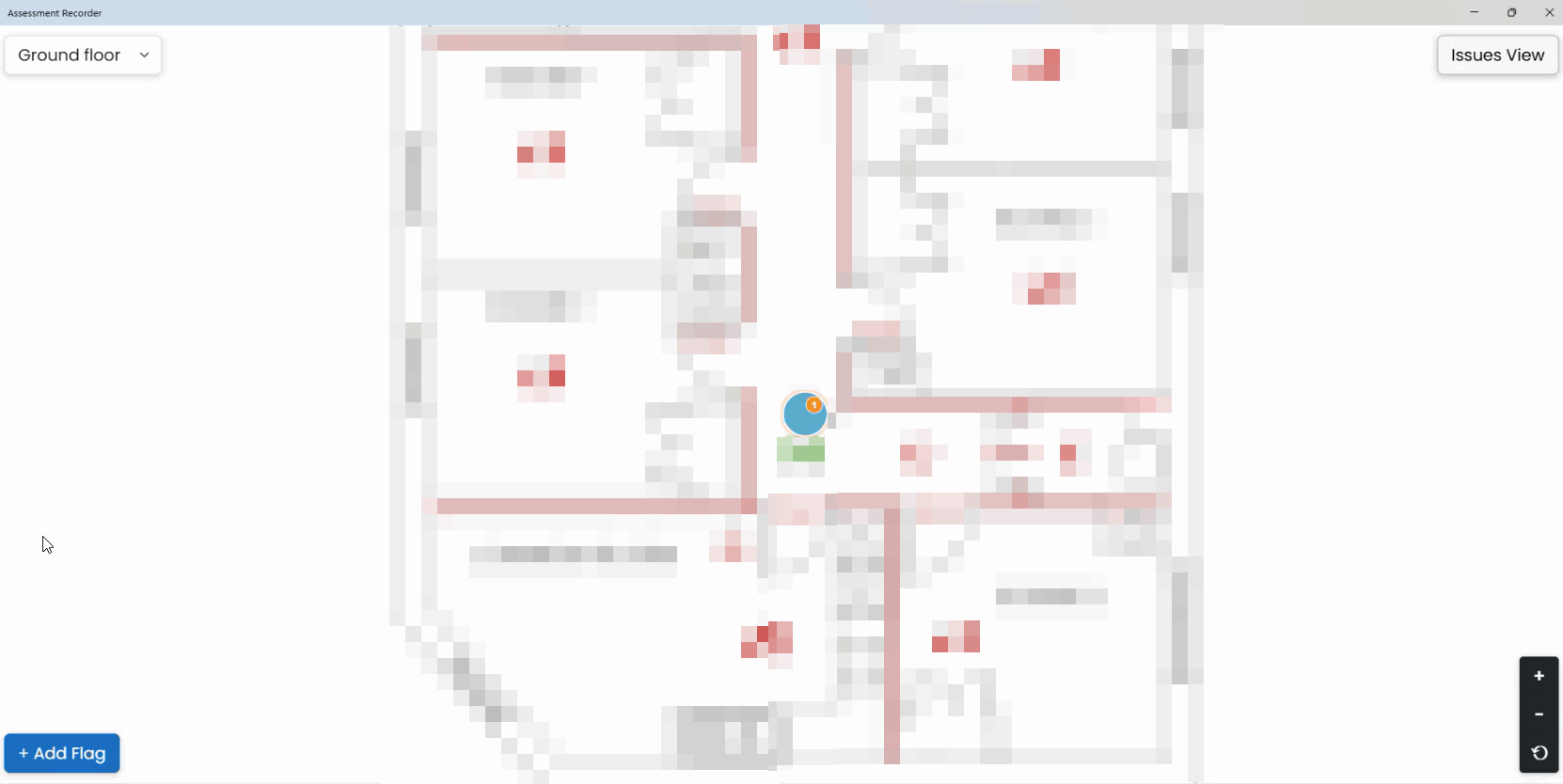
Flags are used to identify locations on a floor plan and link them to issues raised during the assessment.
Each flag can contain one or more issues, allowing several findings to be grouped against the same location where appropriate.
Adding a New Flag
- Open Plan View.
- Select Add Flag.
- Click the required location on the floor plan.
- Choose whether to create a new issue or link an existing one.
Creating a New Issue from a Flag
To create a new issue:
- Place a flag.
- Select Add New Issue.
- Enter the issue details.
- Select the appropriate observation and recommendation.
- Assign a severity rating.
- Save the issue.
Linking an Existing Issue
If an issue has already been created in Issues View:
- Place a flag.
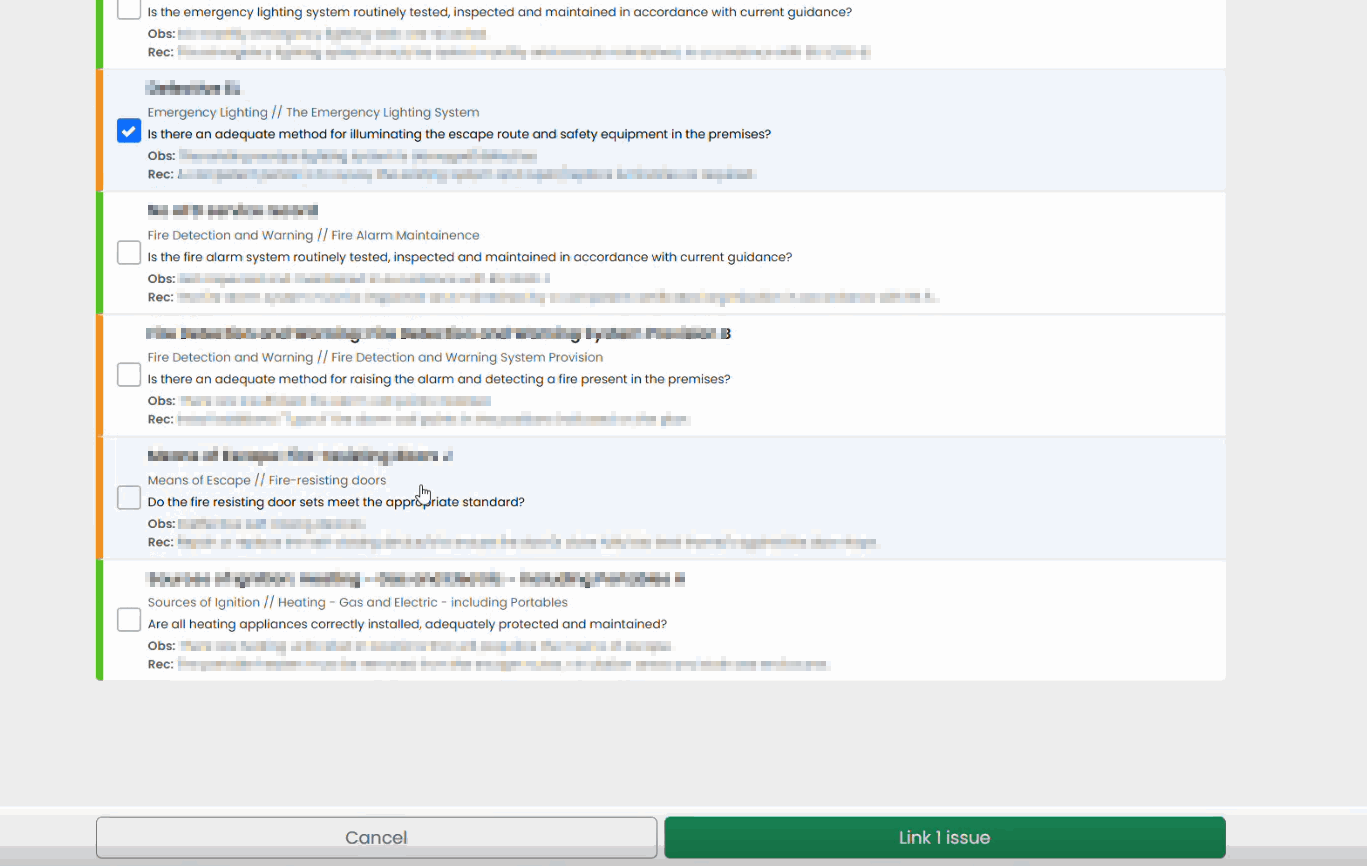
- Select Link Existing Issue.
- Select the relevant issue from the list.
- Save the link.
This avoids creating duplicate observations and allows a single issue to be associated with multiple locations where required.
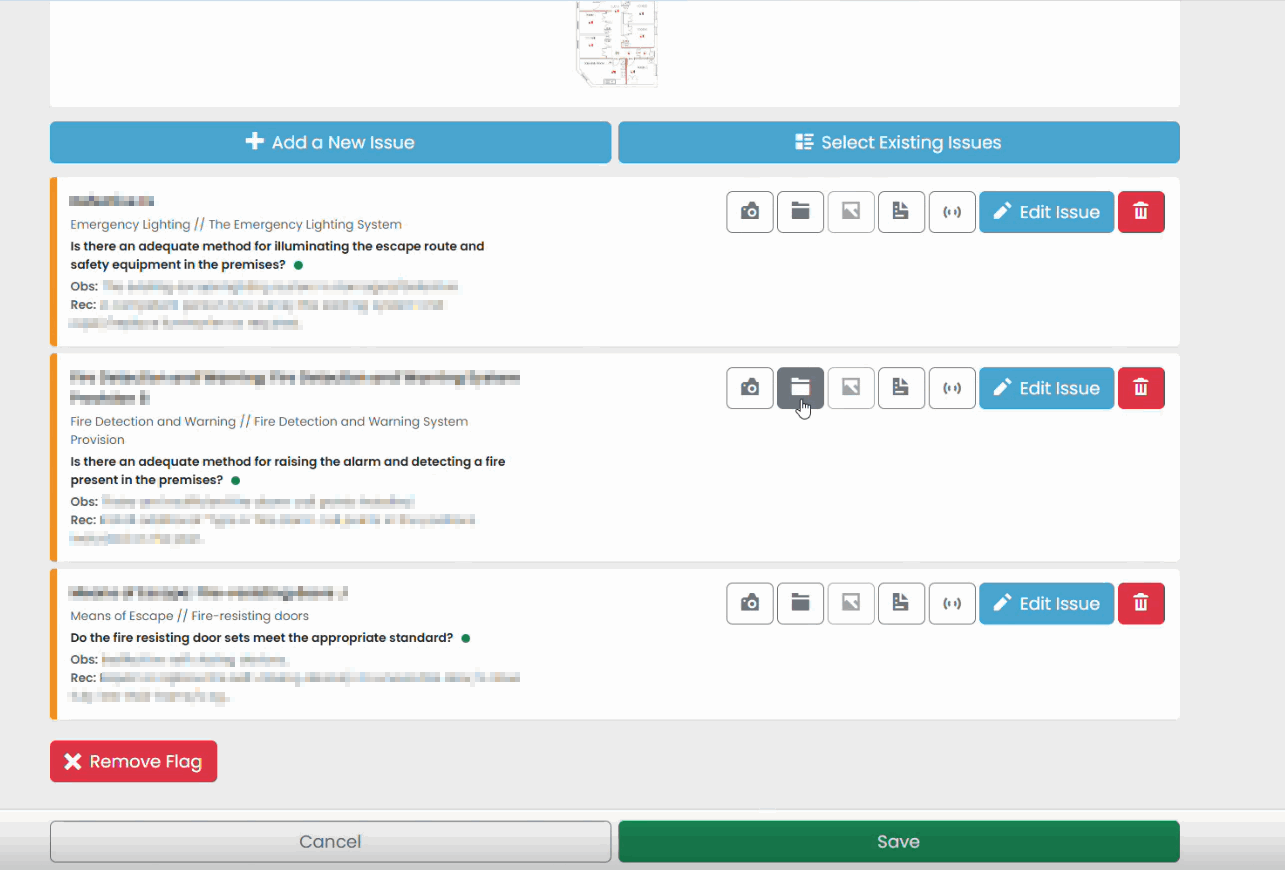
Adding Multiple Issues to One Location
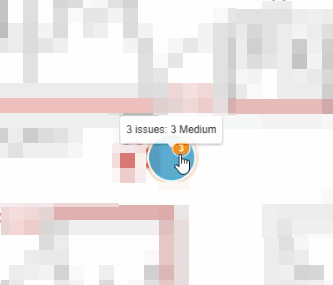
A single flag can contain multiple issues.
This is useful when several deficiencies are identified in the same physical location.
For example, one location might contain:
- Multiple fire safety deficiencies
- Equipment issues
- Management-related findings associated with the same area
All selected issues can be linked to the same flag.
Reviewing Linked Issues
Selecting a flag allows you to:
- View linked issues
- Review attached photographs
- Edit existing findings
- Add additional supporting information
Using Flags as Temporary Site Notes
Flags can also be used as placeholders during an inspection.
Examples include:
- Areas requiring reinspection
- Areas awaiting access
- Locations requiring verification before leaving site
These placeholders can later be updated into full issues if necessary.
Was this article helpful?
That’s Great!
Thank you for your feedback
Sorry! We couldn't be helpful
Thank you for your feedback
Feedback sent
We appreciate your effort and will try to fix the article