Overview
Multi-Factor Authentication (MFA) provides an additional layer of security for your Portal account. Once enabled, you will need to enter both your password and a verification code generated by an authenticator application whenever you sign in.
MFA helps protect your account from unauthorised access, even if your password becomes known to someone else.
Before You Begin
To use MFA, you will need:
- Access to your Portal account
- A smartphone or tablet
- An authenticator application such as:
- Microsoft Authenticator
- Google Authenticator
Opening MFA Settings
- Sign in to the Portal.
- Select your profile menu in the top-right corner of the screen.
- Choose Account.
The My Account page displays your account information and security settings.
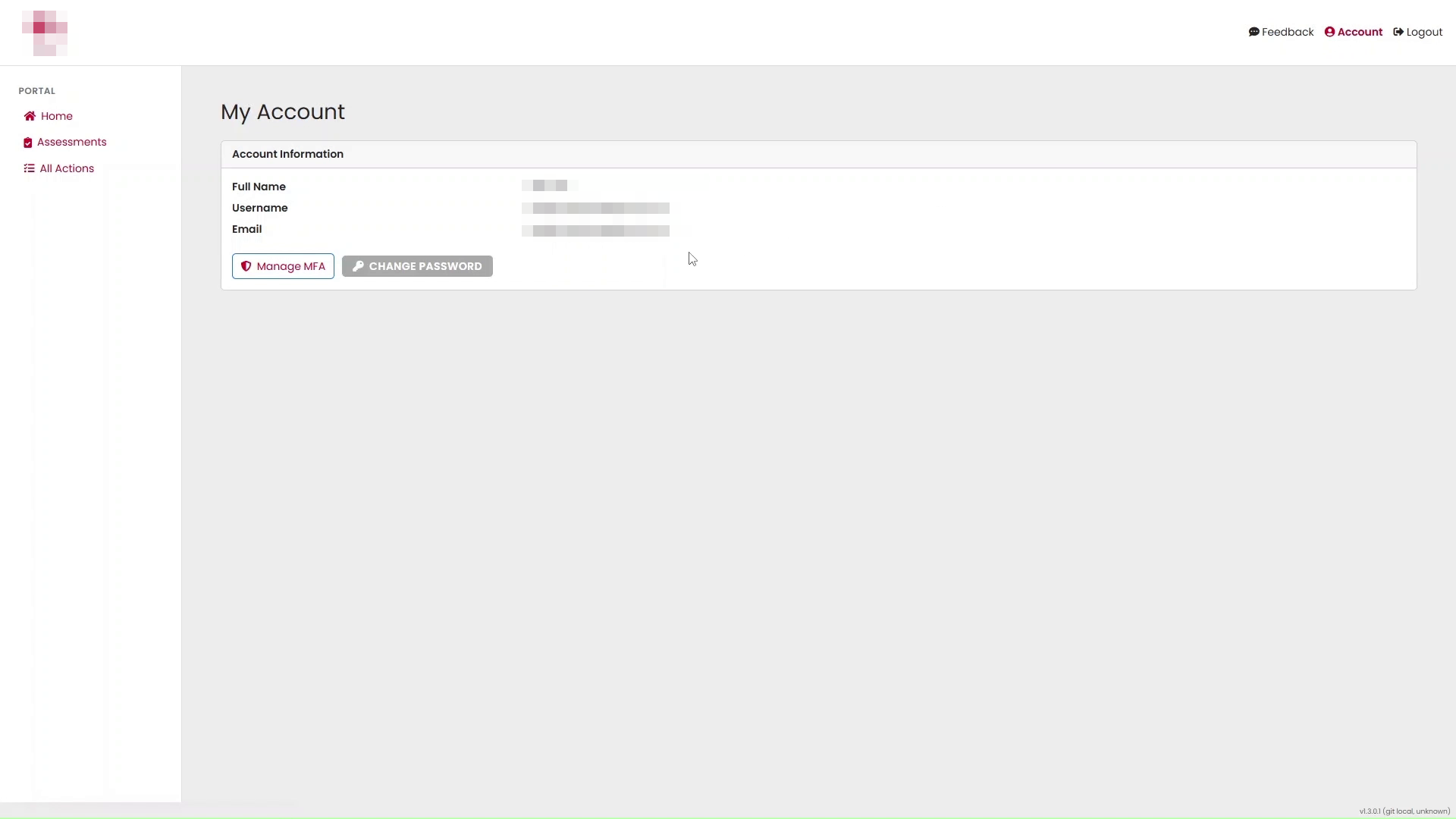
Accessing MFA Management
- On the My Account page, locate the MFA Management section.
- Select Manage MFA.
The MFA management screen will open.
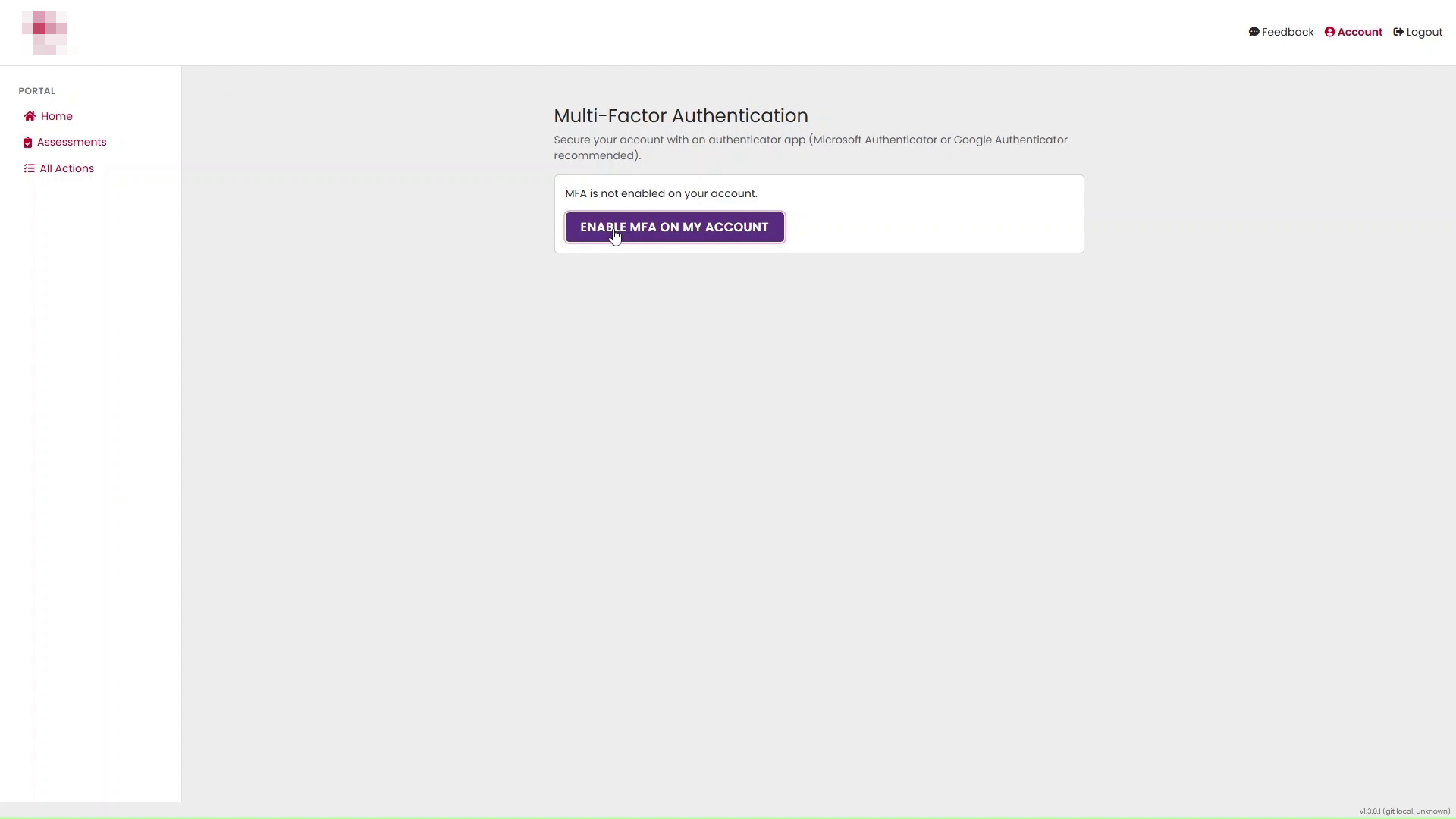
Enabling Multi-Factor Authentication
- Select Enable MFA On My Account.
A setup window will appear explaining the MFA process (sensitive info has been hidden in the screenshots below).
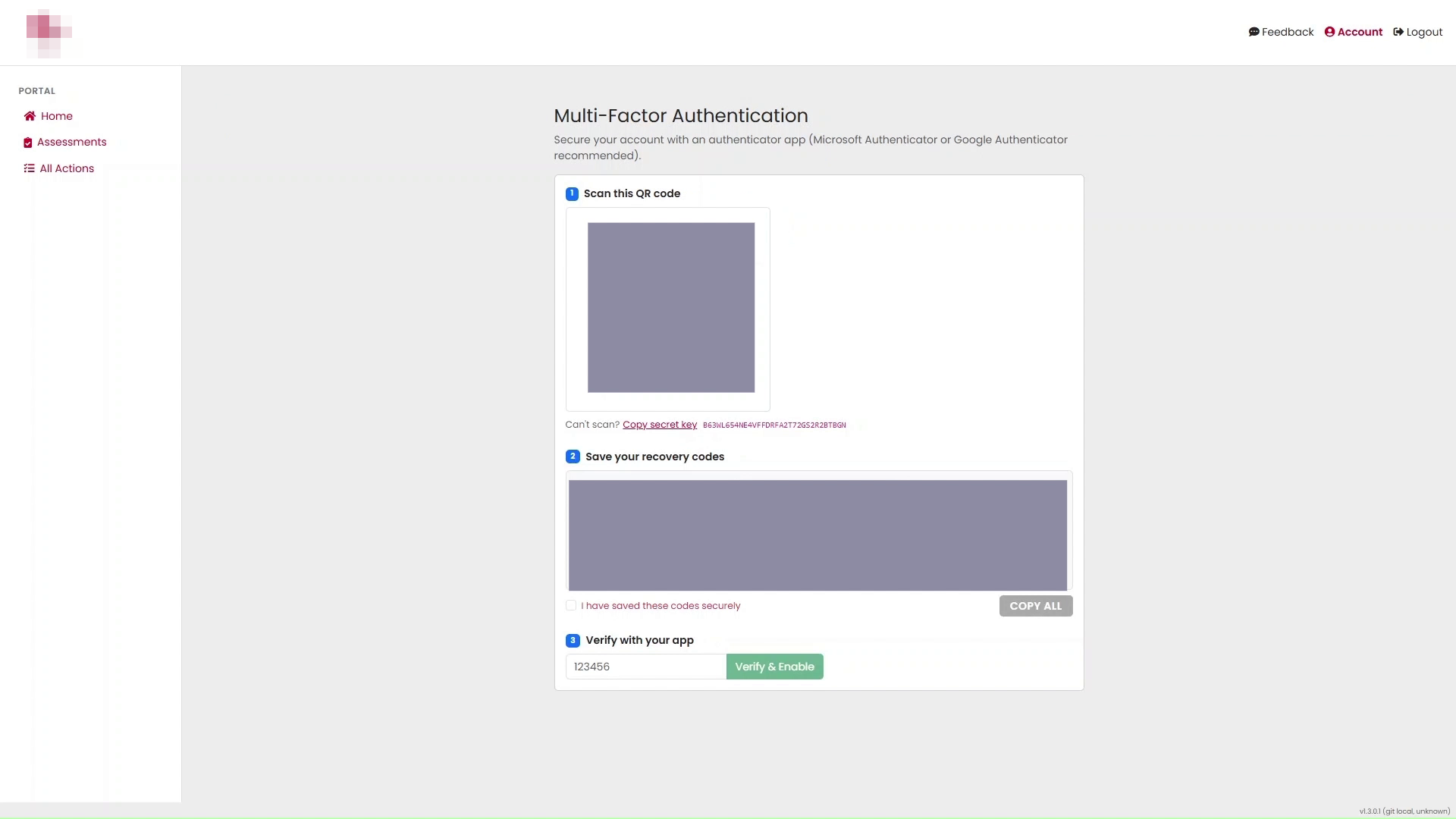
Setting Up Your Authenticator App
The MFA setup page provides a QR code and a manual setup key.
To configure your authenticator app:
- Open your chosen authenticator application on your mobile device.
- Select the option to add a new account.
- Choose Scan a QR Code.
- Scan the QR code displayed on screen.
If you are unable to scan the QR code, use the manual setup key shown below the QR code.
Saving Recovery Codes
After configuring the authenticator app, the Portal displays a set of recovery codes.
Recovery codes allow you to access your account if you lose access to your authenticator device.
Important
- Save the recovery codes in a secure location.
- Each recovery code can only be used once.
- Do not share recovery codes with other users.
- Store them somewhere that remains accessible if your mobile device is lost or replaced.
Verifying Your Authenticator App
The Portal will ask you to confirm the setup by entering a verification code generated by your authenticator app.
- Open the authenticator application on your device.
- Locate the Portal account entry.
- Enter the current six-digit verification code.
- Select Verify.
MFA Successfully Enabled
After verification is successful, MFA is activated for your account.
A confirmation message will be displayed.
You will also be able to see that MFA is enabled within your account settings.
Signing In with MFA
Once MFA has been enabled:
- Enter your username and password as normal.
- The Portal will prompt you for a verification code.
- Open your authenticator app.
- Enter the displayed code.
- Select Verify to complete sign-in.
Using a Recovery Code
If you no longer have access to your authenticator device:
- Select the recovery code option from the MFA verification screen.
- Enter an unused recovery code that you previously saved.
- Complete the sign-in process.
- Reconfigure MFA on a new device as soon as possible.
Managing MFA
You can return to My Account > Manage MFA at any time to review your MFA settings.
Depending on your permissions, you may be able to:
- View MFA status
- Generate new recovery codes
- Reset MFA configuration
- Disable MFA if permitted by your organisation
Troubleshooting
I cannot scan the QR code
Use the manual setup key displayed on the MFA setup screen instead of scanning the QR code.
My authenticator code is not working
- Ensure the date and time on your mobile device are correct.
- Wait for a new code to generate and try again.
- Confirm you are using the correct account within the authenticator app.
I have lost my phone
Use a saved recovery code to access your account and then reconfigure MFA on your replacement device.
I do not have my recovery codes
Contact your system administrator or support team for assistance.
Summary
MFA significantly improves account security by requiring an additional verification step during sign-in. Users are encouraged to enable MFA and securely store their recovery codes to ensure continued access to the Portal.
Was this article helpful?
That’s Great!
Thank you for your feedback
Sorry! We couldn't be helpful
Thank you for your feedback
Feedback sent
We appreciate your effort and will try to fix the article