This article explains how to update the status of an action within an assessment and how completed actions are moved to the Archived Actions area.
Who can use this Feature?
Edit Actions
- Assessor (if they undertook the assessment)
- Assessor + Validator (if assigned)
- Admin
- Tech Admin
Sign Off Actions
- Standard
- Standard + Estate Manager
- Admin
- Tech Admin
Open the Assessment Action Plan
- Open the required assessment.
- From the Assessment menu, select Action Plan.
The Action Plan displays all outstanding actions that have been raised during the assessment.
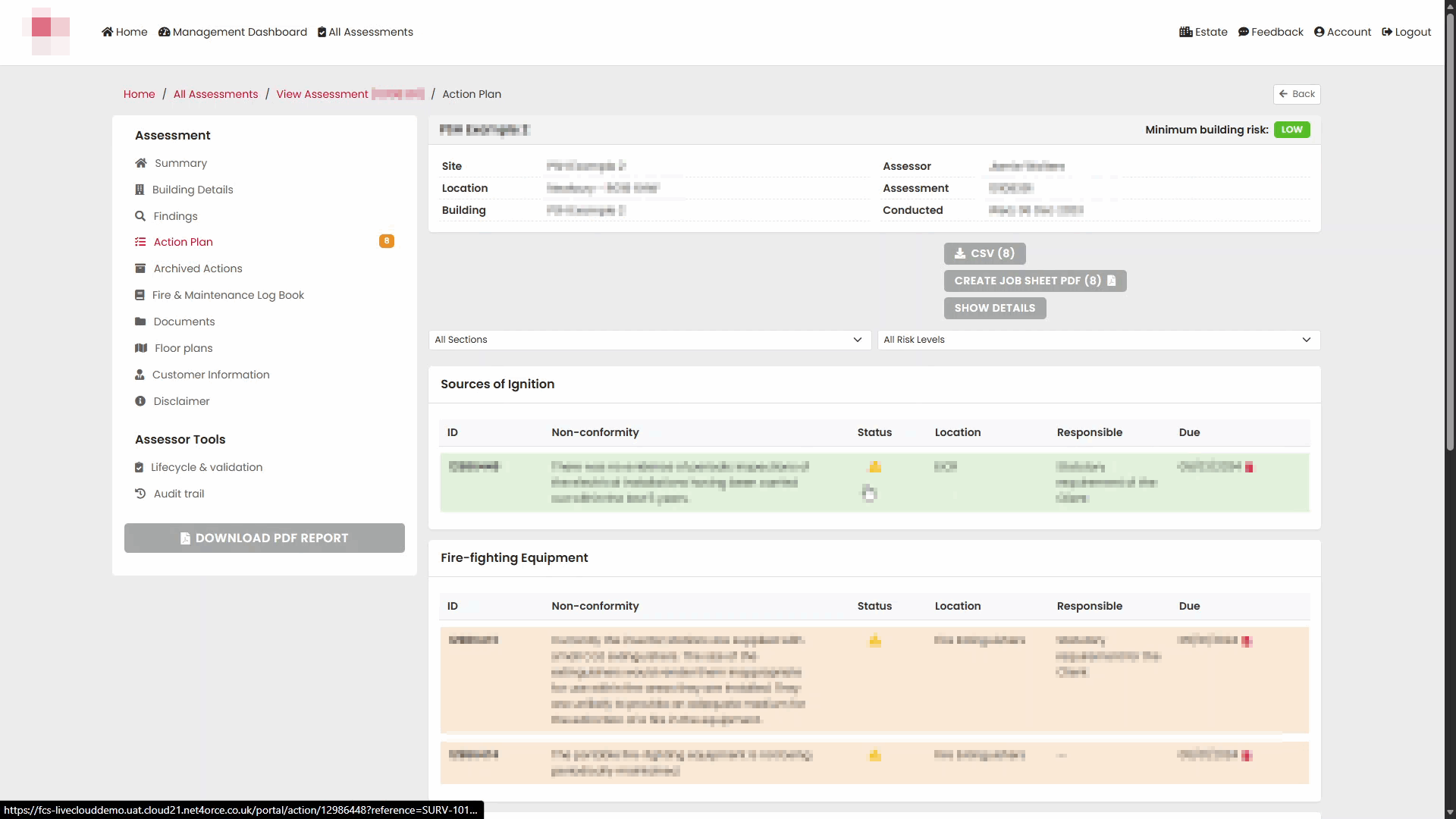
Open an Action
- Locate the action you want to update.
- Select the action from the Action Plan list.
The Action Details page will open.
Review the Action Details
The Action Details page contains information about the action, including:
- Risk rating
- Question
- Observation
- Recommendation
- Location
- Responsible person
- Due date
- Supporting photographs and floor plan references (where available)
Review the information before making any changes.
Update the Action
- Select Edit.
- Update the required fields as appropriate.
Examples may include:
- Responsible person
- Due date
- Action notes
- Status information
- Select Save to apply the changes.
The action details will be updated and remain visible within the Action Plan until the action is completed and signed off.
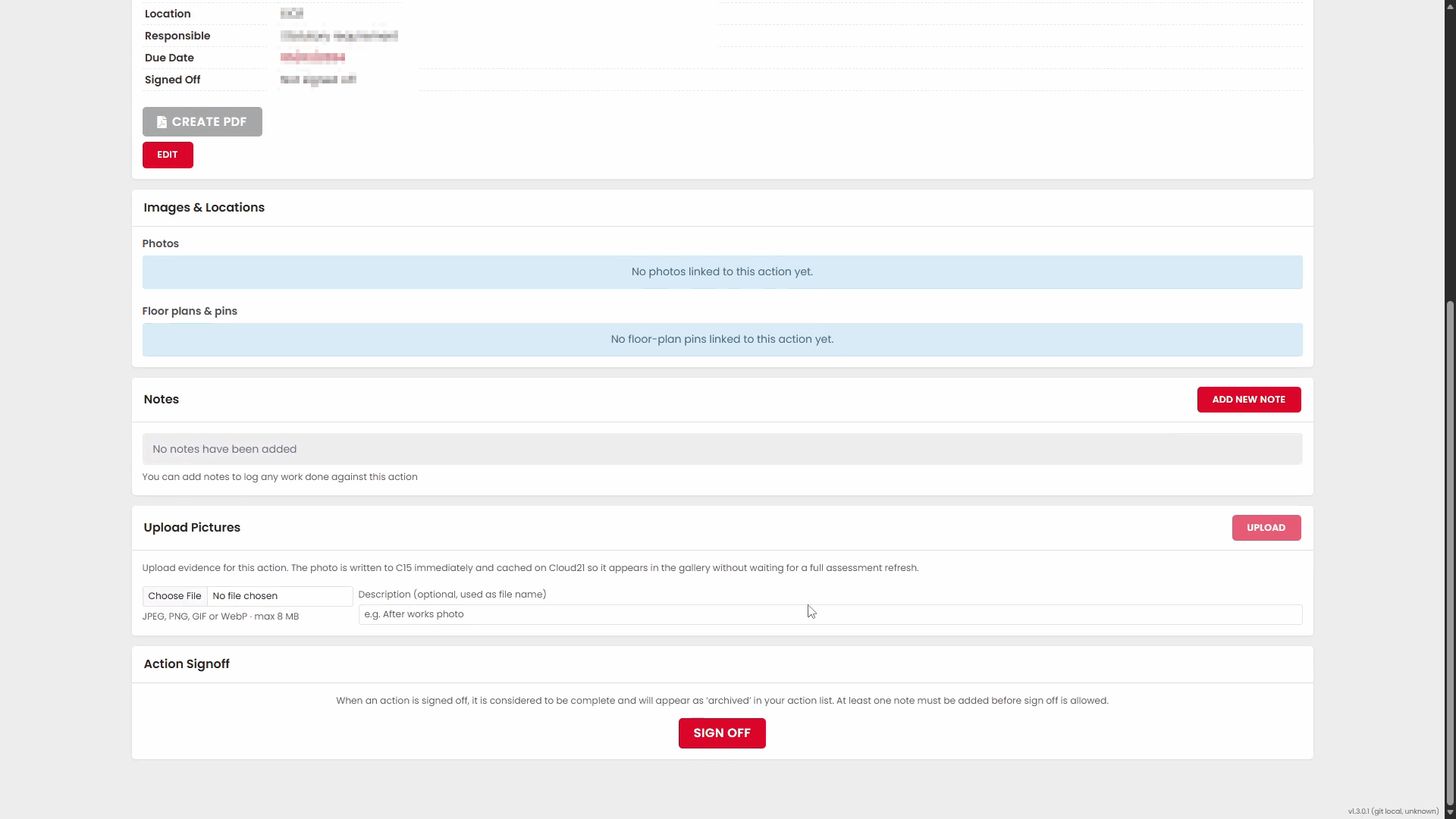
Sign Off a Completed Action
Once the required work has been completed, the action can be signed off.
- Open the action.
- Scroll to the Action Sign Off section.
- Enter any sign-off comments if required.
- Select Sign Off.
- Confirm the sign-off when prompted.
The action status will be updated to indicate that the action has been completed.
View Signed-Off Actions
After an action has been signed off, it is removed from the active Action Plan and stored in Archived Actions.
- From the Assessment menu, select Archived Actions.
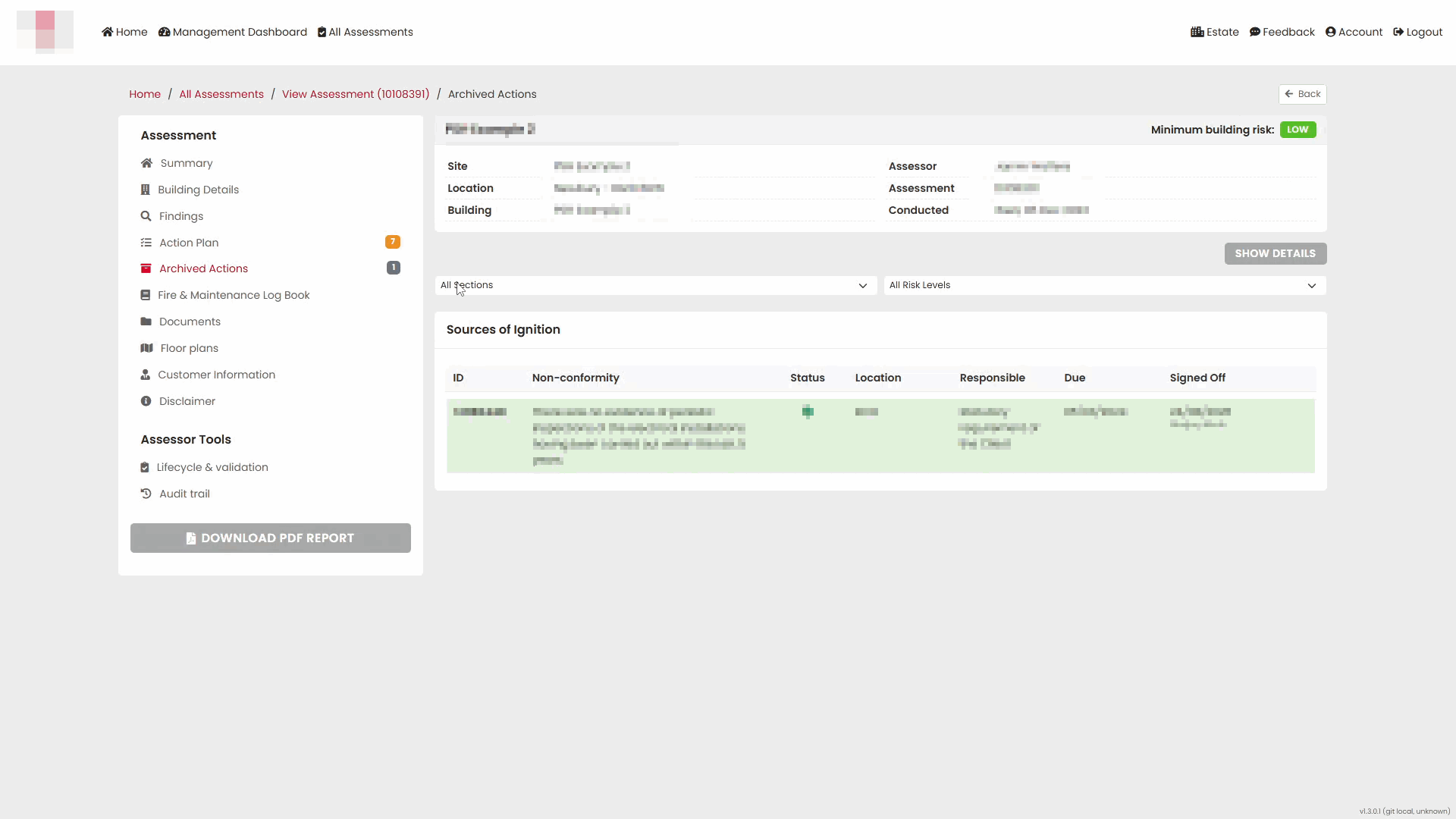
The Archived Actions page displays all completed and signed-off actions for the assessment.
Signed-off actions are shown with:
- A completed status indicator
- The sign-off date
- The user who signed off the action
View Archived Action Details
- To view the full details of a completed action:
- Select the action from the Archived Actions list.
- The Action Details page displays the action information together with the sign-off record.
- A confirmation banner is displayed showing that the action has been signed off, along with the name of the user and the date of sign-off.
Summary
Updating an action allows users to keep action information accurate and up to date throughout the assessment lifecycle.
Once an action has been completed and signed off, it is automatically moved to Archived Actions, where it remains available for future review and reporting.
Was this article helpful?
That’s Great!
Thank you for your feedback
Sorry! We couldn't be helpful
Thank you for your feedback
Feedback sent
We appreciate your effort and will try to fix the article