The Actions page includes several filters that help you quickly locate specific actions. Filters can be used individually or combined to narrow down the results shown.
Filter by Site
Use the Site filter to display actions belonging to a specific site.
- Open the Actions page.
- Select the Site filter.
- Open the drop-down list to view available sites.
- Select the required site.
- The action list refreshes to display actions for the selected site only.
To remove the filter, click the X next to the selected site.
Filter by Building
If a site contains multiple buildings, you can further narrow the results using the Building filter.
- Select the Building filter.
- Open the drop-down list.
- Choose the required building.
- The action list updates to show actions associated with the selected building.
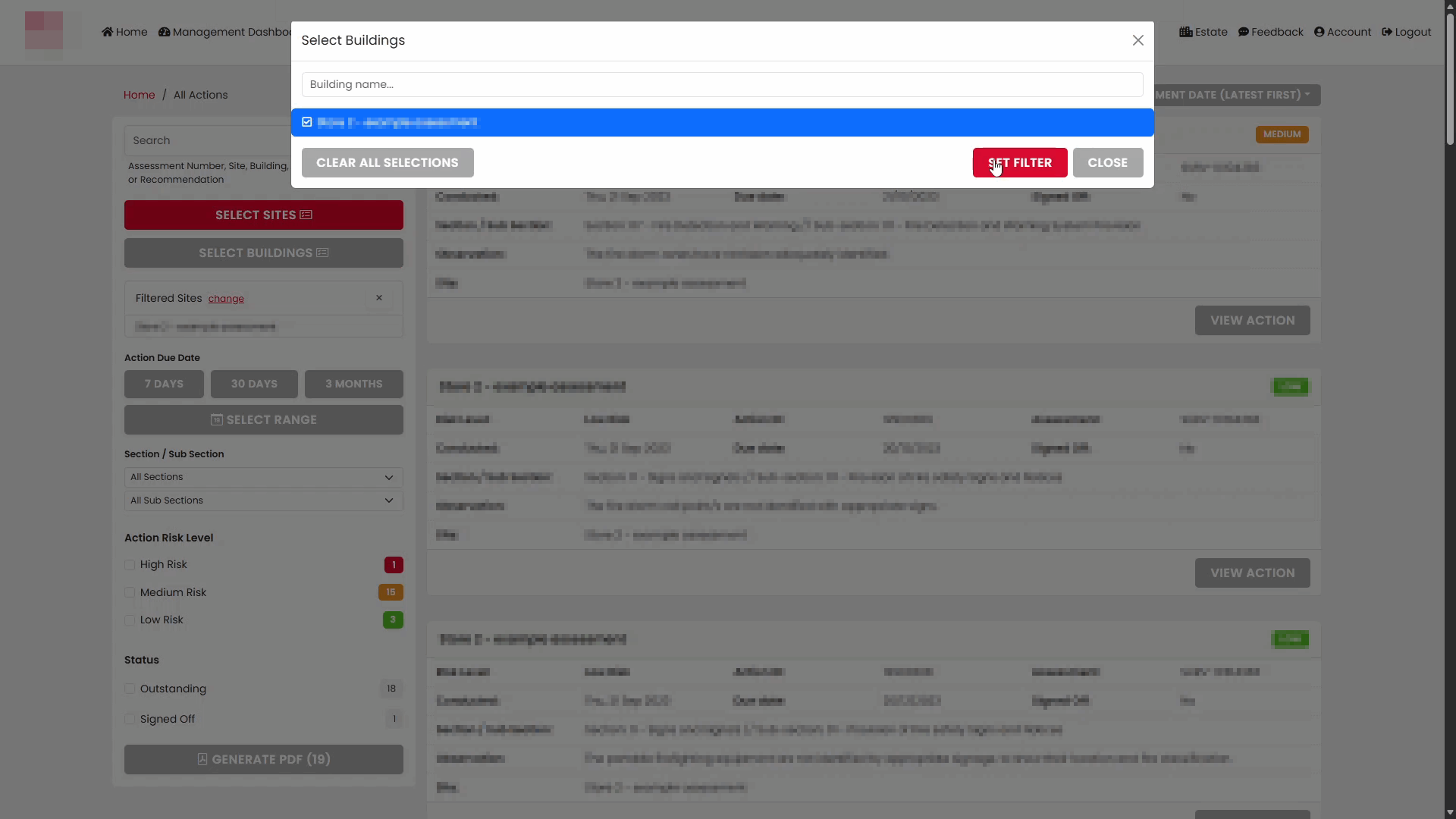
To clear the filter, click the X beside the selected building.
Filter by Section
The Section filter allows you to focus on actions raised within a specific area of a building.
- Open the Section filter.
- Select the required section from the list.
- The list refreshes to display actions for the chosen section.
You can remove the filter by selecting the X on the filter tag.
Filter by Sub Section
Where available, Sub Sections provide a more detailed level of filtering.
- Select the Sub Section filter.
- Choose the required option.
- Only actions associated with the selected sub section are displayed.
To remove the filter, click the X beside the selected value.
Filter by Severity (Risk Level)
You can filter actions by risk level to focus on higher or lower priority items.
- Select the Action Risk Level filter.
- Open the drop-down list.
- Select one or more risk levels:
- High
- Medium
- Low
The selected risk levels are displayed within the filter.
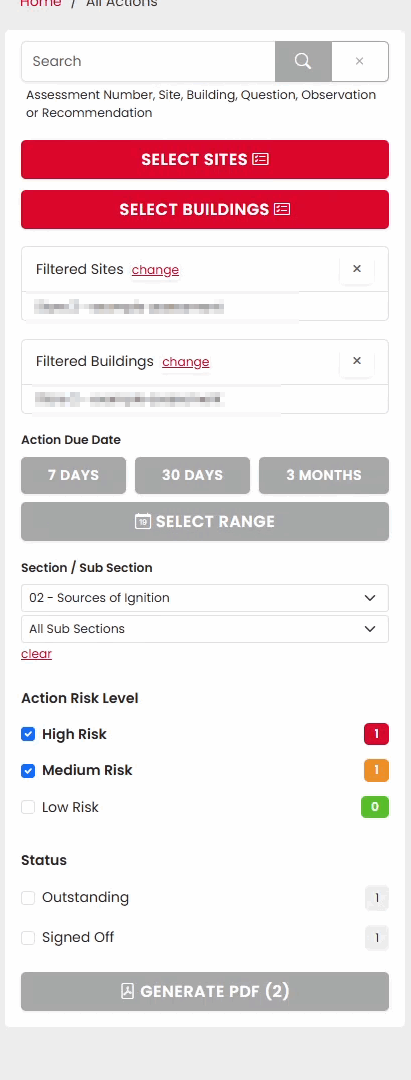
Actions matching the selected risk levels are shown in the results list.
Multiple risk levels can be selected at the same time.
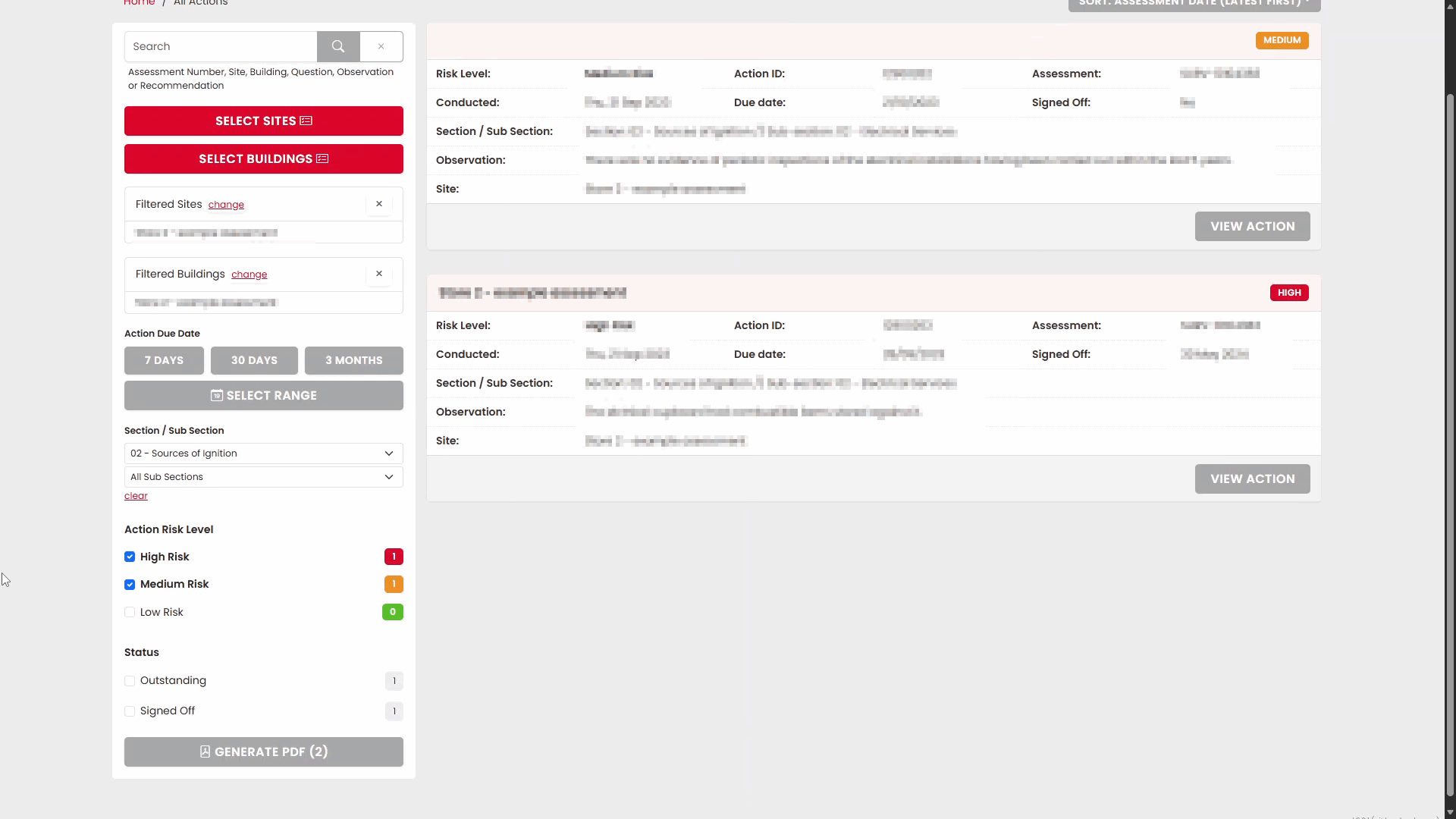
To clear a risk level, click the X beside the selected value.
Filter by Status
The Status filter allows you to view actions based on their current progress.
- Select the Status filter.
- Open the drop-down list.
- Select the required status, such as:
- Outstanding
- Signed Off
The selected status is displayed within the filter.
The actions list updates automatically to show matching records.
You can also select multiple statuses if required.
The results page reflects all selected status values.
To remove a status filter, click the X beside the selected value.
Combining Multiple Filters
Filters can be combined to refine the results further.
For example, you can filter by:
- Site
- Building
- Section or Sub Section
- Risk Level
- Status
The action list updates to display only records matching all selected criteria.
Tip
If too many actions are displayed, applying a combination of location, severity and status filters can help you quickly find the actions you need to review or update.
Was this article helpful?
That’s Great!
Thank you for your feedback
Sorry! We couldn't be helpful
Thank you for your feedback
Feedback sent
We appreciate your effort and will try to fix the article