The new Portal allows you to export action data for offline review, sharing, and reporting. Actions can be exported as PDF reports or CSV files, depending on the information you need.
Export All Actions to a PDF Report
You can generate a PDF report containing all actions currently displayed within the All Actions page.
Steps
- Navigate to All Actions.
- Use any required filters to narrow down the list of actions.
- Select Generate PDF.
- The system will begin generating the report.
- Once completed, your browser will download the PDF file.
- Open the downloaded file to view the report.
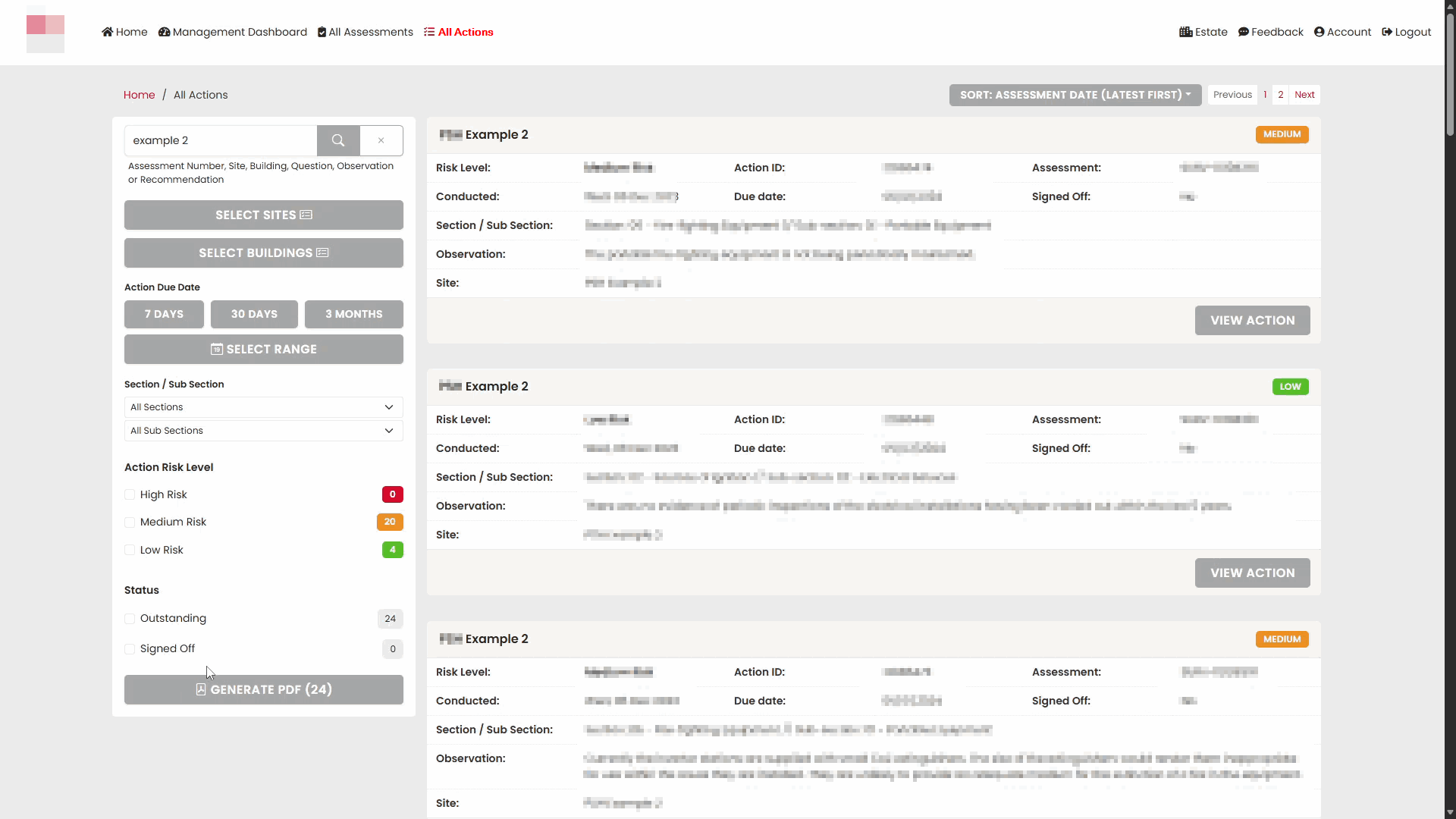
Report Contents
The PDF includes information such as:
- Action reference number
- Assessment details
- Site and building details
- Risk level
- Action description
- Recommendation
- Responsible person
- Due date
- Status
Export an Individual Action to PDF
You can also generate a PDF report for a single action.
Steps
- From All Actions, select the required action.
- The Action Details page will open.
- Select Create PDF.
- The report will be generated and downloaded by your browser.
- Open the downloaded PDF to view the report.
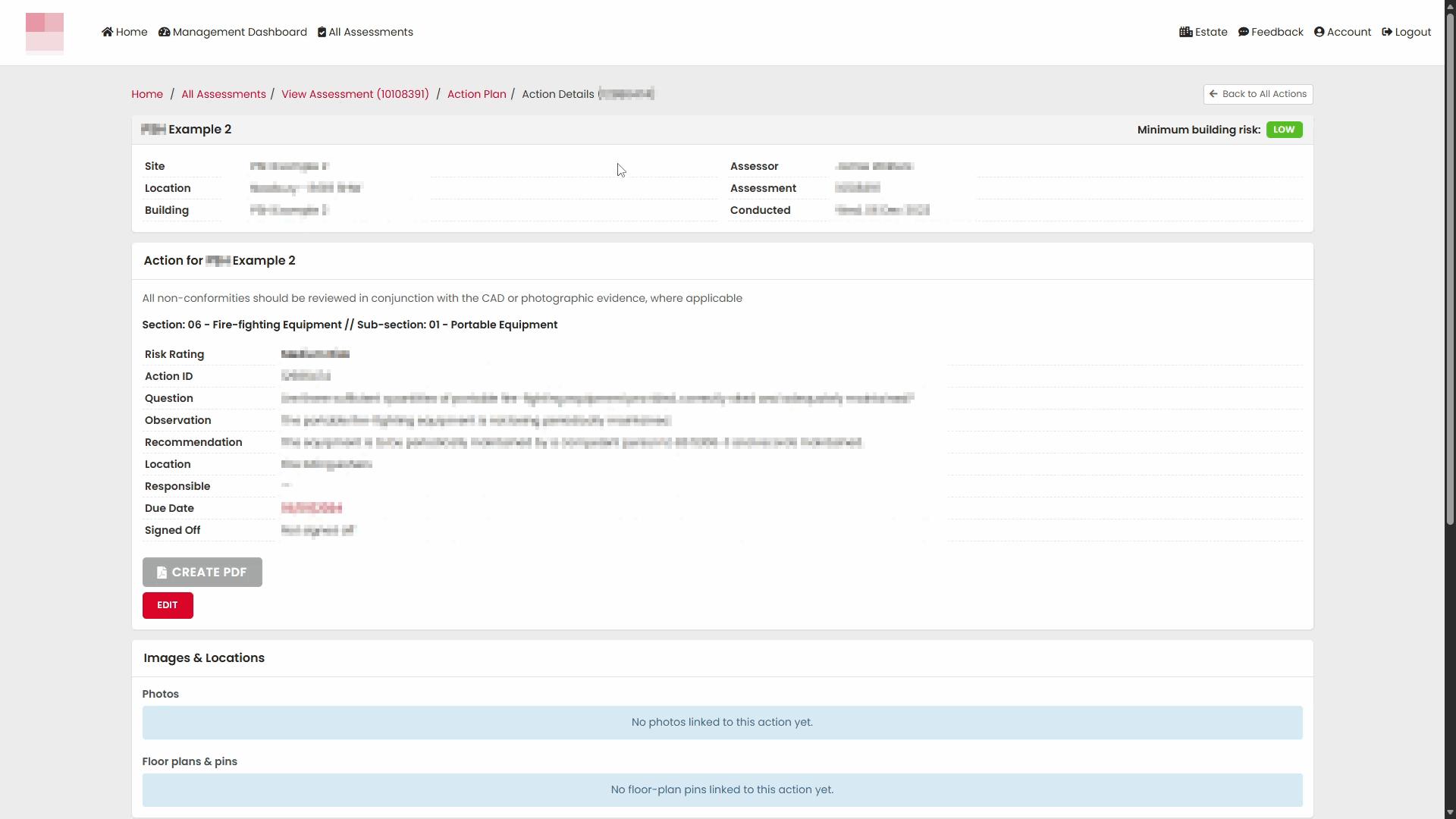
Report Contents
The action report contains detailed information for the selected action, including:
- Reference number
- Assessment information
- Question and finding details
- Recommendation
- Responsible party
- Due date
- Current status
- Associated photographic evidence (where available)
Export Actions to CSV
CSV exports allow action data to be opened in Microsoft Excel or other spreadsheet applications for further analysis and reporting.
Accessing the Action Plan
- Open the required assessment.
- Select Action Plan from the left-hand menu.
The Action Plan displays all actions associated with the assessment.
Generate the CSV Export
- On the Action Plan page, select CSV.
- The system will generate the export file.
- Once complete, the CSV file will be downloaded by your browser.
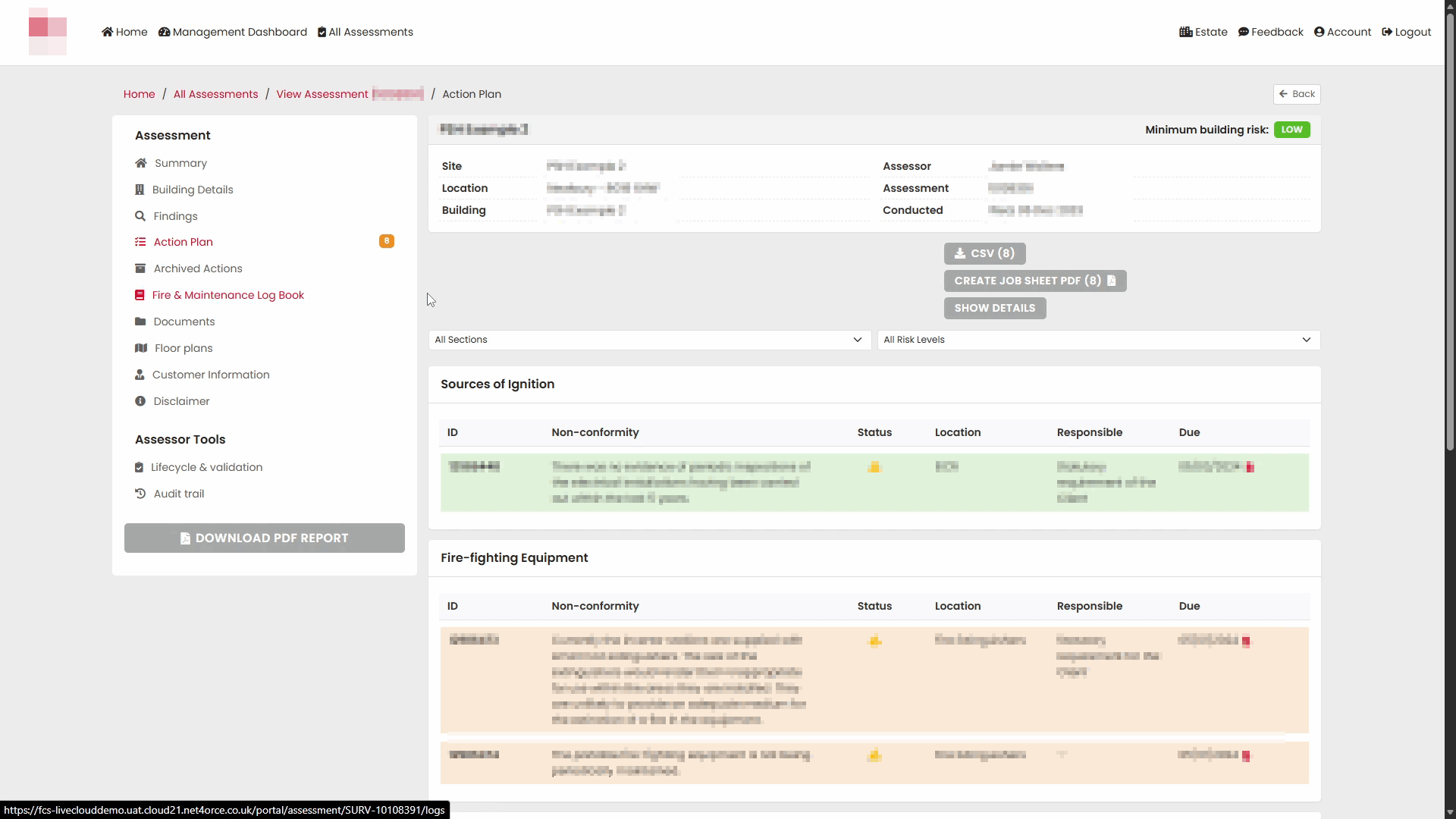
Open the CSV File
- Open the downloaded CSV file.
- The file will open in Microsoft Excel or your default spreadsheet application.
Exported Information
The CSV export provides action information in a tabular format, making it suitable for:
- Filtering and sorting actions
- Creating custom reports
- Reviewing overdue actions
- Sharing action data externally
- Importing into other reporting tools
Create a Job Sheet PDF
The Action Plan also allows you to generate a Job Sheet PDF containing selected actions.
Steps
- Open the required assessment and navigate to Action Plan.
- Select Create Job Sheet PDF.
- The system will generate the PDF document.
- Once generation is complete, the PDF file will be downloaded.
- Open the downloaded PDF to view the Job Sheet.
Job Sheet Contents
The Job Sheet PDF provides a structured view of each action and typically includes:
- Action reference
- Site and building details
- Relevant section and question
- Non-conformity details
- Recommendation
- Location
- Responsible party
- Target completion date
- Supporting evidence where available
Export Actions to Excel (from All Actions)
You can also export actions directly from the All Actions page in Excel/CSV format.
The export uses the same filters currently applied to the action list, allowing you to export only the actions you need. Unlike the on-screen list, the export is not limited to 25 rows and can include all matching actions.
Steps
- Navigate to All Actions.
- Apply any required filters.
- Select Download Excel.
- The system will generate the export file.
- Once complete, the file will be downloaded by your browser.
- Open the downloaded file in Microsoft Excel or another spreadsheet application.
Summary
The Portal provides several export options to help users review and share action information:
| Export Type | Purpose |
|---|---|
| PDF Report (All Actions) | Creates a formatted report containing multiple actions |
| PDF Report (Single Action) | Creates a detailed report for one action |
| CSV Export | Produces spreadsheet-compatible action data |
| Job Sheet PDF | Produces action-focused work sheets for remediation activities |
These exports can be used for audit preparation, progress tracking, contractor communication, and management reporting.
Was this article helpful?
That’s Great!
Thank you for your feedback
Sorry! We couldn't be helpful
Thank you for your feedback
Feedback sent
We appreciate your effort and will try to fix the article