Introduction
The new Portal provides a central location for managing Fire Risk Assessments and associated actions. Users can:
- View assessment results
- Review risk ratings
- Manage actions
- Upload evidence
- Sign off completed actions
- Run management reports
- Filter information by site, building and date ranges
Home Dashboard
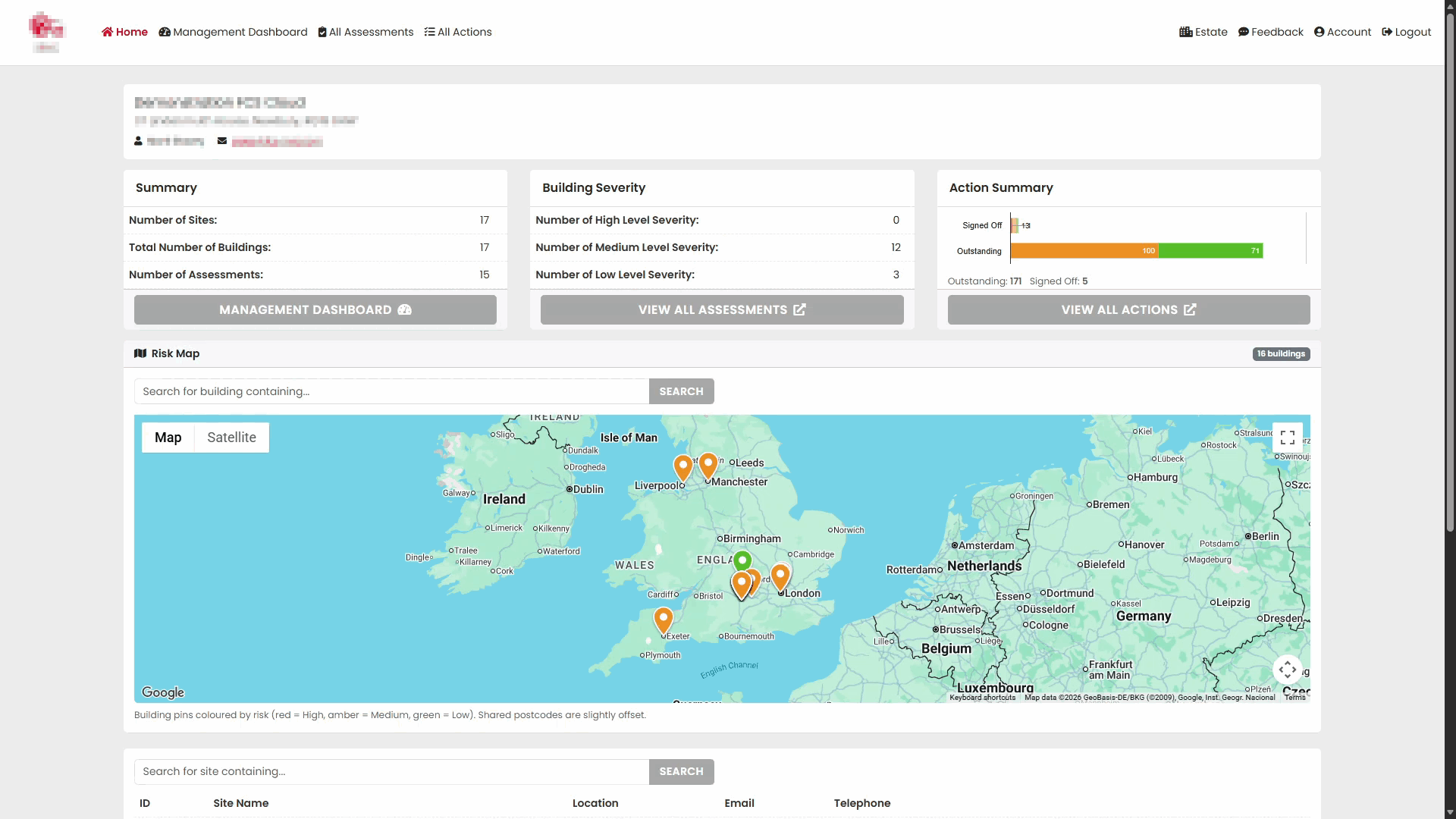
After logging in, you will be presented with the Home Dashboard.
The dashboard provides a summary of:
- Sites within your estate
- Fire risk assessment data
- Outstanding actions
- Quick navigation to assessments and actions
A summary view is also available showing key portfolio information.
Understanding the Risk Map
The portal displays sites and buildings on an interactive map to help identify locations and risk information.
Use the map to:
- Locate sites
- Review risk ratings
- Navigate to assessments and actions
Accessing Assessments and Actions
Select a site to access available assessments and actions.
Available options include:
- View Assessments
- Create New Assessment
- View Actions
Assessments
Viewing All Assessments
Select All Assessments from the menu.
The Assessments page displays:
- Assessment reference
- Site details
- Assessment date
- Assessment status
- Assessor information
Opening an Assessment
Select an assessment from the list to view its details.
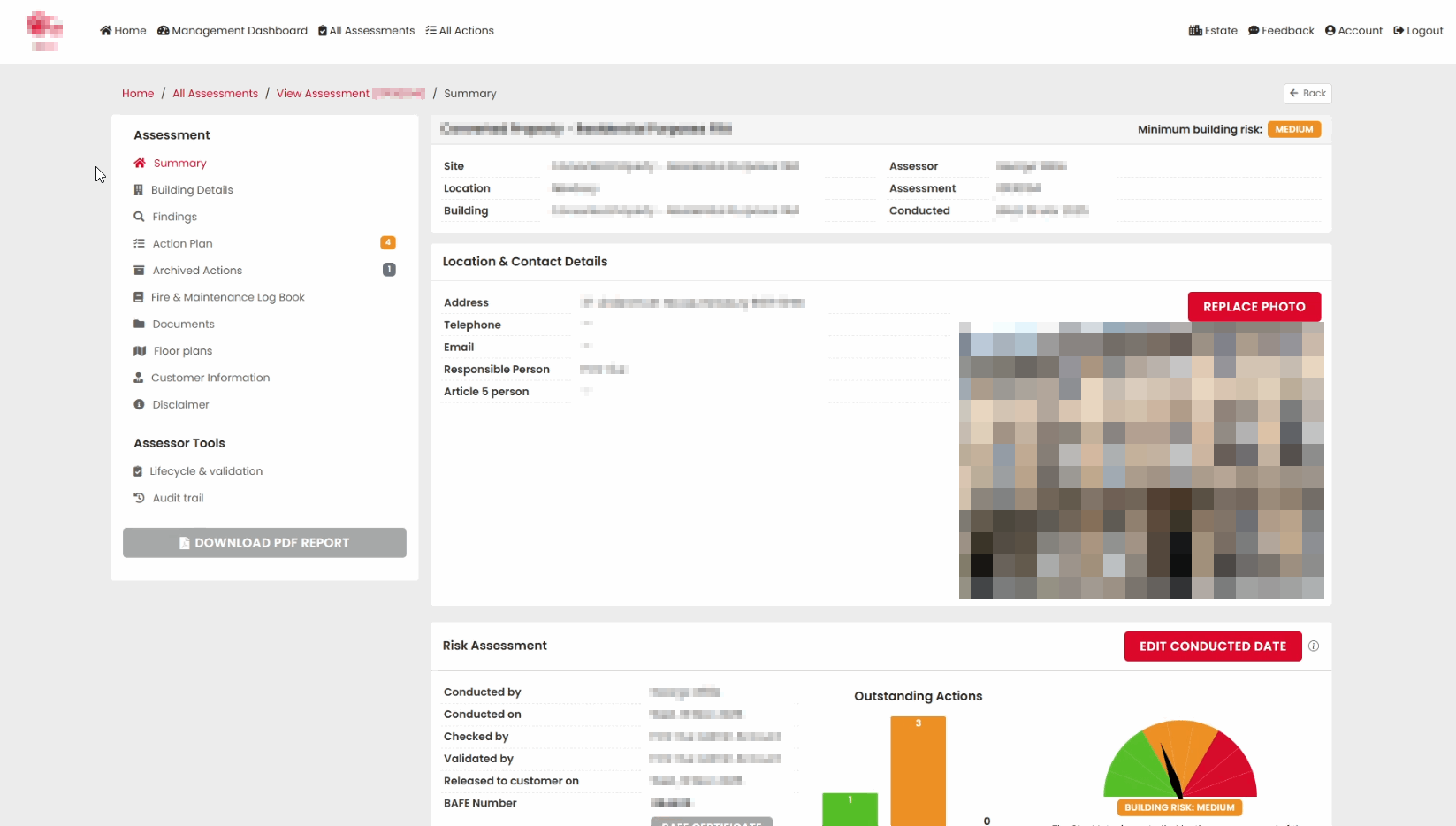
The Assessment Summary provides a complete overview of the assessment.
Location and Contact Details
The assessment summary includes building and contact information.
Information may include:
- Building name
- Address details
- Responsible persons
- Contact information
Reviewing Assessment Findings
The Risk Assessment section displays assessment outcomes and identified risks.
Use this section to review:
- Fire safety findings
- Risk ratings
- Non-conformities
- Recommendations
Reviewing the Action Plan
Any actions generated during the assessment are displayed within the Action Plan section.
Actions can be tracked through to completion and sign-off.
Assessor Summary
At the end of the assessment, the Fire Risk Assessor provides an overall summary.
This section may include:
- General observations
- Key concerns
- Recommended next steps
Actions
Viewing All Actions
Select All Actions from the navigation menu.
The Actions page displays:
- Action reference
- Priority level
- Due date
- Current status
- Site and building information
Opening an Action
Select an action to view its full details.
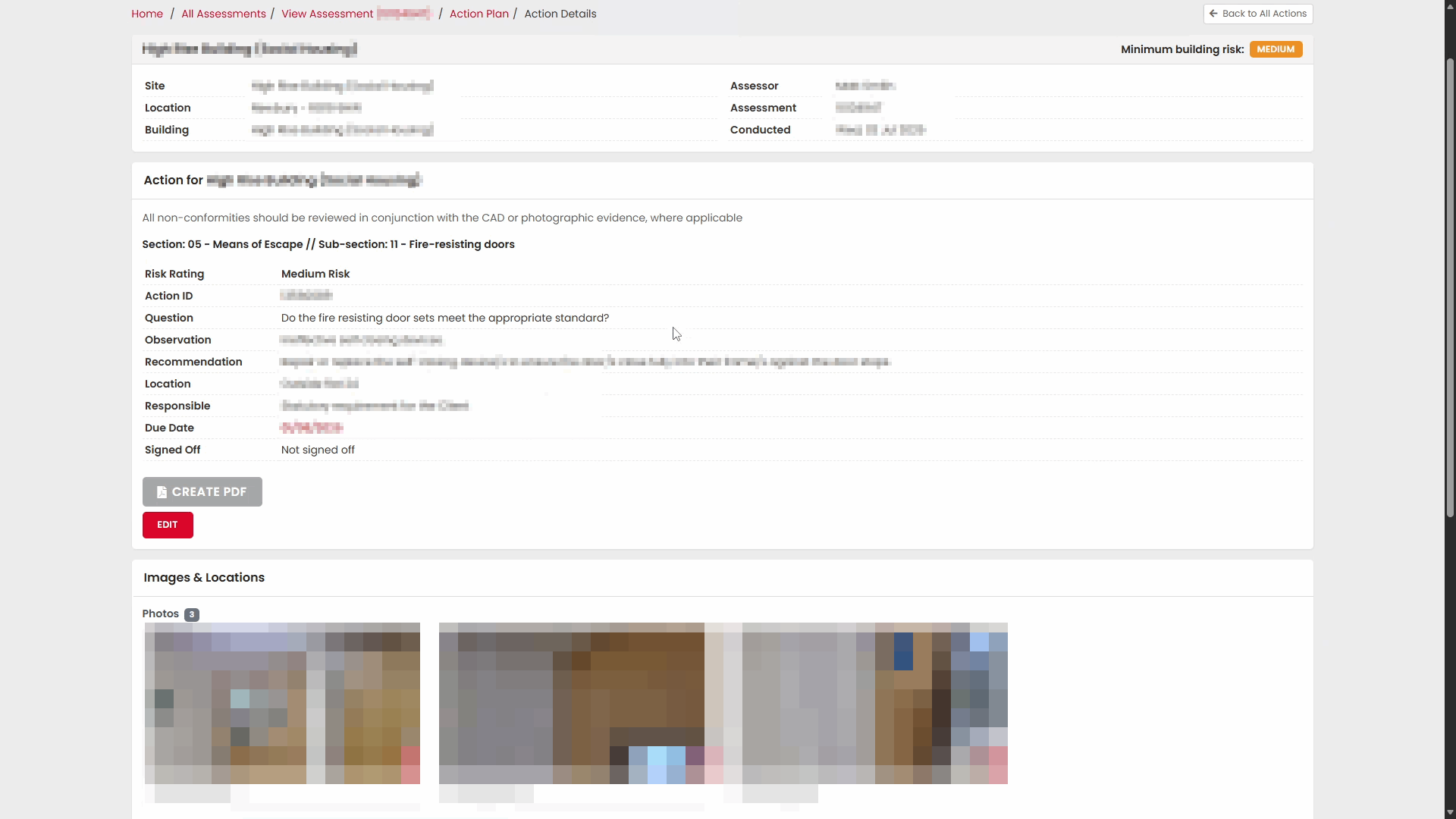
The Action Details page displays all information relating to the selected action.
Reviewing Recommendations
Each action includes recommendations and completion requirements.
Review:
- Action description
- Priority
- Due date
- Recommended corrective action
Reviewing Evidence
Where evidence has been uploaded, supporting photographs can be viewed.
Evidence helps demonstrate:
- Completion status
- Remedial works
- Compliance improvements
Uploading Action Evidence
Users can upload photographs or supporting documents against an action.
To upload evidence:
- Open the action.
- In the Upload Pictures section, hit Upload.
- Choose the required files.
- Save your changes.
Signing Off an Action
Once an action has been completed, it can be signed off.
Sign-off records:
- Completion confirmation
- Supporting evidence
- Sign-off date
Management Dashboard
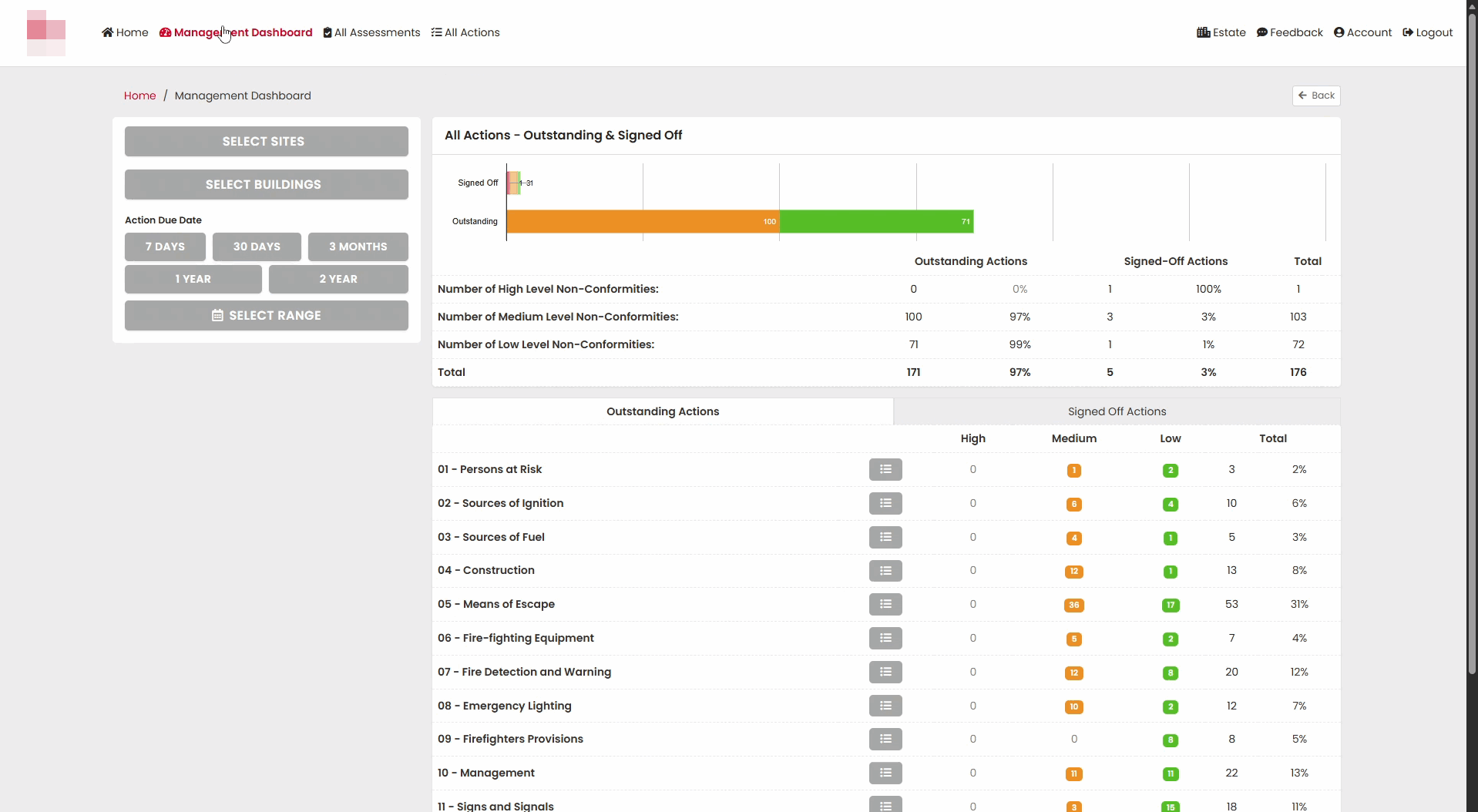
The Management Dashboard provides reporting and portfolio-level oversight.
Select Management Dashboard from the main menu.
Outstanding and Signed-Off Actions
The dashboard displays a summary of:
- Outstanding actions
- Signed-off actions
- Non-conformities by severity level
Reviewing Action Categories
The dashboard provides a breakdown of action categories.
This helps identify trends and areas requiring attention.
Exporting Reports
The portal allows users to generate Excel status reports.
Status reports can be used for:
- Internal management reporting
- Compliance reviews
- Action tracking
Filtering Dashboard Data
The dashboard can be filtered to focus on specific sites, buildings or date ranges.
Filter by Site
Select Select Sites.
Choose one or more sites from the list.
The selected sites will be displayed within the filter area.
The dashboard refreshes automatically using the selected site filters.
Filter by Building
Select Select Buildings.
Choose the required building.
The dashboard updates using the selected building filter.
Filter by Action Due Date
Use the Action Due Date filters to focus on actions within specific periods.
Available options include:
- 7 Days
- 30 Days
- 3 Months
- 1 Year
- 2 Years
- Custom Date Range
Frequently Asked Questions
Why can't I see an assessment?
Access is restricted based on your account permissions and site access rights.
Why can't I sign off an action?
Some actions may require additional permissions or supporting evidence before sign-off.
Why aren't any results appearing in the dashboard?
Check that site, building and date filters are set correctly.
Can I export data?
Yes. The Management Dashboard includes report export functionality for status reporting.
Summary
The new Portal enables users to:
- View Fire Risk Assessments
- Review risk findings
- Manage actions
- Upload supporting evidence
- Sign off completed actions
- Run management reports
- Filter reporting information by site, building and date range
This provides a complete audit trail from assessment through to action completion and reporting.
Was this article helpful?
That’s Great!
Thank you for your feedback
Sorry! We couldn't be helpful
Thank you for your feedback
Feedback sent
We appreciate your effort and will try to fix the article