The Findings and Action Plans areas allow assessors and validators to review assessment outcomes, record non-conformities, create corrective actions, and track recommendations through to completion.
Who can use this Feature?
- Assessor (if they undertook the assessment)
- Assessor + Validator (if assigned)
- Admin
- Tech Admin
Findings Overview
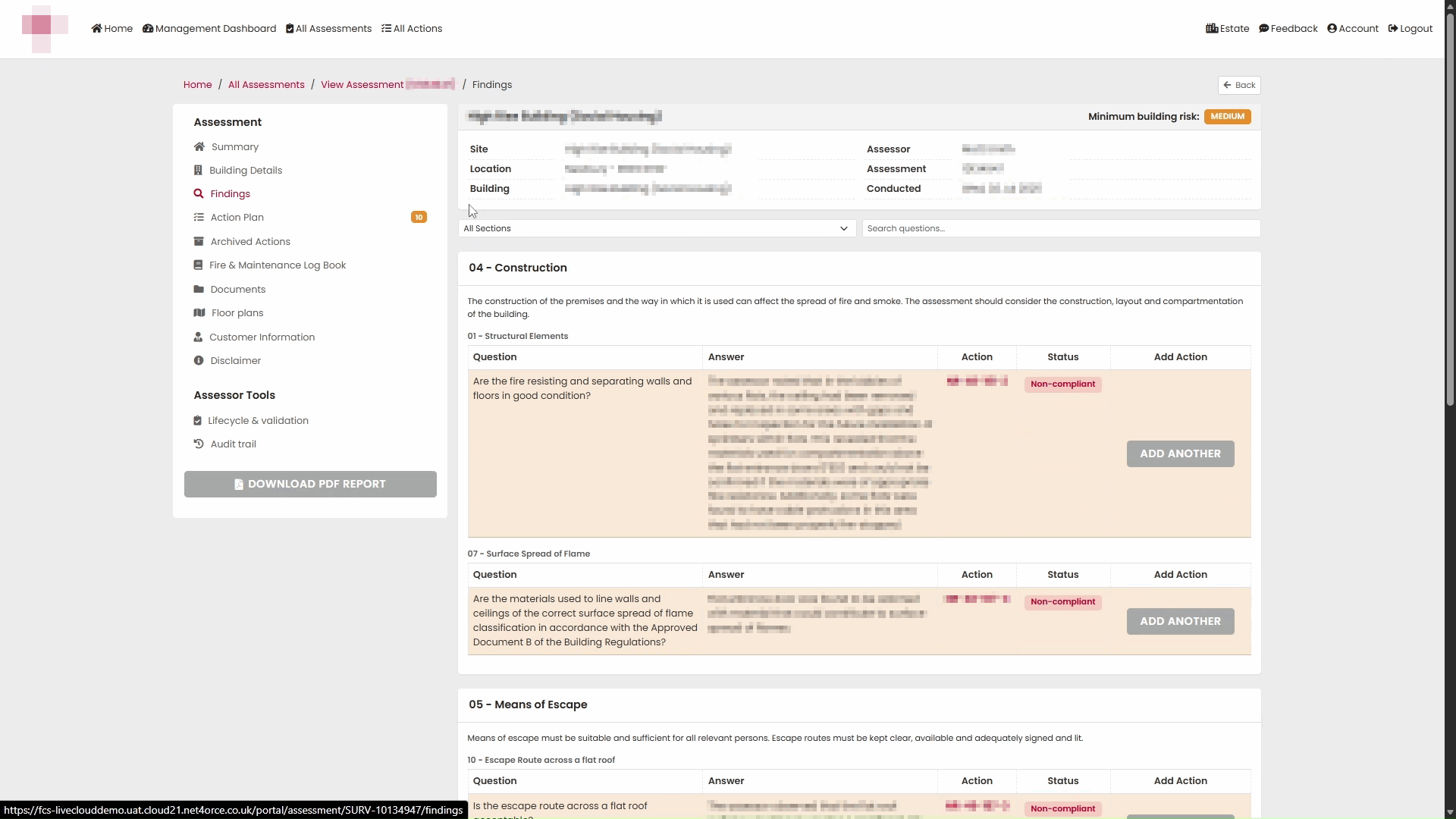
The Findings page displays all questions within the assessment, along with their recorded answers and any associated actions.
Each finding shows:
- The assessment section and question.
- The recorded response.
- Any linked actions.
- The current status.
- Options to add further actions if required.
Findings can be reviewed across the entire assessment or narrowed down to a specific section.
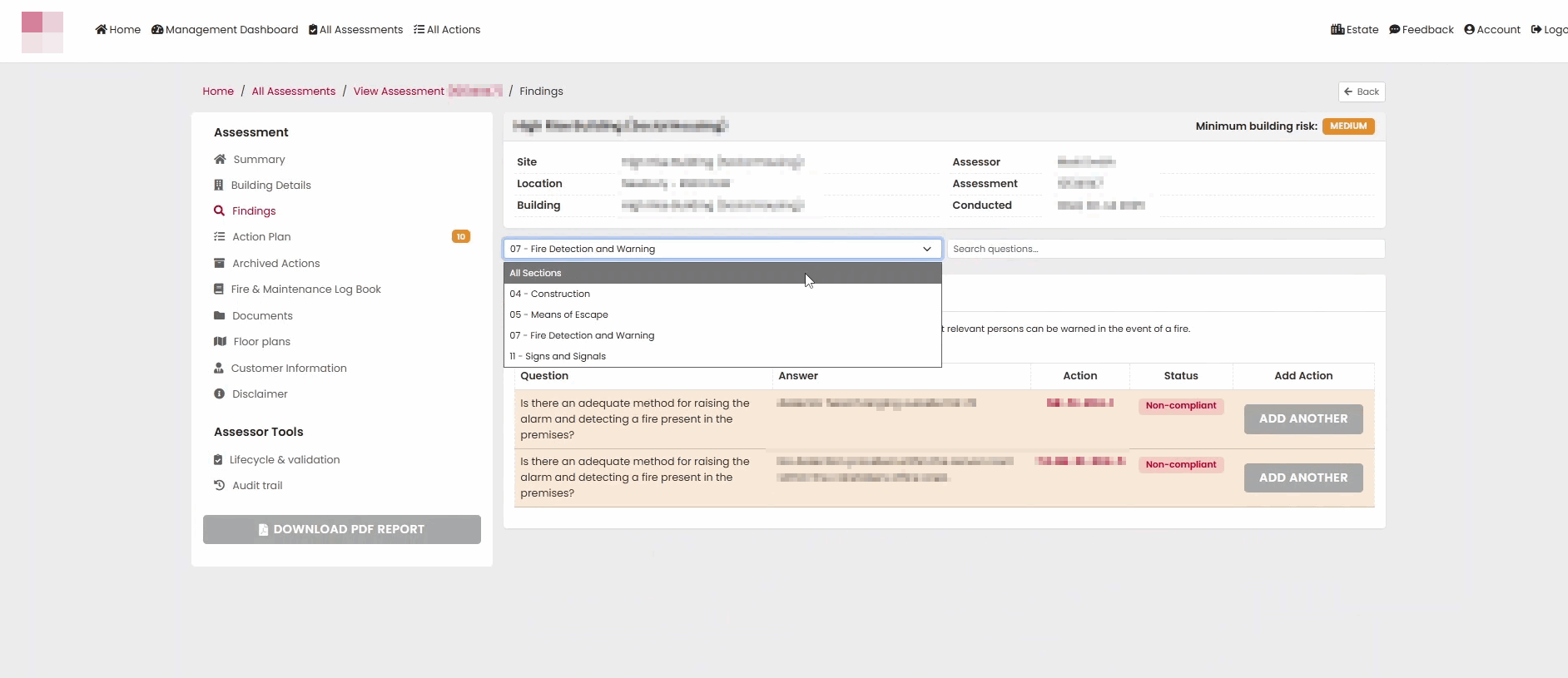
Filtering Findings
For larger assessments, Findings can be filtered to help locate specific items.
Use the available filters to:
- View findings from a particular section.
- Search for specific questions.
- Focus on areas requiring review.
Identifying Non-Conformities
Questions that identify fire safety issues or areas requiring improvement can be used to create actions.
Each finding contains the recorded observation and can be linked to one or more corrective actions.
Creating an Action
To create an action from a finding:
- Locate the relevant finding.
- Select Add Another or Add Action.
- Complete the action details.
- Select Add Action to save.
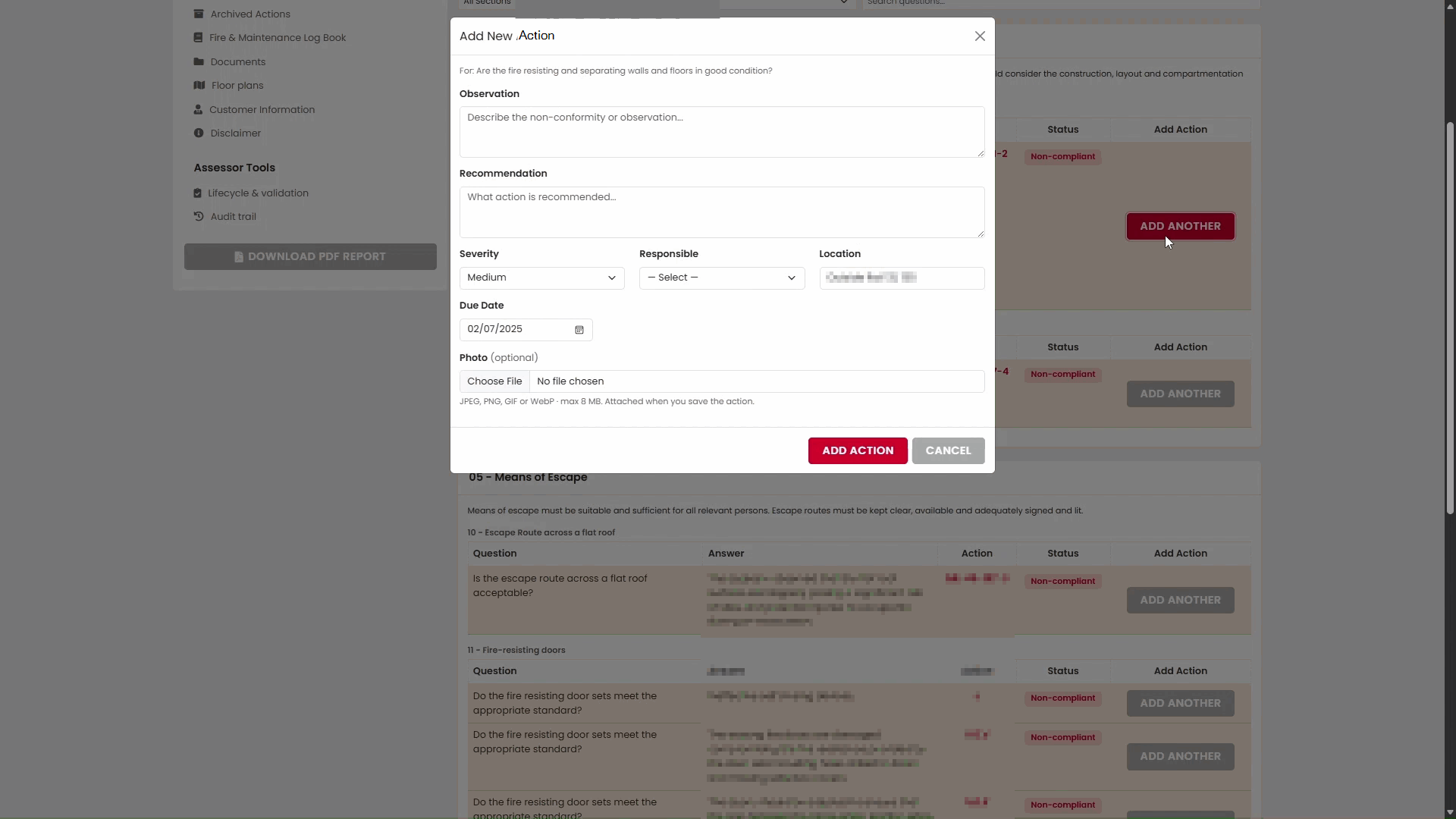
The Add New Action form opens beneath the selected finding.
Completing Action Details
When creating an action, complete the available information as accurately as possible.
Observation
The Observation describes the issue or non-conformity identified during the assessment.
Recommendation
The Recommendation describes the corrective action required.
Risk Level
Assign the appropriate risk level.
Available options include:
- Low
- Medium
- High
Responsible Party
Select the person or organisation responsible for completing the action.
Location
Specify the area or location where the issue exists.
Due Date
Select the target completion date.
Adding Evidence
Photographs or supporting evidence can be attached to an action.
Attachments help provide additional context and can be included within action reports and job sheets.
Saving the Action
Once all information has been completed, select Add Action.
The action will immediately become available within the assessment Action Plan.
Action Plan
The Action Plan provides a consolidated view of all actions raised during the assessment.
To access the Action Plan, select Action Plan from the assessment menu.
The Action Plan displays:
- Outstanding actions.
- Risk levels.
- Responsible parties.
- Locations.
- Due dates.
- Recommendations.
Actions are grouped according to the assessment section in which they were created.
Filtering the Action Plan
Filters can be used to focus on specific actions.
Available filters include:
- Section
- Risk Level
Applying filters updates the displayed actions.
If no actions match the selected criteria, a notification is displayed.
Viewing Action Details
Additional information can be displayed using the Show Details option.
This provides greater visibility of observations, recommendations and associated action information.
Exporting Action Plans
Action Plans can be exported for offline review, reporting and distribution.
Export to CSV
Select Export CSV to download action data into a spreadsheet format.
The exported file contains information such as:
- Action reference.
- Section and subsection.
- Question.
- Observation.
- Recommendation.
- Risk level.
- Responsible party.
- Location.
- Due date.
- Status.
When opened in Excel, the exported data can be filtered, sorted and distributed as required.
Create Job Sheet PDF
A Job Sheet can be generated for selected actions.
The generated PDF contains detailed action information, including:
- Reference numbers.
- Assessment details.
- Non-conformities.
- Recommendations.
- Responsible parties.
- Due dates.
- Photographic evidence where available.
This format is useful when sharing actions with contractors, responsible persons or maintenance teams.
Archived Actions
Archived Actions contain actions that have been completed, signed off or otherwise closed.
To review archived actions, select Archived Actions from the assessment menu.
The Archived Actions page provides a historical record of completed actions while keeping the active Action Plan focused on outstanding work.
Filtering Archived Actions
Archived Actions can be filtered using the same controls available within the Action Plan.
Filters include:
- Section
- Risk Level
These filters help locate previously completed actions and review historical remediation activity.
Summary
The Findings and Action Plan features enable users to:
- Review assessment findings.
- Record non-conformities.
- Create and manage corrective actions.
- Assign responsibility and due dates.
- Attach photographic evidence.
- Track outstanding actions.
- Export actions to CSV.
- Generate Job Sheet PDFs.
- Review archived and completed actions.
Together, these tools provide a complete workflow for managing fire risk assessment findings through to completion.
Was this article helpful?
That’s Great!
Thank you for your feedback
Sorry! We couldn't be helpful
Thank you for your feedback
Feedback sent
We appreciate your effort and will try to fix the article