Overview
Assessor Desk provides direct access to assessments stored in the Portal. This allows users to move from a workflow view in Assessor Desk to the full assessment record in the Portal for further review and processing.
Use this feature when you need to:
- Review assessment findings.
- View action plans.
- Download assessment reports.
- Review risk assessment information.
- Access lifecycle and validation information.
Opening an Assessment in the Portal
- Open the required assessment in Assessor Desk.
- Review the information displayed on the Assessment Detail page.
- Select Open Assessment in Portal.
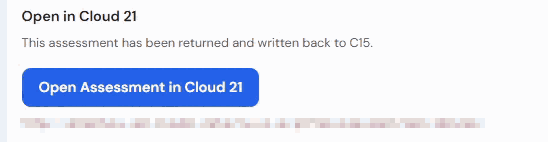
The Portal opens and loads the selected assessment.
Assessment Areas Available in the Portal
After opening the assessment, a series of sections are available to help you review the assessment record.
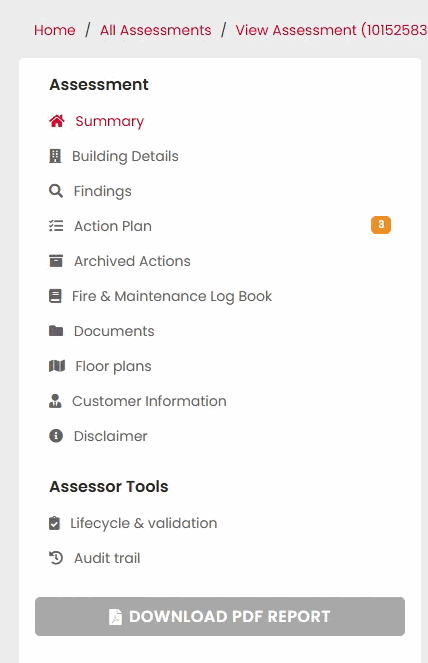
The areas visible may include:
- Assessment Summary
- Building Details
- Findings
- Action Plan
- Archived Actions
- Fire & Maintenance Log Book
- Documents
- Floor Plans
- Customer Information
- Disclaimer
- Lifecycle & Validation
For more detailed info on the Portal, see the Portal section. Below is a high level overview.
Viewing the Assessment Summary
The Assessment Summary page provides a high-level overview of the assessment.
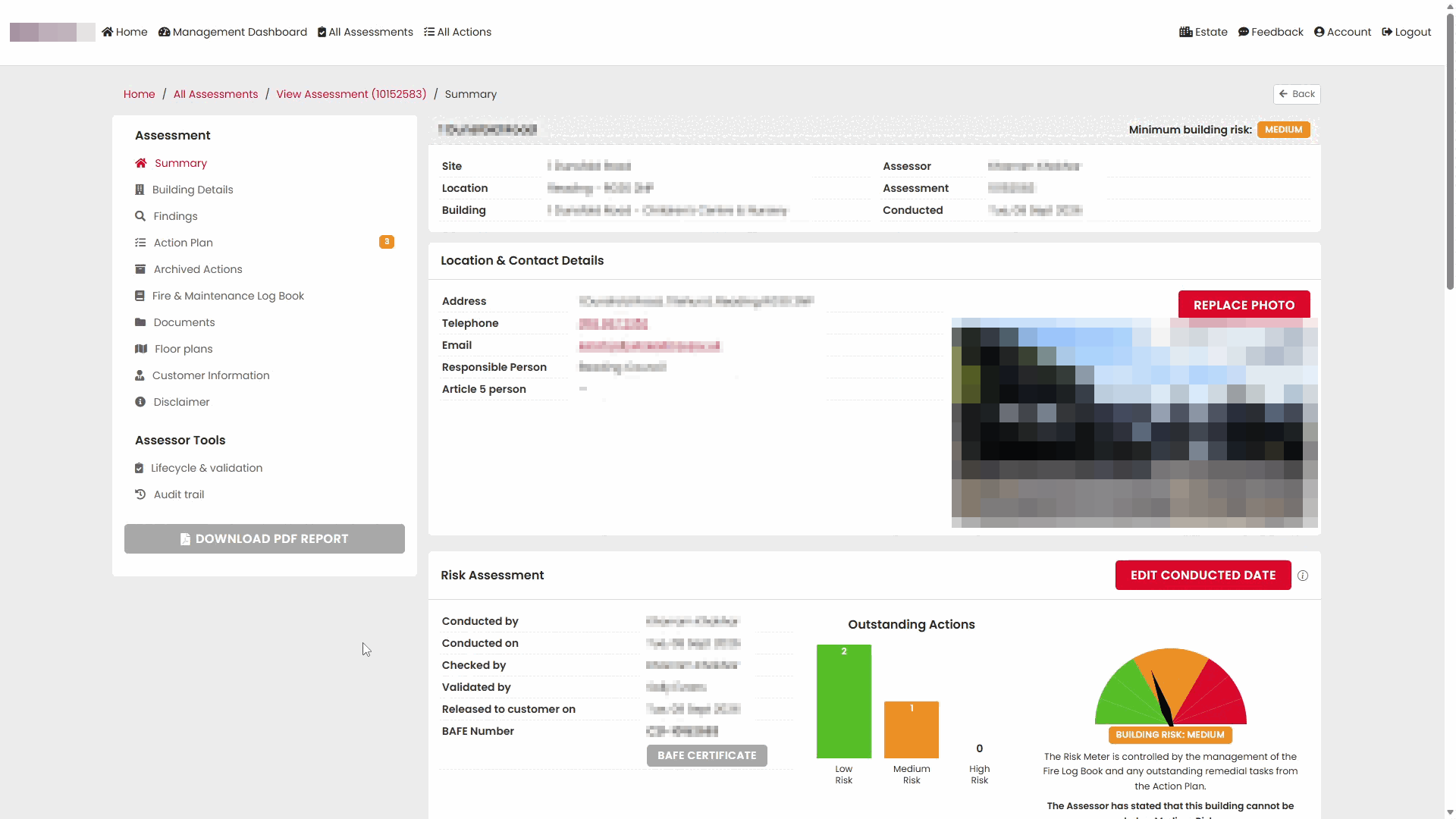
This area may include:
- Assessment information
- Risk assessment overview
- Building risk indicators
- Outstanding actions
- Summary statistics
The summary helps users quickly understand the overall outcome of the assessment.
Viewing Building Details
Select Building Details to review information associated with the assessed building.
Information may include:
- Building information
- Associated records
- Assessment-related details
Reviewing Findings
Select Findings to review issues identified during the assessment.
Findings provide details of observations recorded during the Fire Risk Assessment.
Reviewing the Action Plan
Select Action Plan to review recommendations generated from the assessment.
The Action Plan allows users to review:
- Recommended actions
- Outstanding items
- Assessment priorities
Viewing Archived Actions
Select Archived Actions to review actions that have been archived.
This area provides visibility of historical actions associated with the assessment.
Reviewing the Fire & Maintenance Log Book
Select Fire & Maintenance Log Book to review information stored within the assessment record.
This area provides additional supporting information related to fire safety management.
Viewing Documents
Select Documents to access documents associated with the assessment.
Documents may include assessment-related files made available through the Portal.
Viewing Floor Plans
Select Floor Plans to review floor plans associated with the building.
Where available, uploaded floor plans can be viewed from this area.
Viewing Customer Information
Select Customer Information to review customer-related details associated with the assessment.
Viewing the Disclaimer
Select Disclaimer to view the disclaimer associated with the assessment.
Returning to Assessor Desk
After reviewing the assessment within the Portal, return to Assessor Desk using your browser tabs or navigation controls.
This allows you to continue reviewing workload, validation tasks, or other assessments.
Tips
- Use Assessor Desk to locate assessments and the Portal to review detailed assessment content.
- Open assessments directly from Assessor Desk rather than manually searching for them in the Portal.
- Review the Assessment Summary first to gain a quick understanding of the assessment before examining individual sections.
- Use the navigation menu to move between assessment areas.
Next Steps
Continue with:
Was this article helpful?
That’s Great!
Thank you for your feedback
Sorry! We couldn't be helpful
Thank you for your feedback
Feedback sent
We appreciate your effort and will try to fix the article