This article explains how to generate and review a full PDF report for an assessment in the new Portal.
The generated PDF contains the complete assessment, including property details, assessor findings, action plans, photographic evidence, review dates, and compliance information. This report can be shared with customers, validators, and other stakeholders requiring a full copy of the assessment.
Who can use this Feature?
View assessments, sites and buildings that have been assigned to them via the Estate Management tool:
- View Only
- Standard
- Standard + Estate Manager
- Assessor
- Assessor + Validator
- Admin
- Tech Admin
See all buildings in the current customer (not only grants):
- Standard + Estate Manager
- Admin
- Tech Admin
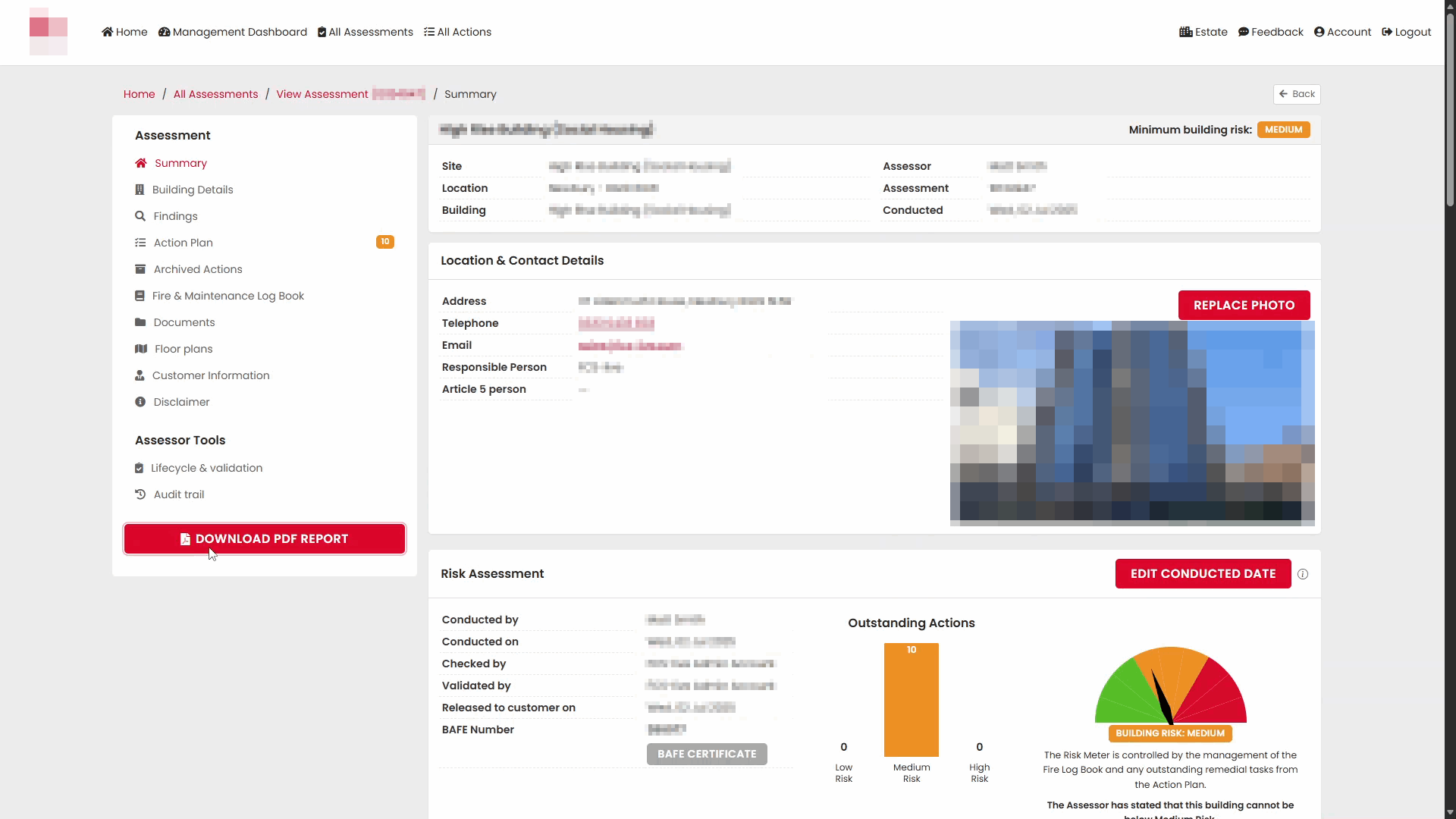
Generate a PDF Report
- Open the required assessment.
- Navigate to the assessment summary screen.
- Select Download PDF Report.
- A confirmation or progress window will appear while the report is generated.
- The system will display a Building PDF Report message while the document is being prepared.
- Wait for the report generation process to complete.
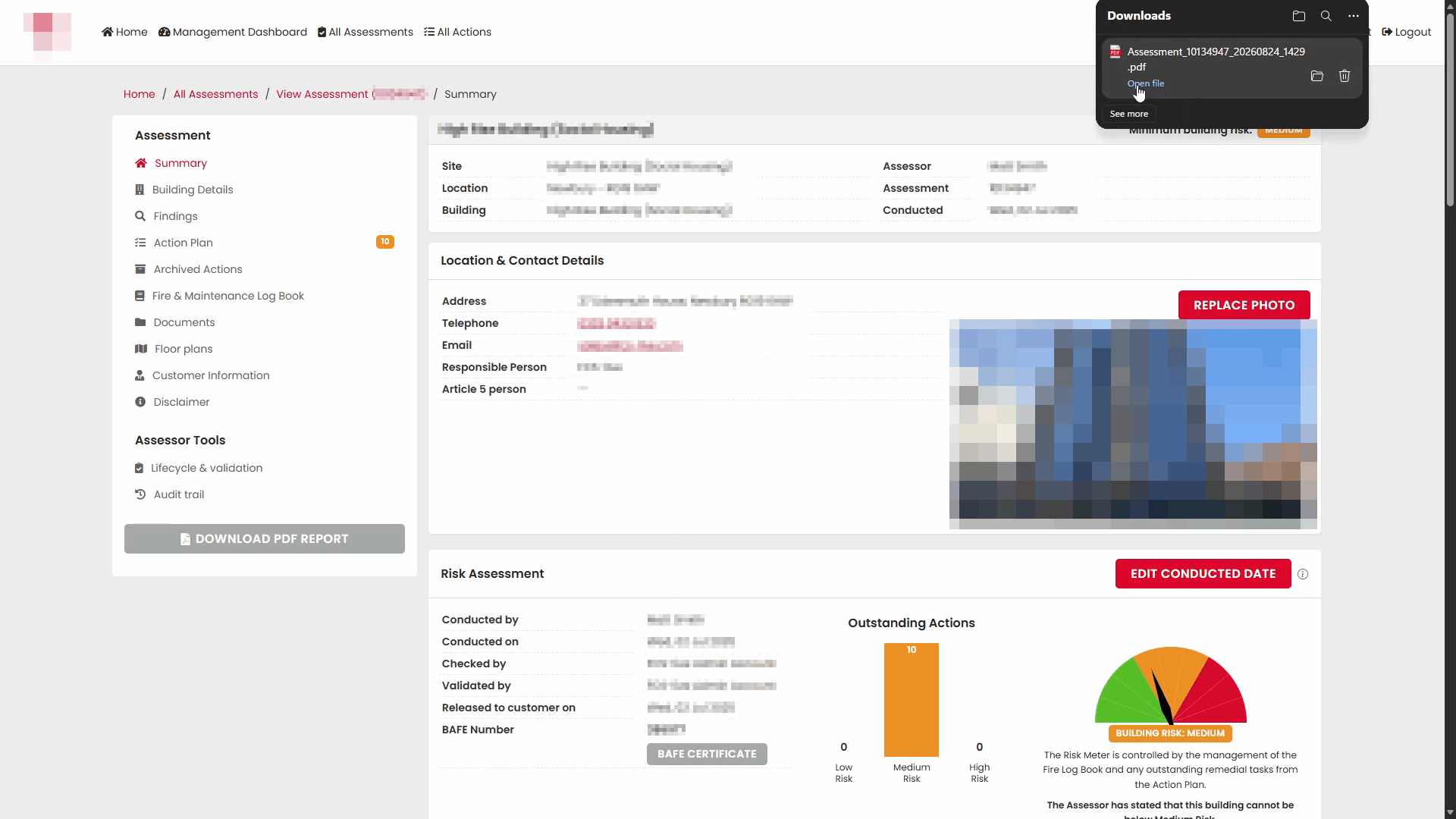
- Once complete, the PDF file will download automatically or become available to open.
Open the Generated Report
After download, open the PDF to review the assessment.
The report contains all information recorded within the assessment and is organised into sections for easy review.
Report Contents
The generated report includes a number of sections, depending on the data recorded within the assessment.
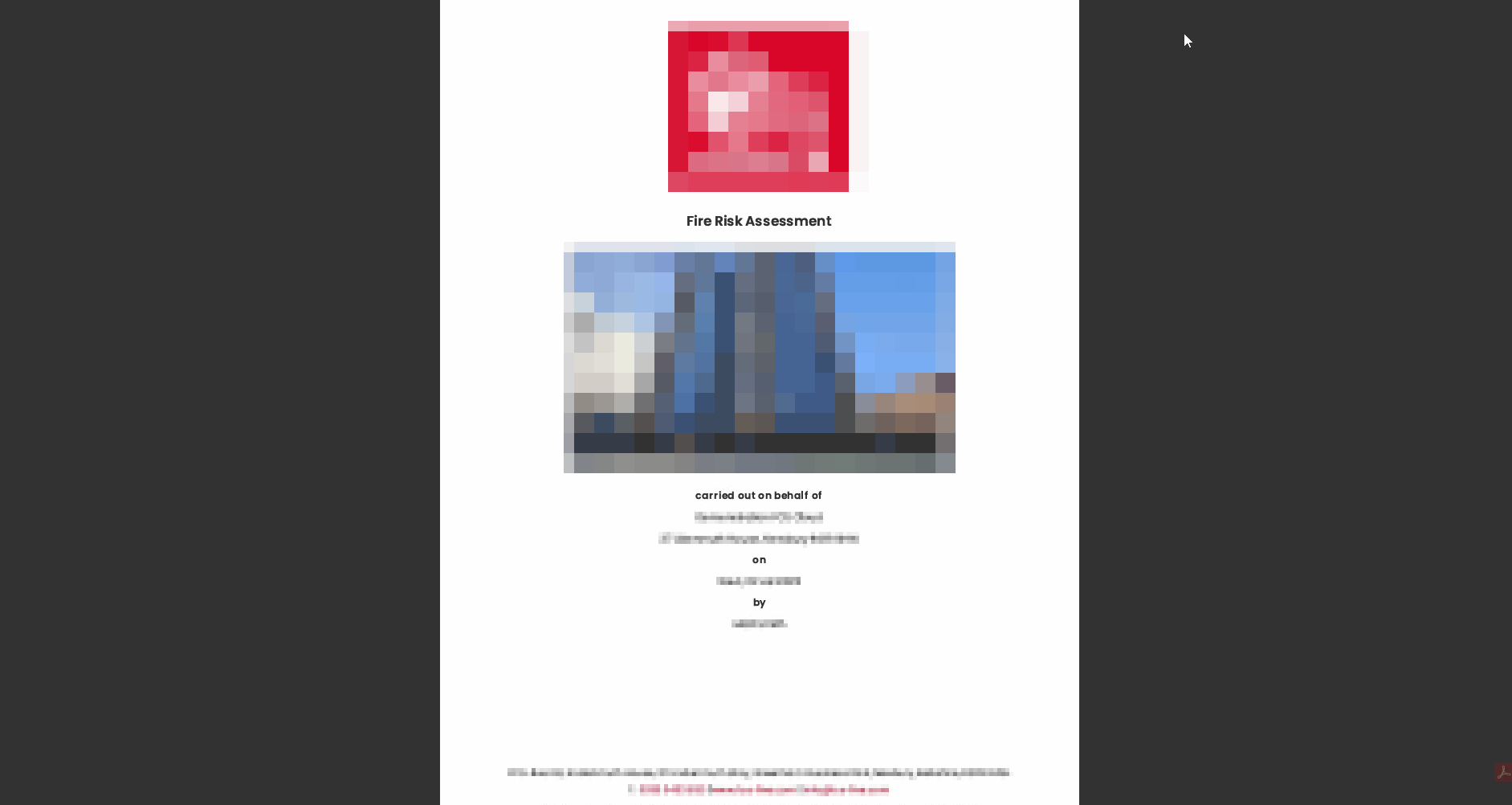
Risk Assessor's Summary
The opening pages provide a summary of the assessment, including overall findings and key information.
Building Information
Building and site details recorded during the assessment are included within the report.
Significant Findings
The report contains the findings identified during the assessment process.
Assessment Sections
Individual assessment sections and responses are included throughout the document.
Examples include:
- Means of Escape
- Fire Detection and Warning
- Fire Fighting Equipment
- Signs and Notices
- Management Information
Action Plan
Where non-conformities have been identified, the report includes an Action Plan.
Each action records:
- Reference number
- Assessment question
- Recorded non-conformity
- Recommendation
- Location
- Responsible person
- Target completion date
Detailed Action Records
Each action can span one or more pages depending on the amount of information recorded.
The report includes the full details entered by the assessor.
Photographic Evidence
Where photographs have been uploaded against findings or actions, they are automatically included within the PDF.
Images are displayed alongside the related action information, making it easier for reviewers to understand identified issues.
Assessment Information and Disclaimer
The final pages of the report contain supporting information regarding:
- Assessment methodology
- Regulatory references
- Significant findings guidance
- Assessment review requirements
- BAFE SP205 accreditation
- Disclaimer information
Continue reviewing the remaining pages for the full information provided.
Notes
- PDF generation may take longer for assessments containing a large number of actions or photographs.
- The content included in the PDF reflects the information recorded within the assessment at the time the report is generated.
- Any subsequent changes made to the assessment will require a new PDF report to be generated if an updated copy is required.
Was this article helpful?
That’s Great!
Thank you for your feedback
Sorry! We couldn't be helpful
Thank you for your feedback
Feedback sent
We appreciate your effort and will try to fix the article