Overview
The Workload area provides an overview of assessments assigned to you. It is designed to help you quickly identify assessments that require attention and monitor their current progress through the workflow.
From the Workload screen, you can:
- View assessments assigned to you.
- Identify the current status of each assessment.
- Review key assessment information.
- Open assessments for further review.
- Access different workload views.
Opening the Workload Area
- Select Workload from the navigation menu.
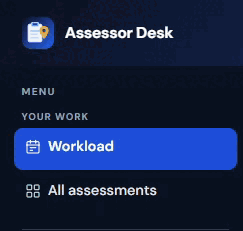
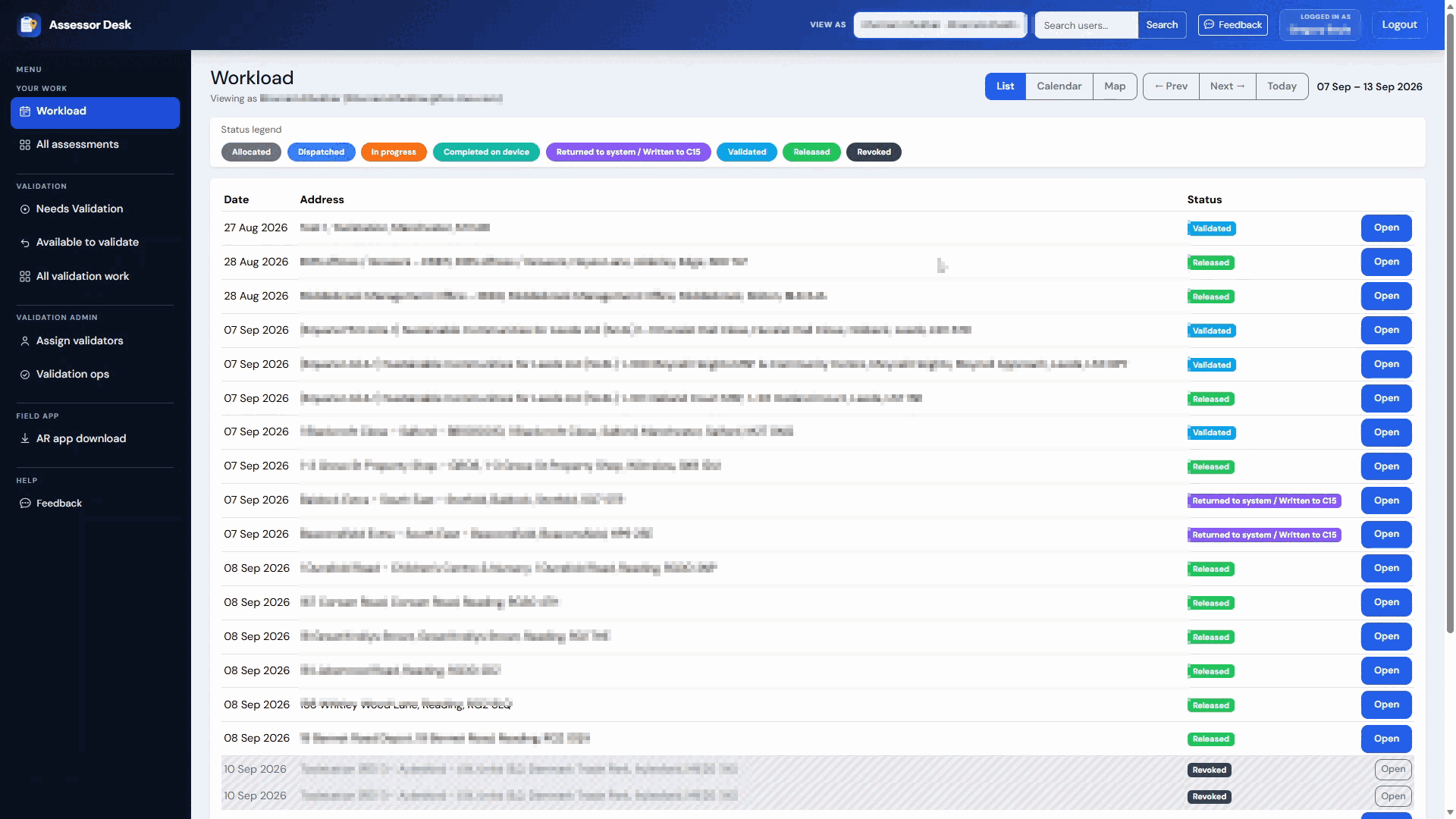
The Workload screen displays your assigned assessments and their current status.
Understanding the Workload Screen
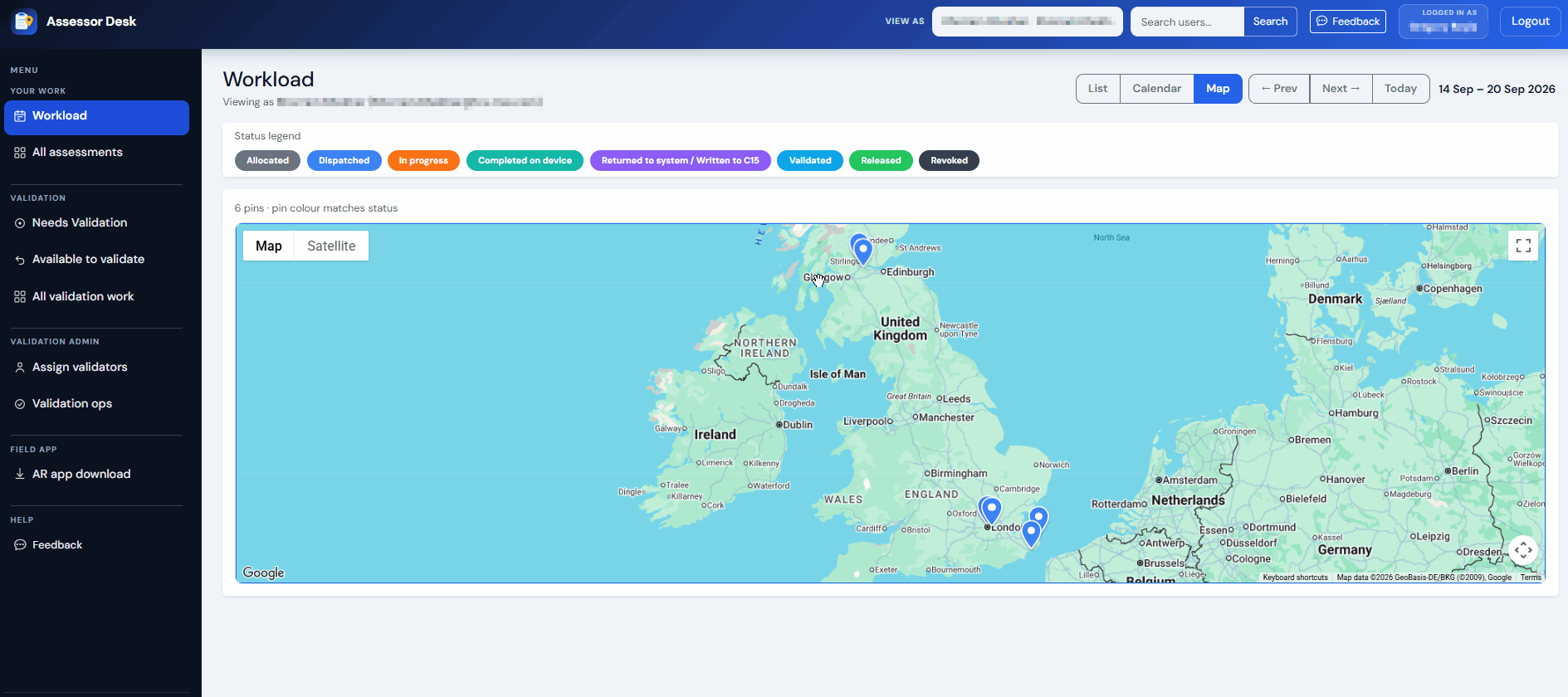
The Workload screen provides a summary of assessments assigned to you.
Information displayed may include:
- Building name
- Assessment status
- Visit date
This information allows you to quickly identify which assessments require attention.
Understanding Status Indicators
Each assessment displays a status indicating its current stage in the workflow.
Examples include:
- Allocated
- Dispatched
- In Progress
- Completed on Device
- Returned to System
- Validated
- Released
- Revoked
The status provides an at-a-glance view of where the assessment currently sits in the assessment lifecycle.

For a full explanation of each status, see the Understanding Assessment Statuses article.
Switching Between Views
Depending on your permissions and configuration, the Workload area may provide multiple ways to view assessments.
Available views can include:
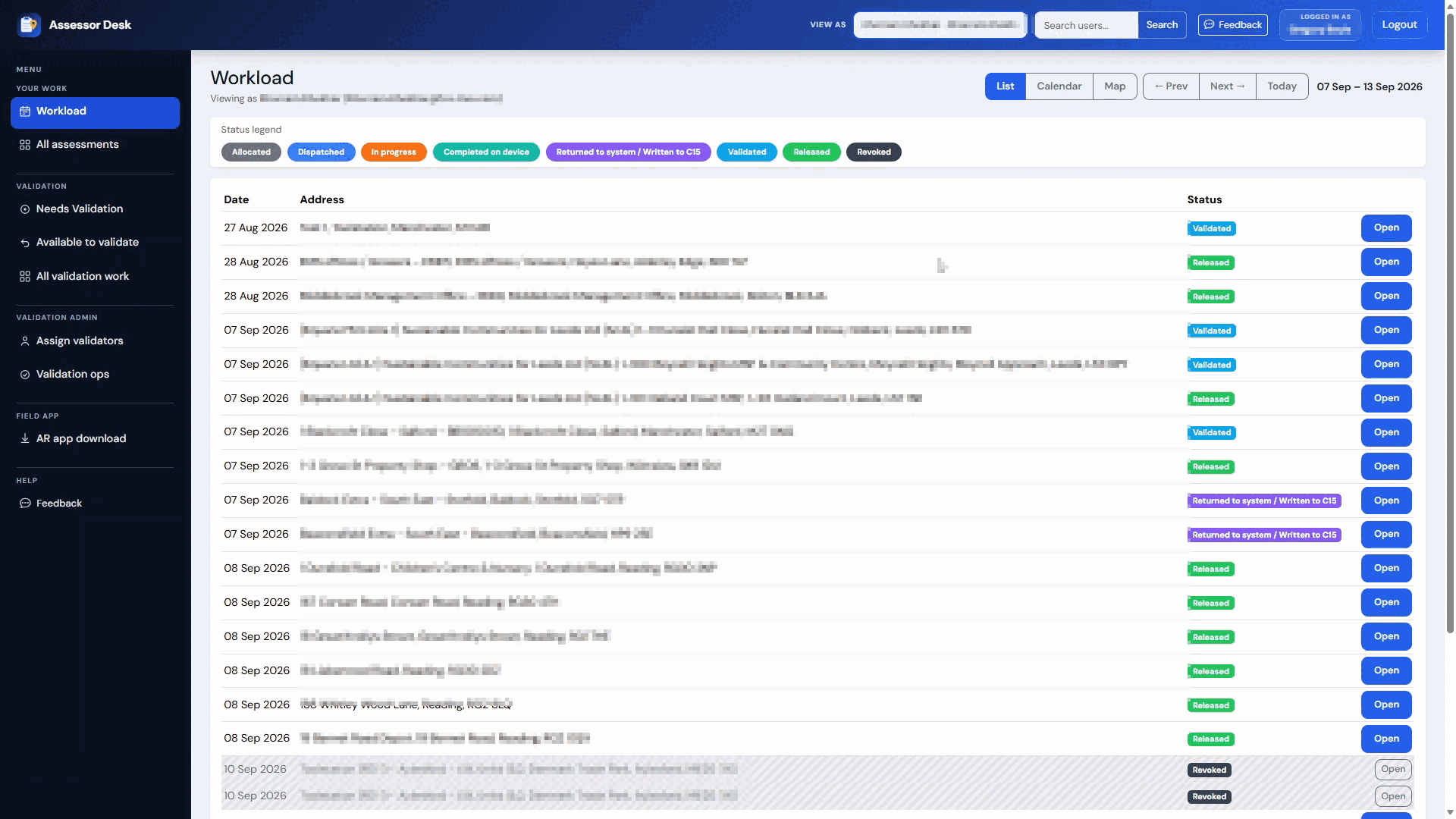
List View
Displays assessments in a structured list.
This view is useful when searching for a specific assessment or reviewing large numbers of records.
Calendar View
Displays assessments within a calendar-style layout.
This view can help when reviewing assessment activity by date.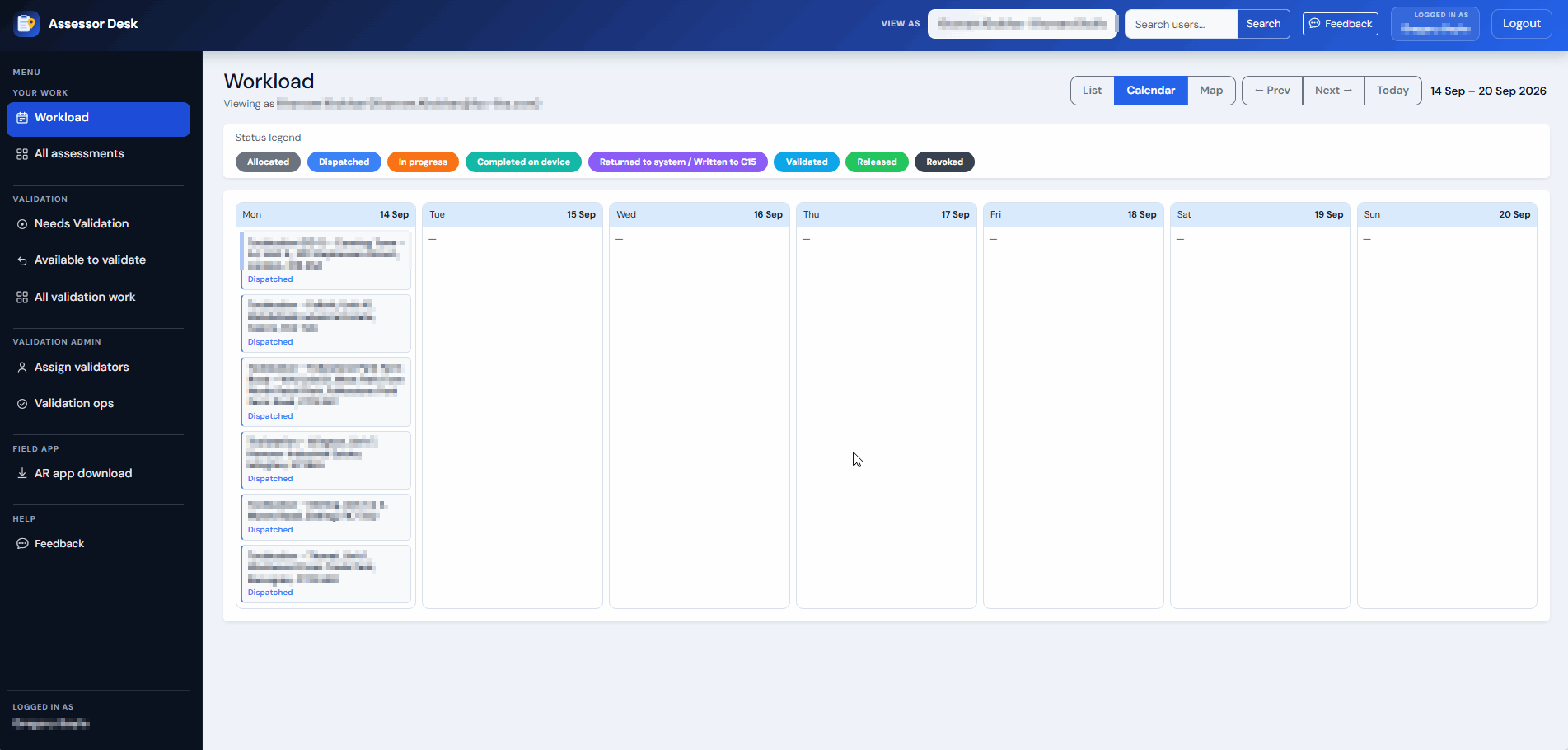
Map View
Displays assessments geographically.
This view can help visualise assessment locations.
Opening an Assessment
To view more information about an assessment:
- Locate the assessment in the Workload list.
- Select the assessment reference or open option.
- The Assessment Detail page opens.
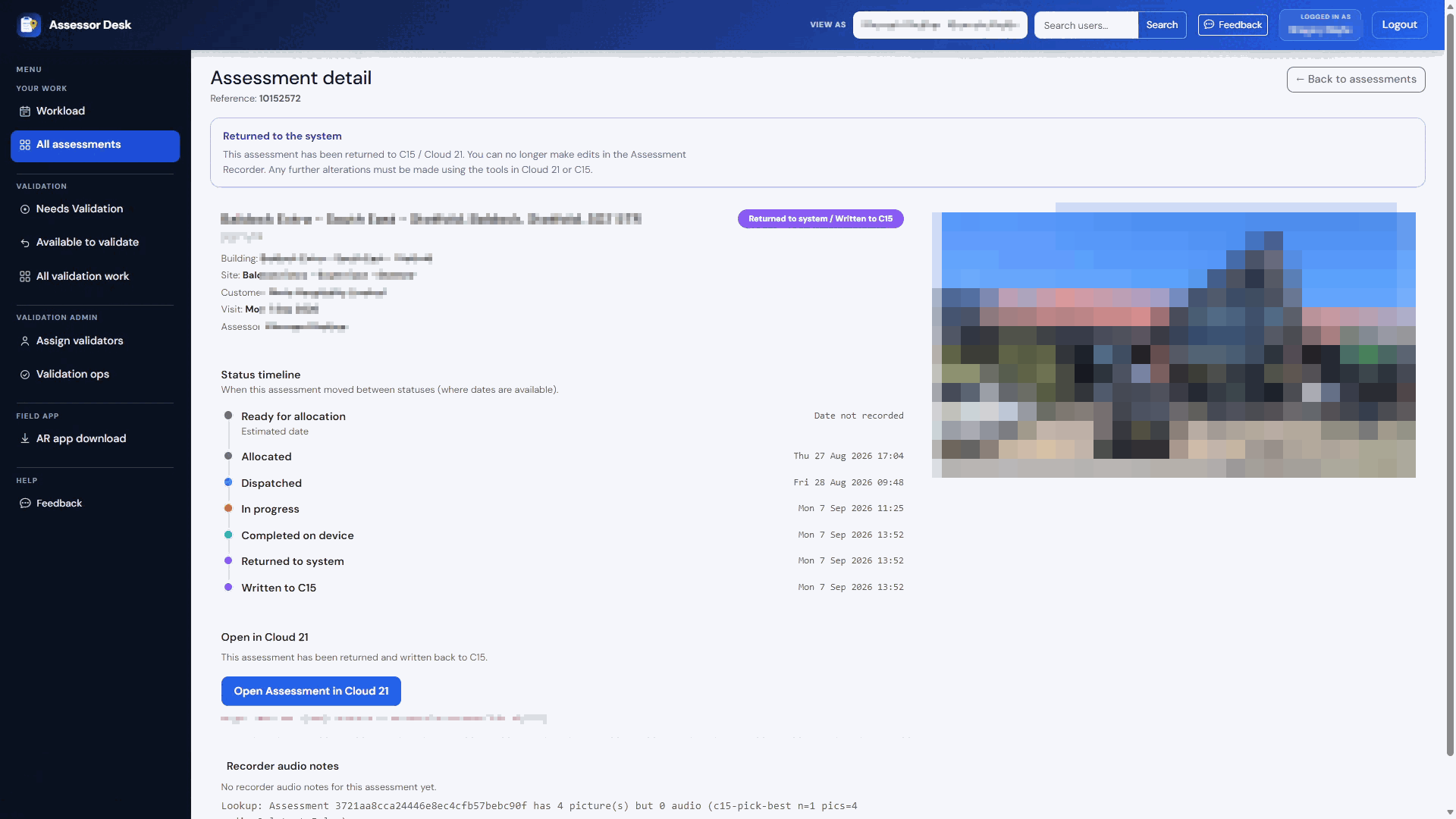
From the Assessment Detail page you can:
- Review assessment information.
- View the assessment status timeline.
- Review validation details.
- Open the assessment in the Portal.
Monitoring Your Assigned Work
The Workload screen is intended to be your primary starting point when using Assessor Desk.
Regularly reviewing this area allows you to:
- Track assessment progress.
- Identify assessments awaiting action.
- Monitor recently completed work.
- Access assessments requiring further review.
Tips
- Use the Workload screen as your starting point each day.
- Review assessment statuses regularly to identify work requiring attention.
- Open assessments directly from the Workload screen when further investigation is required.
- Use the status indicators to quickly understand where an assessment is within the workflow.
Next Steps
Continue with:
Was this article helpful?
That’s Great!
Thank you for your feedback
Sorry! We couldn't be helpful
Thank you for your feedback
Feedback sent
We appreciate your effort and will try to fix the article