Overview
Assessor Desk is a web-based application used to monitor and manage Fire Risk Assessments as they move through the assessment and validation workflow.
The system allows users to:
- View assessments assigned to them.
- Search for assessments.
- Track assessment progress and status.
- Access assessments in the Portal for further processing.
- Review validation information.
- Download the Assessment Recorder (AR) application.
- Submit feedback.
This guide provides an overview of the main areas of Assessor Desk and how to navigate the application.
Opening Assessor Desk
After signing in, Assessor Desk opens to the main application screen.
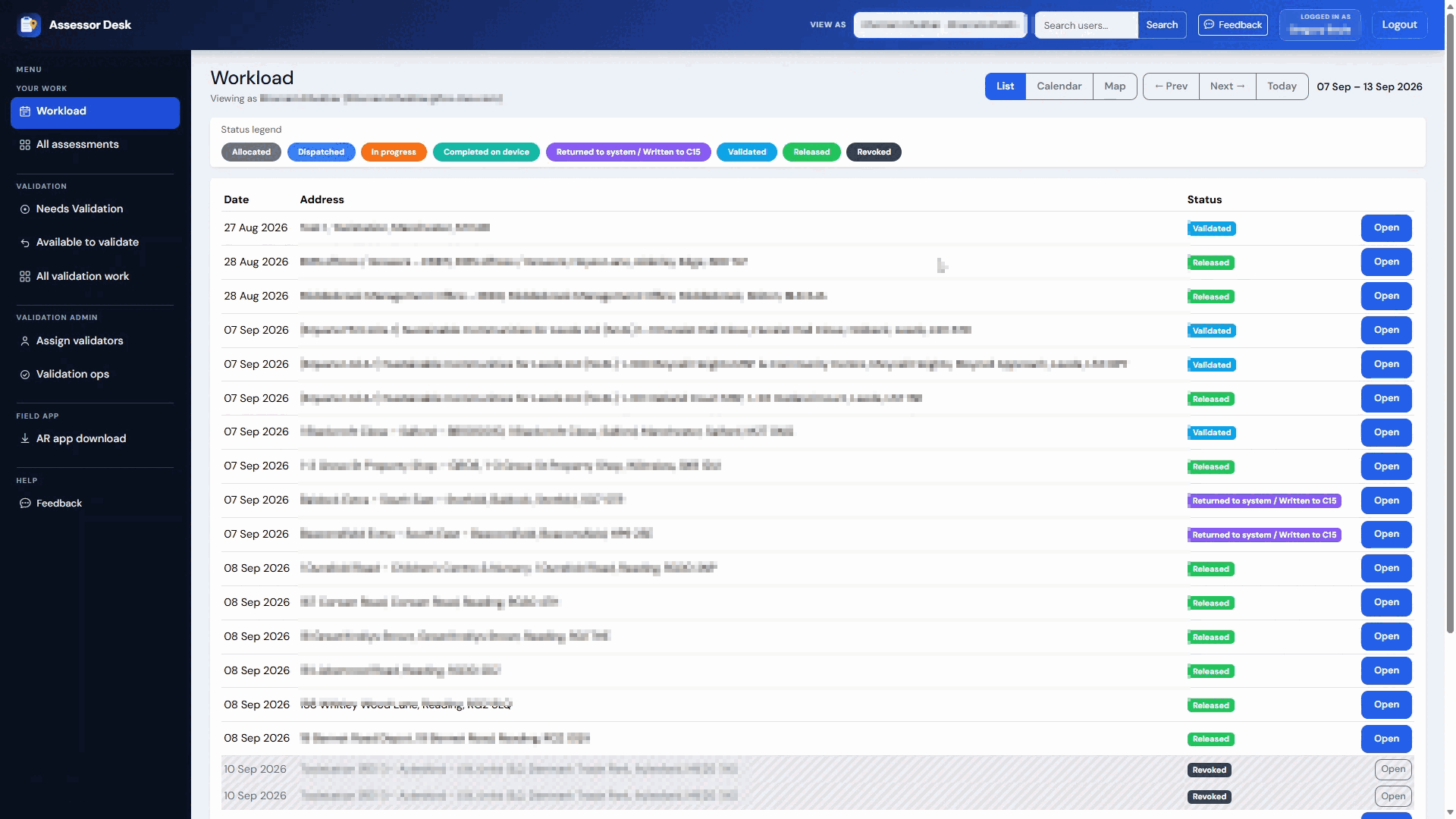
The screen consists of:
- A navigation menu on the left.
- A header bar across the top.
- The main content area in the centre of the page.
Understanding the Navigation Menu
The navigation menu provides access to all areas of Assessor Desk.
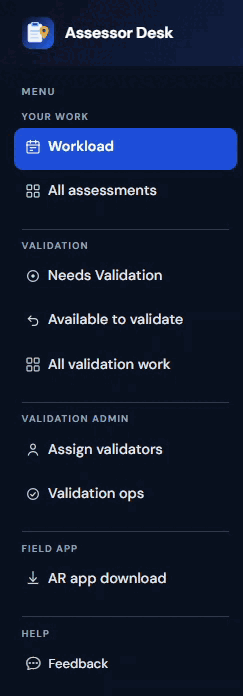
Your Work
Workload
Displays assessments currently assigned to you and provides a quick overview of your workload.
All Assessments
Displays all assessments that you have permission to view. You can search for specific assessments and apply filters to narrow the results.
Validation
Needs Validation
Displays assessments that require validation.
Available to Validate
Displays assessments that are available for validators to claim.
All Validation Work
Displays validation work across the system.
Validation Admin
The Validation Admin section is available to authorised users only.
Assign Validators
Used to assign or unassign validators from assessments.
Validation Ops
Used to manage assessments awaiting validation and monitor validation assignments.
Field App
AR App Download
Provides access to the latest Assessment Recorder application downloads and previous releases.
Help
Feedback
Allows users to submit feedback relating to Assessor Desk.
Using the Header Bar
The header bar contains several tools that are available throughout the application.

View As
Allows authorised users to view the system as another user for support or administration purposes.
User Search
Provides a quick way to locate users within Assessor Desk.
Feedback
Provides access to the feedback area without using the navigation menu.
Logged In As
Displays the account currently using Assessor Desk.
Logout
Signs you out of the application.
Returning to Your Workload
Many pages contain a Workload button that allows you to quickly return to your main workload screen.

- Select Workload.
- The system returns you to your workload dashboard.
Signing Out
When you have finished using Assessor Desk, you should sign out of the application.
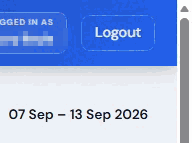
- Select Logout in the upper-right corner.
- Wait for the sign-out process to complete.
- Close the browser window if required.
Next Steps
Now that you are familiar with the layout of Assessor Desk, the next guides explain how to:
- Use the Workload area.
- Search for assessments.
- Understand assessment statuses.
- Review assessment details.
- Work with validation tasks.
- Open assessments in the Portal.
Was this article helpful?
That’s Great!
Thank you for your feedback
Sorry! We couldn't be helpful
Thank you for your feedback
Feedback sent
We appreciate your effort and will try to fix the article