This article explains how to edit an existing action within the new Portal. Editing an action allows authorised users to update details such as the risk rating, due date, observation, recommendation, location, and responsible party.
Who can use this feature?
- Fire Risk Assessors
Overview
Actions raised during a Fire Risk Assessment may need to be amended as further information becomes available or circumstances change.
The Edit Action function allows you to update action details while keeping the action linked to the assessment and Action Plan.
Open the Action
- Open the required assessment.
- Navigate to the assessment's Action Plan.
- Select the action you wish to update.
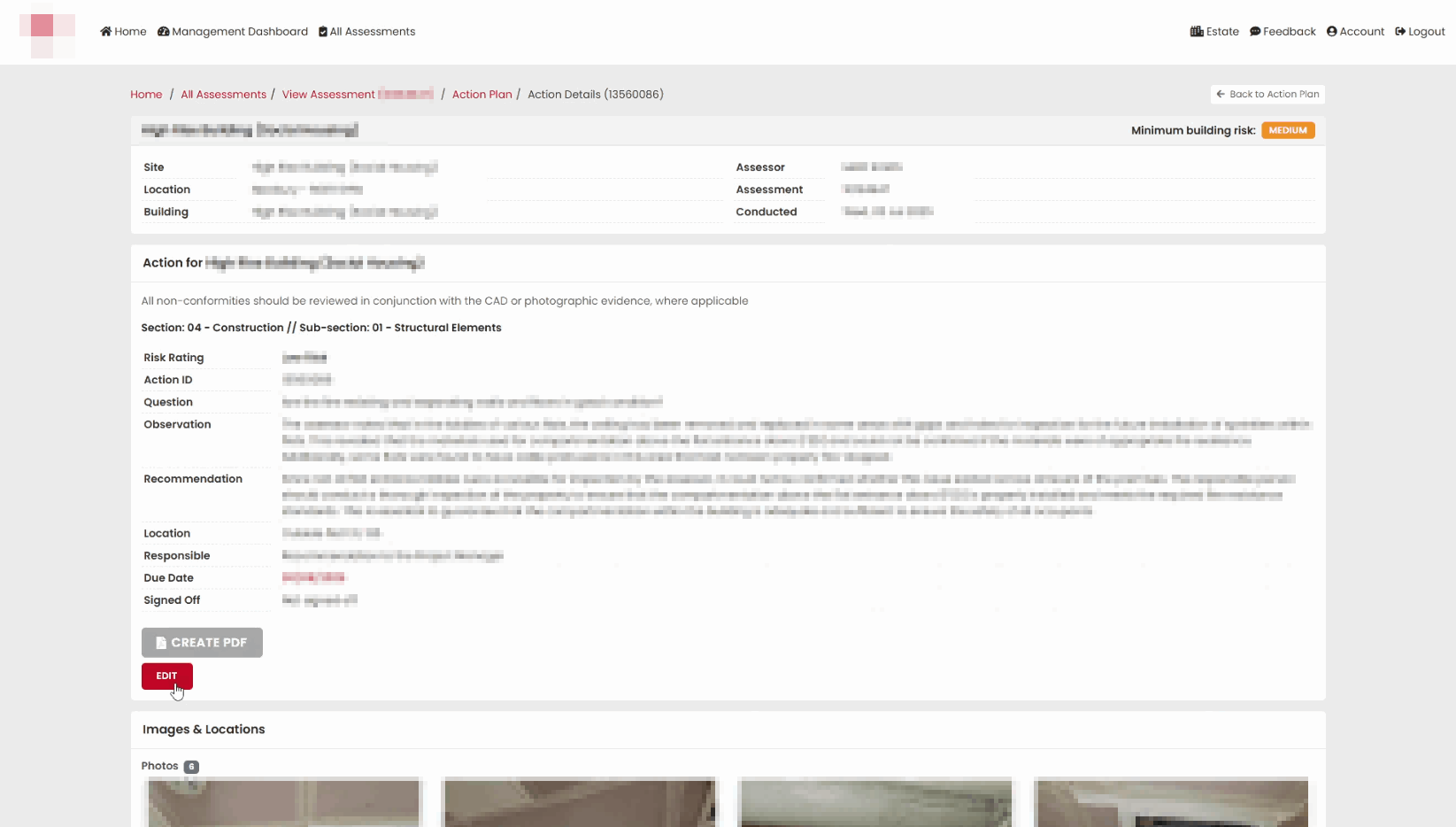
The Action Details page will open, displaying the current action information.
Review the Action Details
Before making any changes, review the information currently recorded against the action, including:
- Risk Rating
- Action ID
- Question
- Observation
- Recommendation
- Location
- Responsible Party
- Due Date
- Sign Off Status
Open Edit Mode
- Select EDIT at the bottom of the Action Details page.
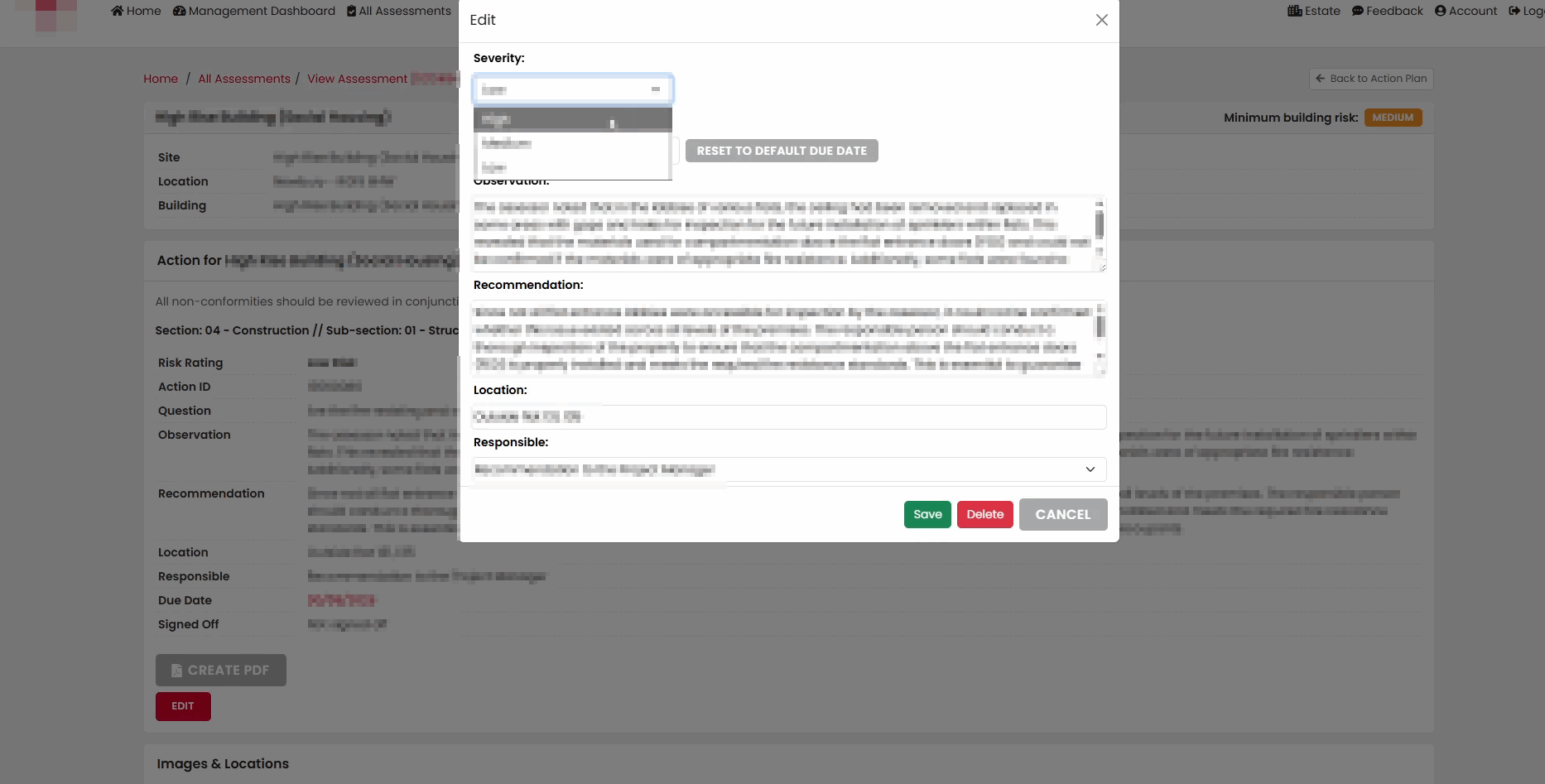
- The Edit Action window will open.
Edit the Risk Rating
The Severity field controls the risk rating assigned to the action.
- Locate the Severity drop-down list.
- Select the required risk level.
- Continue updating any additional fields as required.
After saving, the revised risk rating is displayed on the Action Details page.
Edit the Due Date
Use the due date to specify when the action should be completed.
- Locate the Due Date field.
- Select the date field or calendar control.
- Choose the revised due date.
After saving, the updated due date is shown on the Action Details page.
Edit the Observation
The Observation records the issue identified during the assessment.
- Locate the Observation field within the Edit Action window.
- Review the existing text.
- Amend the wording as required.
- Ensure the description accurately reflects the finding identified during the assessment.
After saving, the updated observation is displayed on the Action Details page.
Edit the Recommendation
The Recommendation describes the action required to address the issue.
- Locate the Recommendation field.
- Review the existing recommendation.
- Update the wording as required.
- Ensure the recommendation clearly explains the corrective action needed.
After saving, the updated recommendation is displayed on the Action Details page.
Edit the Location
The Location field identifies where the issue was found.
- Locate the Location field.
- Amend the location details as required.
- Check that the updated location accurately identifies the affected area.
After saving, the revised location is displayed on the Action Details page.
Change the Responsible Party
The Responsible field identifies who is accountable for completing the action.
- Locate the Responsible drop-down list.
- Select the appropriate responsible party.
- Continue making any further changes as required.
After saving, the updated responsible party is displayed on the Action Details page.
Save the Changes
Once all required amendments have been made:
- Review the updated information.
- Select Save.
A confirmation message will be displayed to indicate that the changes have been successfully saved.
Verify the Updated Action
After saving, the system returns you to the Action Details page.
Review the updated information to confirm that all changes have been applied correctly.
View Associated Images
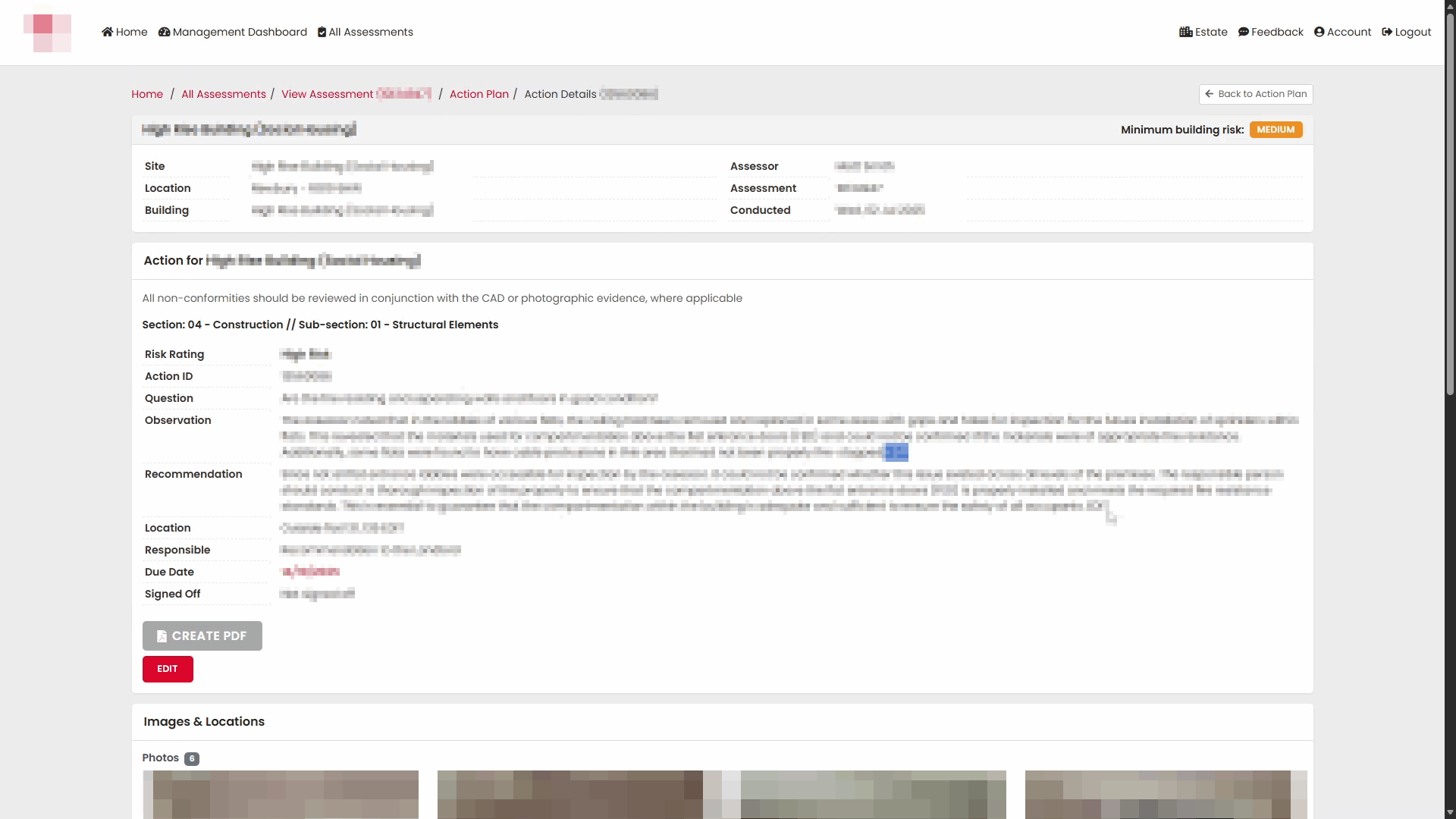
The Images & Locations section remains available when viewing the action.
This section displays photographs that have been linked to the action and can be used to provide additional context and evidence relating to the finding.
Important
Before saving any changes, ensure that all amended information is accurate and complete. Once the action has been updated, the revised details are visible to users with permission to access the assessment.
Editing an action helps ensure that recommendations, responsibilities, locations, priorities, and target dates remain accurate throughout the lifecycle of the assessment action plan.
Result
The action is updated and the revised information is immediately available from the assessment's Action Plan and Action Details page. Users can continue to track, review, and manage the action using the updated information.
Was this article helpful?
That’s Great!
Thank you for your feedback
Sorry! We couldn't be helpful
Thank you for your feedback
Feedback sent
We appreciate your effort and will try to fix the article