The Management Dashboard provides a high-level view of outstanding and signed-off actions across your selected sites and buildings. It allows users to filter results, review action statistics, and drill down into detailed action information.
Opening the Management Dashboard
From anywhere within the Portal, select Management Dashboard from the navigation menu at the top of the screen.
The main navigation bar includes:
- Home
- Management Dashboard
- All Assessments
- All Actions
Selecting Management Dashboard opens the dashboard view.
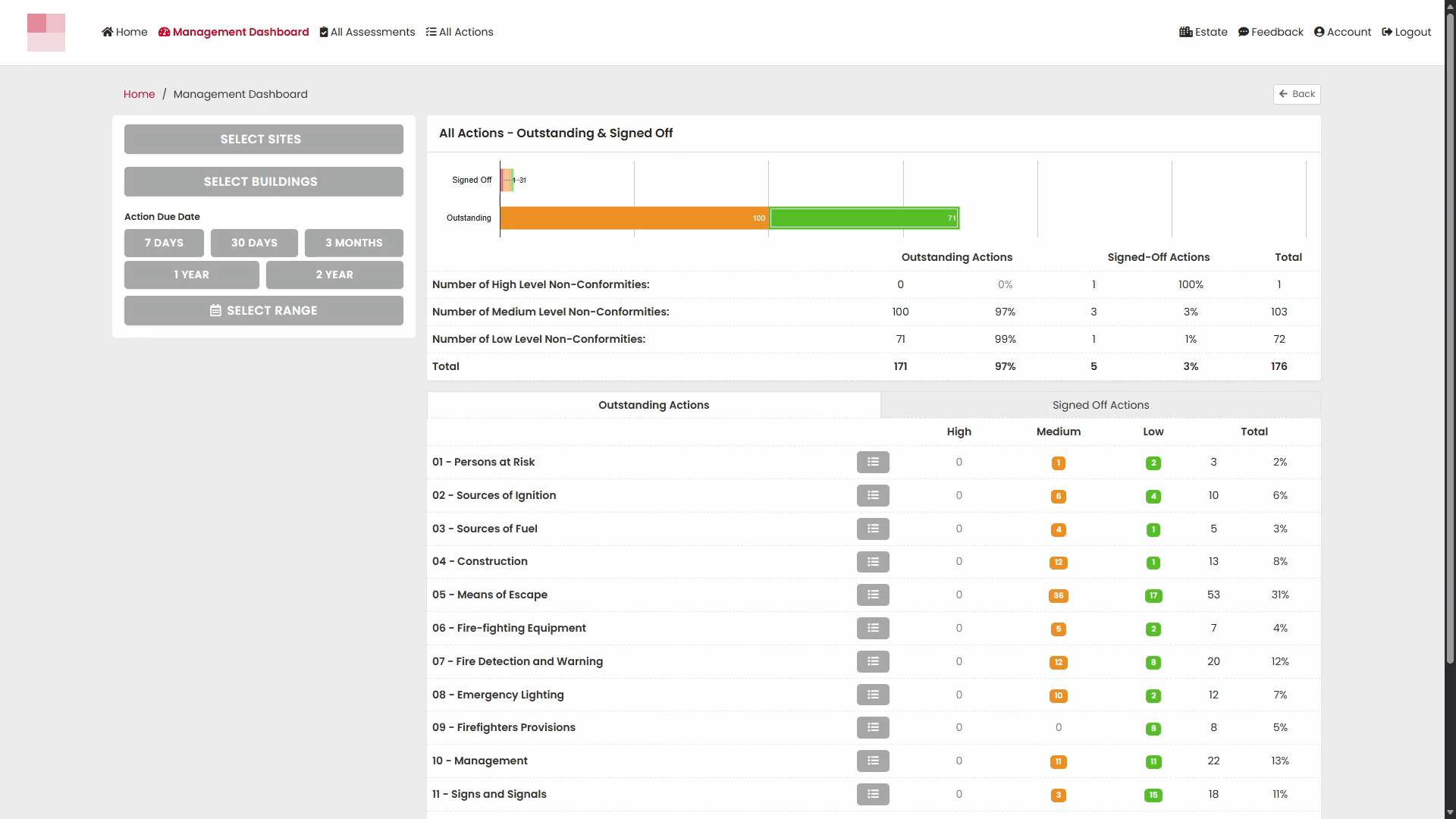
Understanding the Dashboard Layout
The dashboard is split into two main areas:
- Filter and selection options on the left.
- Action summaries and statistics on the right.
The dashboard displays:
- Total Outstanding Actions
- Total Signed Off Actions
- Action counts by risk level
- Action counts by assessment section
- Percentage breakdowns of action status
Using Dashboard Filters
The filter panel allows you to narrow the information displayed on the dashboard.
Available filters include:
Select Sites
Choose one or more sites to include in the dashboard results.
Select Buildings
Choose specific buildings within the selected site.
Action Due Date
Filter actions based on due dates using predefined ranges:
- 7 Days
- 30 Days
- 3 Months
- 1 Year
- 2 Year
Alternatively, select Select Range to choose a custom date range.
After applying filters, the dashboard updates automatically to show matching data.
Reviewing Action Summaries
The dashboard displays a summary of outstanding and signed-off actions.
Information is grouped by:
- High Level Non-Conformities
- Medium Level Non-Conformities
- Low Level Non-Conformities
For each category, the dashboard shows:
- Outstanding Action count
- Signed-Off Action count
- Overall totals
This provides a quick overview of compliance progress across the selected portfolio.
Viewing Actions by Assessment Section
Below the summary charts is a breakdown of actions by assessment section.
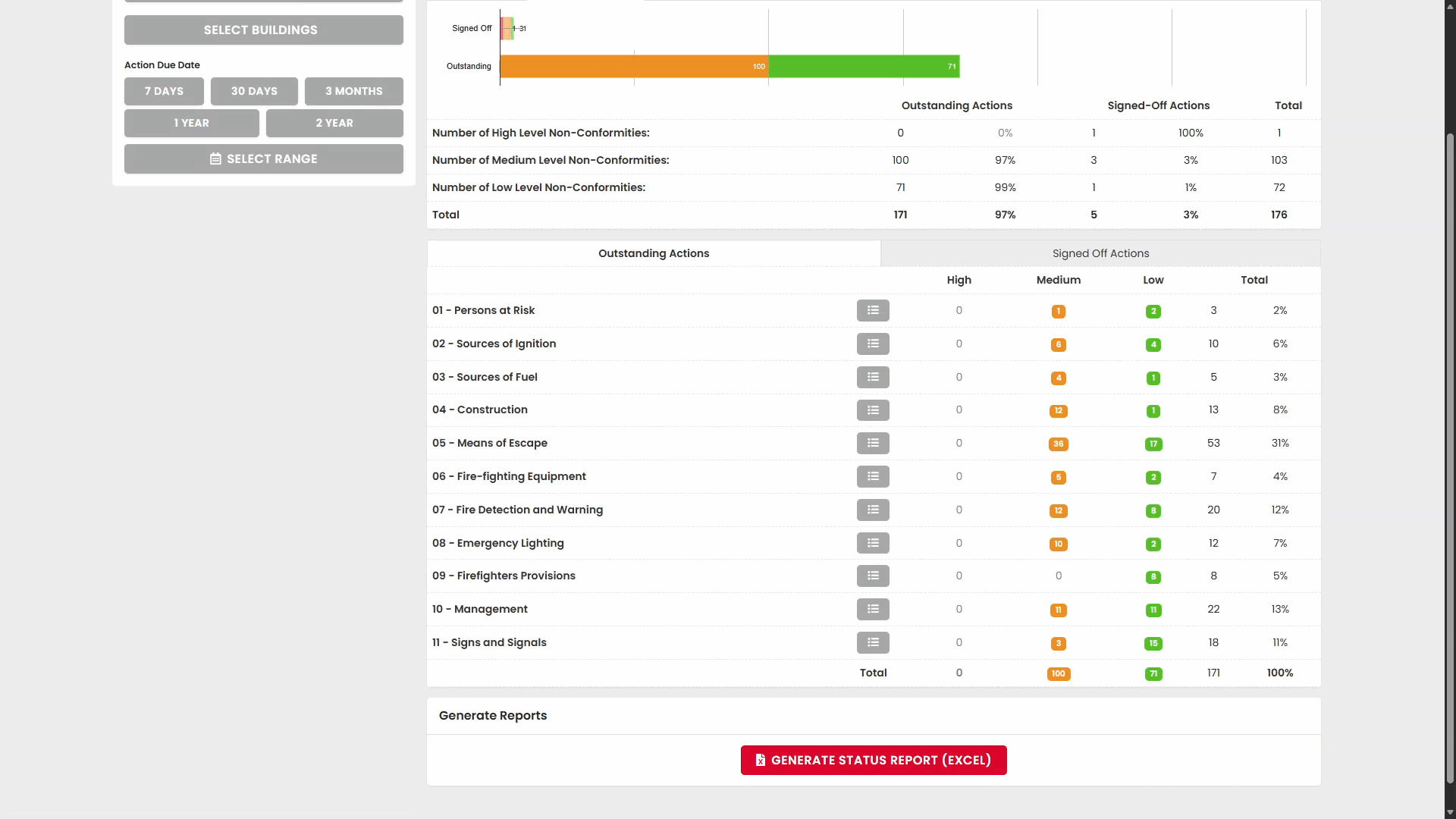
Examples may include:
- Persons at Risk
- Sources of Ignition
- Sources of Fuel
- Construction
- Means of Escape
- Fire-fighting Equipment
- Fire Detection and Warning
- Emergency Lighting
- Management
- Signs and Signals
Each row shows:
- High risk actions
- Medium risk actions
- Low risk actions
- Total actions
Opening Outstanding Actions
To view the actions within a section, select the action list button on the relevant row.
The system opens the detailed action list for the selected section.
The action list displays:
- Action description
- Risk rating
- Due date
- Responsible party
- Current status
Opening Signed-Off Actions
The dashboard also allows you to review actions that have already been completed and signed off.
Select a section within the Signed-Off Actions view.
The signed-off action list displays completed actions together with their sign-off information.
Viewing Action Details
Select an action from either the Outstanding Actions or Signed-Off Actions list to open the full action record.
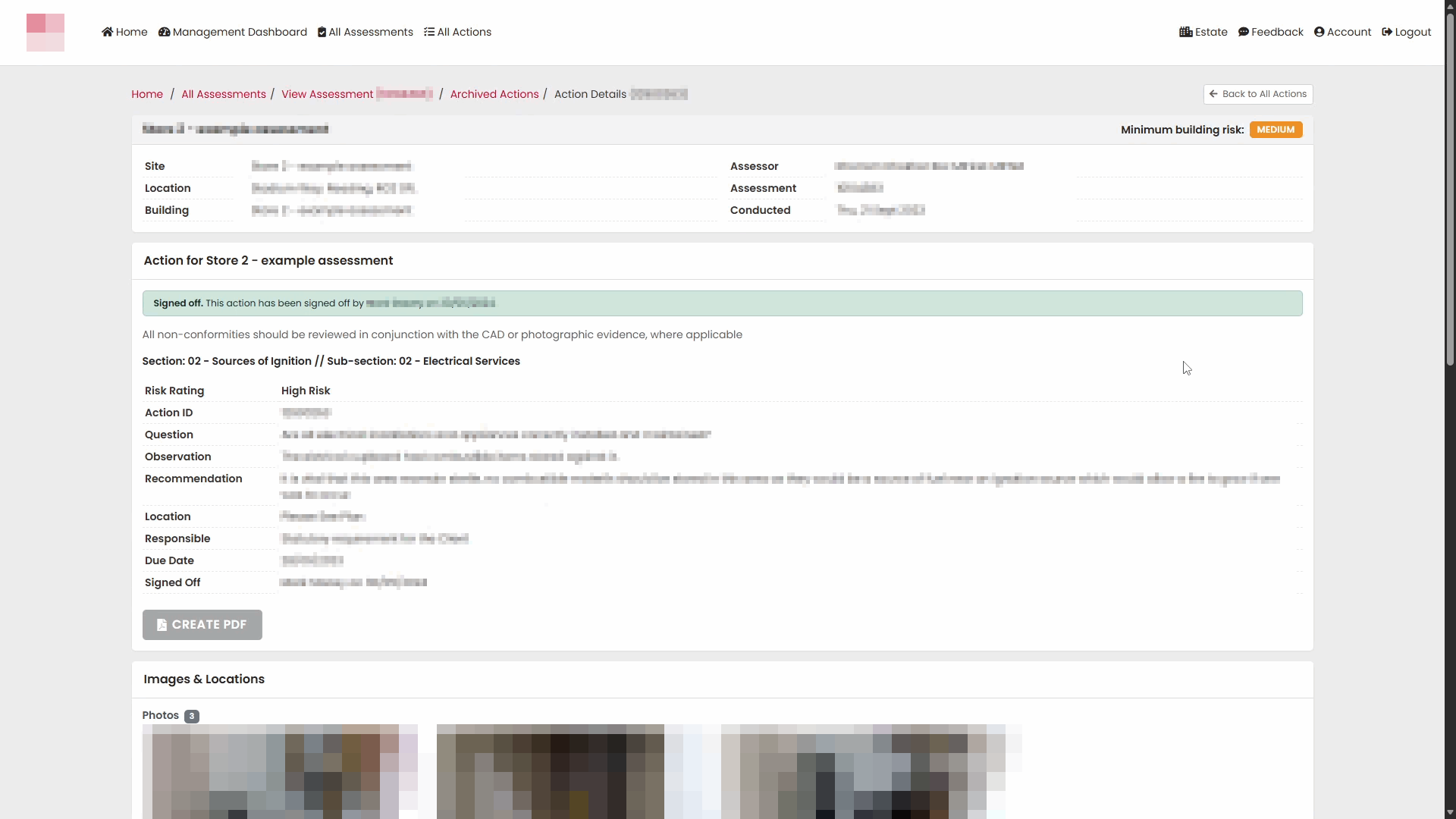
The action details page provides:
- Assessment information
- Risk rating
- Observation
- Recommendation
- Location information
- Responsible party
- Due date
- Sign-off details (where applicable)
Reviewing Supporting Evidence
Many actions include supporting evidence and location information.
Available evidence may include:
Photos
Photographs associated with the action.
Floor Plans and Pins
Floor plans showing the location of the issue.
Use the floor selector buttons to switch between available floors.
Pins on the floor plan identify the recorded location.
Viewing Notes and Sign-Off Information
The lower section of the action record contains historical notes and sign-off details.
Where an action has been completed, the record displays:
- Sign-off status
- Sign-off date
- Notes entered during closure
This provides an audit trail of completed actions.
Returning to the Dashboard
Use the Back button or select Management Dashboard from the navigation menu to return to the dashboard.
This allows you to continue reviewing other sections, actions, sites, or buildings without returning to the home page.
Summary
The Management Dashboard provides a central location for monitoring fire risk assessment actions across your portfolio. By using the available filters and navigation options, you can:
- View action statistics.
- Monitor outstanding and signed-off actions.
- Review actions by assessment section.
- Access detailed action information.
- View supporting photographs and floor plans.
- Track completed actions and sign-off history.
Was this article helpful?
That’s Great!
Thank you for your feedback
Sorry! We couldn't be helpful
Thank you for your feedback
Feedback sent
We appreciate your effort and will try to fix the article