Overview
Building-level access control determines which buildings a user can access within a customer’s estate.
An authorised user can amend this access when someone:
- Needs access to an additional building
- No longer requires access to a building
- Has moved to a different area of responsibility
- Can see the wrong buildings after signing in
Changes are made against the individual user account.
Important: Only grant access to buildings that the user needs. Removing access may prevent the user from viewing the building’s assessments and actions.
Who can use this Feature?
- Standard + Estate Manager
- Admin
- Tech Admin
Open the Customer
- Sign in to the Portal.
- Locate the required customer on the Select Customer page.
- Select SELECT & CONTINUE beneath the customer.
The customer’s home page opens.
Open Estate Management
- From the customer’s home page, open Estate.
- Select User & building access.
3. Select the customer.
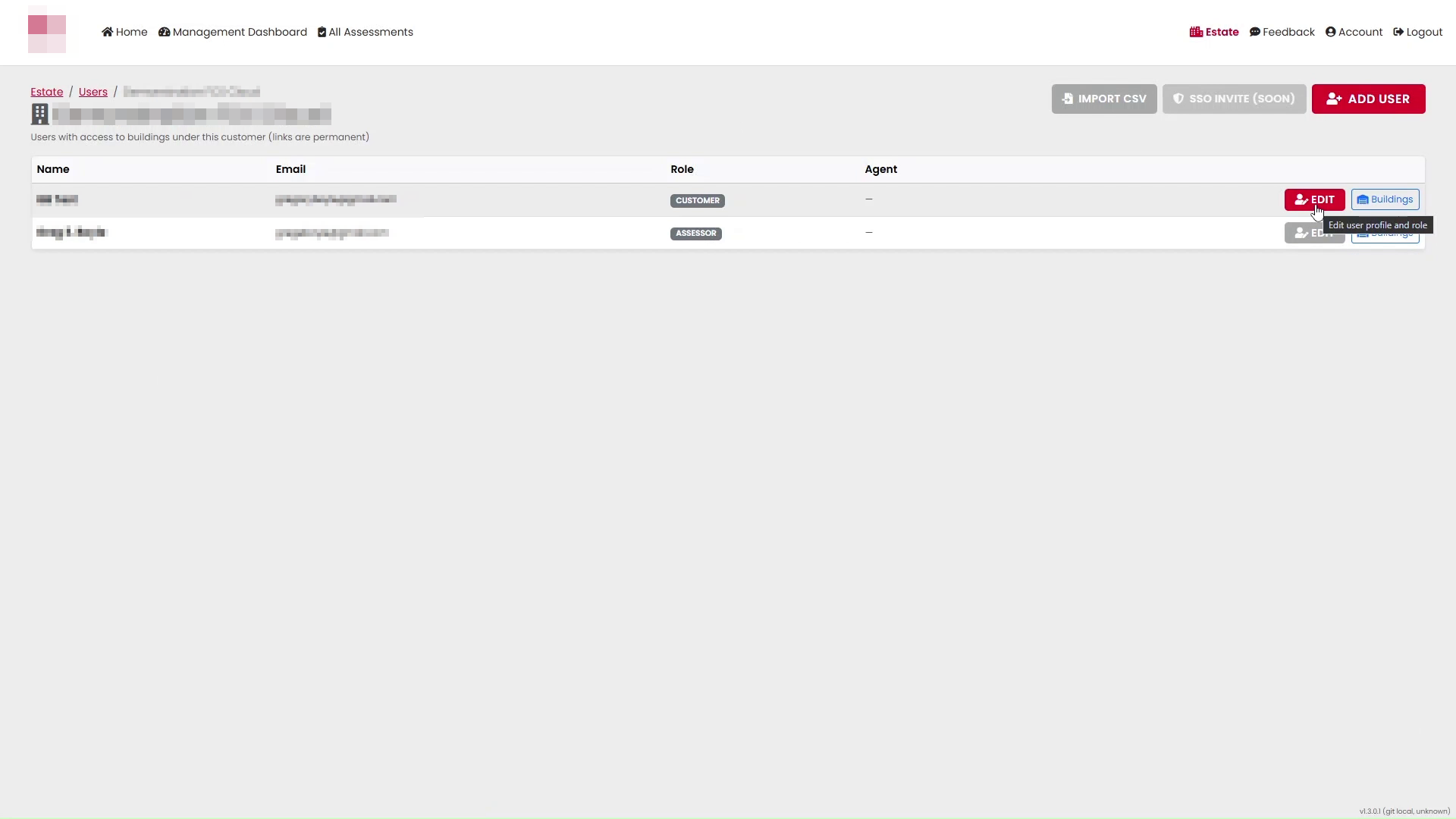
4. The user management page displays the users associated with the customer.
Find the User
Locate the user whose building access needs to be changed.
Select Edit to open the user’s building access settings.
Review the User’s Current Access
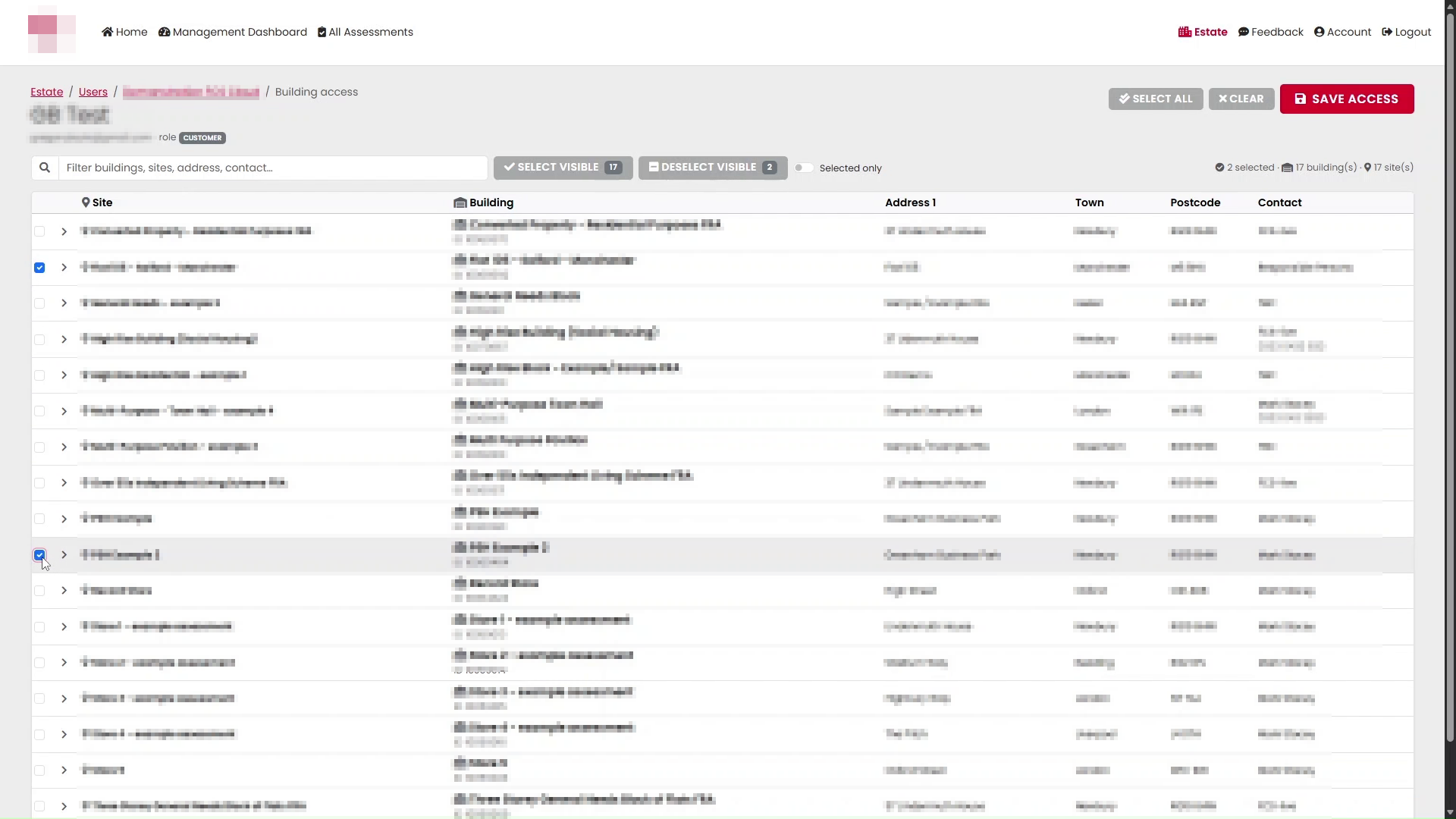
The building access screen lists the buildings within the customer’s estate.
The marked selections on this screen show which buildings the user can currently access.
Review the existing selections before making any changes.
Find a Building
If the site contains several buildings, use the search field to locate the required building.
- Enter part of the building name in the search field.
- Review the matching results.
Clear or change the search text to locate a different building.
Grant Access to a Building
To grant access, select the required building.
Repeat this for each additional building the user needs to access.
Before saving, check that the correct buildings are selected.
Remove Access from a Building
To remove access, clear the selection beside the building.
Removing a building means the user will no longer have access to that building through the customer account.
Check the remaining selections carefully before continuing.
Save the Changes
When the building selections are correct, select Save Access.
The updated access settings are then applied to the user.
Check the User’s Access
After the changes have been saved and the user has logged out and back again, the user’s view will reflect the buildings available to the account.
For example, the customer home page includes:
- The number of sites
- The total number of buildings
- The number of assessments
- Building severity information
- Action information
- A risk map
- A list of accessible sites and buildings
The building list at the bottom of the page shows the sites and buildings available to the signed-in user.
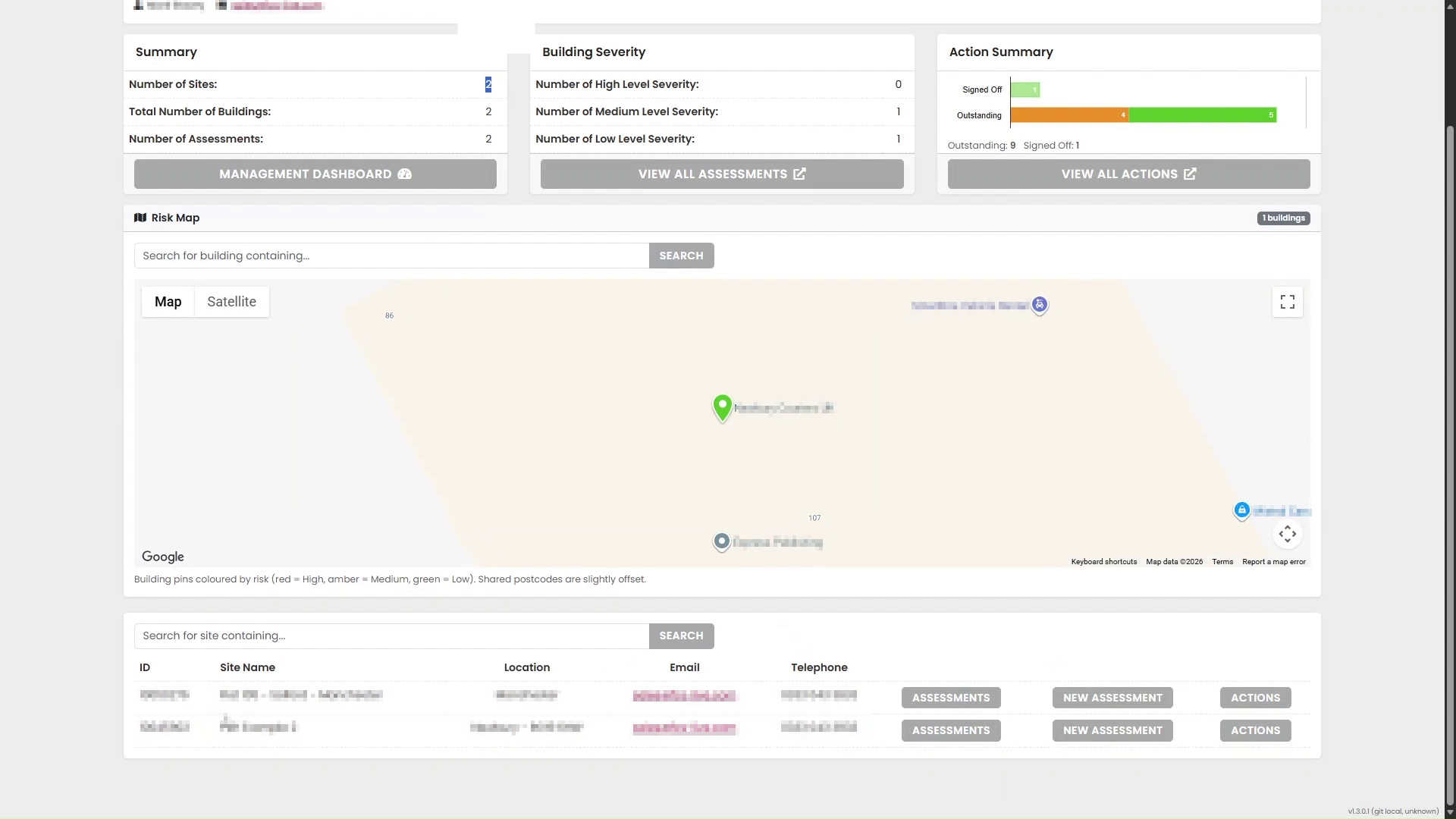
If a building is missing or an unexpected building is displayed, return to the user’s building access settings and review the selections again.
Troubleshooting
The required user is not listed
Check that you have selected the correct customer. The user must be associated with that customer before building-level access can be amended.
The required building is not displayed
Clear the building search and try again using part of the building name.
If the building remains unavailable, check that you are working within the correct customer estate.
The user cannot see a newly assigned building
Return to the user’s building access settings and confirm that:
- The correct building is selected
- The change has been saved
- The correct user account was amended
The user may also need to refresh the page or sign in again before checking the updated view.
The user can still see a building that should have been removed
Reopen the user’s building access settings, confirm that the building is no longer selected, and save the changes again.
Summary
To amend a user’s building-level access:
- Open the required customer.
- Go to Estate Management.
- Open the user management area.
- Find the required user.
- Open the user’s building access settings.
- Select buildings to grant access.
- Clear buildings to remove access.
- Save the changes.
- Check that the user can see the correct buildings.
Was this article helpful?
That’s Great!
Thank you for your feedback
Sorry! We couldn't be helpful
Thank you for your feedback
Feedback sent
We appreciate your effort and will try to fix the article