Overview
Estate Management allows administrators to manage customer users who have access to buildings within an estate. When a user no longer requires access, they can be removed from the customer account. Removed users can be restored later if required.
Note: Removing a user prevents them from accessing the estate. The user record is retained and can be restored if access is needed again.
Who can use this Feature?
- Standard + Estate Manager
- Admin
- Tech Admin
Remove a User
From the new Portal, select Estate from the navigation menu.
Select Users & Building Access.
Select the customer whose users you want to manage.
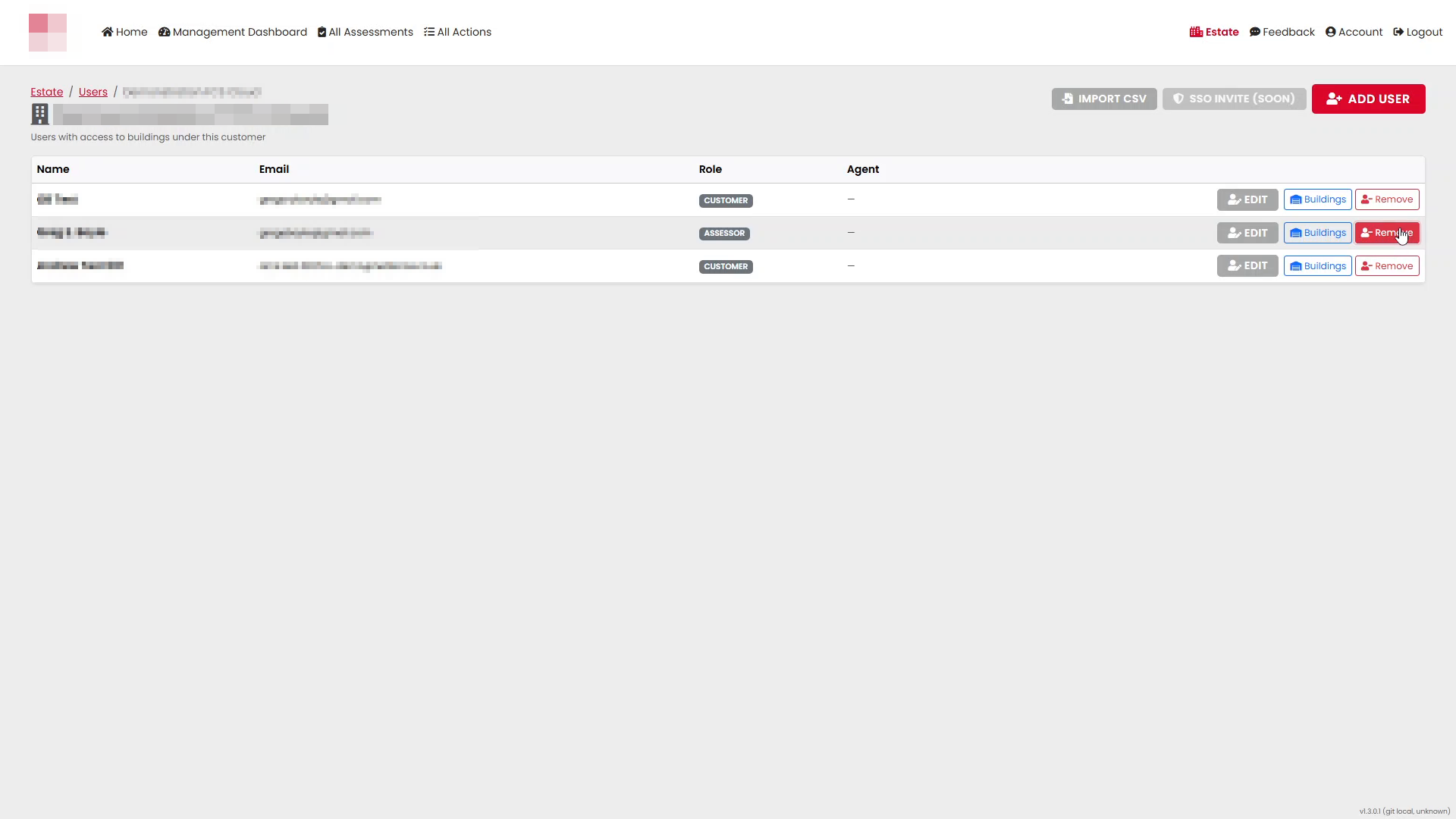
The Users page displays all active users associated with the selected customer.
Locate the user you want to remove and select Remove.
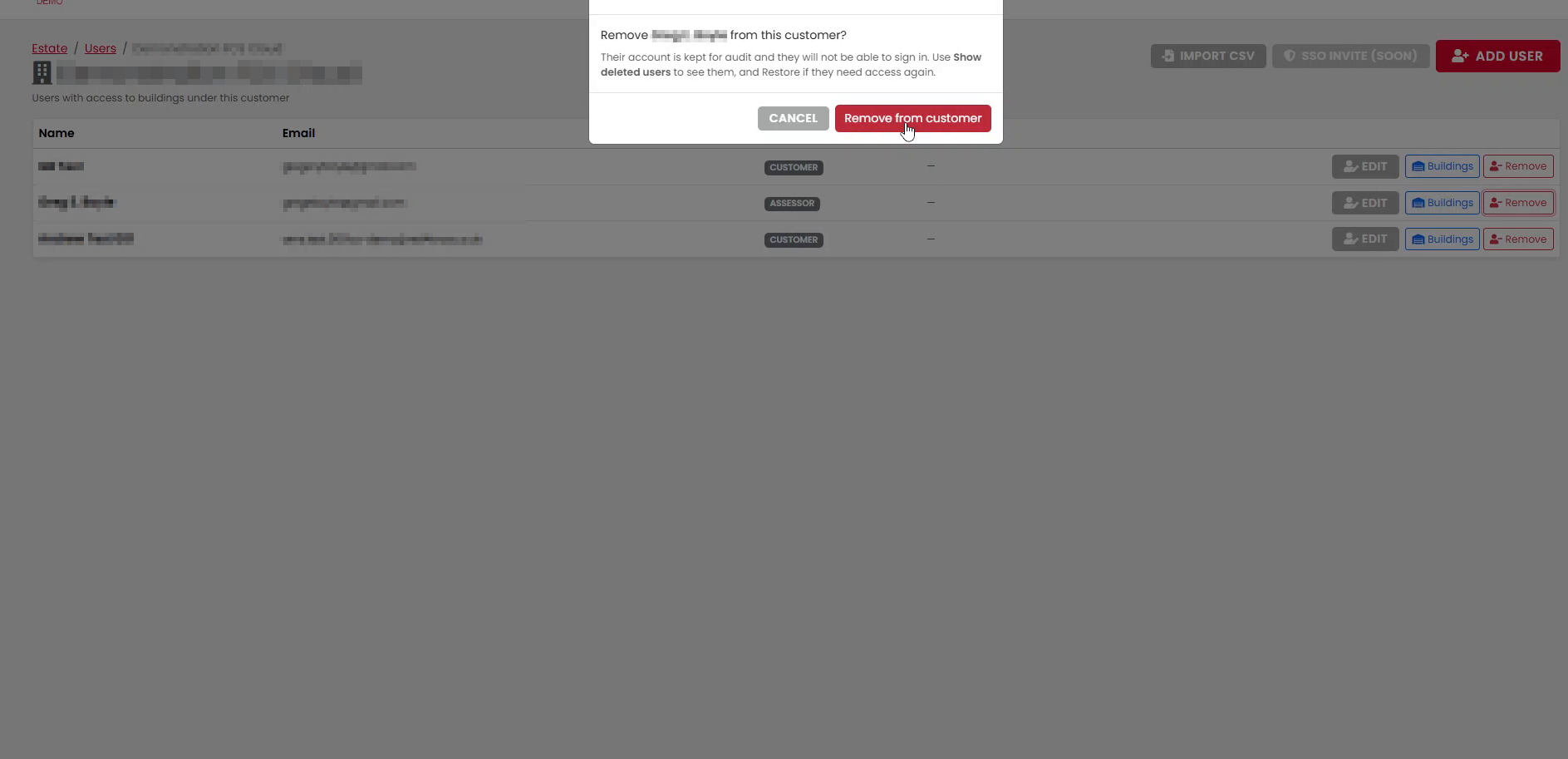
A confirmation message will appear. Select Remove from customer to continue.
A success message confirms that the user has been removed.
The user will no longer appear in the active users list.
View Removed Users
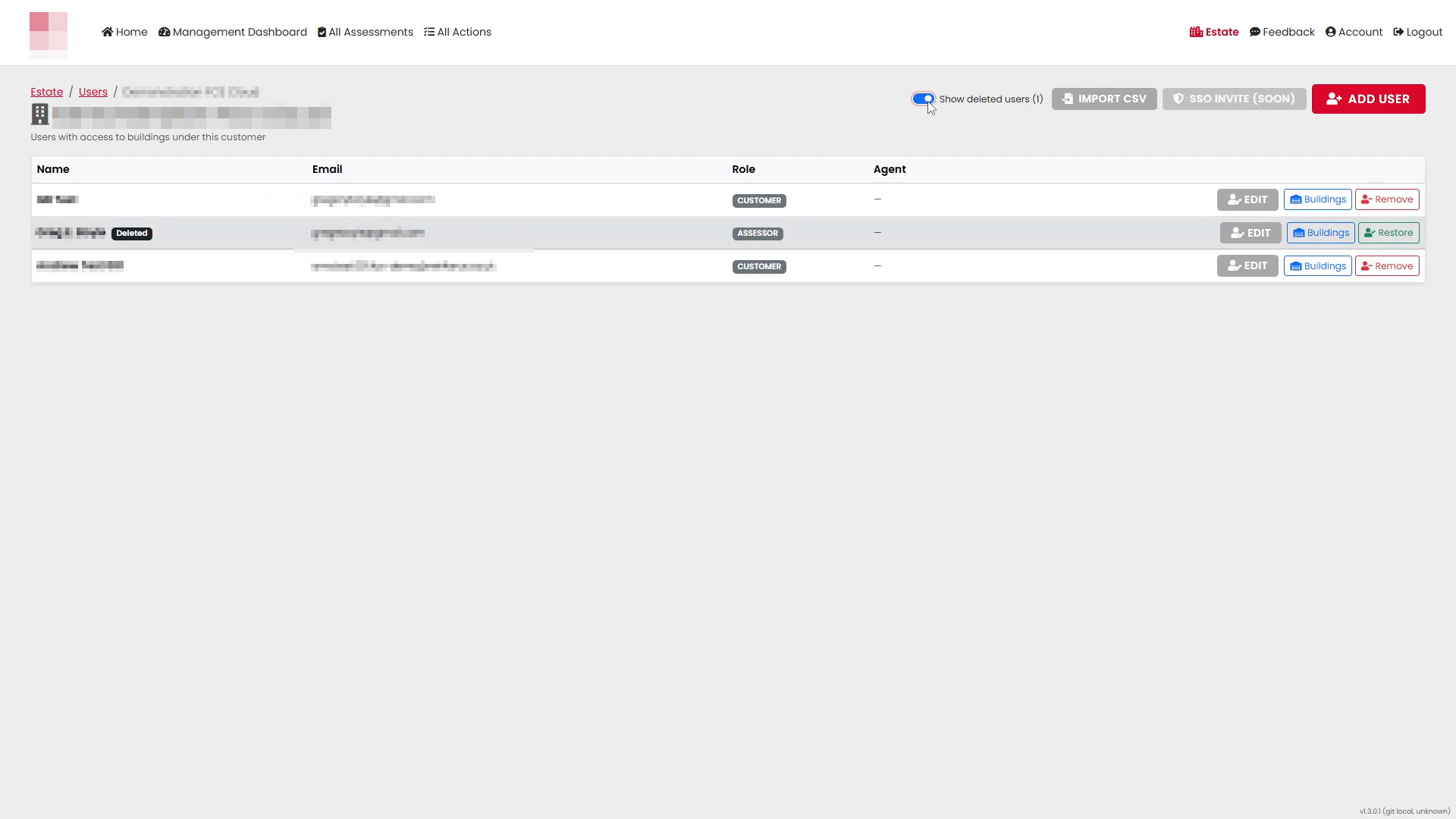
On the Users page, enable Show deleted users.
Removed users are displayed in the list and can be identified by their deleted status.
Restore a Removed User
Enable Show deleted users if it is not already selected.
Locate the user you want to restore and select Restore.
Confirm the restoration when prompted.
A confirmation message is displayed once the user has been successfully restored.
The user is returned to the active users list and their access is reinstated.
Additional Information
- Only authorised users with appropriate permissions can manage customer users.
- Removing a user does not permanently delete their record.
- Deleted users can be restored at any time using the Show deleted users option.
- Restored users retain their original account details and building access configuration unless these have been changed separately.
Was this article helpful?
That’s Great!
Thank you for your feedback
Sorry! We couldn't be helpful
Thank you for your feedback
Feedback sent
We appreciate your effort and will try to fix the article