Comments (also referred to as Notes) allow users to record updates, progress, decisions, or additional information against an action. All comments are stored against the action and can be viewed by other users with access to the assessment.
Viewing Existing Comments
- Open the relevant assessment.
- From the assessment summary page, select Findings and open the Action Plan.
- The Action Plan displays all actions associated with the assessment.
- Select the action you want to review.
- Scroll to the Notes section of the action.
- Any comments already recorded against the action will be displayed in this section.
Tip
Comments can be used to record status updates, implementation notes, additional observations, or communication relating to the action.
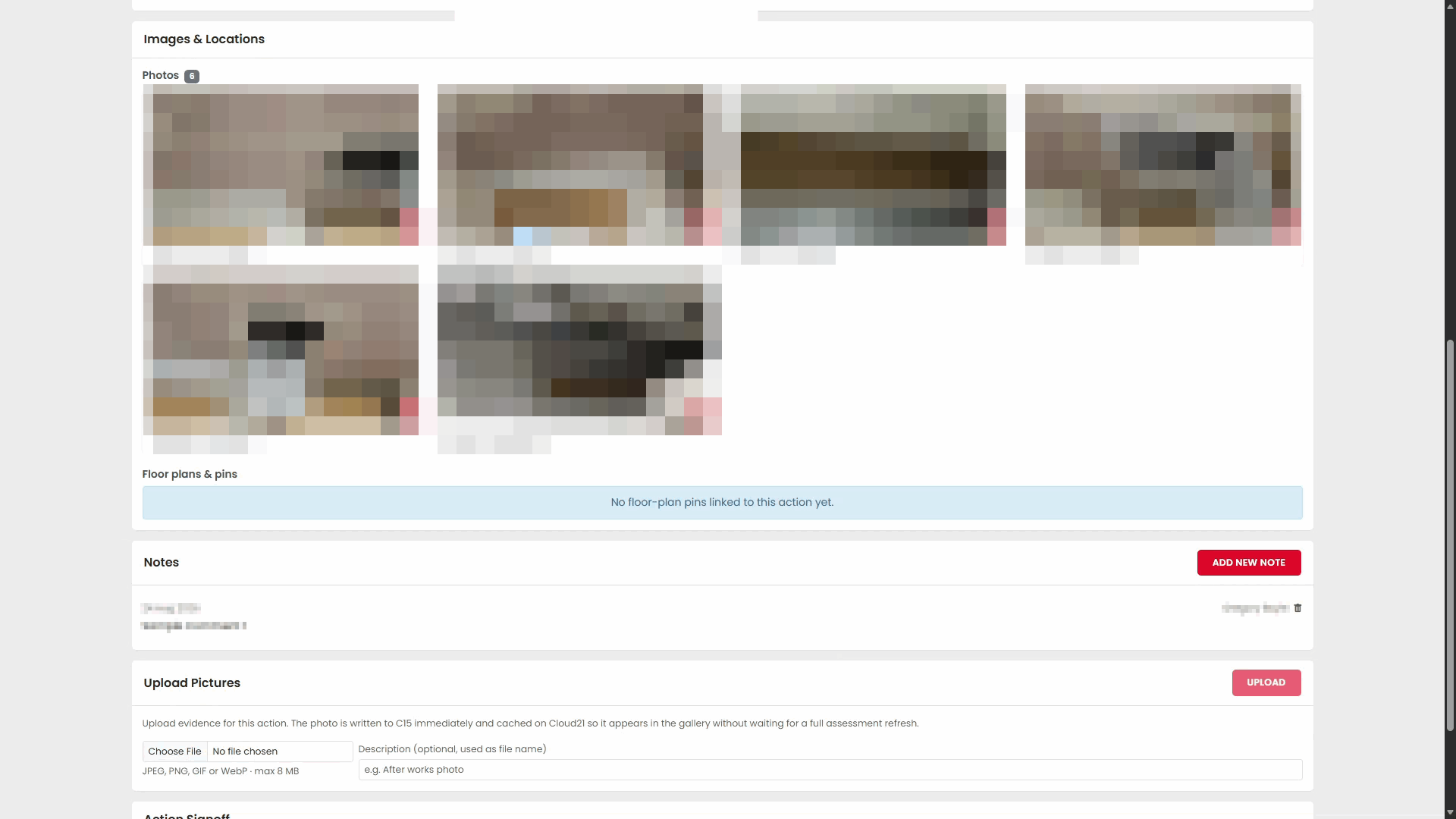
Adding a New Comment
- Open the required action and scroll to the Notes section.
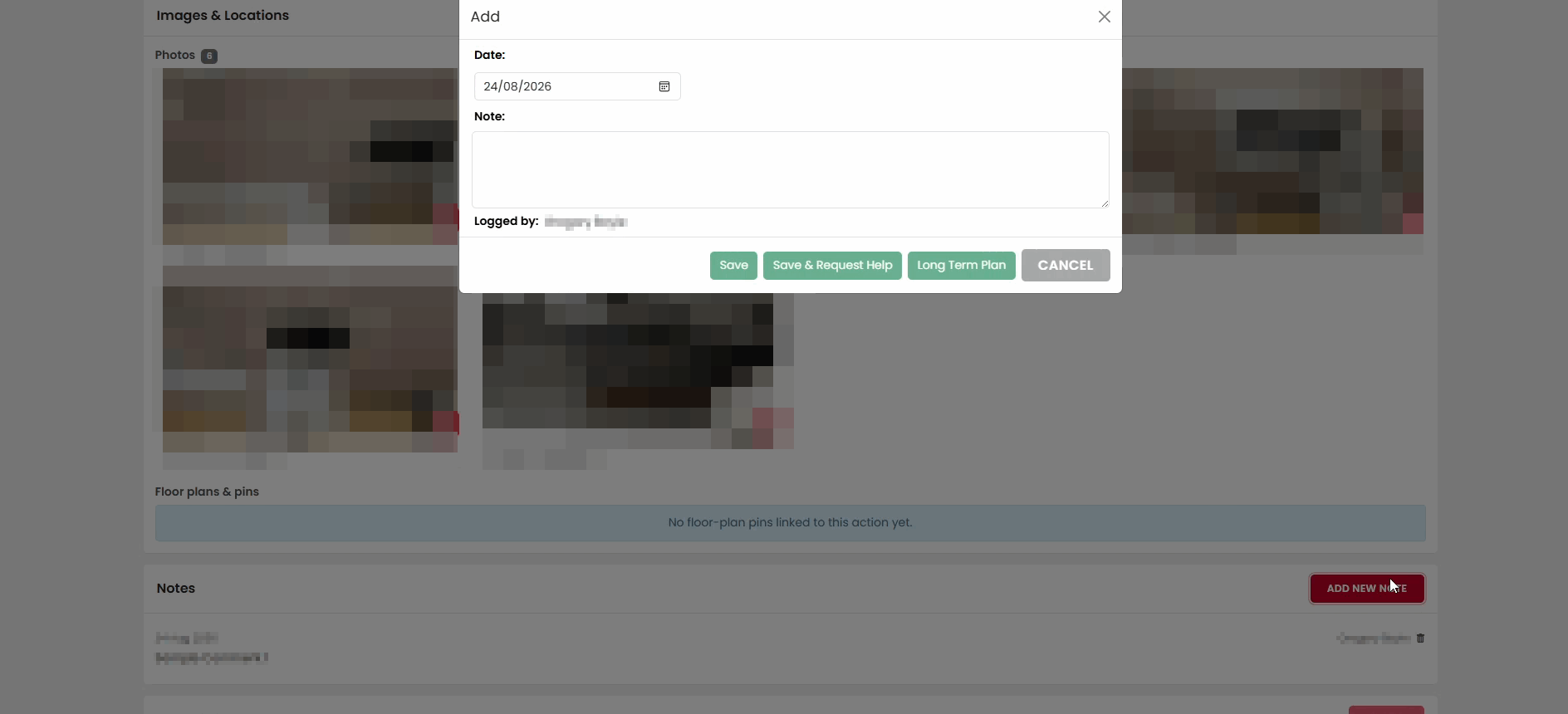
- Select Add New Note.
- The Add New Note window will open.
- Enter your comment in the Note field.
- Once you have entered the required information, select Save.
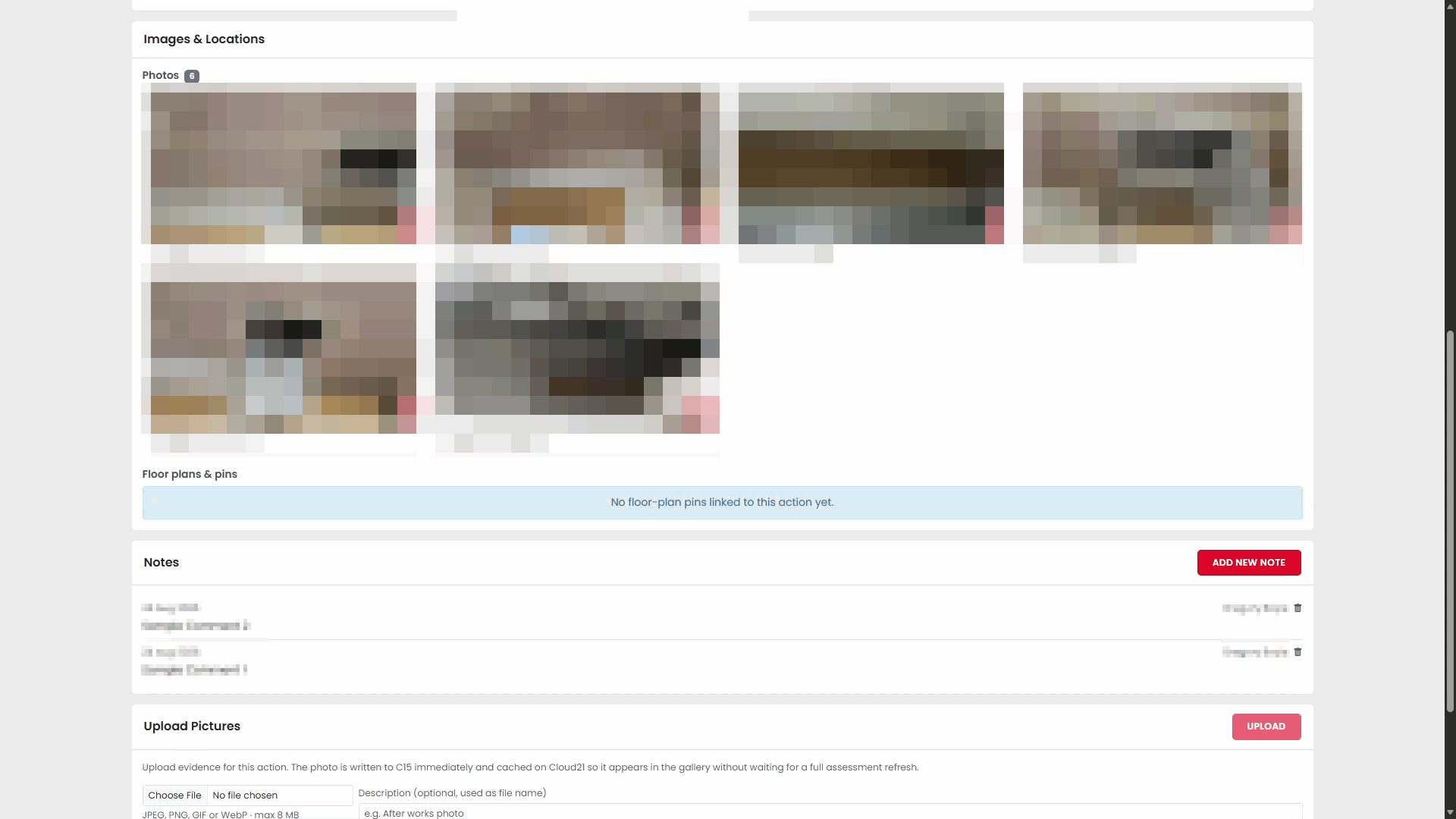
- The new comment will be added to the Notes section and will be visible alongside any existing comments.
Verifying a Saved Comment
After saving, check that:
- The comment appears in the Notes section.
- The correct text has been saved.
- The comment is visible with the other notes recorded against the action.
Expected Result
The action now contains the newly added comment, providing an auditable record of updates, observations, or progress relating to that action.
Was this article helpful?
That’s Great!
Thank you for your feedback
Sorry! We couldn't be helpful
Thank you for your feedback
Feedback sent
We appreciate your effort and will try to fix the article