Overview
Assessment Recorder includes a built-in feedback feature that allows assessors to report problems, suggest improvements and provide feedback directly from the application.
Using the feedback function helps ensure issues are captured with the correct context and enables supporting information, such as screenshots, to be included with the submission.
When to Submit Feedback
Use the feedback feature when you encounter:
- Application errors
- Unexpected behaviour
- Missing functionality
- Usability concerns
- Suggestions for improvement
- Display or layout issues
- Problems that affect how the application works
Opening the Feedback Form
To submit feedback:
- Open Assessment Recorder.
- Navigate to the area where the issue occurs.
- Select the Feedback icon in the bottom right
- The feedback form will open.

Understanding Screen Context Capture
When the feedback form is opened, Assessment Recorder automatically takes note of the current screen.
This helps provide useful context by showing:
- The area where the problem occurred
- What was visible when the issue was identified
- The current state of the application at the time of reporting
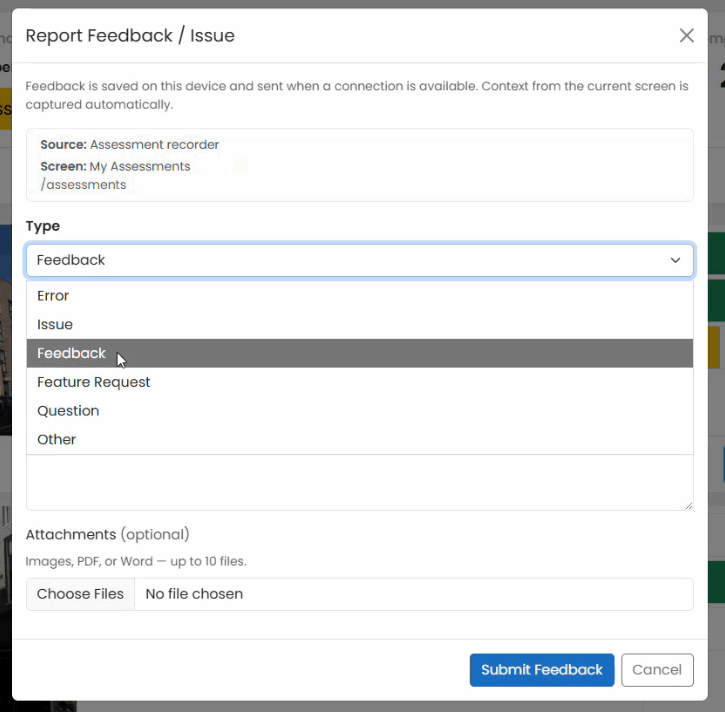
Selecting a Feedback Type
Choose the category that best matches your feedback.
Examples include:
- Error
- Issue
- Feedback
- Feature request
- Question
- Other
Completing the Feedback Form
Provide as much information as possible to help reproduce or understand the issue.
Include:
Summary
Provide a short description of the issue.
Examples:
- Unable to save issue
- Plan view not displaying correctly
- Suggestion for improved workflow
Description
Provide additional details, such as:
- What you were trying to do
- What happened
- What you expected to happen
- Any steps that might help reproduce the issue
Adding Supporting Information
Where appropriate, include supporting files, a screenshot, or additional evidence to help explain the feedback being submitted.
Submitting Feedback
Once all information has been entered:
- Review the details.
- Select Submit Feedback.
- Confirm the submission has completed successfully.
Tips for Effective Feedback
Good feedback is:
- Clear and concise
- Easy to reproduce
- Focused on a specific issue
- Supported by screenshots or examples where possible
Providing detailed information helps issues and suggestions be reviewed more efficiently.
Examples of Useful Feedback
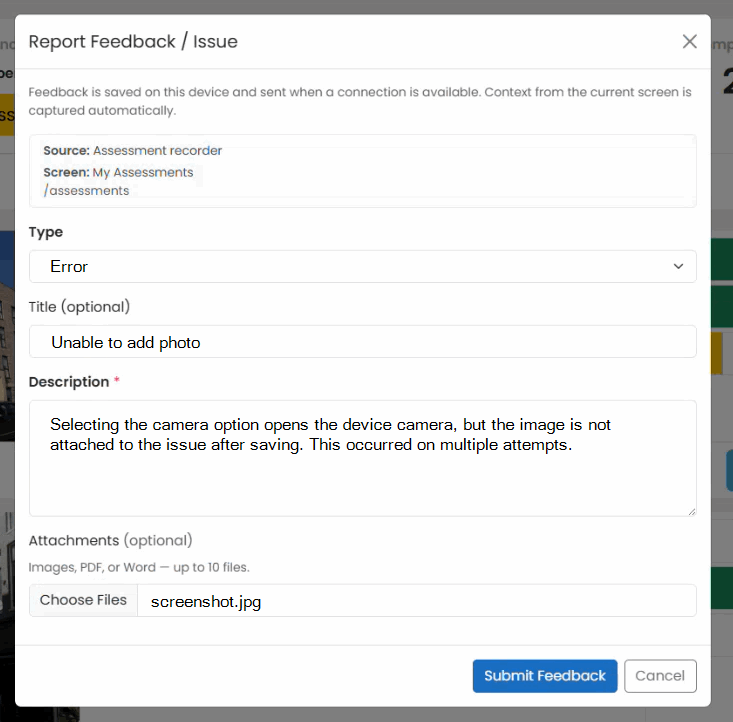
Example 1: Error
Summary: Unable to add photo
Description: Selecting the camera option opens the device camera, but the image is not attached to the issue after saving. This occurred on multiple attempts.
Example 2: Feature Request
Summary: Add assessment priority indicators
Description: A visual indicator showing urgent assessments would help prioritise work when multiple assessments are assigned.
Example 3: Other
Summary: Improve visibility of outstanding validation comments
Description: A notification or status indicator would make it easier to identify assessments that require further attention.
Best Practice
Submit feedback as soon as an issue is identified. Reporting issues while they can be easily reproduced provides the most accurate information and increases the likelihood of a quick resolution.
Was this article helpful?
That’s Great!
Thank you for your feedback
Sorry! We couldn't be helpful
Thank you for your feedback
Feedback sent
We appreciate your effort and will try to fix the article