Actions can be created directly from any question within an assessment. This allows assessors and validators to record recommendations, assign responsibility, and track remedial work against specific findings.
Who can use this Feature
- Assessor (if they undertook the assessment)
- Assessor + Validator (if assigned)
- Admin
- Tech Admin
Create an Action from a Finding
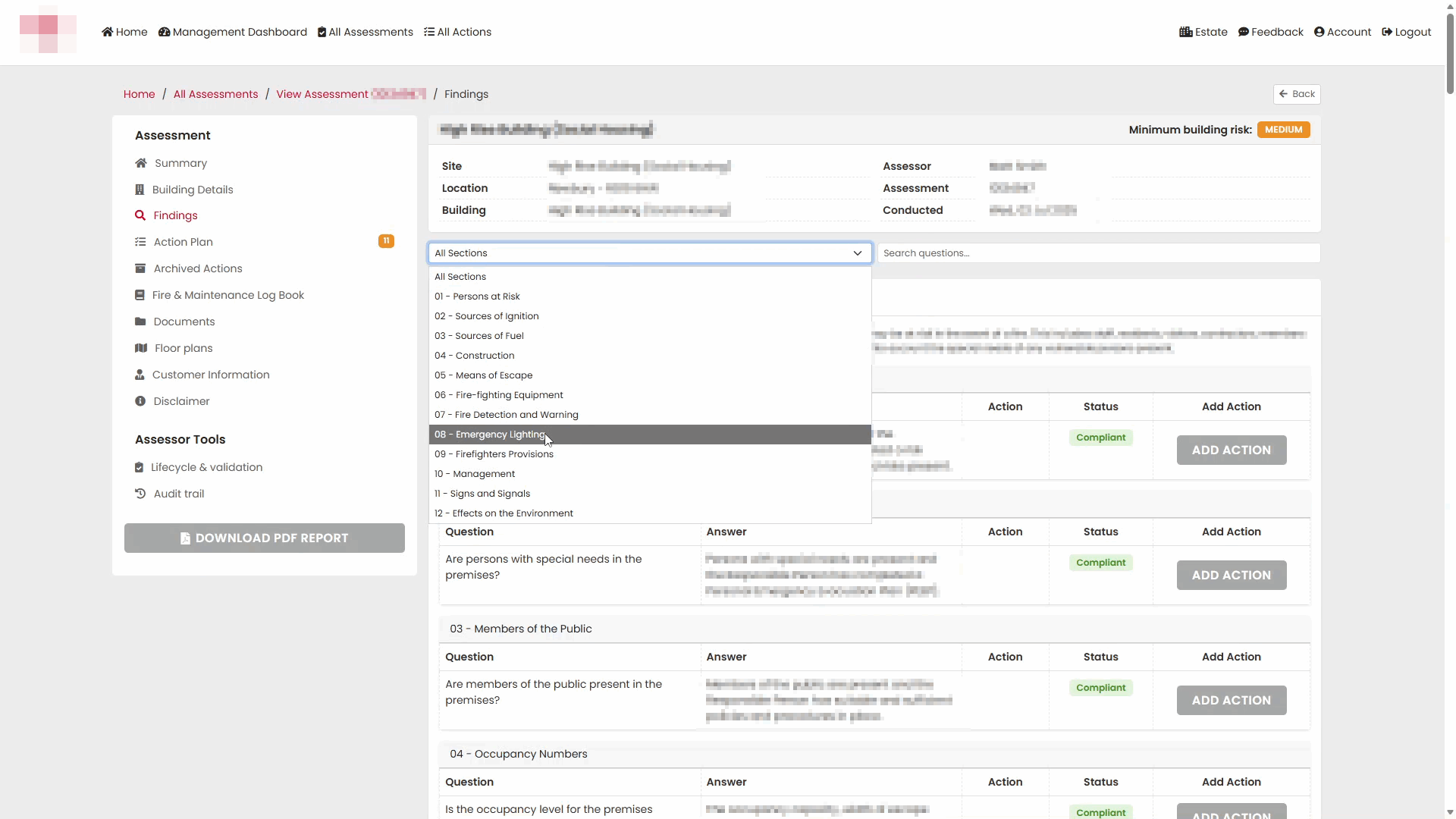
- Open the required assessment and select Findings from the left-hand menu.
- Use the section drop-down list to navigate to the relevant section of the assessment.
- Select the section you want to work with. In this example, 08 - Emergency Lighting has been selected.
- Review the questions within the selected section and locate the finding you want to create an action for.
- Click Add Action next to the relevant question.
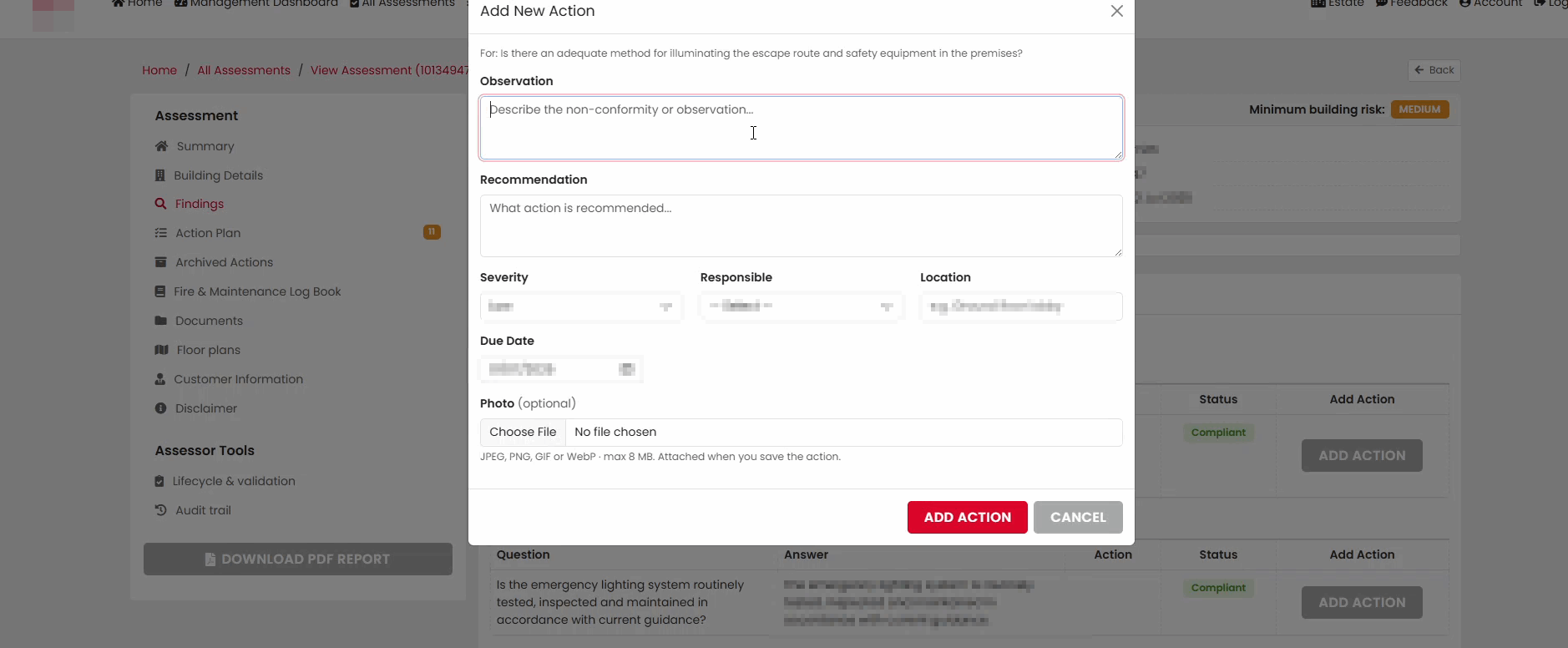
- The Add New Action window will open.
Complete the Action Details
Enter the information required for the action.
Observation
The Observation describes the issue identified during the assessment.
Recommendation
Enter the recommended corrective action or improvement required to address the finding.
Severity
Select the appropriate severity level for the action.
Responsible Person
Select the person or organisation responsible for completing the action.
Location
Enter the location where the issue applies.
Due Date
Select a target completion date for the action.
Attach a Photo (Optional)
If required, upload a supporting photograph to provide additional context.
Save the Action
- Review the details entered into the form.
- Click Add Action to create the action.
- A confirmation message will be displayed once the action has been successfully created.
Create Additional Actions
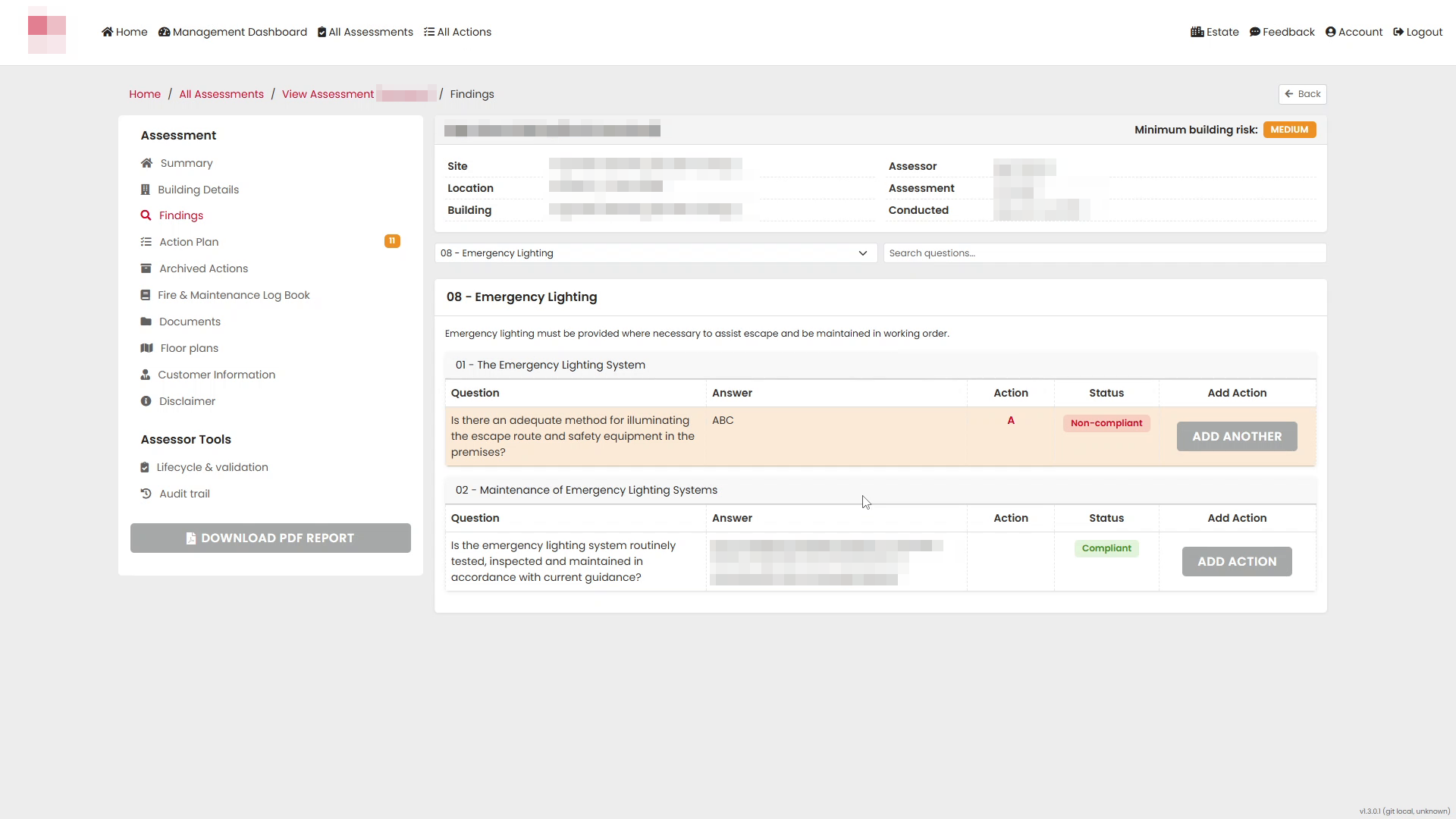
If multiple actions are required for the same finding, additional actions can be added without leaving the Findings page.
- Return to the relevant question within the assessment section.
- Click Add Another.
- The system will open a new action entry form linked to the same finding.
- Enter the details for the additional action and save as normal.
- Repeat this process as required until all necessary actions have been recorded.
Result
The action is added to the assessment and will be available within the Action Plan for tracking, assignment, and reporting purposes.
Was this article helpful?
That’s Great!
Thank you for your feedback
Sorry! We couldn't be helpful
Thank you for your feedback
Feedback sent
We appreciate your effort and will try to fix the article