Overview
The Remaining Questions screen provides a quick way to identify assessment items that have not yet been completed.
As responses are recorded throughout the assessment, unanswered questions are automatically removed from this list.
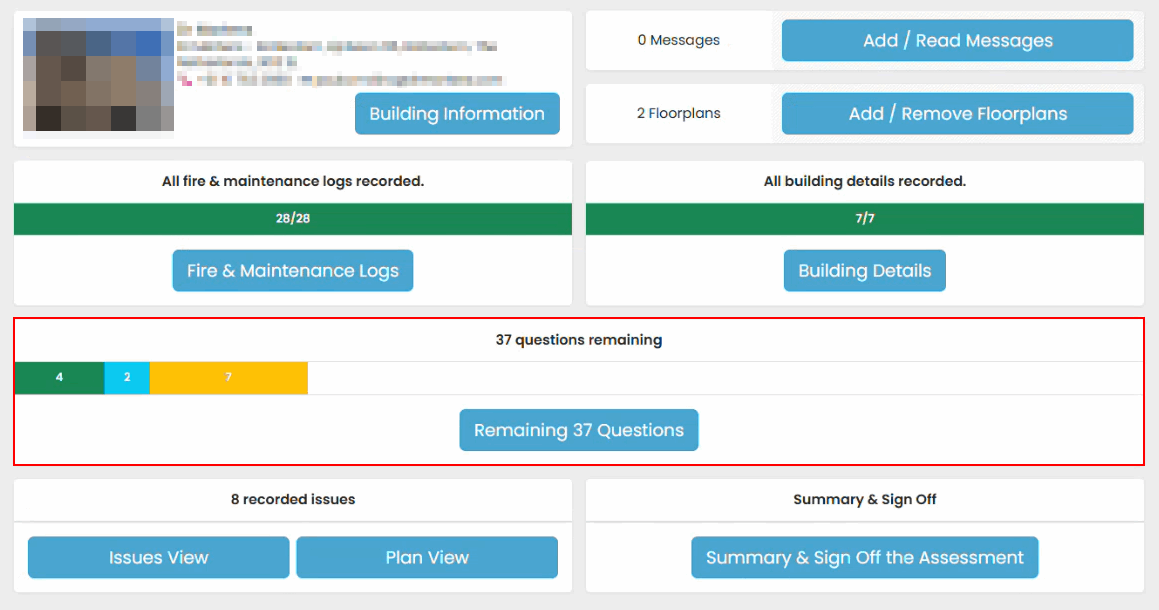
Opening Remaining Questions
- Open the assessment.
- Select Remaining Questions.
- Review the questions that still require a response.
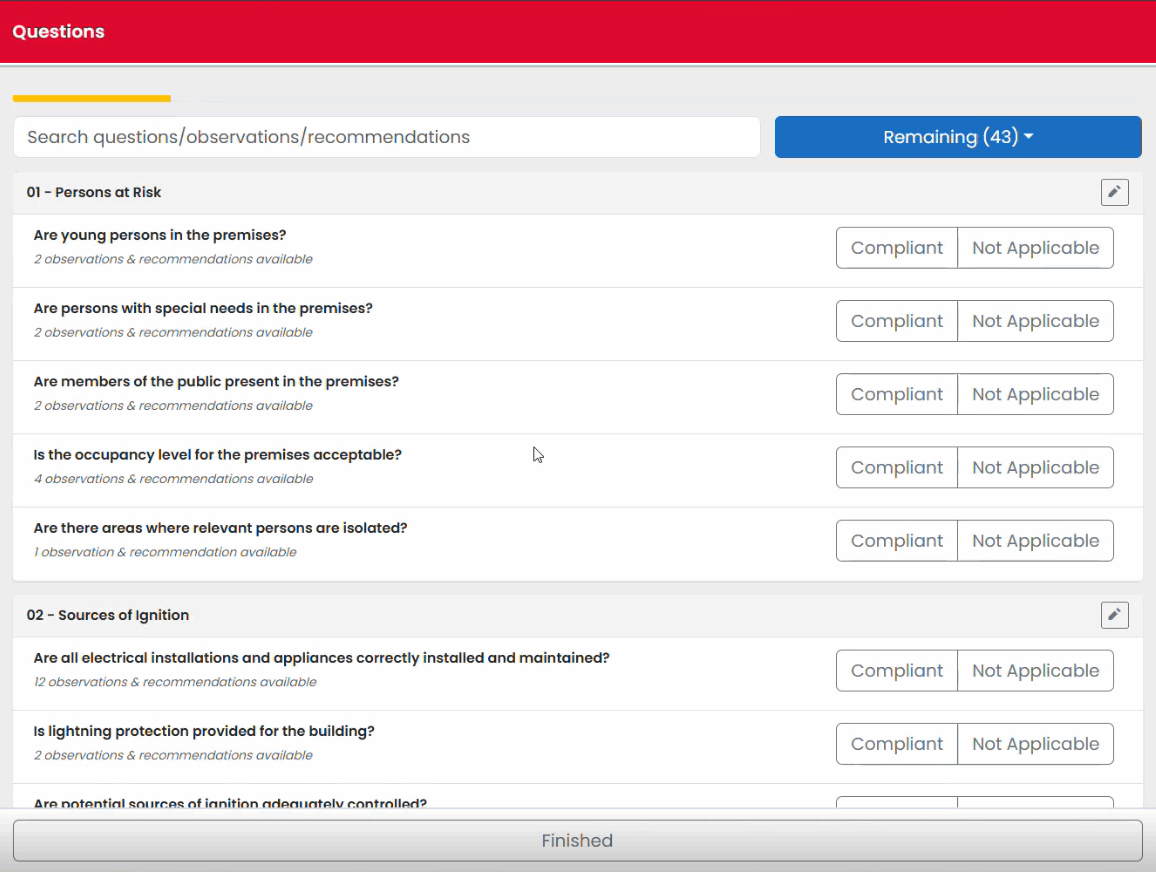
Searching for Questions
If you need to locate a specific area of the assessment:
- Use the search box.
- Enter a keyword relating to the topic.
- Select the relevant result.
Filtering Outstanding Items
The Remaining Questions view helps focus on incomplete areas by displaying only items that still require action.
This makes it easier to:
- Verify assessment completion
- Locate missing responses
- Complete assessments more efficiently
Recording Responses
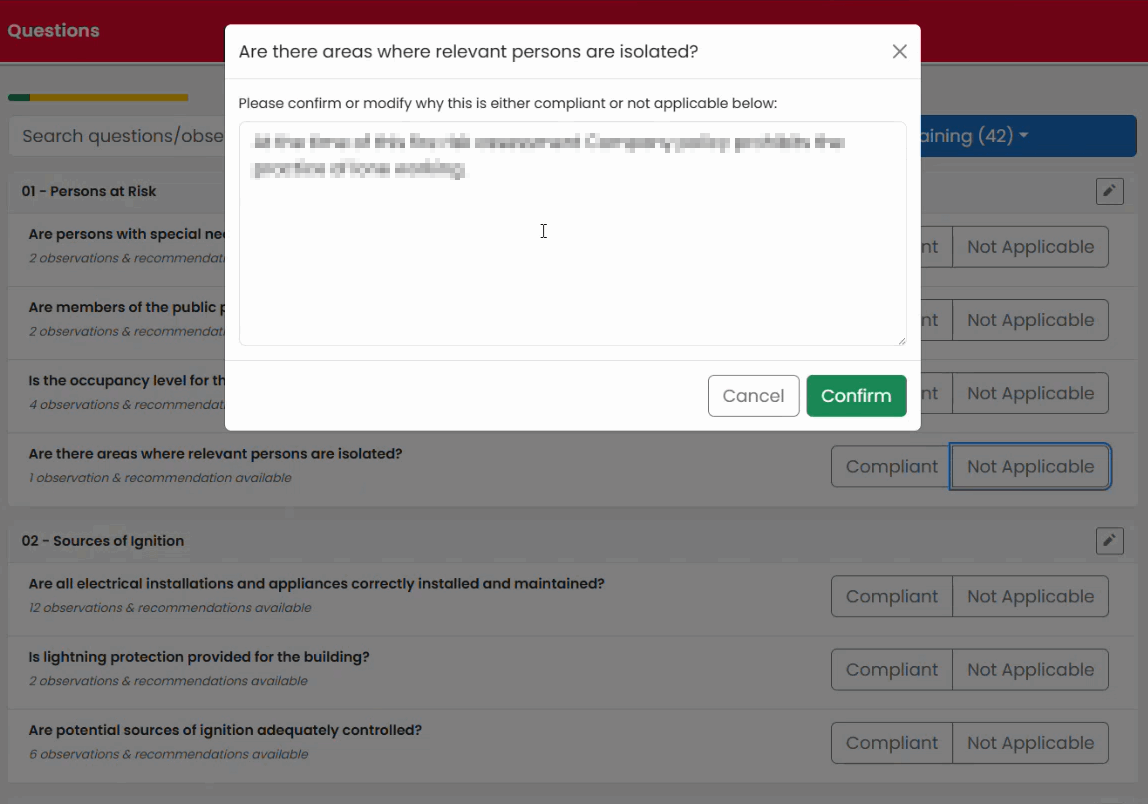
For each outstanding question:
- Open the question.
- Select the appropriate response.
- Review any standard text presented by the system.
- Amend the wording where necessary.
- Save the response.
Understanding Completion Status
The system visually tracks progress using coloured indicators.
These indicators help you identify:
- Completed items
- Not applicable items
- Issues that have been raised elsewhere in the assessment
Before Sign-Off
Before completing the assessment:
- Open Remaining Questions.
- Confirm no required questions remain unanswered.
- Resolve any outstanding items.
- Continue to Summary & Sign Off.
Was this article helpful?
That’s Great!
Thank you for your feedback
Sorry! We couldn't be helpful
Thank you for your feedback
Feedback sent
We appreciate your effort and will try to fix the article