Overview
This article explains how to edit an existing Site or Building in classic Portal and verify that the changes have been successfully synchronised to new Portal.
Who can use this Feature?
Edit Site & Building (classic Portal):
- Admin
View Site & Building (new Portal. Not only grants):
- Standard + Estate Manager
- Admin
- Tech Admin
Editing a Site
Open the Customer Record
- Log in to classic Portal.
- Locate the customer you wish to update.
- Select {Customer Name} against the relevant customer record.
Edit the Site
- Locate the Site to be updated.
- Select Edit.
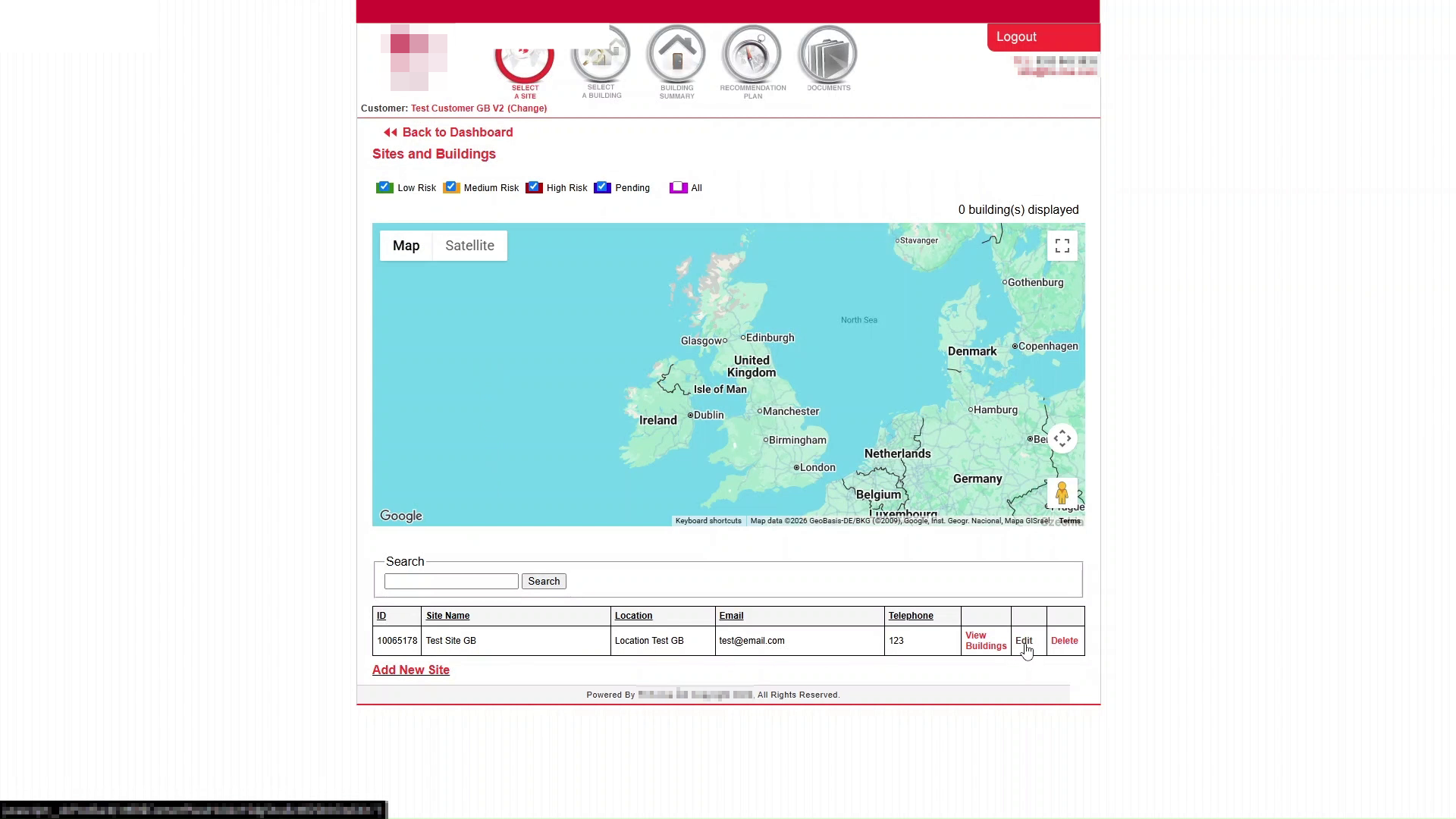
Update Site Details
The Site Details page allows you to amend information associated with the site.
Fields visible in this example include:
- Site Name
- Location
- Email Address
- Telephone Number
Save the Changes
Once the required amendments have been completed, select Save.
Confirm the Updated Site Details
After saving, return to the Sites and Buildings page and verify that the updated site information is displayed.
Verify the Site Update in new Portal
Changes made in classic Portal are synchronised to new Portal. Allow approximately one minute for the update to become available.
Refresh the Portal
Open or refresh new Portal.
Confirm the Site Has Updated
Verify that the amended site details are displayed.
Editing a Building
Open the Building List
In classic Portal, from the Sites page, locate the relevant Site and select View Buildings.
Edit the Building
Locate the Building you wish to update and select Edit.
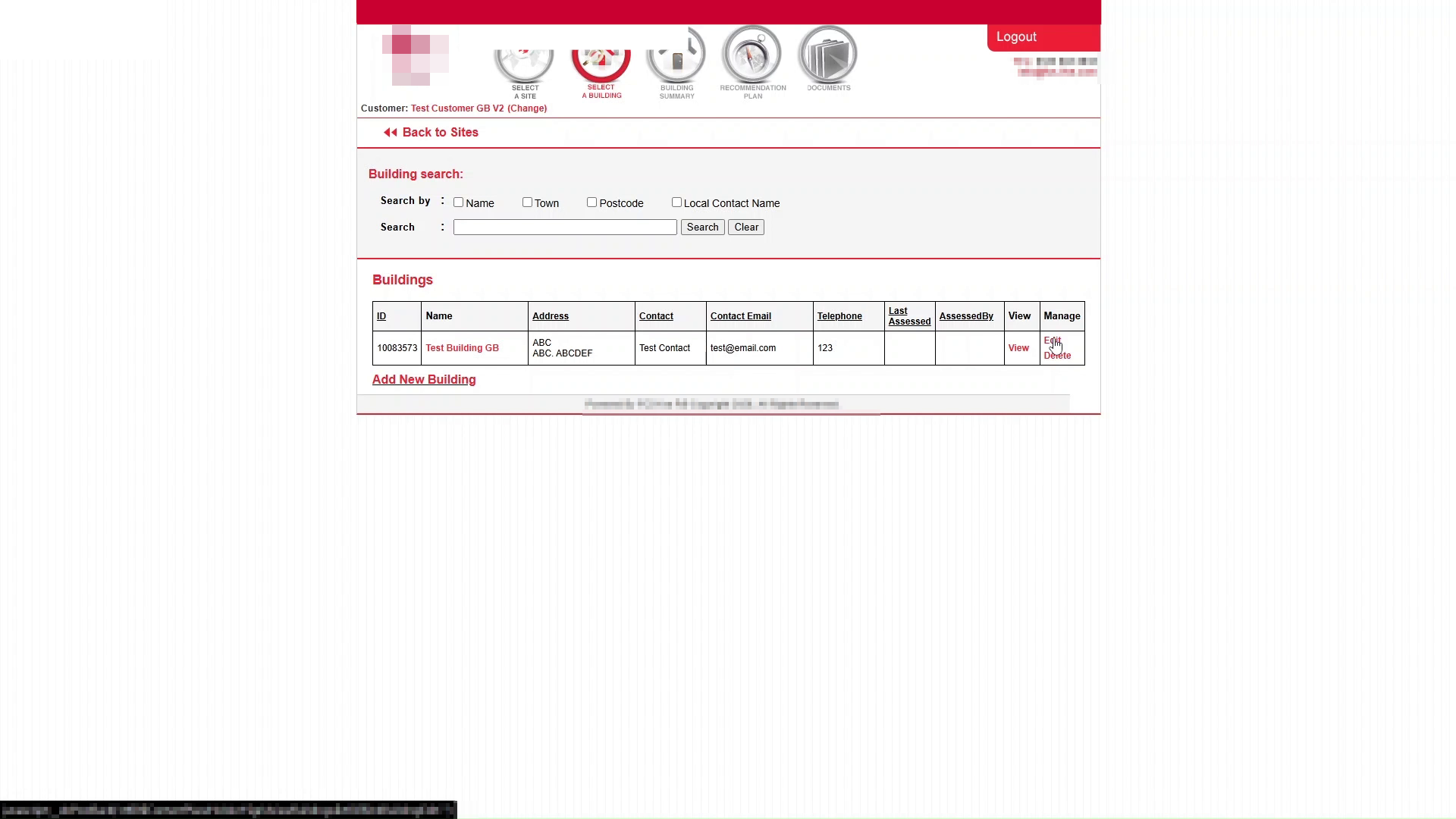
Update Building Details
The Building Details page allows information associated with the building to be amended.
Fields visible in this example include:
- Building Name
- Address
- Town
- Postcode
- Contact Name
- Contact Email
- Telephone Number
Save the Changes
After making the necessary updates, select Save.
Confirm the Updated Building Details
Return to the building list and verify that the amended details are displayed.
Verify the Building Update in new Portal
Changes made in classic Portal are synchronised to new Portal and may take approximately one minute to appear.
Refresh the Portal
Refresh new Portal.
Locate the Updated Building
- Select All Assessments > Select Sites.
- Select the updated Site.
3. Hit Select Buildings.
4. Search for the updated building.
5. Tick the building record.
6. Select Set Filter.
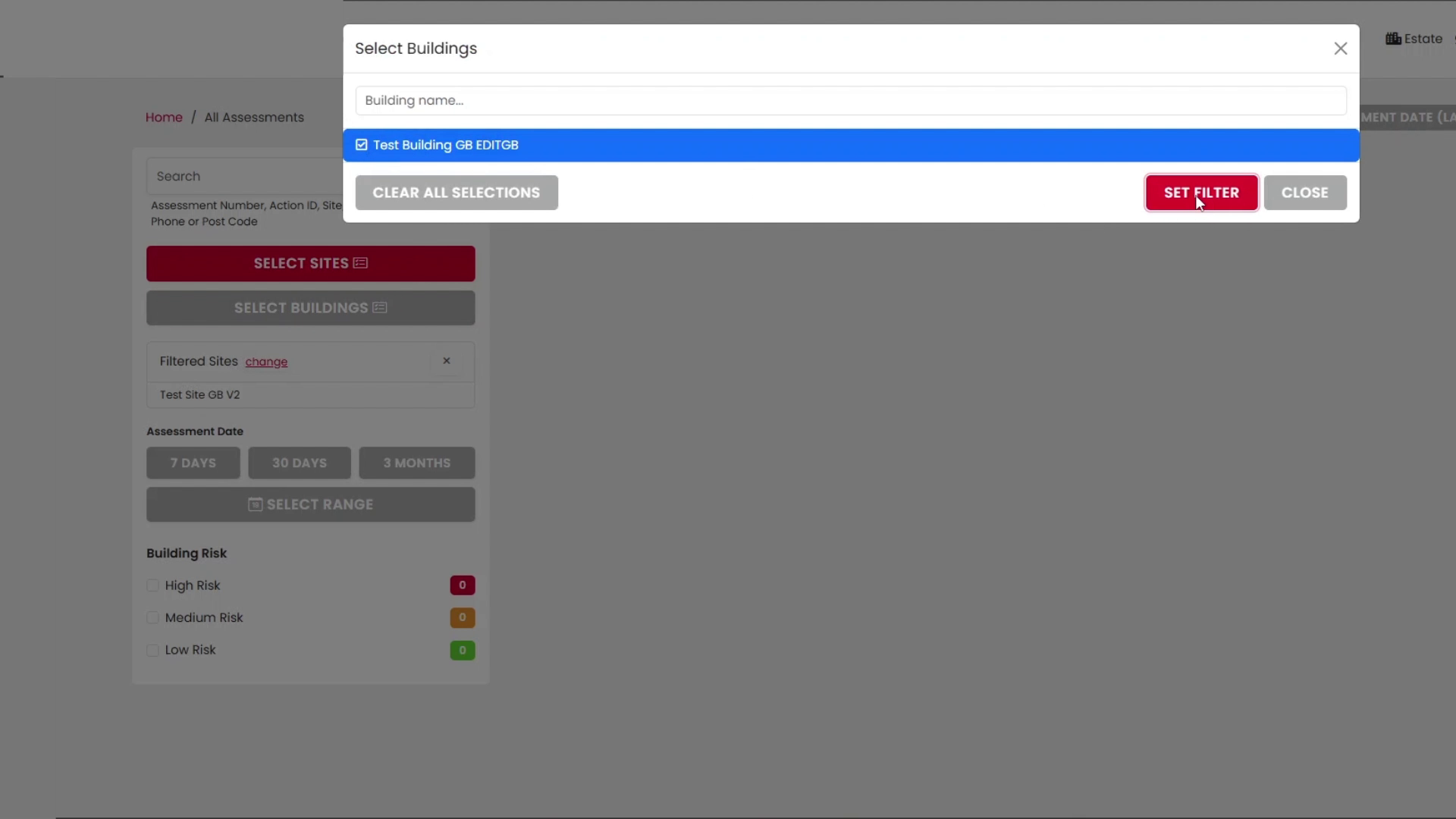
Confirm the Building Has Updated
Verify that the updated building name is displayed within the building filter selections.
Summary
Site and Building records are maintained in the legacy administration system, classic Portal. After saving changes, allow a short period for synchronisation before refreshing new Portal and confirming that the updated information is visible.
This ensures that assessors, validators, and customers are working with the latest site and building information.
Was this article helpful?
That’s Great!
Thank you for your feedback
Sorry! We couldn't be helpful
Thank you for your feedback
Feedback sent
We appreciate your effort and will try to fix the article