Overview
Assessment Recorder includes a PDF preview feature that allows assessors to review how the completed assessment will appear before it is returned to the system.
Previewing the assessment provides an opportunity to review findings and identify any changes that may be required before submission.
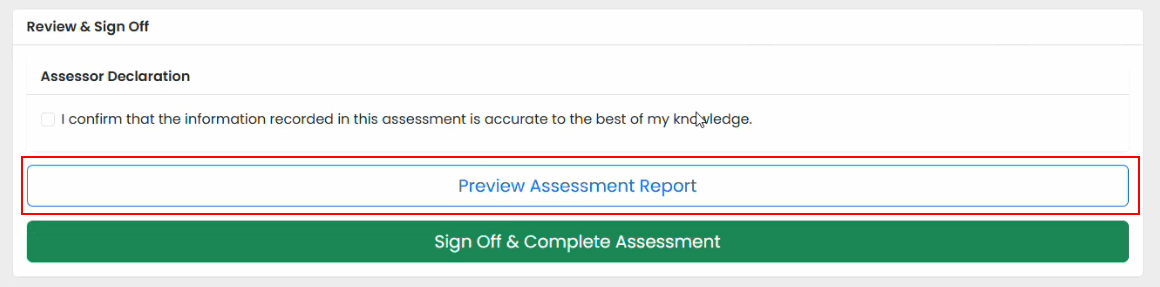
Opening the PDF Preview
- Open the assessment.
- Navigate to Summary & Sign Off.
- Select Preview Assessment Report.
Reviewing the Assessment
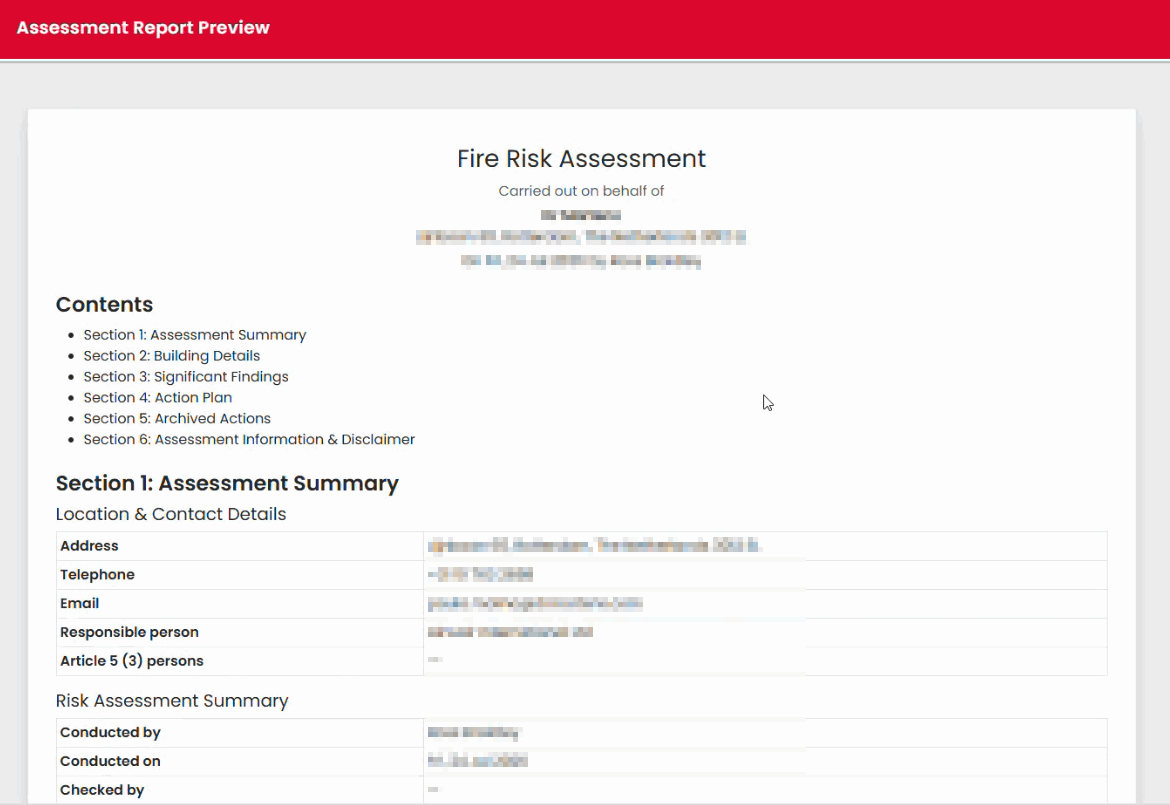
The preview displays the assessment in a document format similar to the final report.
Review the following:
- Assessment summaries
- Findings and observations
- Recommendations
- Action information
- General content and formatting
Checking Observations and Recommendations
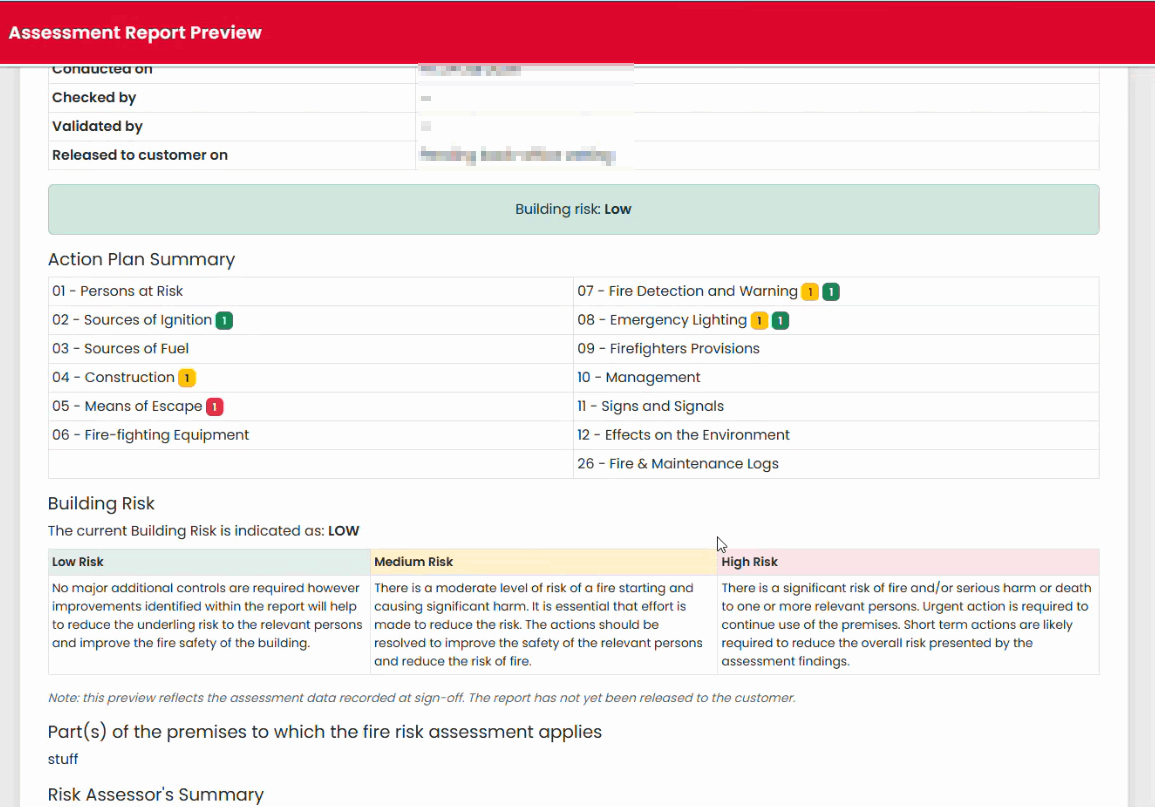
When reviewing the PDF:
- Ensure observations accurately describe the finding.
- Confirm recommendations are appropriate.
- Check the wording for clarity and accuracy.
Identifying Amendments
If a change is required:
- Close the PDF preview.
- Return to the relevant assessment section.
- Update the information.
- Generate a new preview to confirm the correction.
Benefits of PDF Preview
Using the preview function allows you to:
- Review the assessment before submission.
- Identify missing information.
- Check the overall presentation of findings.
- Make corrections before returning the assessment.
Best Practice
Generate a PDF preview as part of your final quality check before signing off the assessment. This provides an additional opportunity to confirm that all findings and supporting information have been recorded correctly.
Was this article helpful?
That’s Great!
Thank you for your feedback
Sorry! We couldn't be helpful
Thank you for your feedback
Feedback sent
We appreciate your effort and will try to fix the article