You may occasionally find that incorrect jobs get loaded onto your FRA tool's job list, typically caused by duplicate assessments being assigned to you. Currently, there is no way for these to be removed automatically, and as such require a member of the FCS IT team to remove them by remoting into your machine.
In this guide, you will be walked through how to remove these yourself - these are the same steps our IT team follow.
---------------------------------
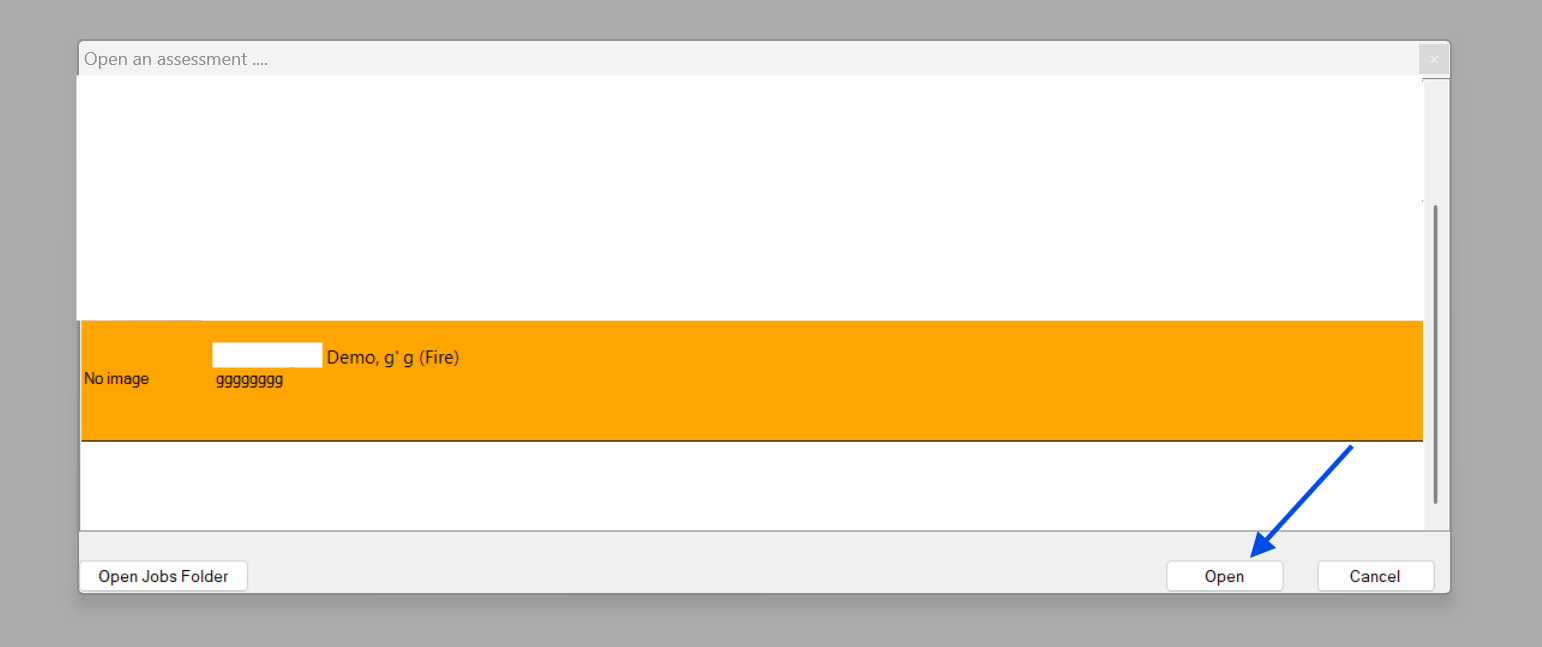
Step 1: Open the job
Start by opening the incorrect job in the FRA tool
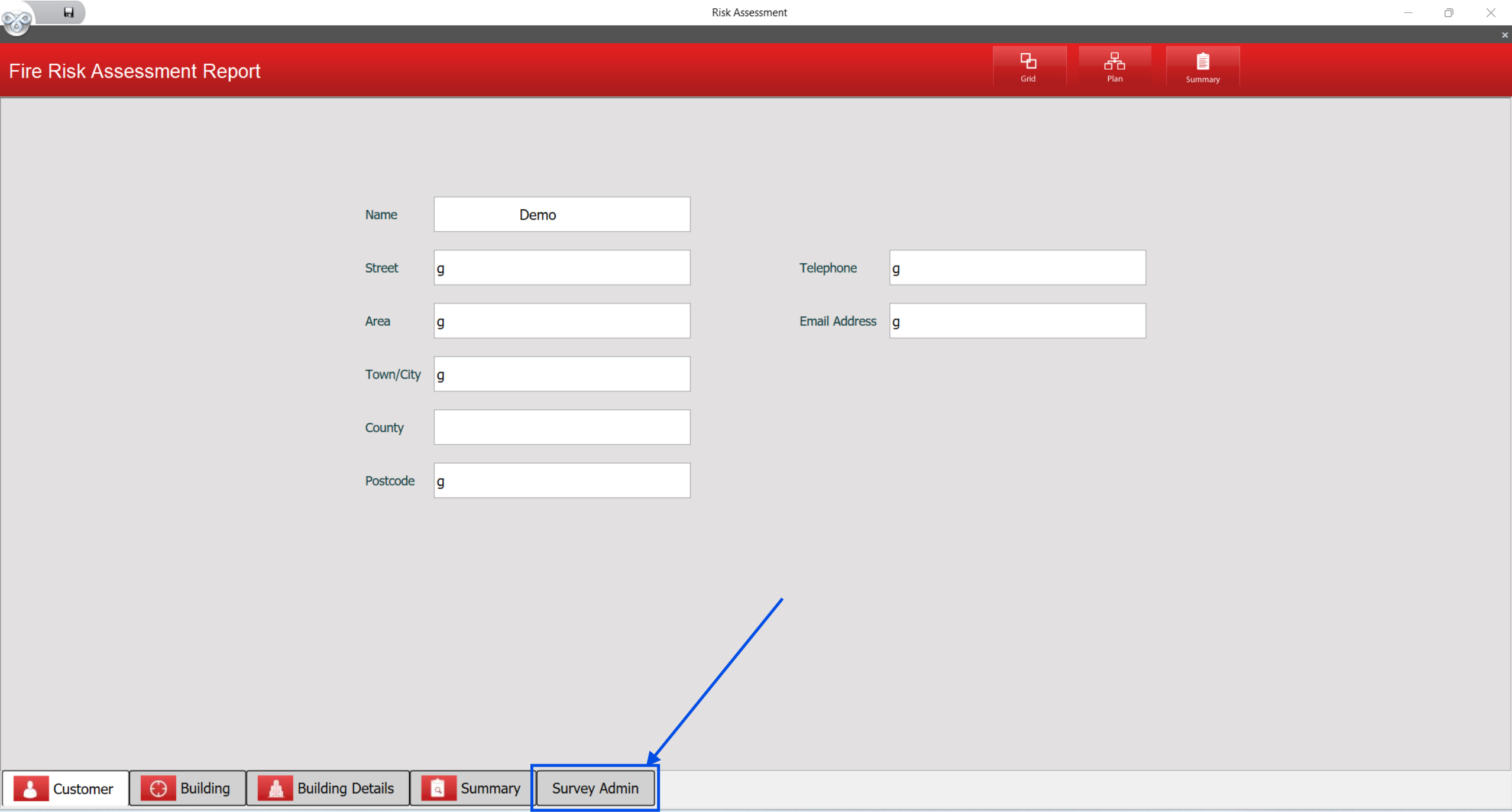
Step 2: Navigate to Survey Admin
Once the job is open, click on "Survey Admin" at the bottom
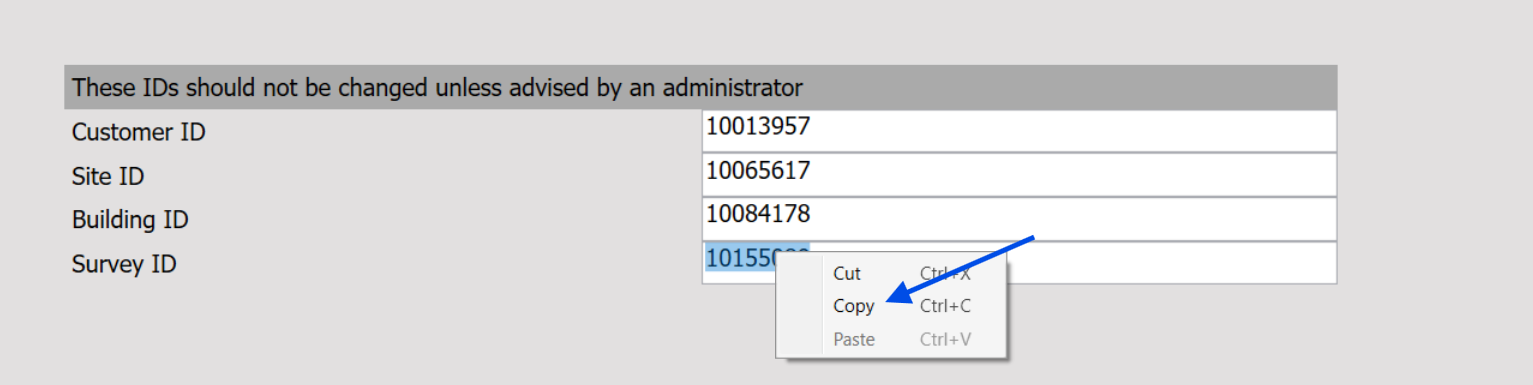
Step 3: Copy the Survey ID
Once on the Survey Admin page you will see a box containing the "Survey ID". Highlight it, then right click and click "Copy".
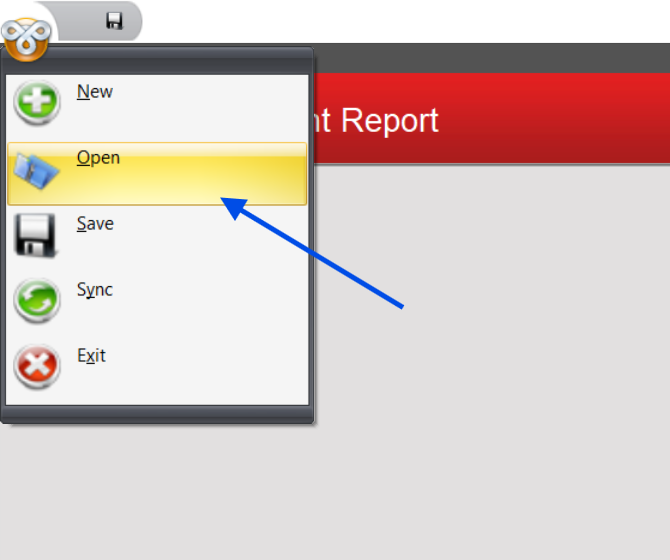
Step 4: Return to the jobs list
Now that you know the Survey ID, open the jobs list again.
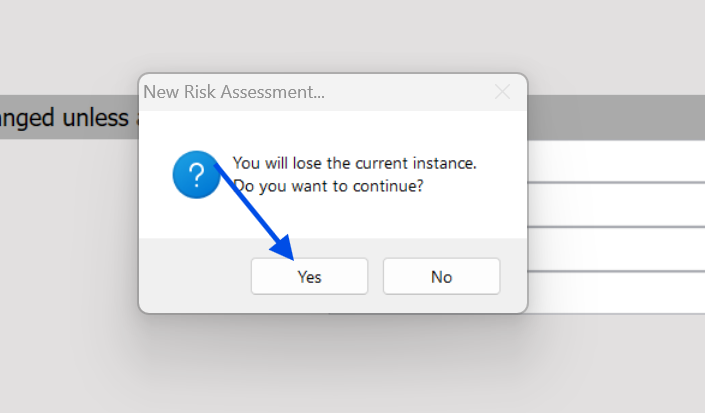
If a message appears saying "Do you want to continue?" click Yes.
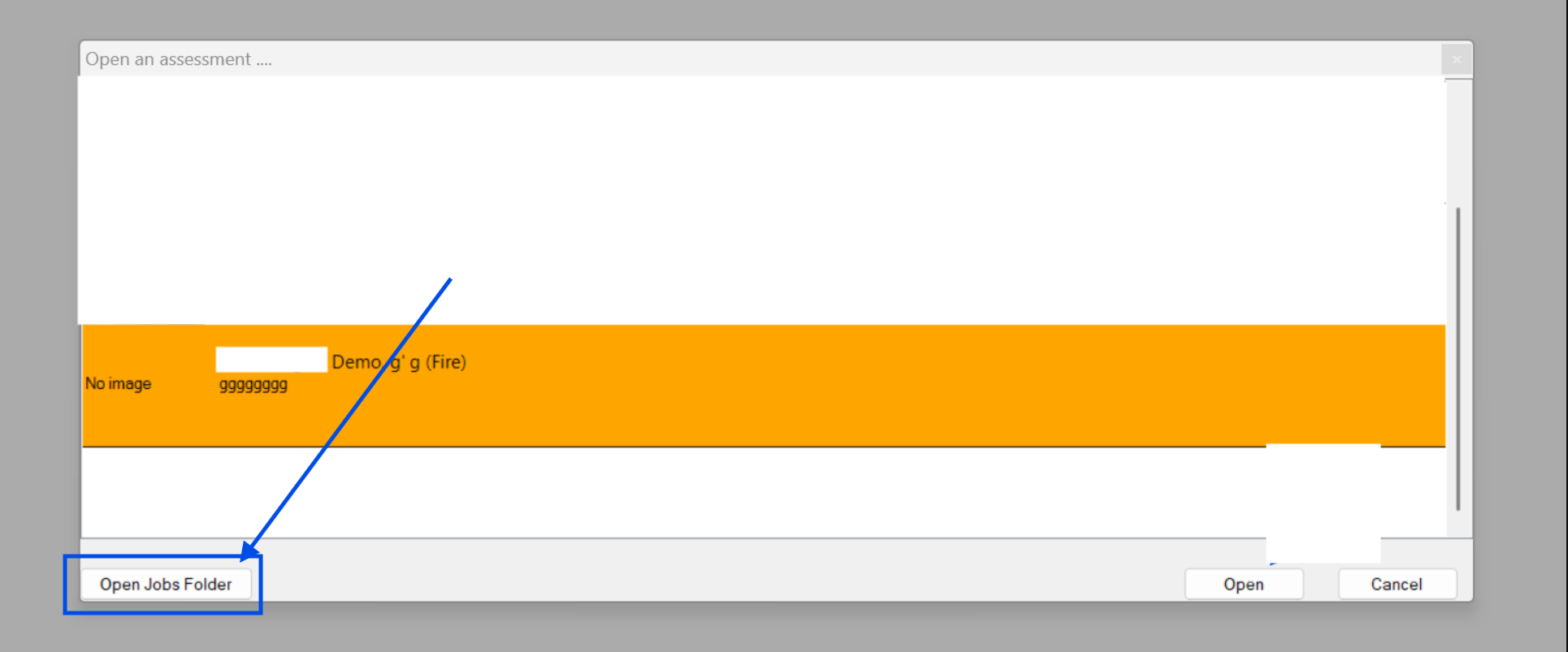
Step 5: Open the jobs folder
Now click on the button that says "Open Jobs Folder"
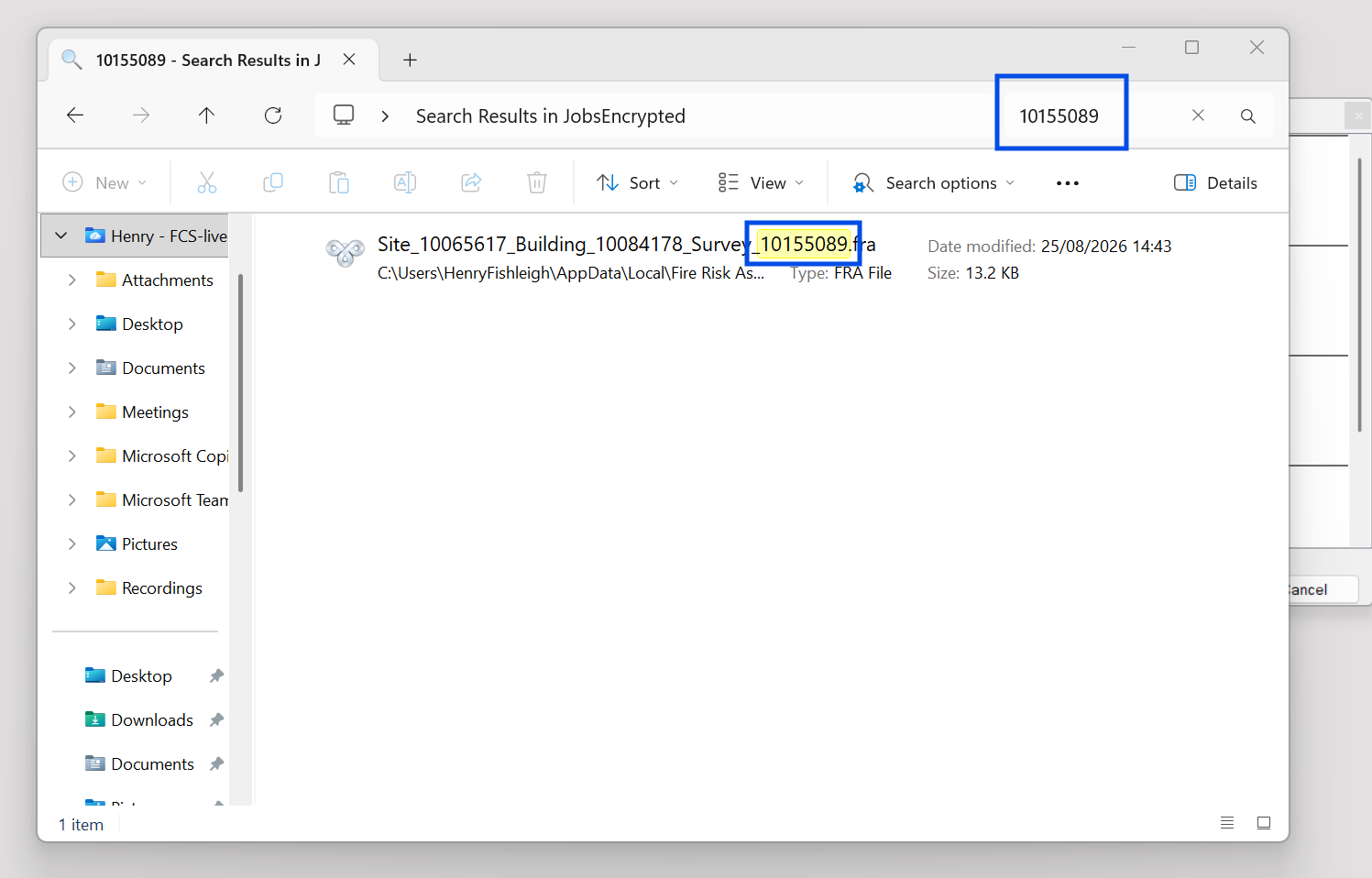
Step 6: Find the job
In the search bar, paste the Survey ID you copied.
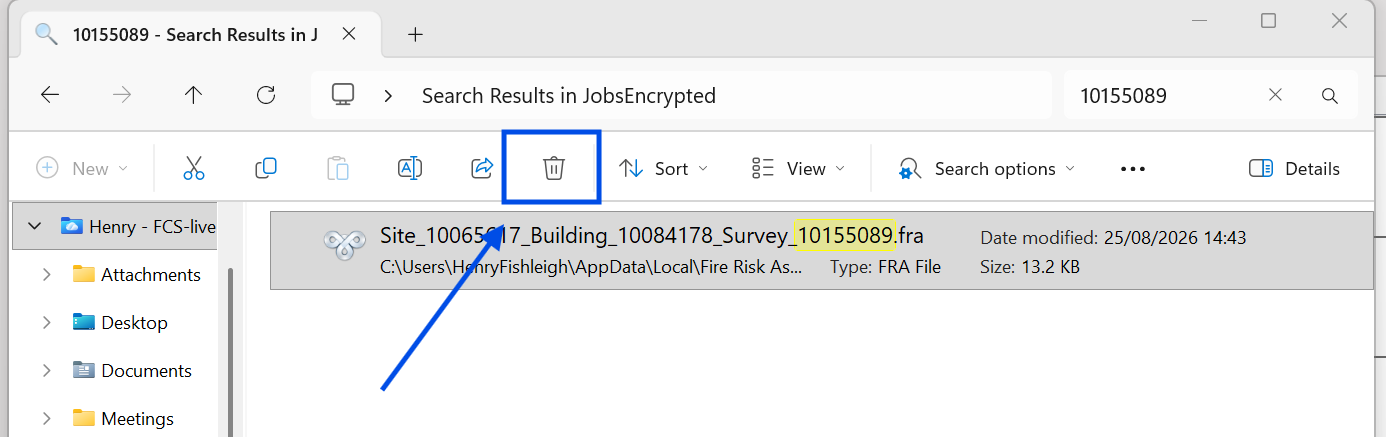
Step 7: Delete the job
Now click on the job and click "Delete".
Step 8: Restart the FRA Tool
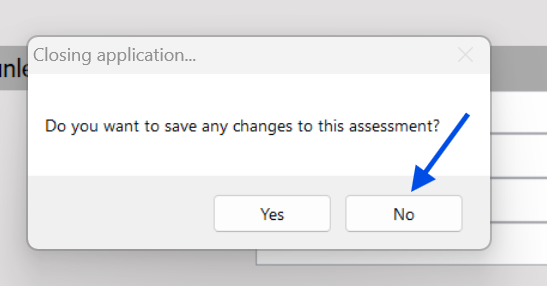
Now close the FRA Tool. If it says "Do you want to save any changes to this assessment?" click No.
Step 9: Open the FRA Tool
Once the FRA tool is open again, take a look at your jobs list. The job should no longer be visible.
Was this article helpful?
That’s Great!
Thank you for your feedback
Sorry! We couldn't be helpful
Thank you for your feedback
Feedback sent
We appreciate your effort and will try to fix the article